243: Recommendations, Evidence and Actions
This course is for Operations Engineers.
By the end, you will understand how to review, interpret, and act on recommendations in the Kelvin UI — including evidence, actions, control changes, and comments.
What is a Recommendation?
A recommendation is the primary way that a Kelvin SmartApp™ communicates with you as an Operations Engineer. When a SmartApp detects a condition that needs attention, it packages its findings into a recommendation and sends it to the Kelvin UI for you to review.
A recommendation always contains:
- A suggested set of actions to be taken
- Supporting evidence explaining why the actions are recommended
- The current values and the recommended new values so you can see exactly what will change
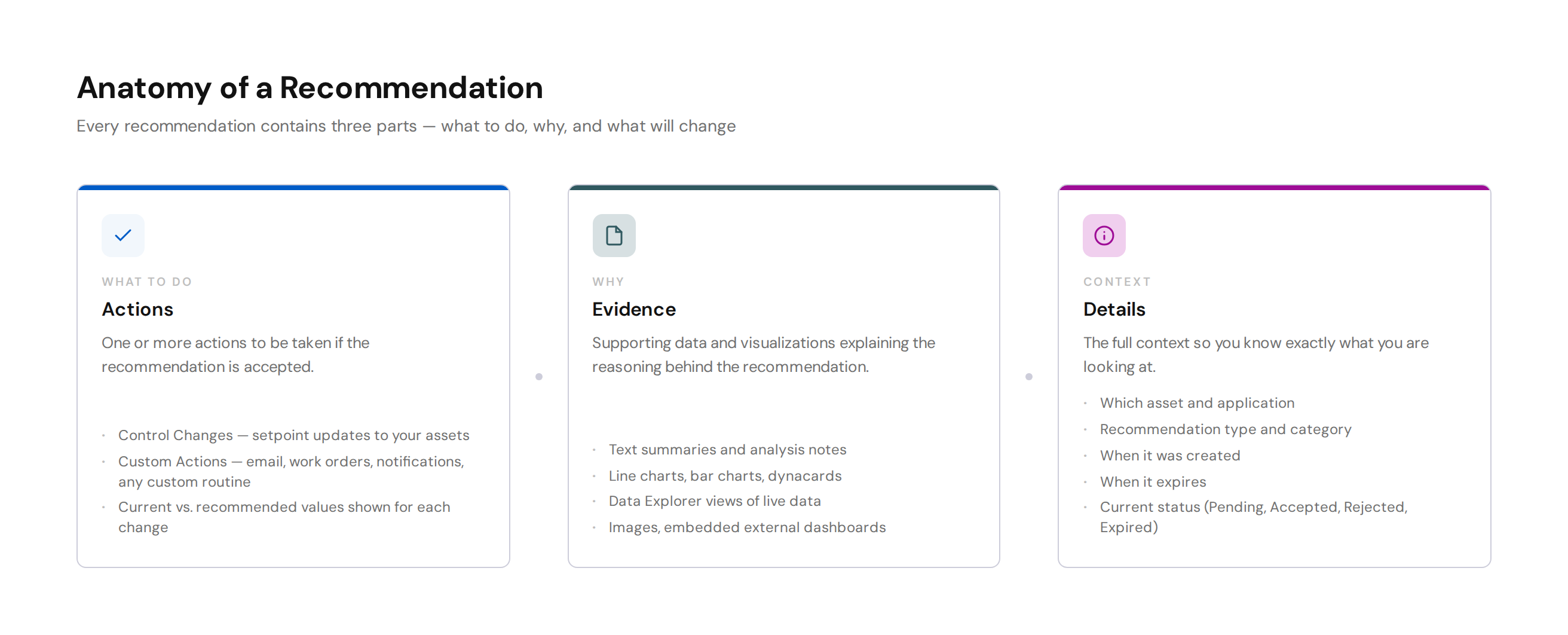
Think of it as a SmartApp raising its hand and saying: "I've found something. Here's what I think we should do, and here's my evidence."
Where Do Recommendations Appear?
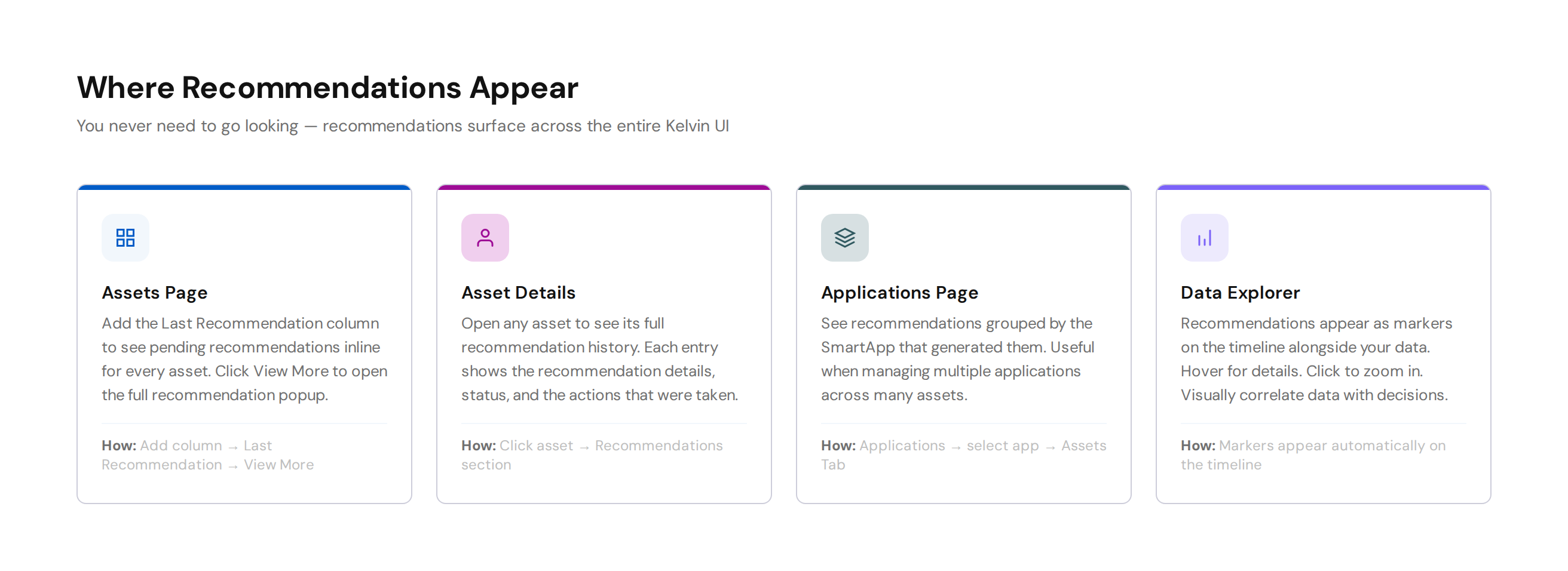
You do not need to go looking for recommendations. They surface in multiple places across the Kelvin UI so you never miss one.
Assets Page
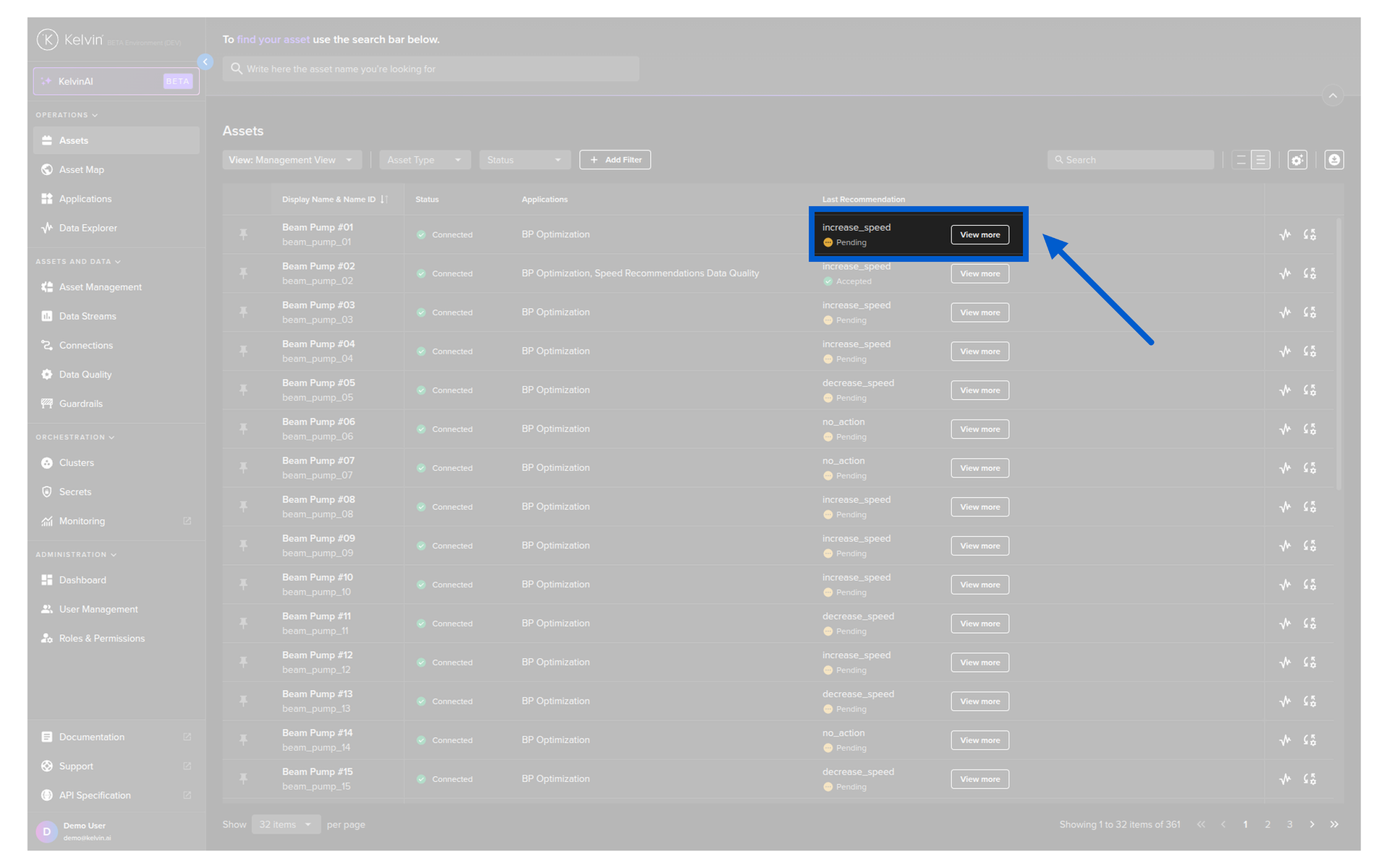
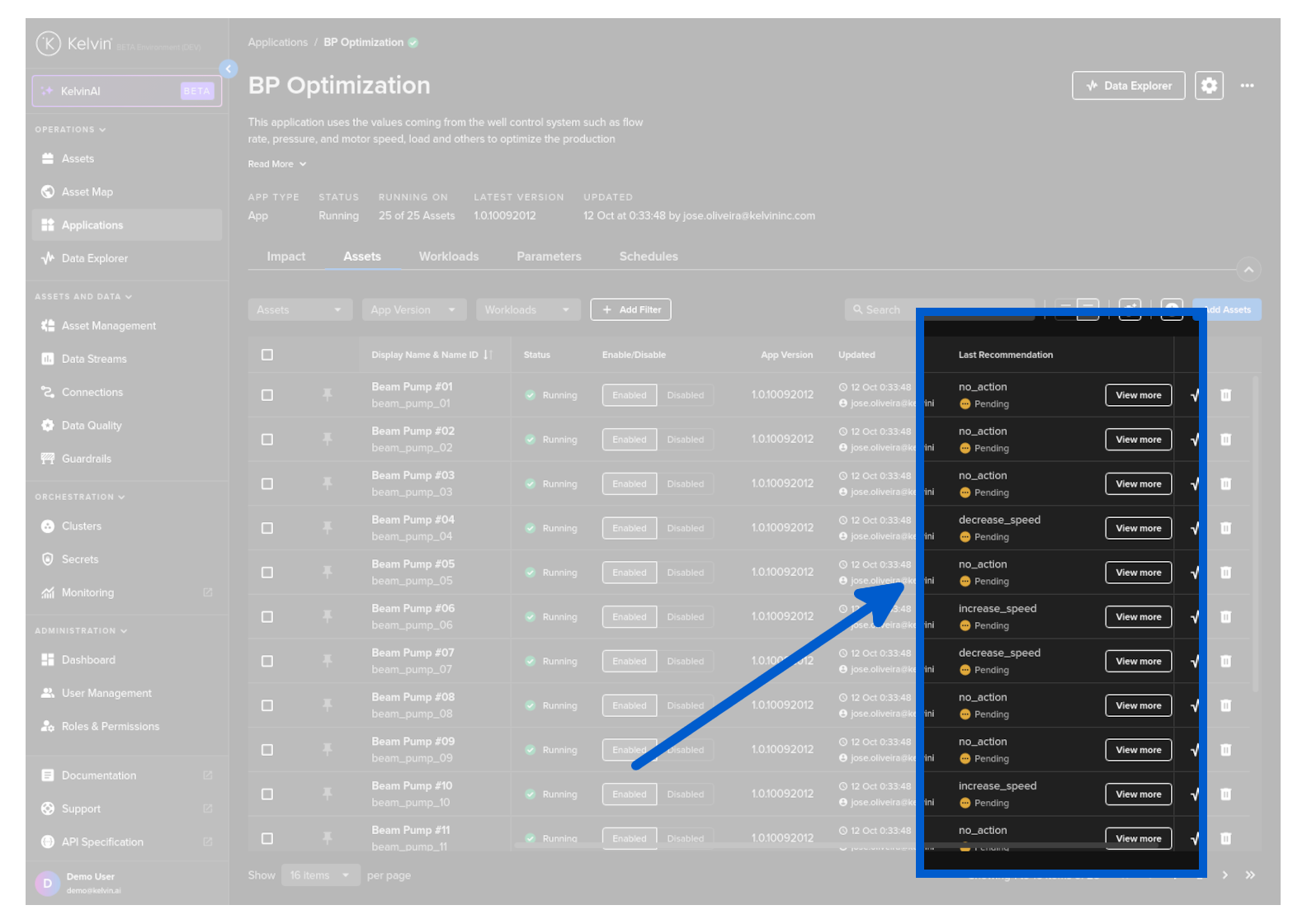
Add the Last Recommendation column to your asset table to see pending recommendations inline for every asset. When a recommendation is pending, you will see a View More button that takes you directly to the full recommendation details.
If you see a Details link instead of View More, it means there are no pending recommendations for that asset — only historical ones.
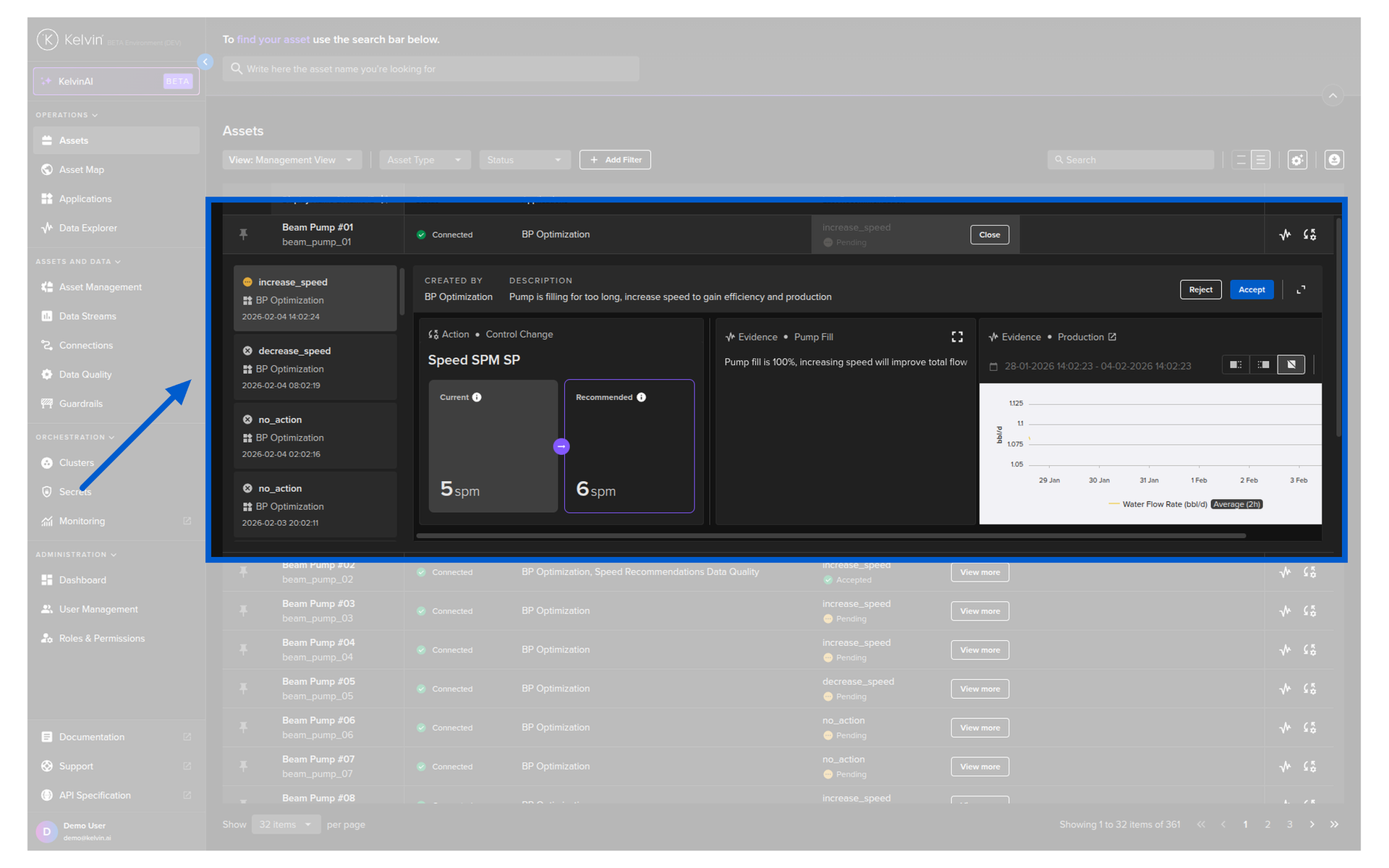
When you click on it you will see the information of the recommendation inline.
For details on how to add this column, see the Managing Assets documentation.
Asset Details
Open any asset's detail page and navigate to the recommendations section to see the full recommendation history for that asset.
For details, see the Asset Details Recommendation View documentation.
Applications Page
From the Applications page, select an application and go to the Assets Tab. Recommendations are shown grouped by application, so you can see which SmartApp generated each one.
For details, see the Applications — Action Recommendations documentation.
Data Explorer
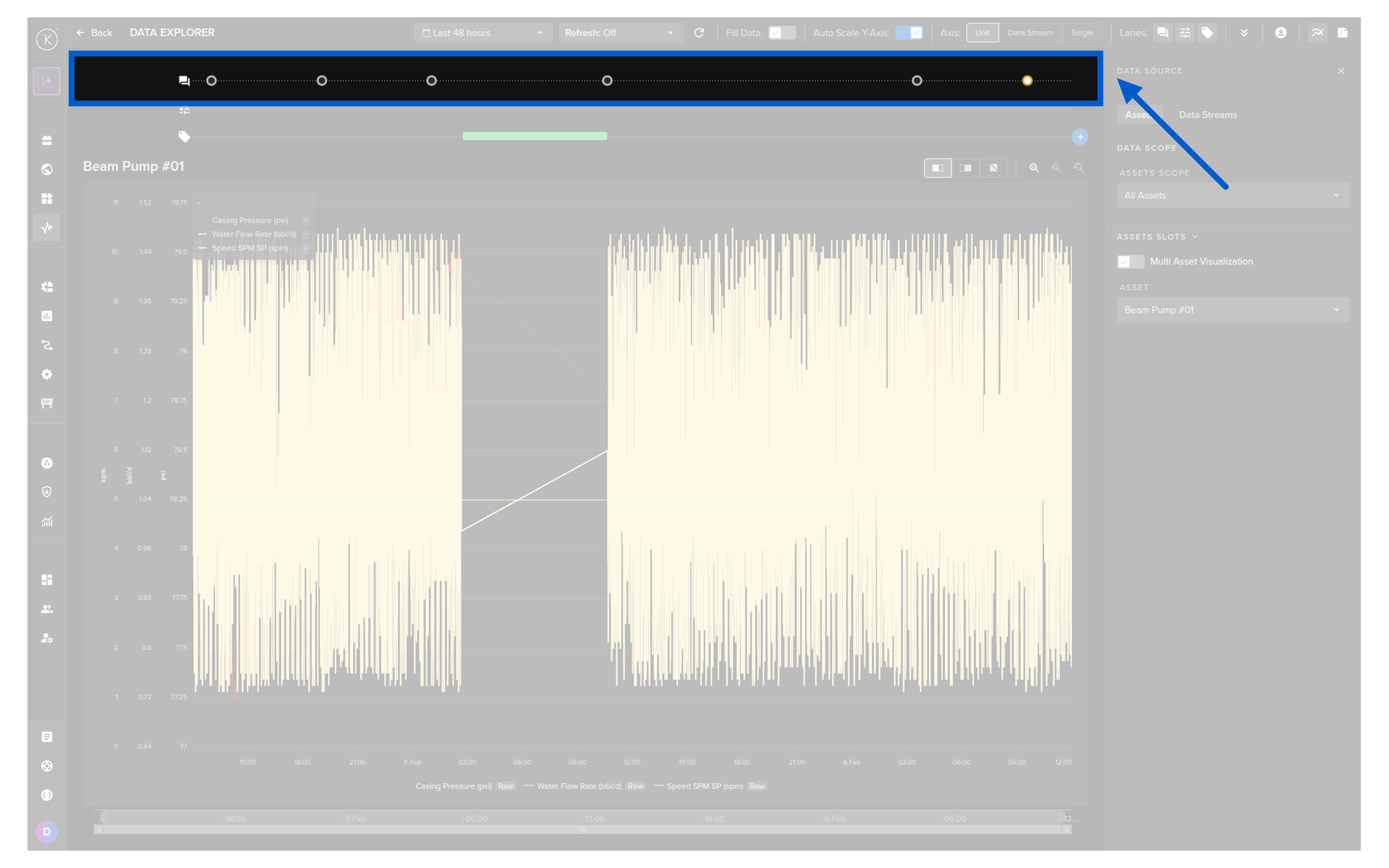
Every recommendation is shown as a marker on the Data Explorer timeline. This lets you visually correlate recommendations with the data that triggered them.
When the time scale is zoomed out, individual recommendations are grouped into a white circle with a count. Click to zoom in and see each one. Hover over any marker to see a popup with the recommendation details.
For details, see the View Recommendations documentation.
The Recommendation Popup
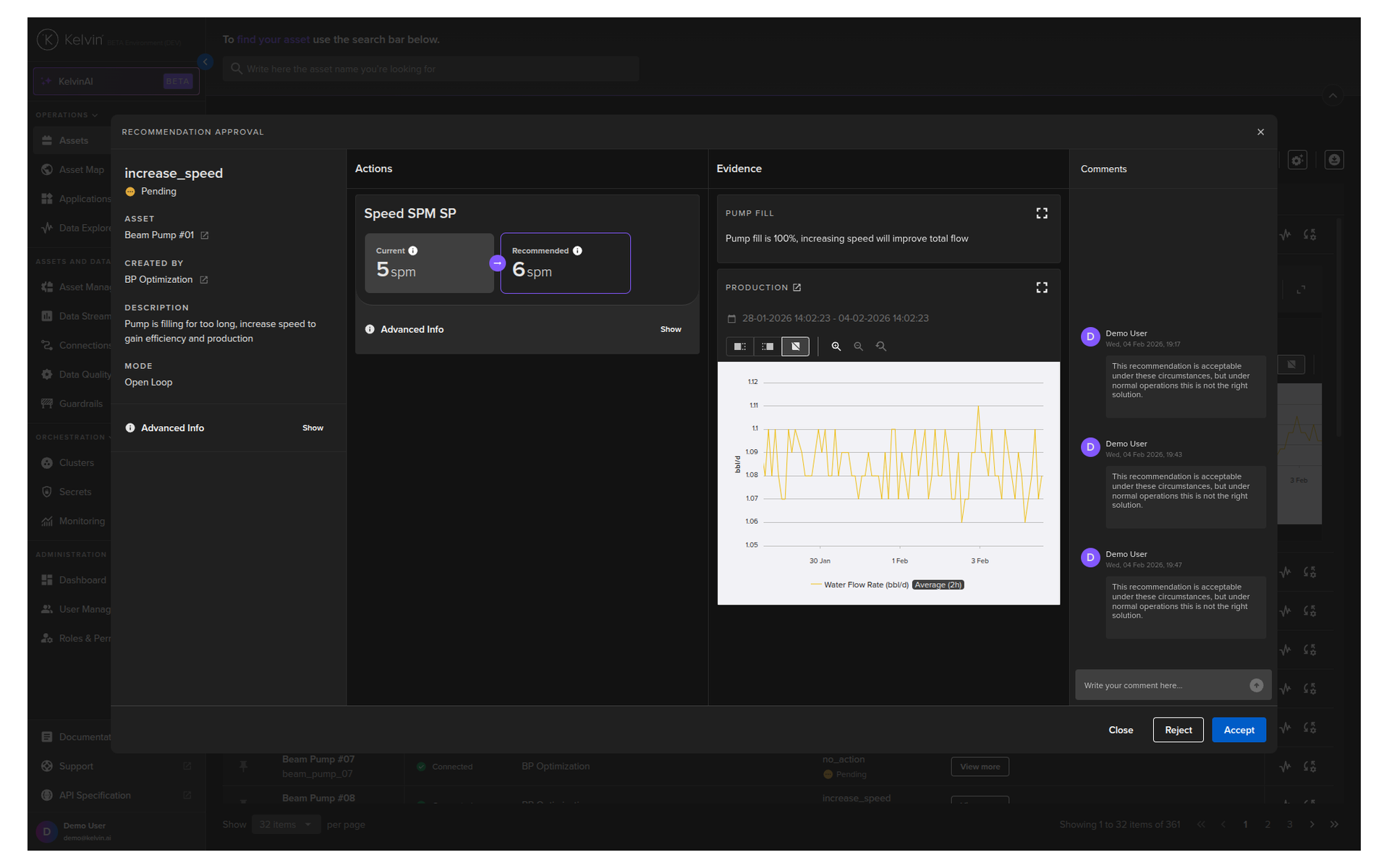
When you click View More on any pending recommendation, the recommendation popup opens. This is where you review and take action.
The popup is organized into three columns:
Left Column — Details
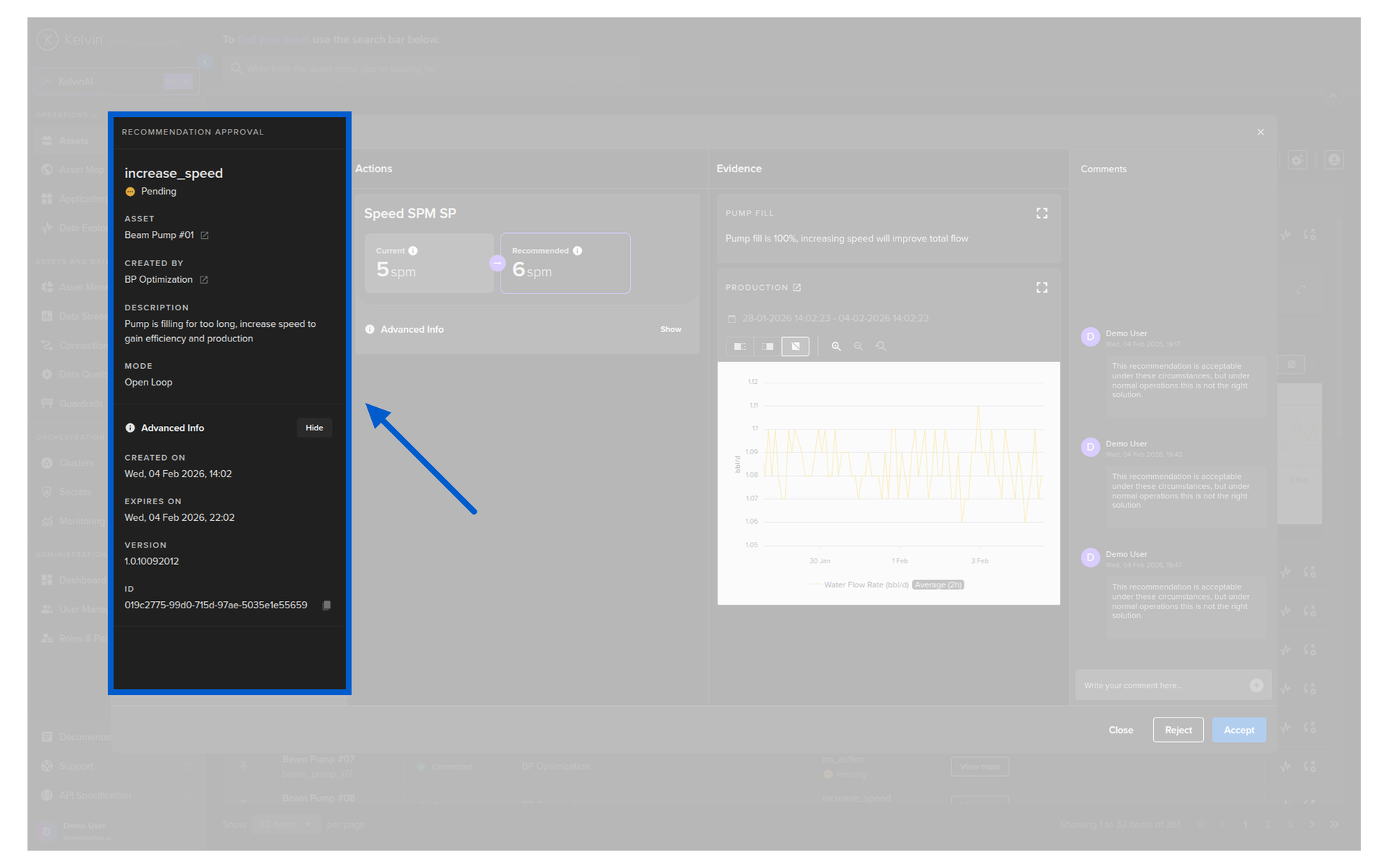
The left side shows the full context of the recommendation:
- Recommendation type — the category defined by the developer
- Asset — which asset the recommendation is for
- Application — which SmartApp generated it
- Timestamp — when it was created
- Expiration — when it will expire if no action is taken
- Status — Pending, Accepted, Rejected, or Expired
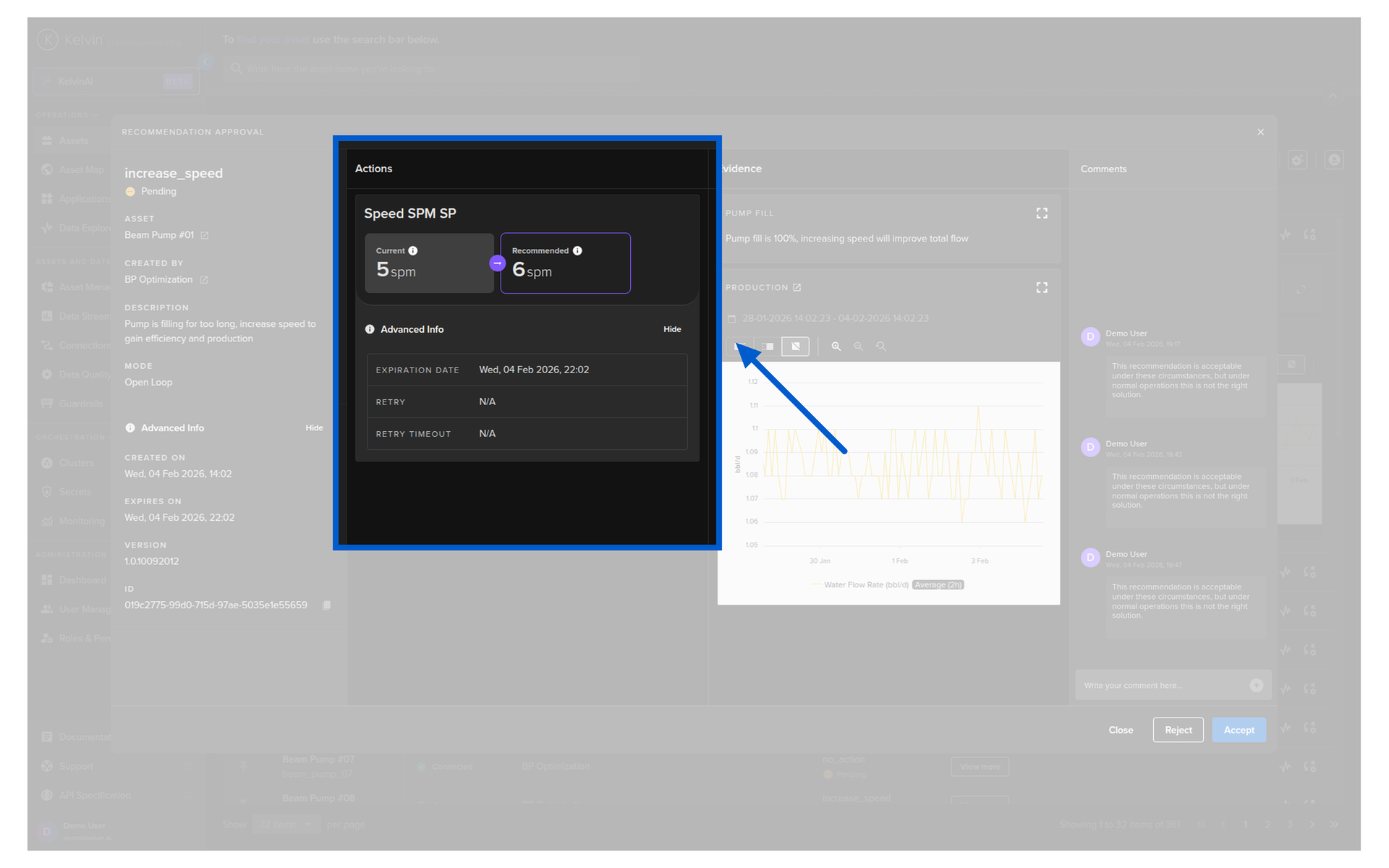
Middle Column — Actions
The Recommendation Actions column shows all the actions that will be taken if you accept the recommendation. A single recommendation can contain multiple actions.
There are two types of actions:
Control Changes — these are setpoint changes that will be written directly to the asset through the connector. For each control change you can see:
- The data stream that will be changed
- The current value when the recommendation was created
- The recommended new value
Custom Actions — these are any other type of action that a developer has built into the SmartApp. Examples include:
- Sending an email notification
- Creating a work order in your ERP system
- Sending a Slack message
- Pushing data to a third-party system
- Any custom routine the developer has defined
Custom Actions
The types of custom actions available depend entirely on what the developers have built into the SmartApp. Control changes are a Kelvin built-in feature. Custom actions are unlimited — developers can create any type of action and package it with a recommendation.
Right Column — Evidence
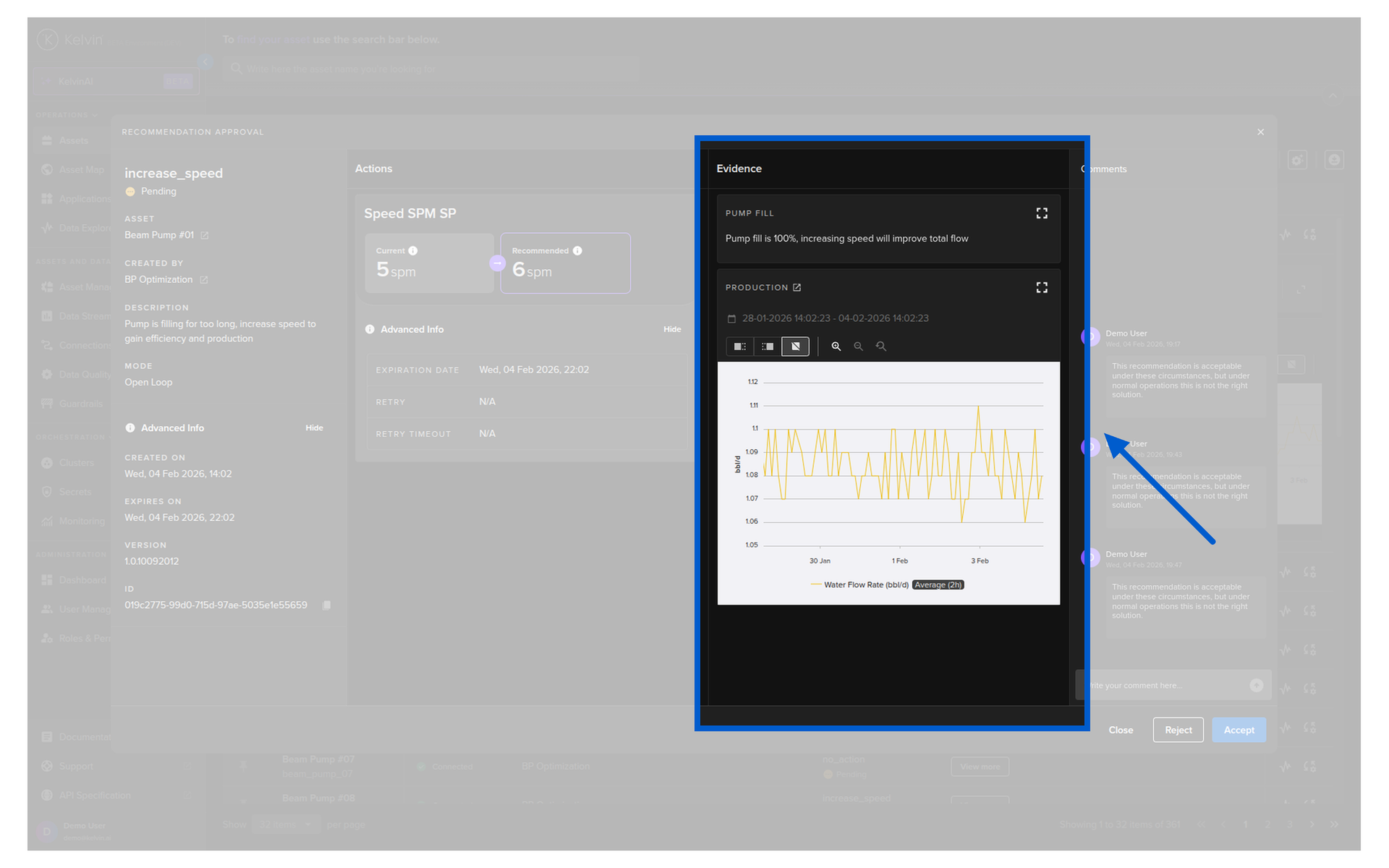
The evidence section provides the supporting data and visualizations that explain why the recommendation was made. Evidence can include one or more items in various formats.
Evidence Types
Evidence is what makes Kelvin recommendations powerful. Instead of just being told to change a setpoint, you see the data and reasoning behind the suggestion.
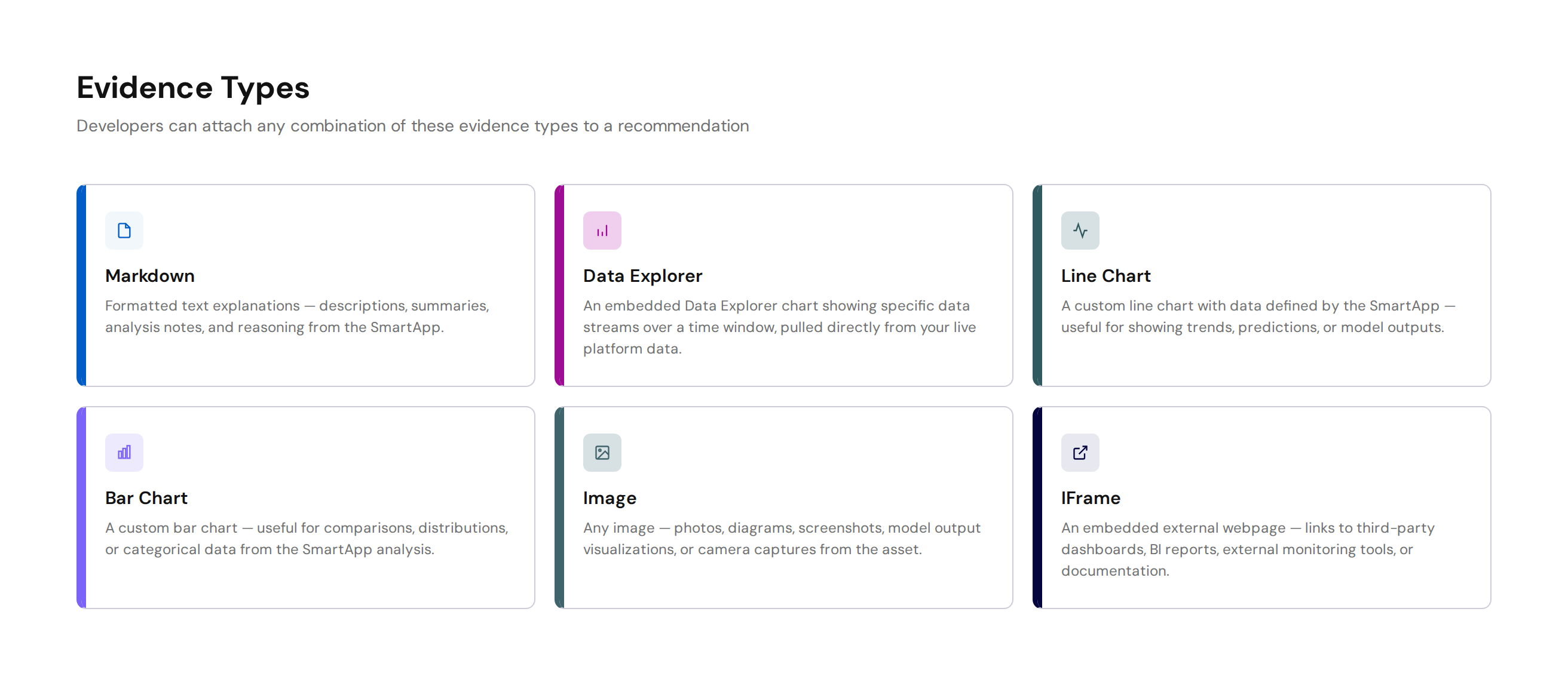
Developers can attach any combination of the following evidence types to a recommendation:
| Evidence Type | What It Shows |
|---|---|
| Markdown | Formatted text explanations — descriptions, summaries, analysis notes |
| Data Explorer | An embedded Data Explorer chart showing specific data streams over a time window, pulled directly from your live data |
| Line Chart | A custom line chart with data defined by the SmartApp |
| Bar Chart | A custom bar chart with data defined by the SmartApp |
| Image | Any image — photos, diagrams, screenshots, model outputs |
| IFrame | An embedded external webpage — links to third-party dashboards, reports, or tools |
For Operations
Evidence gives you the full picture before you make a decision. If a recommendation says "reduce motor speed", the evidence might show you a temperature trend chart, a markdown summary of the analysis, and a Data Explorer view of the last 6 hours of sensor data — all in one place.
Taking Action
When reviewing a recommendation, you have three options:
Note
You can only accept or reject all actions as a group. It is not possible to select only certain actions to be executed.
Accept
Clicking Accept approves the recommendation. All actions listed in the middle column — control changes and custom actions — will be executed.
- Control changes are sent to the asset through the connector
- Custom actions are executed according to their type (email sent, work order created, etc.)
Reject
Clicking Reject declines the recommendation. No actions are taken. You can optionally provide a reason for the rejection.
Comment
You can add comments to any recommendation at any time — before, after, or without accepting or rejecting. Comments are useful for:
- Noting your reasoning for the team
- Recording observations for future reference
- Providing feedback to the developers who built the SmartApp
Feedback Loop
Comments are visible to developers. They use your feedback to improve the SmartApps that produce the recommendations. If a SmartApp keeps recommending something that does not make sense, your comments help the developer understand why and fix the logic.
Open Loop vs. Closed Loop
Every asset-application combination can be configured to run in one of two modes:
Note
This feature is not available to all recommendations. It depends on the application and developer's decision whether to use this feature or not.
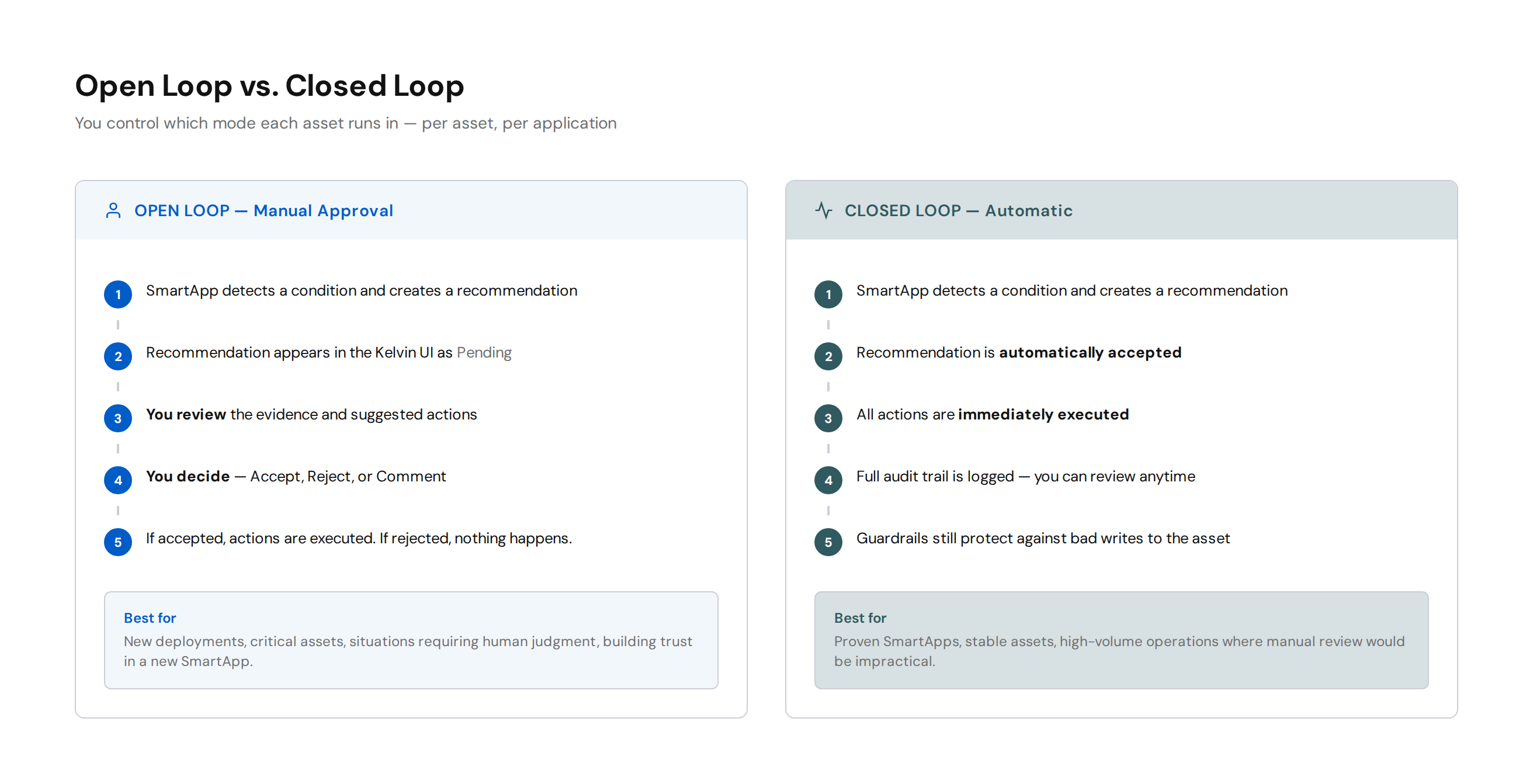
| Mode | What Happens |
|---|---|
| Open Loop | Every recommendation waits for your manual approval. No action is taken until you accept. |
| Closed Loop | Recommendations are automatically accepted and their actions are executed immediately. |
You can set this per asset per application. For example, you might run most wells in closed loop but keep a few problematic ones in open loop for closer monitoring.
Building Trust
Most operations start in Open Loop while you validate that the SmartApp is making good recommendations. As trust builds, you move individual assets to Closed Loop. This is always your decision.
Control Changes in Detail
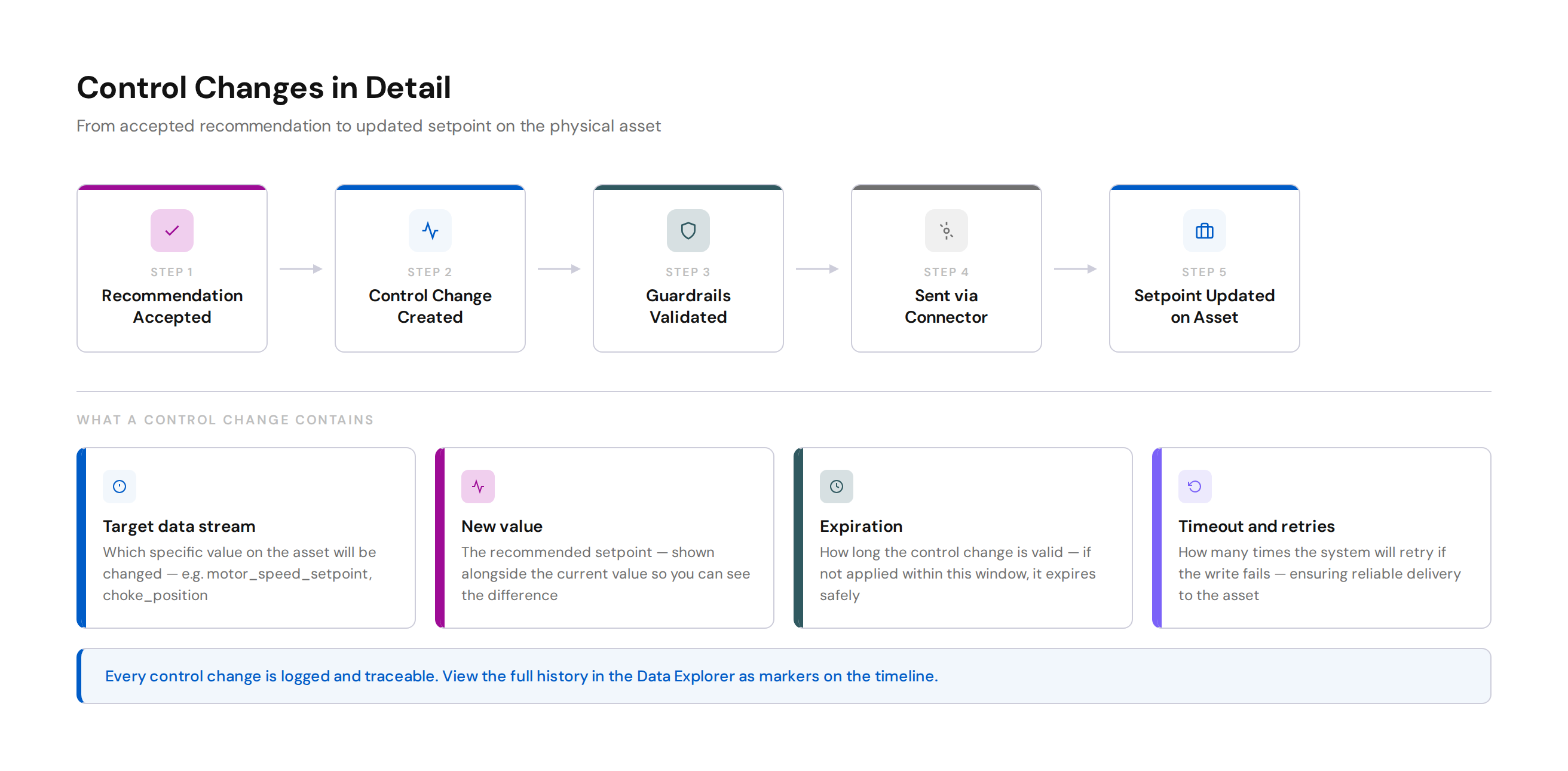
When a recommendation is accepted (either manually or automatically in closed loop), any control changes it contains are sent to the asset.
A control change updates a specific data stream value — typically a setpoint — on the physical asset through the deployed connector. Each control change includes:
- Target data stream — which value will be changed
- New value — the recommended setpoint
- Expiration — how long the change is valid
- Timeout and retries — how many times the system will retry if the change fails
Every control change is logged and traceable. You can see the full history of control changes for any asset in the Data Explorer, where they appear as markers on the timeline.
For details, see the View Control Changes documentation.
Quick Reference
| I want to... | Where to go |
|---|---|
| See if any assets have pending recommendations | Assets page → add Last Recommendation column |
| Review the full details of a recommendation | Click View More on the pending recommendation |
| See the evidence behind a recommendation | Recommendation popup → right column |
| Accept a recommendation and execute its actions | Recommendation popup → Accept |
| Reject a recommendation | Recommendation popup → Reject |
| Leave a comment or note | Recommendation popup → Comment (available anytime) |
| See recommendation history on a timeline | Data Explorer → recommendation markers |
| See control change history on a timeline | Data Explorer → control change markers |
| Switch an asset between Open Loop and Closed Loop | Applications → Parameters Tab → kelvin_closed_loop parameter |
Summary
Recommendations are how Kelvin SmartApps™ communicate with you. They package a suggested action with supporting evidence so you can make informed decisions.
The key things to remember:
- Recommendations appear everywhere — Assets page, Asset Details, Applications, and Data Explorer
- Every recommendation has actions (what will happen) and evidence (why it should happen)
- Actions can be control changes (setpoint updates) or custom actions (email, work orders, anything)
- Evidence can be text, charts, images, embedded Data Explorer views, or external webpages
- You can Accept, Reject, or Comment — and comments help developers improve the SmartApp
- Open Loop means manual approval. Closed Loop means automatic. You control which mode each asset runs in.
For full documentation, visit:
- Asset Details Recommendation View
- Recommendation Action
- View Recommendations in Data Explorer
- View Control Changes in Data Explorer
Good luck and Happy Learning !