Update cluster
Upgrading Clusters
There are three areas of a Cluster than need to be upgraded when new versions are released.
- The Kubernetes cluster software
- The custom Kelvin pods
- Applications and Connections deployed to a Cluster
1. Kubernetes Cluster Upgrades
If you choose the option that Kelvin installs the Kubernetes cluster, Kelvin installs a customized K3s installation. The K3s can manage its own upgrades using the system-upgrade-controller.
If you choose to use your own Kubernetes cluster, then you should refer to its documentation on how to manage the updates.
2. Custom Kelvin Pod Upgrades
All Nodes in a Cluster have Kelvin specific pods running behind the scenes managing all the Kelvin related services.
From time to time these will need to be upgraded with the latest versions for both new features and for security updates. You can apply these upgrades automatically or manually.
Automatic Upgrades
Automatic upgrades will check for new versions at regular intervals and upgrade when new versions are available.
You can turn on and manage the frequency of upgrades from Kelvin UI.
From Orchestration menu click on a single Cluster, then under the Configuration tab you can set or disable the auto update feature and the frequency to check for updates.
Remember to click save after changing any settings otherwise you will lose those changes.
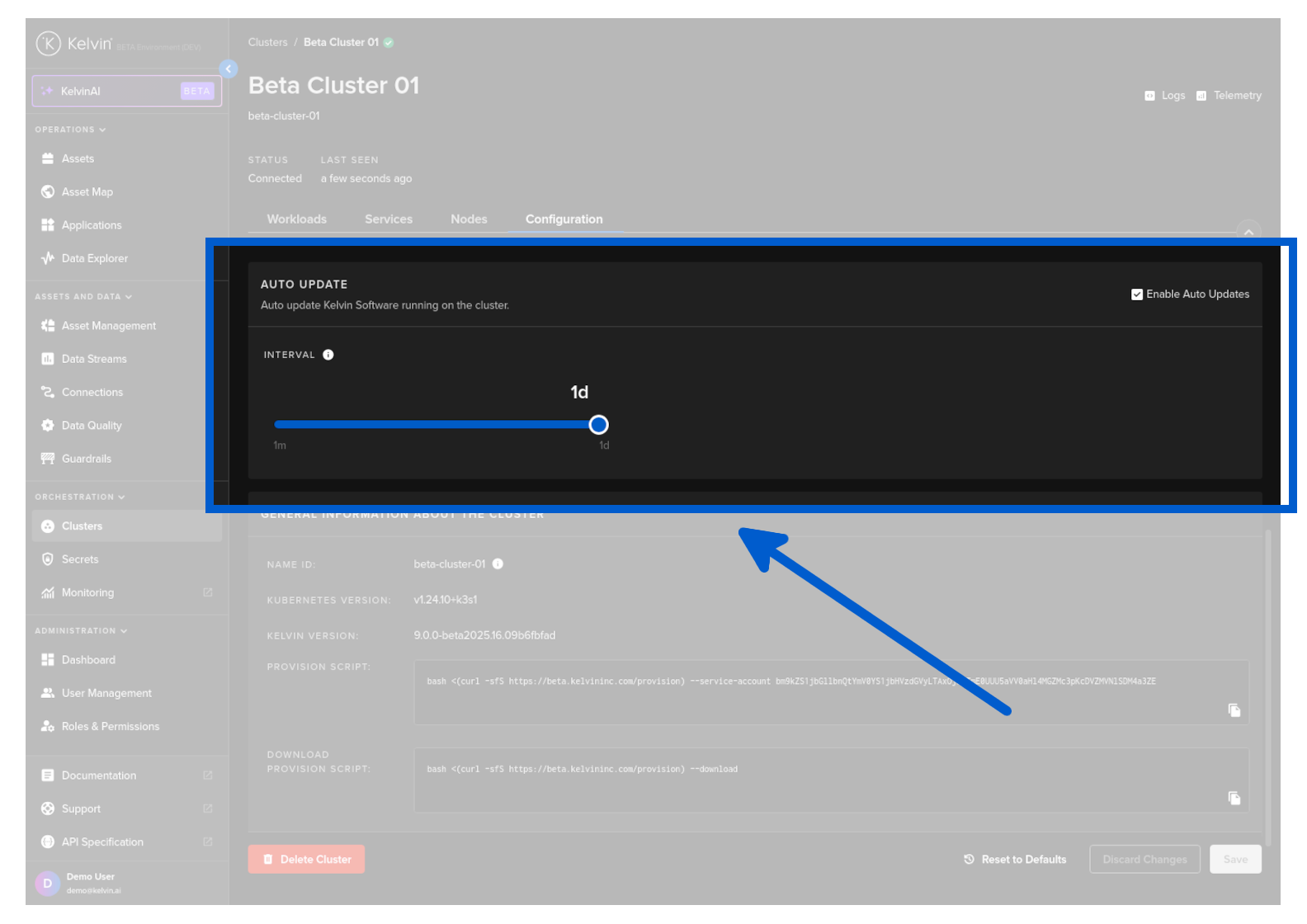
If you have Auto Update set, then Kelvin will automatically regularly check and upgrade all Kelvin pods when available.
Manual Upgrades
In circumstances when you want to apply upgrades manually, for example during maintenance shifts or when your assets are not in operation, you can turn off automatic upgrades.
For manual upgrades you have two options;
- Download and upgrade simultaneously.
- Download the updates but do not immediately apply them. At a later date you can separately initiate the actual upgrade process.
If your Internet connection is unreliable or slow, we advise splitting the download and upgrade steps. This approach reduces disruption to edge operations, allowing updates to be downloaded and staged in advance and then the upgrade itself executed regardless of Internet status during scheduled maintenance periods or when the asset is not running.
Before applying the changes, it is important that you understand the Cluster key options available in Kelvin API.
| Key | Options | Description |
|---|---|---|
| manifests_scrape_enabled | true / false | Enable or disable automatic upgrade of the cluster |
| manifests_scrape_interval | integer in seconds | If in automatic upgrade mode, how often the system will check for upgrades. |
| upgrade / instantly_apply | true / false | If set to true, the upgrade process will begin immediately after the updates have been downloaded and staged. If set to false, after download the cluster will wait for a signal to apply the upgrade. |
| upgrade / pre_download | true / false | If set to true, it will pre-download all the necessary workloads/images and stage them ready for upgrade. If set to false then Kubernetes will handle the image download and upgrade immediately. |
First you need to turn off automatic upgrades. You can do this from Kelvin API or Kelvin UI.
To turn off automatic upgrades from Kelvin UI;
From Orchestration menu click on a single Cluster, then under the Configuration tab you uncheck the auto update feature Enable Auto Updates.
Remember to click save after changing any settings otherwise you will lose those changes.
To turn off automatic upgrades you can set the manifests_scrape_enabled to false.
Now with Kelvin API you can setup the configuration on the Cluster on whether to download and upgrade each workload simultaneously or separately.
Download and Upgrade Simultaneously
There are two ways to do a manual upgrade where the download and upgrade is done simultaneously.
You will need to set the correct values for the keys for the Cluster to assign the way you want the upgrades to be performed.
| Upgrade Process | instantly_apply key |
pre_download key |
Description |
|---|---|---|---|
| By Kubernetes | true | false | When an upgrade is manually initiated, Kubernetes will handle the download and upgrade of all the Kelvin specific images. Images will be download and upgraded one by one. It is not guaranteed which order this will happen. |
| By Kelvin | true | true | Kelvin will monitor and download all new images and stage them when they become available. When an upgrade is manually initiated, Kelvin will first ensure all new updates have been downloaded to the edge, then the upgrade is started. |
Select the manual upgrade option in the table above then use these commands to set your choice in Kelvin.
This is not possible to set in the Kelvin UI.
Download and Upgrade Separately
You will first need to set the correct values for the keys for the Cluster to ensure the download and upgrades processes are done by two different commands.
| Upgrade Process | instantly_apply key |
pre_download key |
Description |
|---|---|---|---|
| By Kubernetes | NA | NA | Not possible. |
| By Kelvin | false | true | Kelvin will monitor and download all new images and stage them when they become available. When an upgrade is manually initiated, Kelvin will first ensure all new updates have been downloaded to the edge, then the upgrade is started. |
This is not possible to set in the Kelvin UI.
| API cURL Example | |
|---|---|
Finally you can trigger an upgrade to start on a Cluster either from your computer or directly on the edge system using the kelvin-provision command.
Trigger Upgrade from your Computer
There are a few conditions that must be met to ensure your upgrade request succeeds.
- The cluster must be connected.
- The cluster must be configured with the
pre_download == trueandinstantly_apply = false
This is not possible to initiate in the Kelvin UI.
Calling the following endpoint /orchestration/clusters/{cluster_name}/edge-apps/version/apply will cause the cluster to apply the upgrade according to the configuration you have created in the previous step.
Running this function will cause the cluster to apply the upgrade according to the configuration you have created in the previous step.
Trigger Upgrade on Edge System
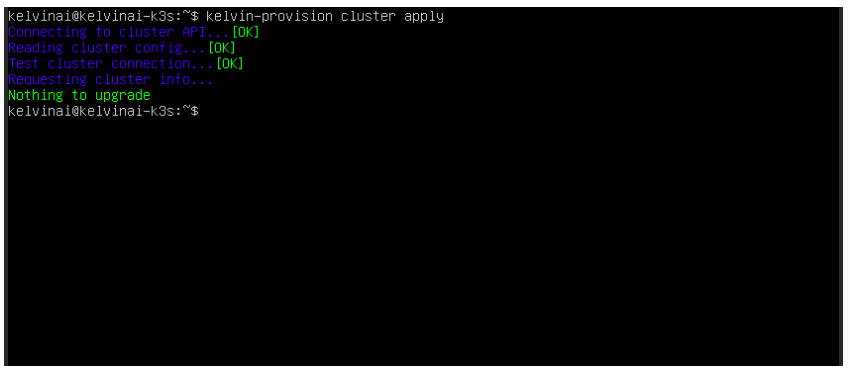
In the terminal of the Edge System you can also initiate the upgrade to start. This is very useful if the upgrade is done while the Cluster is disconnected from the Internet.
For an offline upgrade, the updates should be downloaded and staged beforehand. To download, the Cluster must be connected to the Internet.
This method allows you to download updates at your convenience, regardless of whether the asset is operational. The download process will not interfere with current operations.
| Kelvin SDK Command Line Example | |
|---|---|
3. Applications, Docker Apps and Connections Upgrades
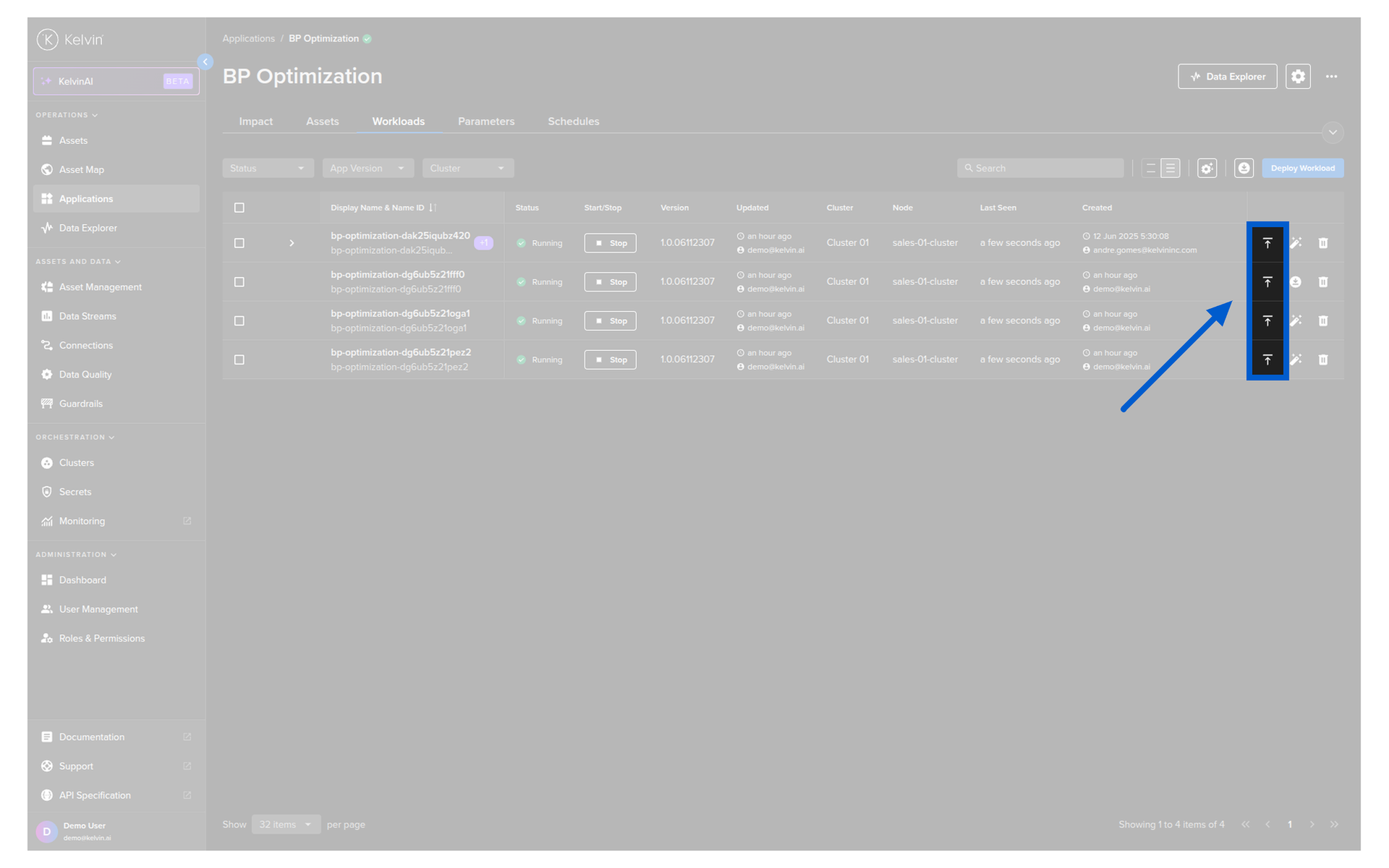
Workloads and Connections must be upgraded manually. You can send a new deploy for the new version and the old version currently running will be managed depending on the staged key.
Applications can be upgraded from the Kelvin UI. You can read full documentation on this feature here.