Update a Connection
Change Version
You can upgrade the Application version of a Connection.
You can also rollback to a previous version if the current version has issues.
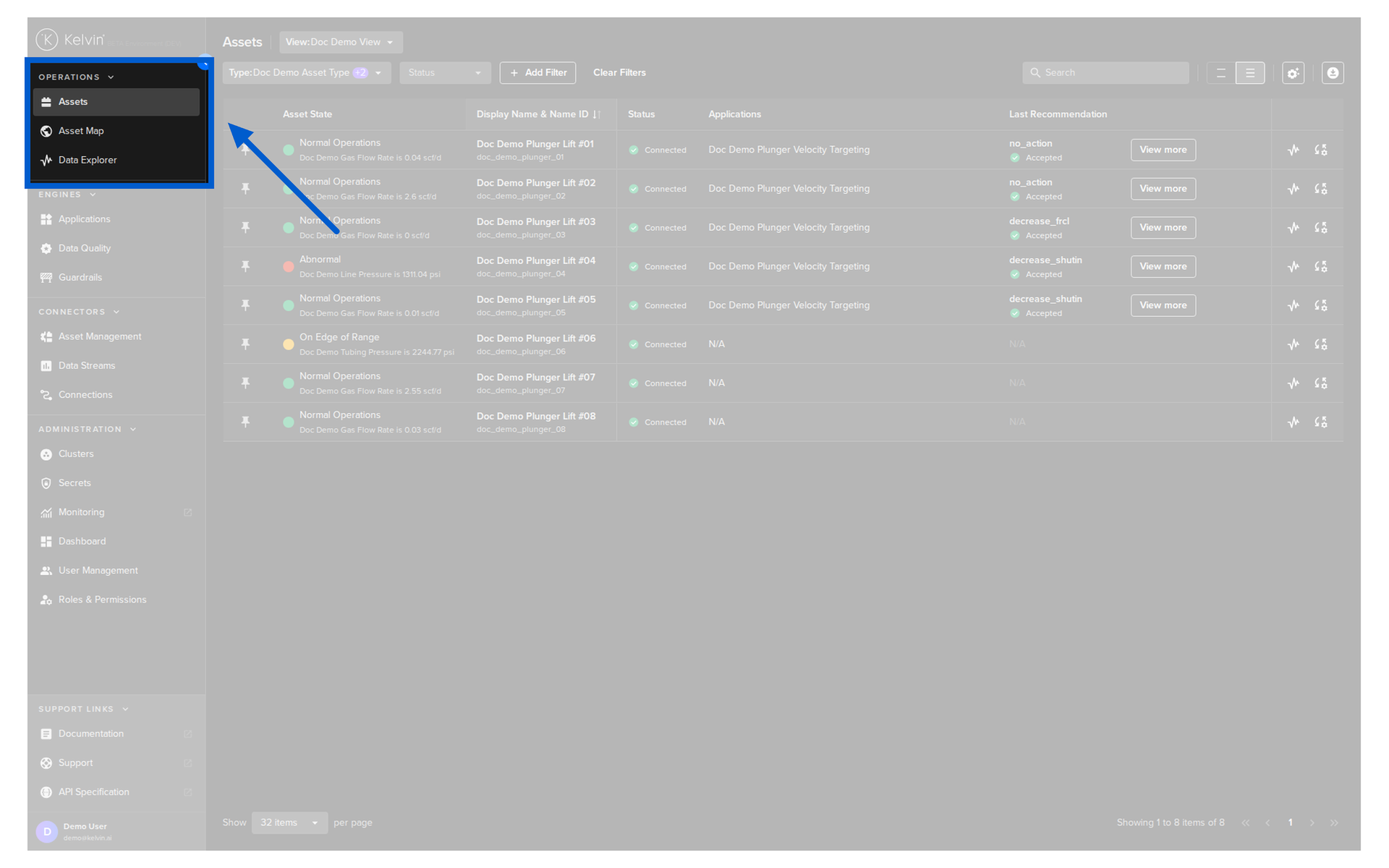
Go to Connections in the Kelvin UI.
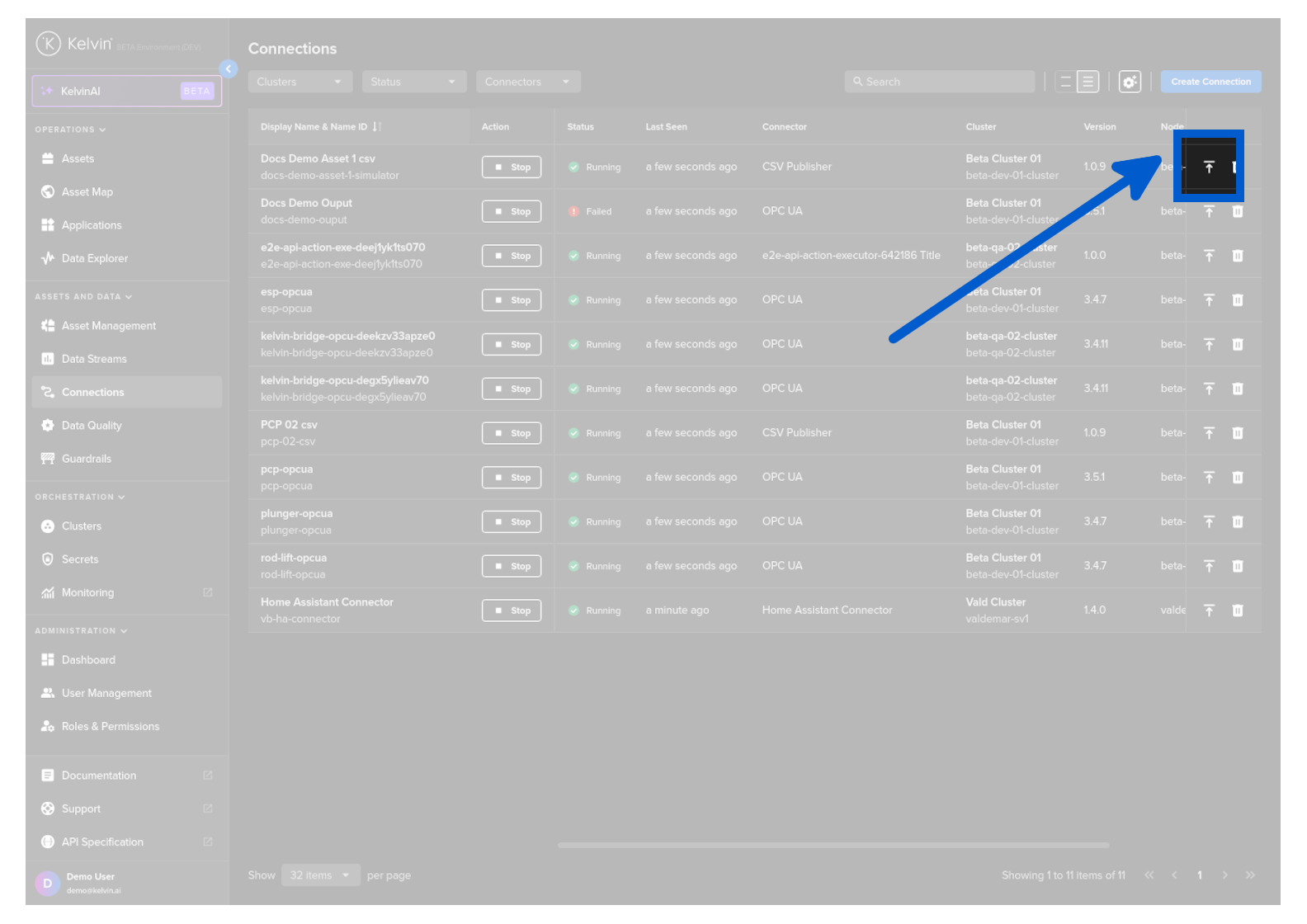
You can either click on the relevant upgrade icon;
Or click on the Connection Name and click on the Update Connection button.
Select the new version you want to use.
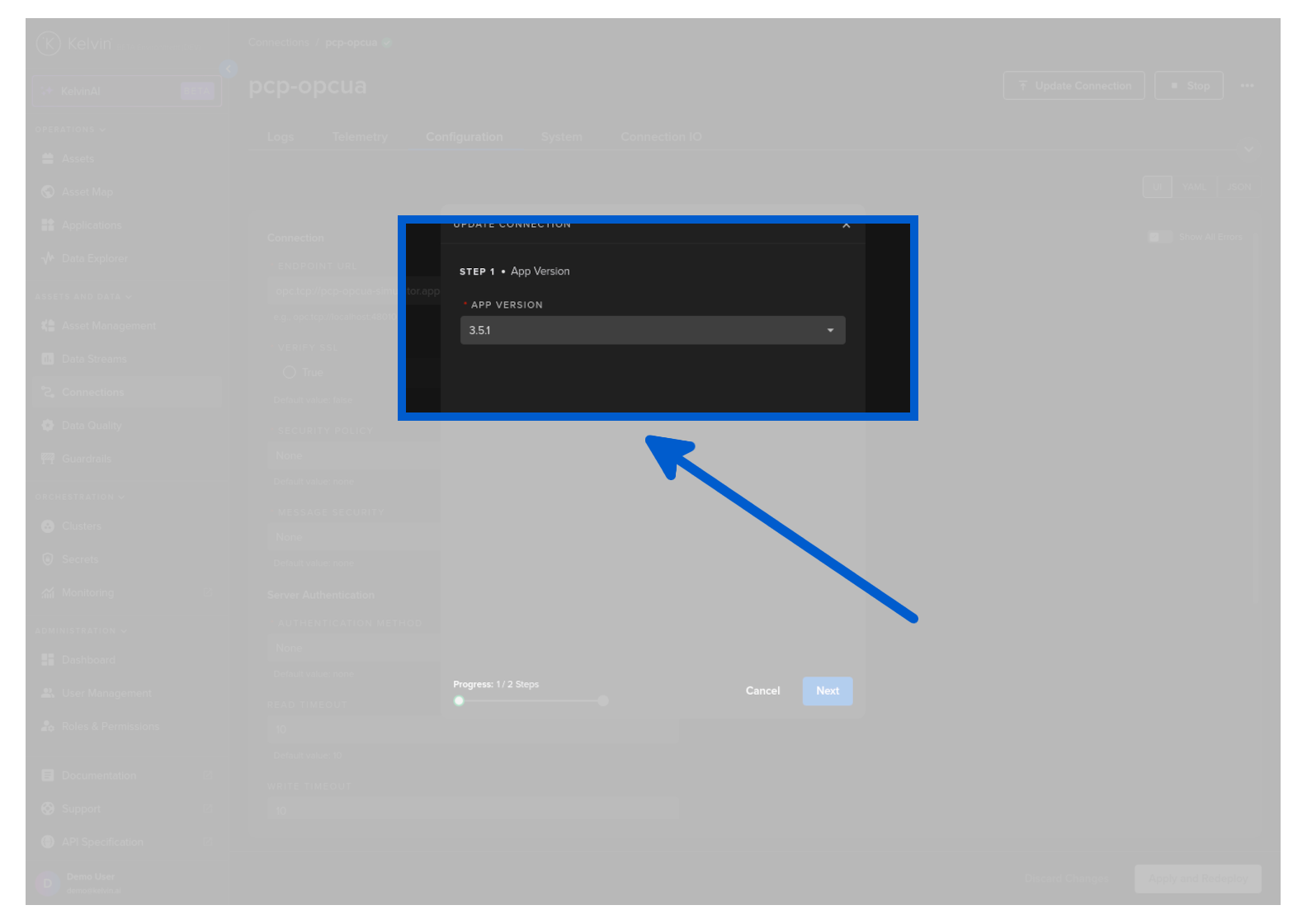
The rest of the process is exactly the same when you first create a Connection.
Note
If there are any new App Parameters or App Configurations in the new version, then the default values will be automatically applied to all Assets currently deployed to the Application.
These values can be changed during or after the upgrade is completed.
For documentation details for the rest of the steps, go to the relevant documentation page and start at Step 3.
- OPC-UA Connection
- Modbus Connection
- ROC Connection
- CSV Publisher Connection
- Custom Connection - Refer to the developer's documentation for details
Update Configuration
After deployment you can change the configuration settings that you originally set.
Go to Connections in the Kelvin UI.
Click on the Connection name.
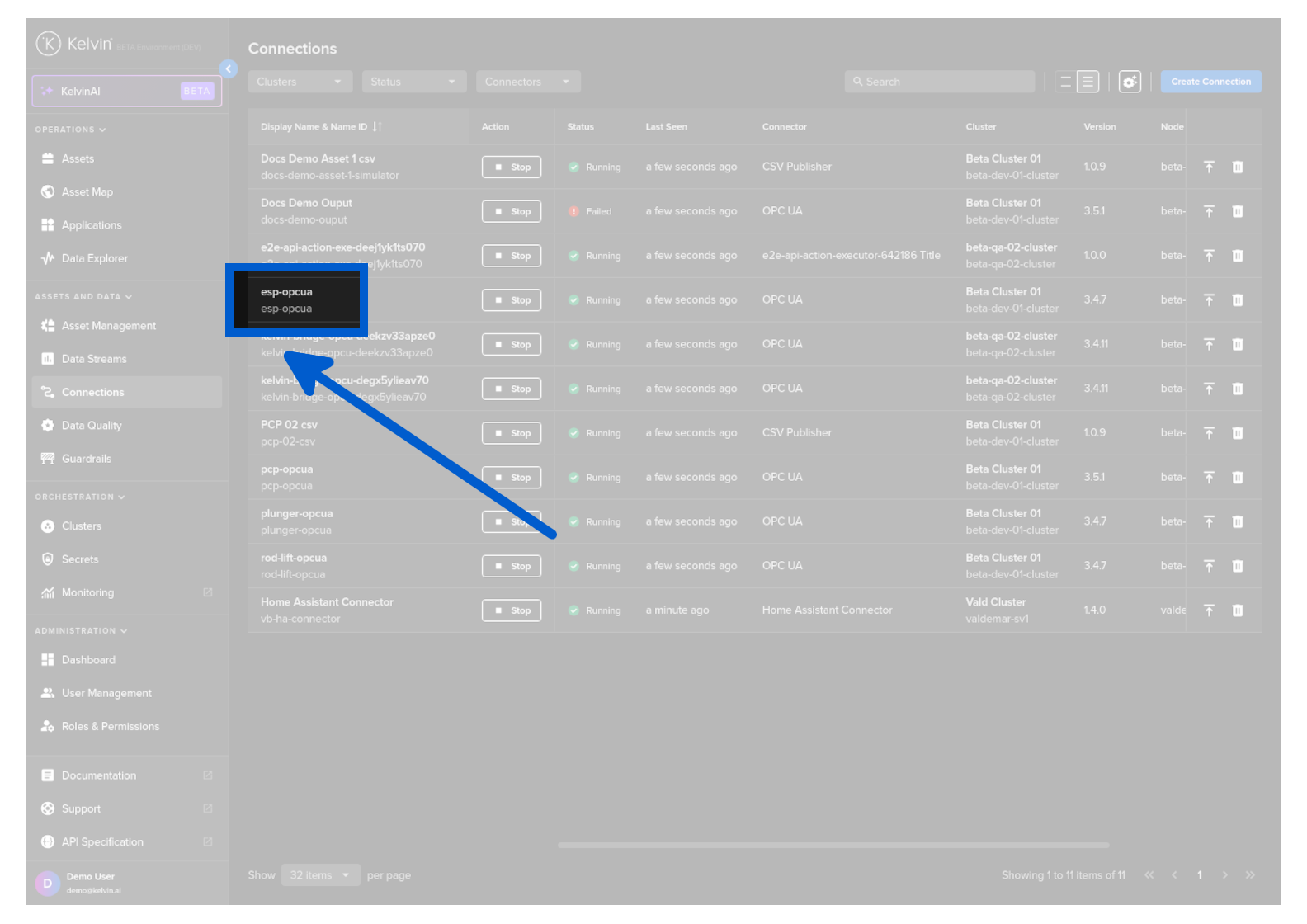
Click on the Configuration tab.
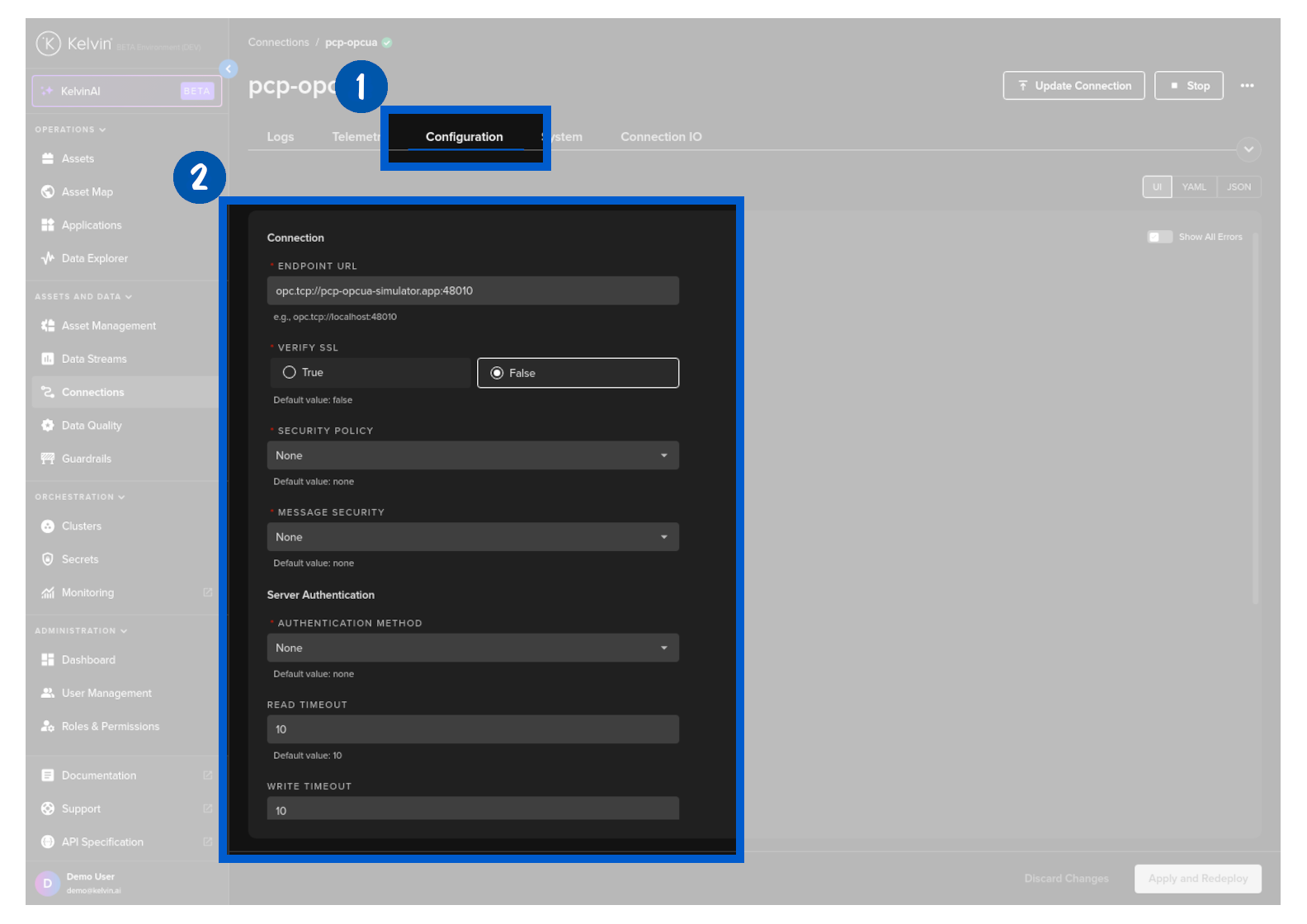
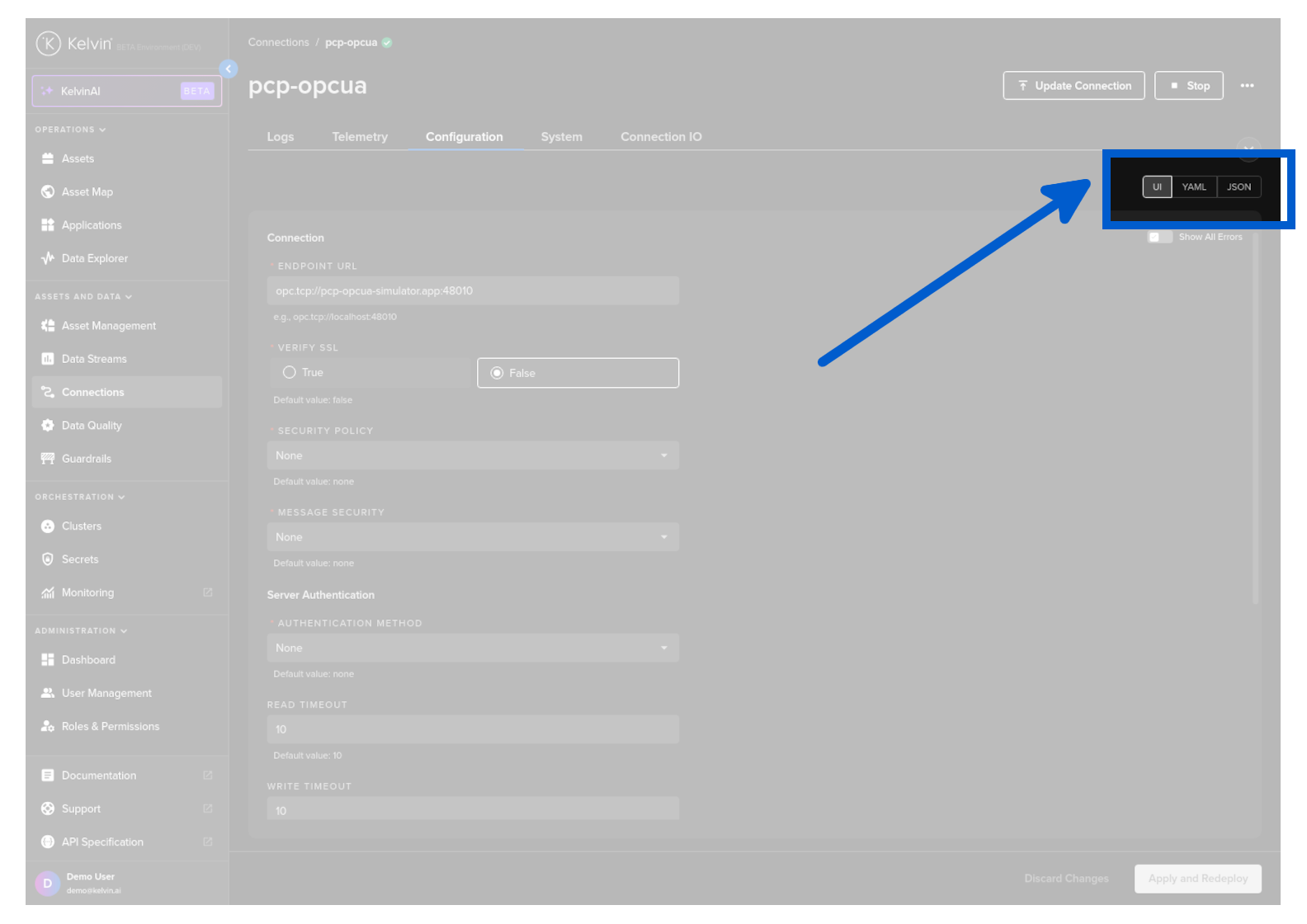
You can choose to edit in the UI (if available), in YAML or JSON format.
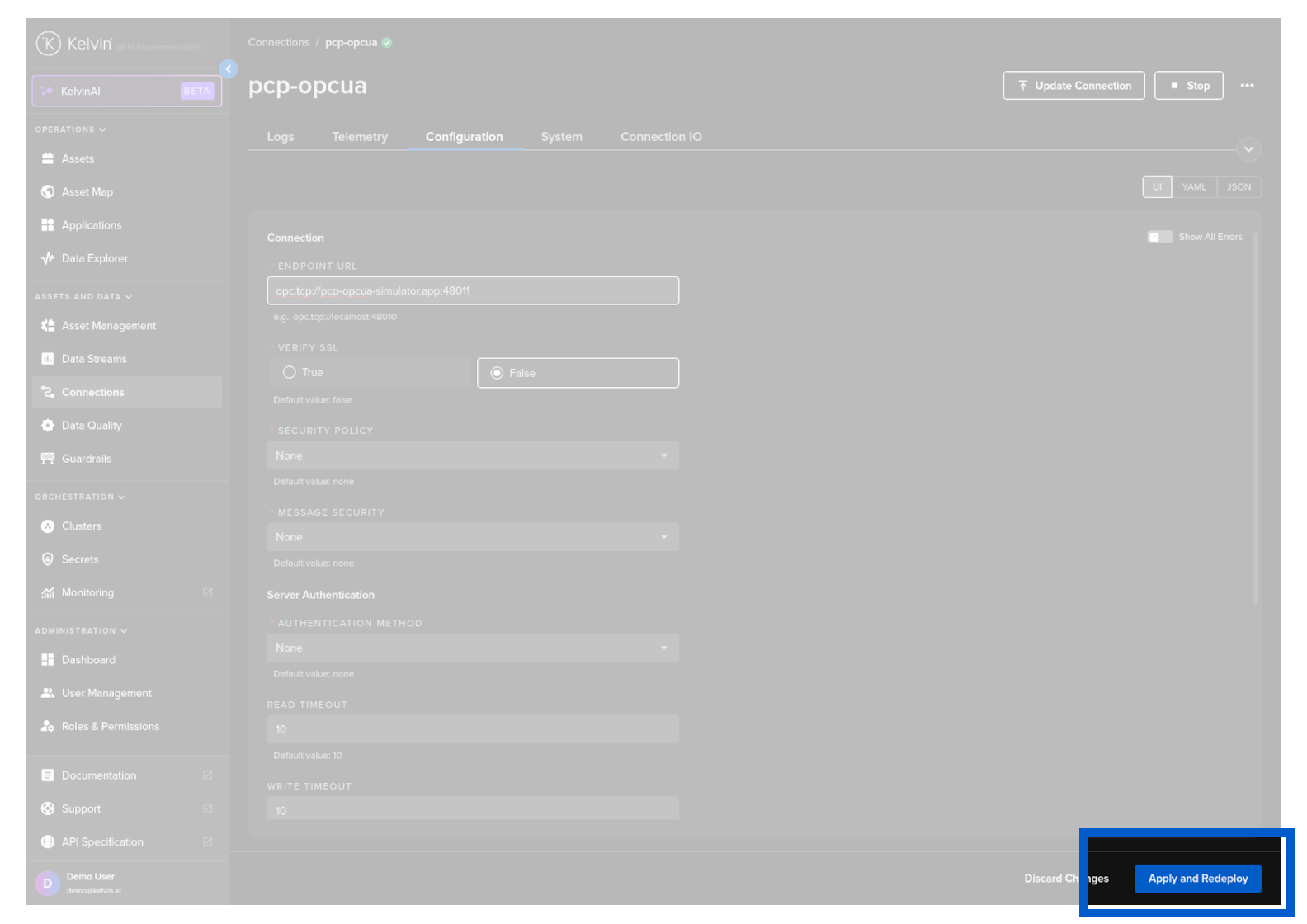
When ready, click on the Apply and Redeploy button
Update Deployment
After deployment you can change the deployment settings that you originally set.
Go to Connections in the Kelvin UI.
Click on the Connection name.
Click on the System tab.
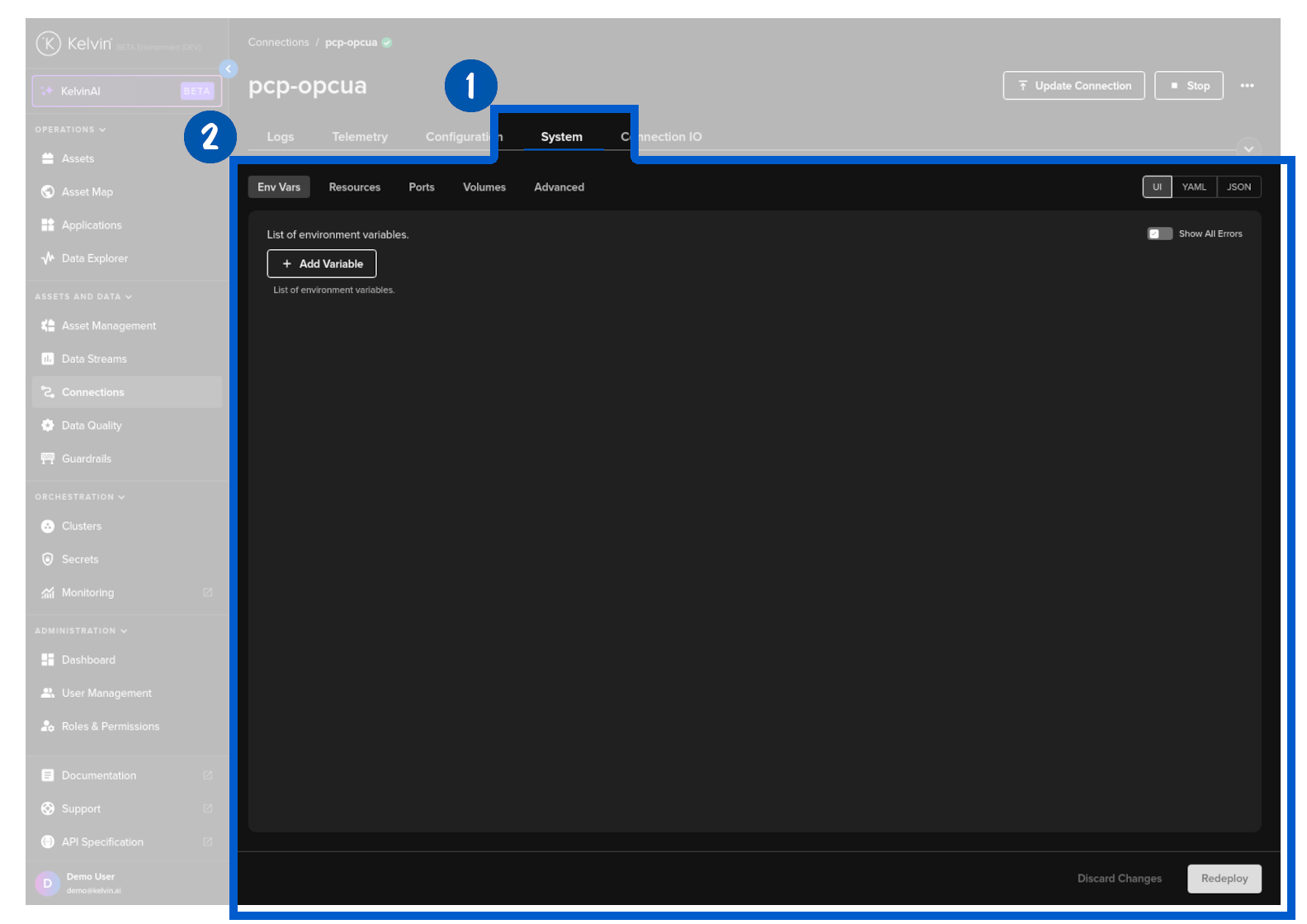
Here you can adjust the values, such as the environment variables, as required and then click on the Redeploy button.
Update Connection IO
After deployment you can change the IO Mappings that you originally set.
Note
You can also add or delete Assets from the IO Maps.
Go to Connections in the Kelvin UI.
Click on the Connection name.
Click on the Connection IO tab.
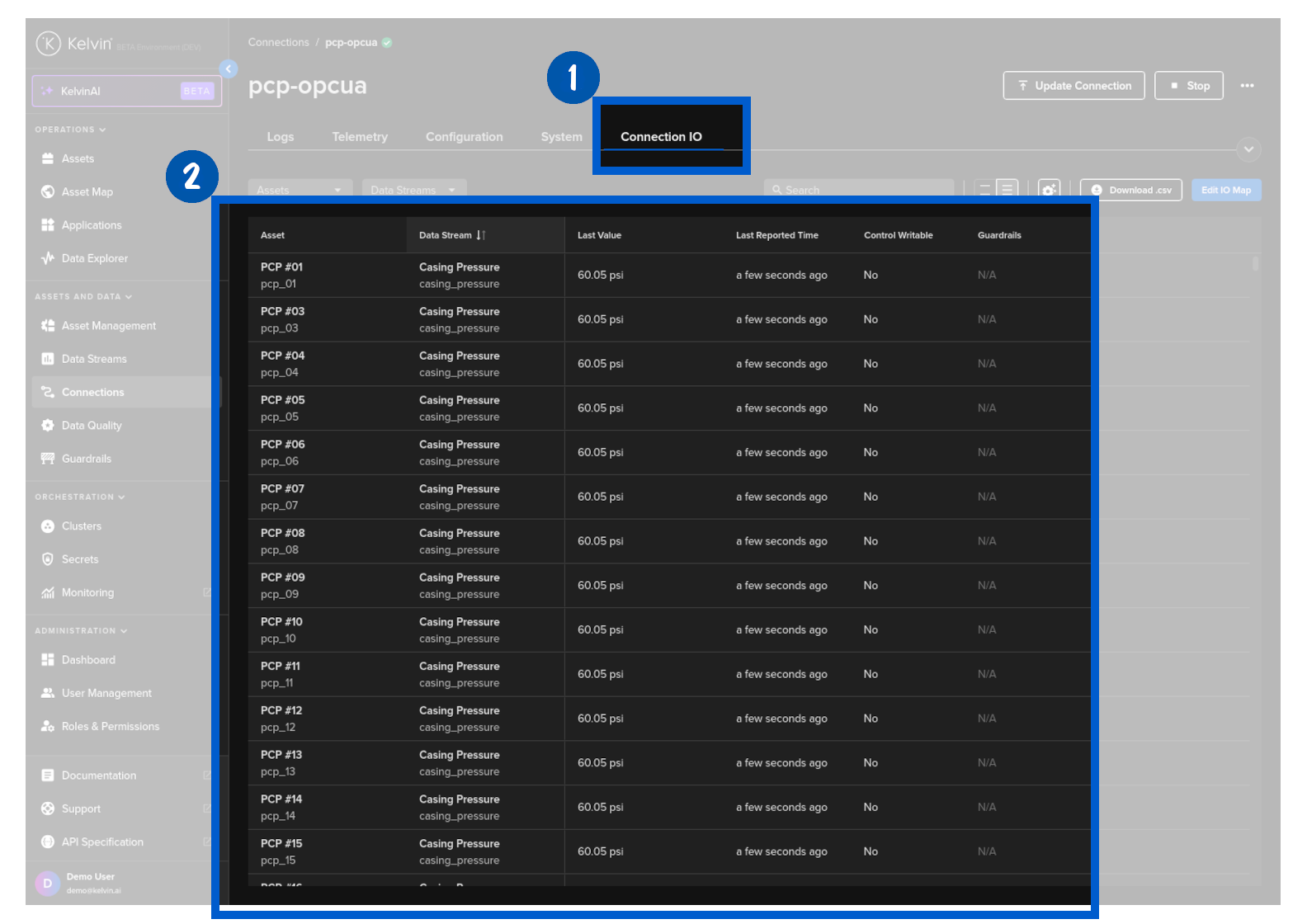
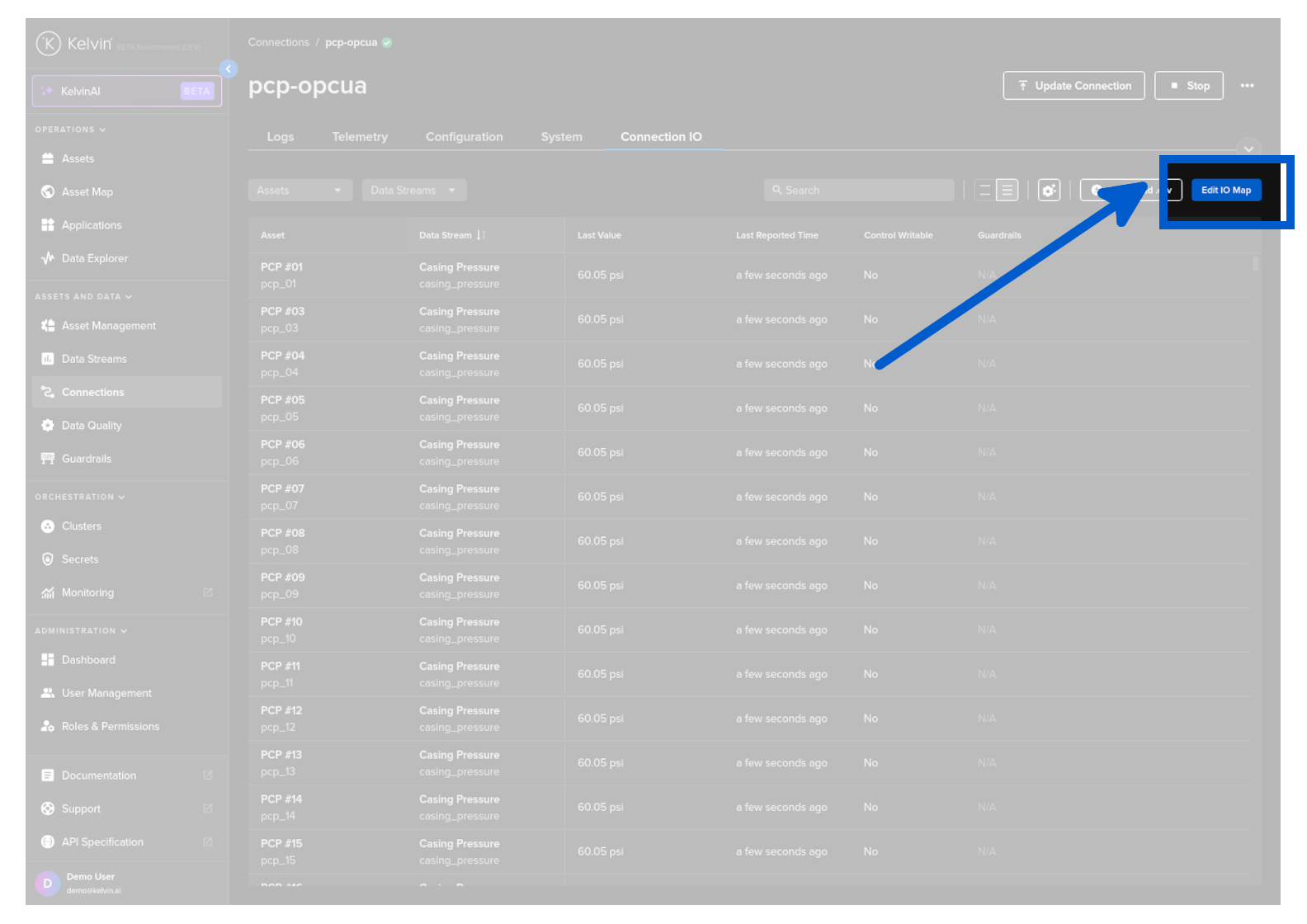
To edit, click on the Edit IO Map button.
You will then see the list of Assets that you can edit, add or delete.
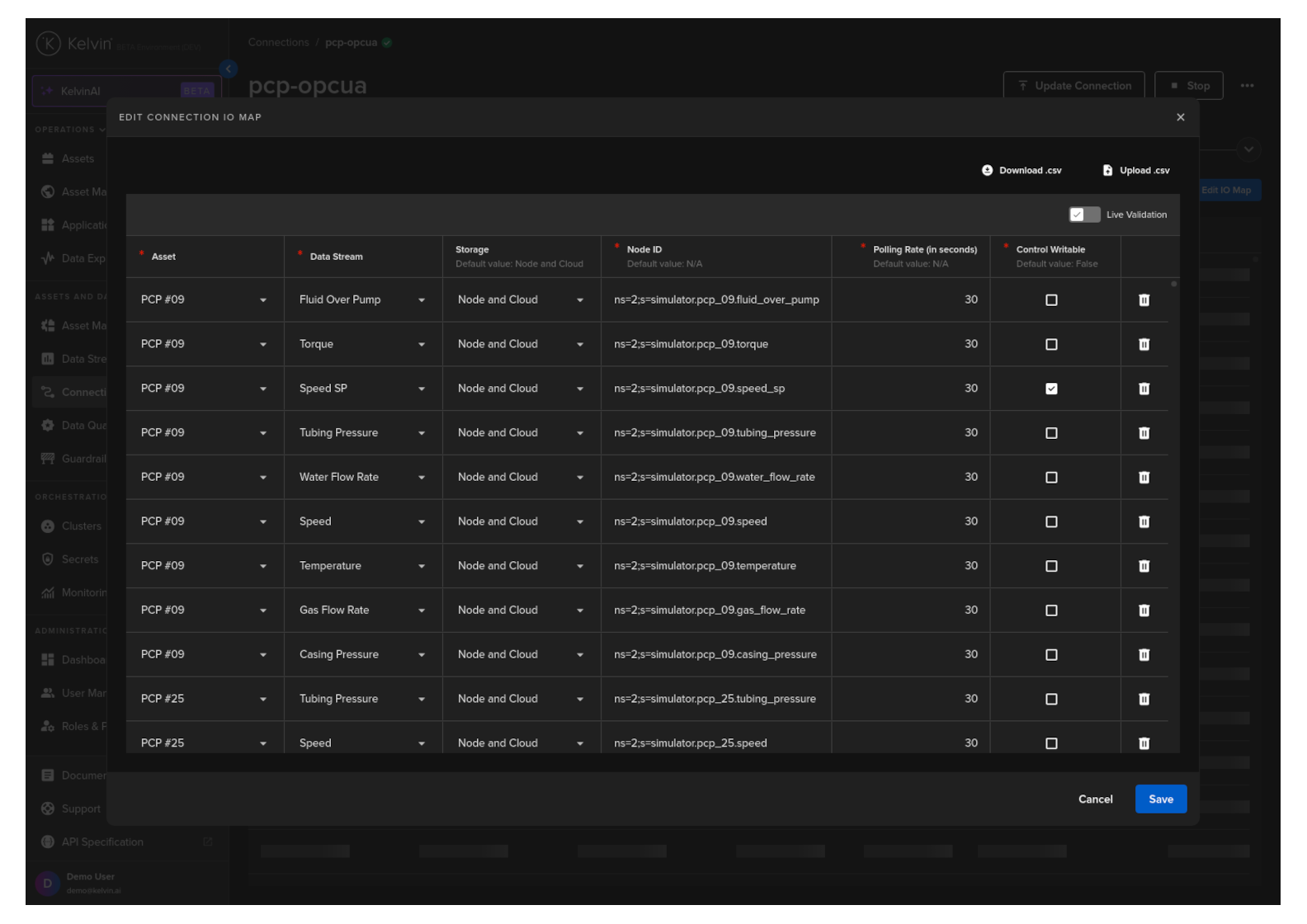
When ready click the Save button.