Add node
Add Node to Cluster (Scale Up)
New Nodes can be added to an existing Cluster allowing easy scaling of Clusters as the requirements for the location or service grows.
You only need to do this if you have chosen the Main Node in the Cluster to be k3s installation by Kelvin. If you manage your own Kubernetes cluster, then follow your providers instructions and Kelvin will automatically find and configure the new Nodes.
First setup a new edge system which can be either a physical machine or a virtual machine and install Ubuntu server on it.
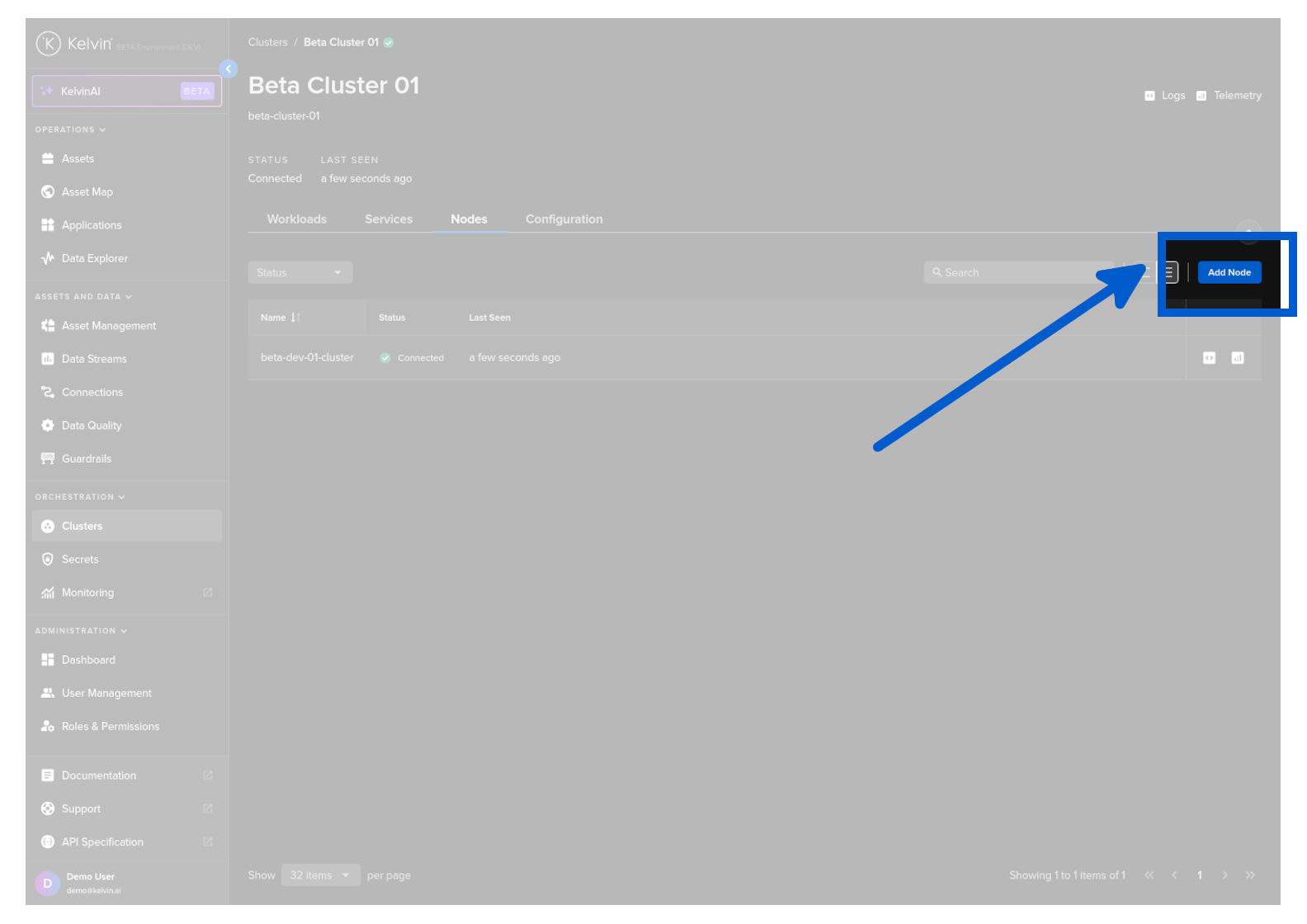
Then from Orchestration menu click on a single Cluster, then under the Nodes tab you click on the Add Node button.
A popup will appear with instruction on what to type into the command line of the new edge system.
The new edge system needs to have both an Internet connection and is also able to communicate through the LAN/WAN to the IP address of the Main Node in the Cluster.
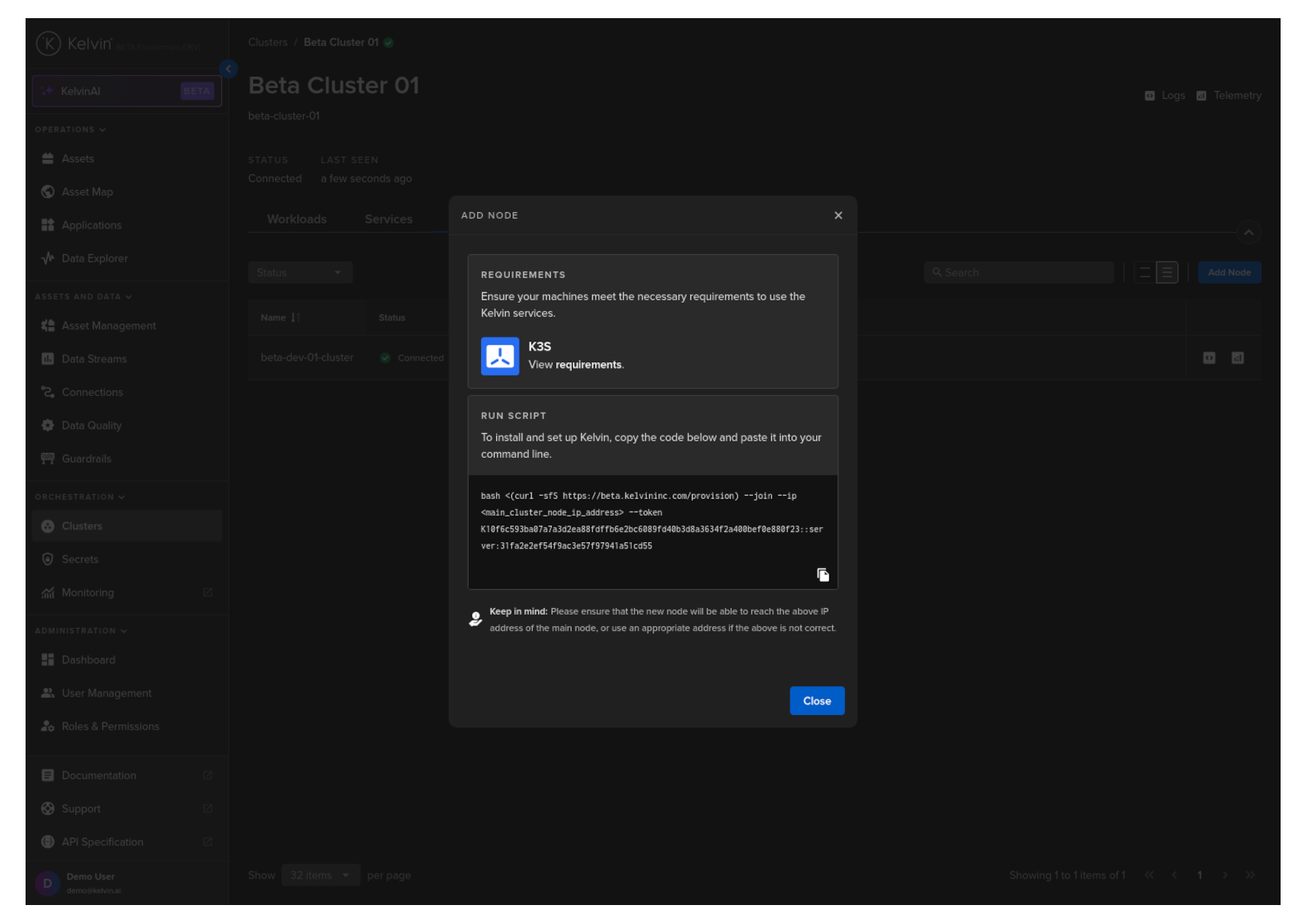
Copy the script and run it in the command line on the new edge system mentioned earlier. It will look something like this;
bash <(curl -sfS https://{Kelvin-Cloud-URL}/provision) --join --ip 172.31.40.200 --token K10ca29650933641be49c3b9f6ce4c68a2c78004025c4c08adb::server:21aa9c700e3e06cba4833b8dc
The installation and registration is fully automatic and follows this procedure;
- In the terminal the provision script will be first be downloaded and run
- The script will connect with the master node through the IP address and token from the command line
- The script will then install the necessary programs and configurations to setup the new node on a k3s cluster
- The script will then finish by starting the k3s-agent
- The new node will show in Kelvin UI with the status Disconnected.
- All the Kelvin core services will be installed and configured in the Cluster. This is all done in the background and you will not see any feedback on the command line.
- When all configurations are completed successfully, then the status for the Node in the Kelvin UI will change from Disconnected to Connected.
Depending on the process the whole procedure should not take more than 5 minutes to complete.
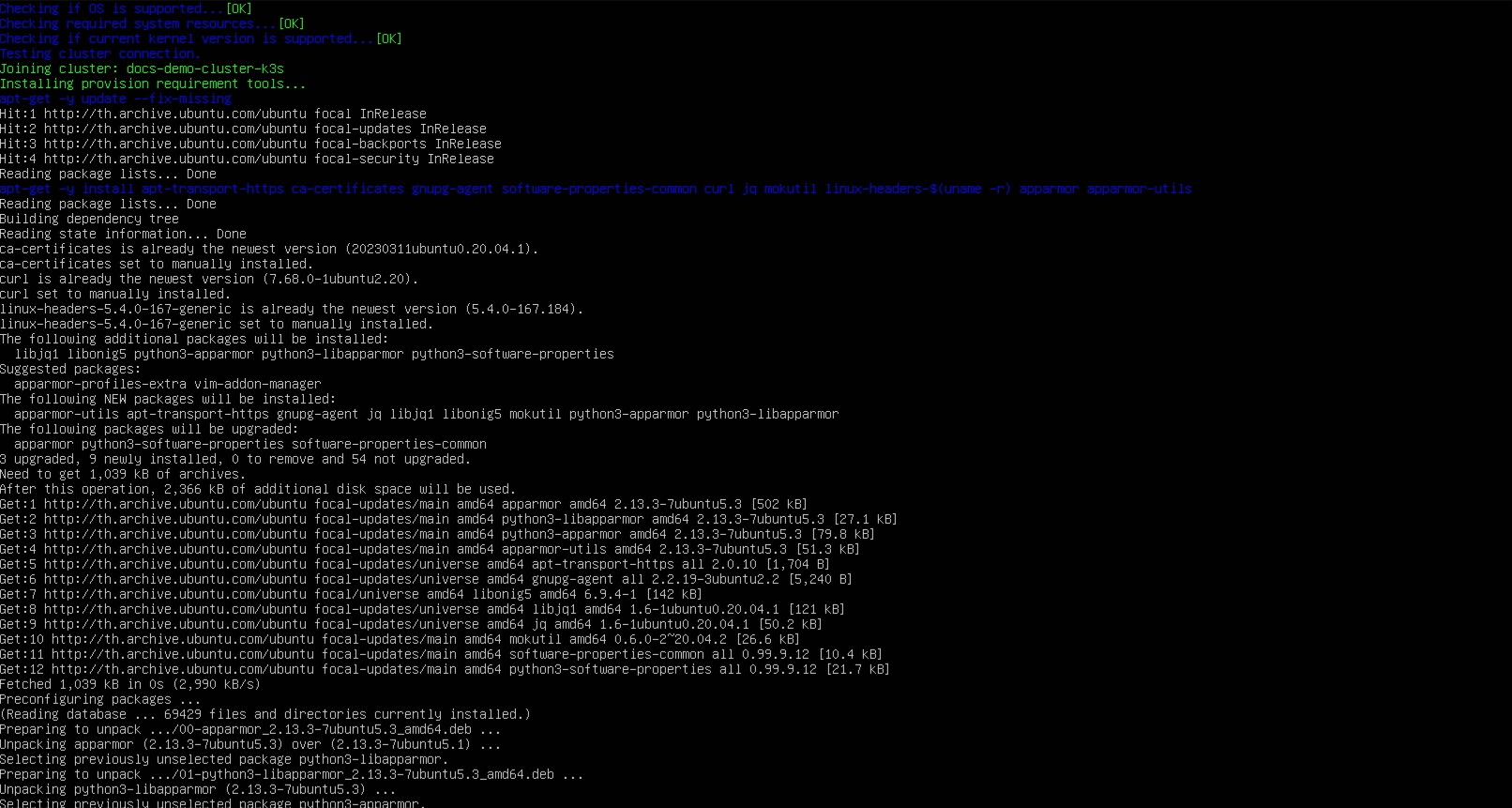
Congratulations, you have added a new Worker Node to the Cluster.