Applications Details Page
When you click on an Application card you will see an overview of the Application.
Note
Depending on the type of the Application, the options and information available in the details page will vary.
Jump to the Application Tabs below for more details.
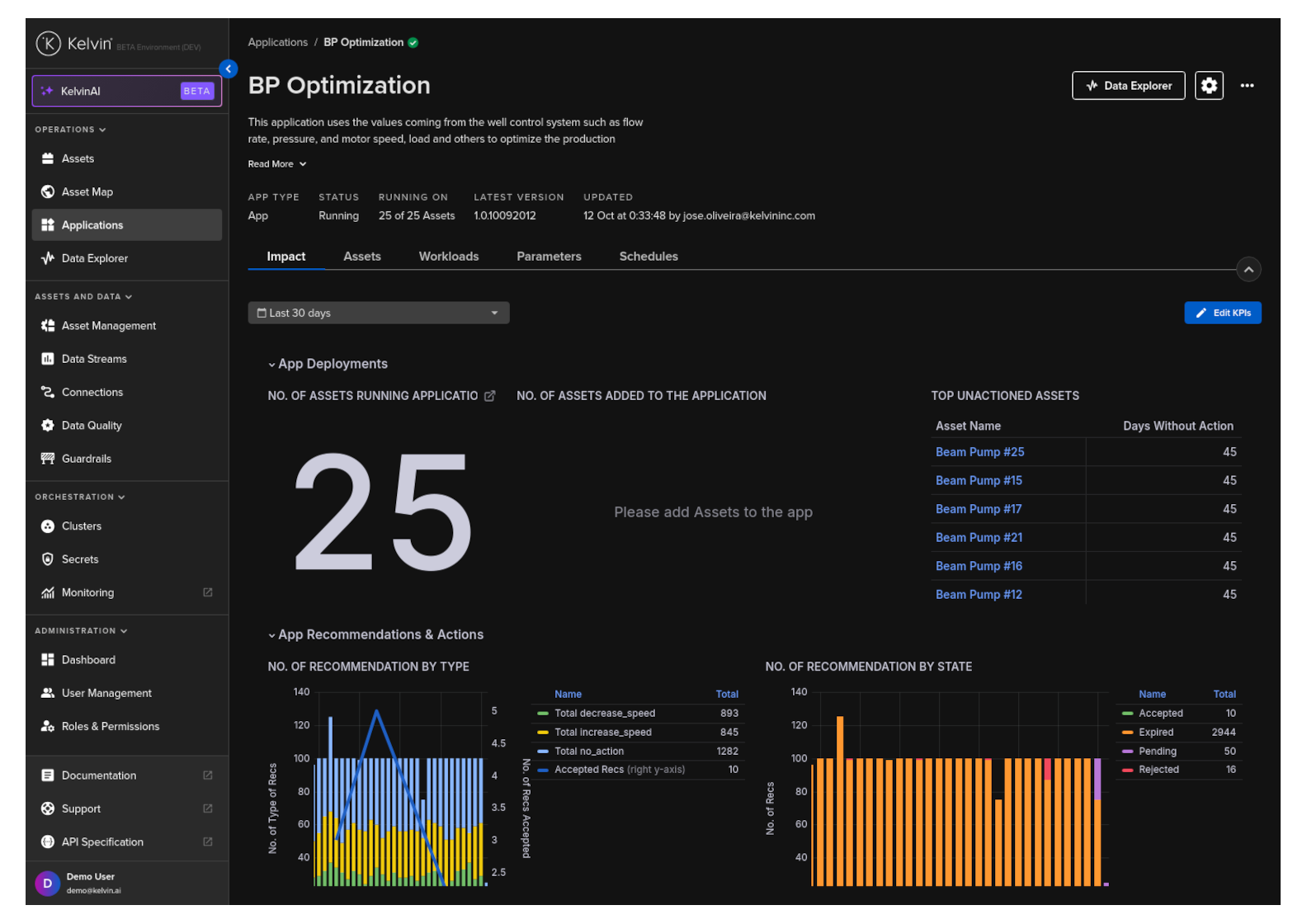
Applications Status & Details
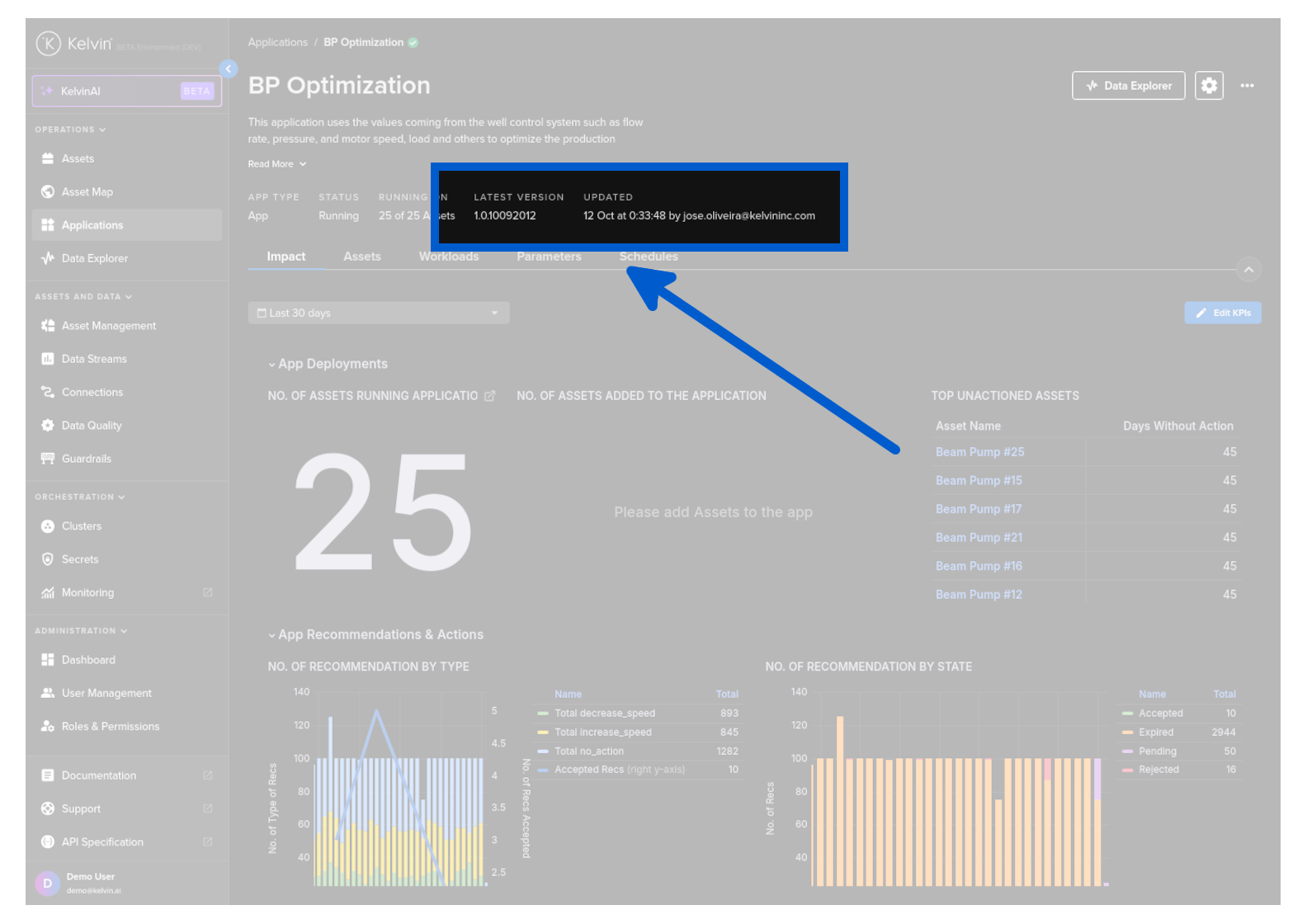
At the top you have an overview about the Application, like the latest version available for Application and when it was last updated and the current status.
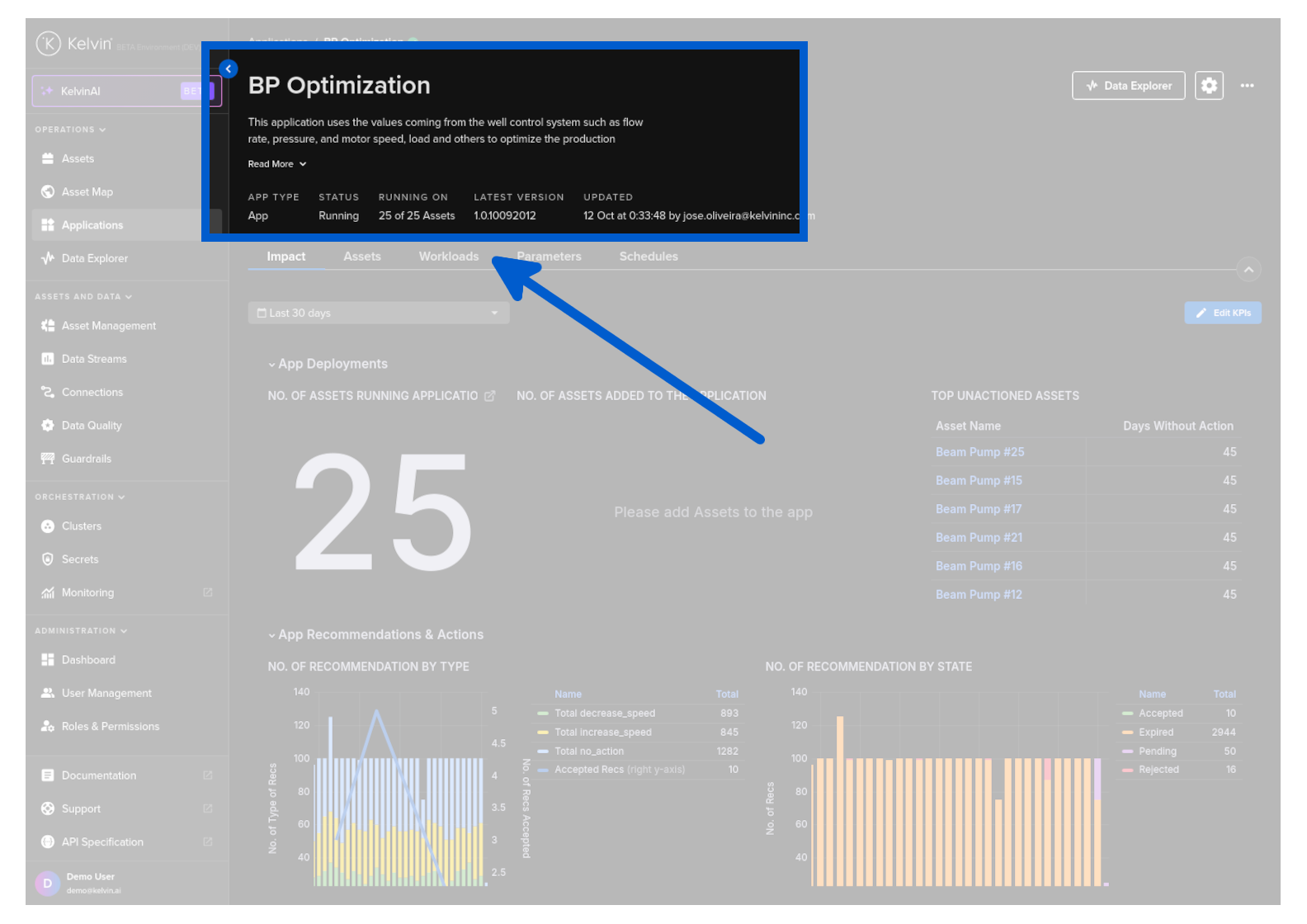
The information available will depend on the type of Application.
There are four Application type.
- Kelvin SmartApp™
- Docker App
- Import
- Export
Jump to the Application Tabs below for more details.
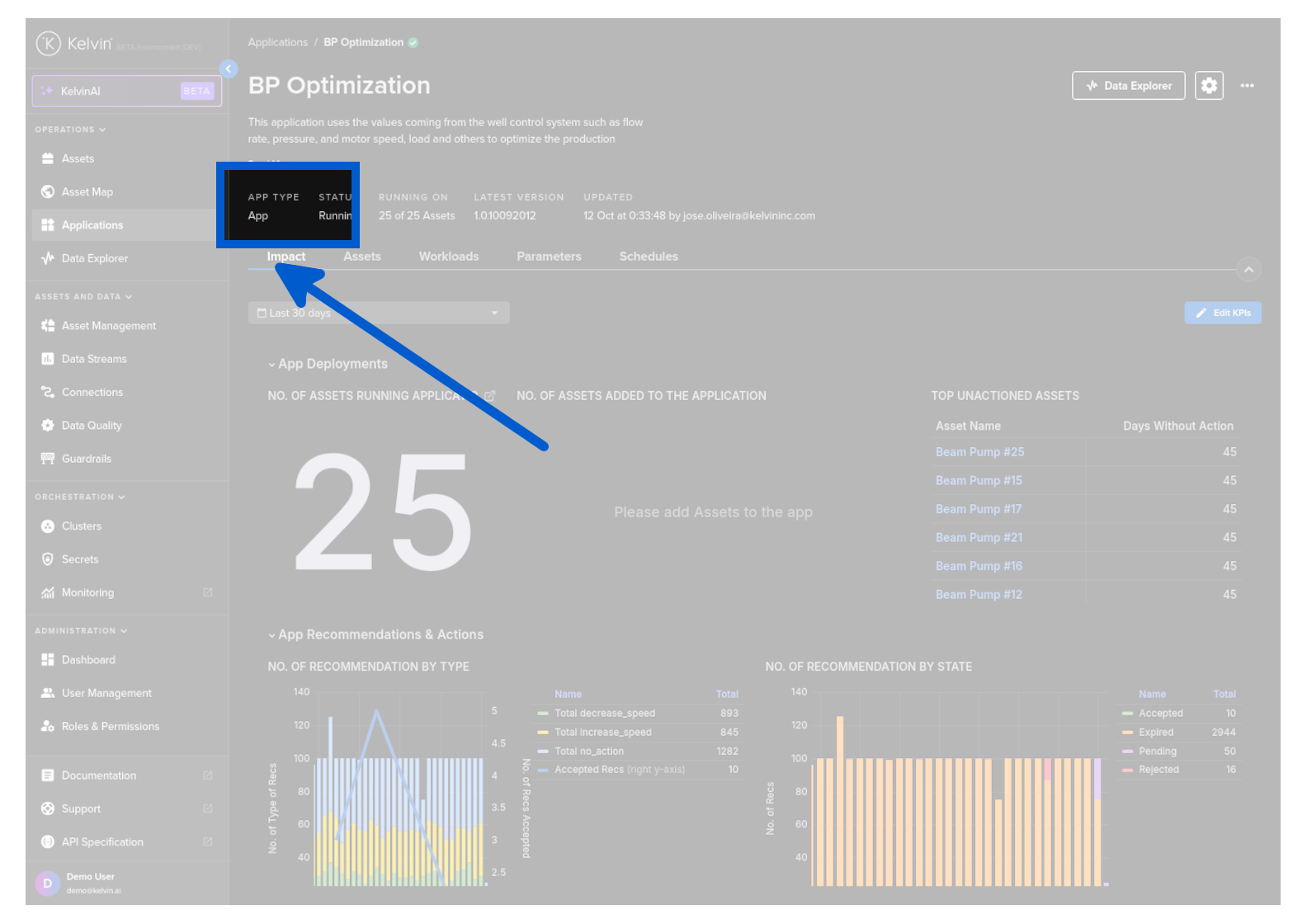
You can quickly see the status of all your Assets and whether any Assets are currently not being processed by the Application.
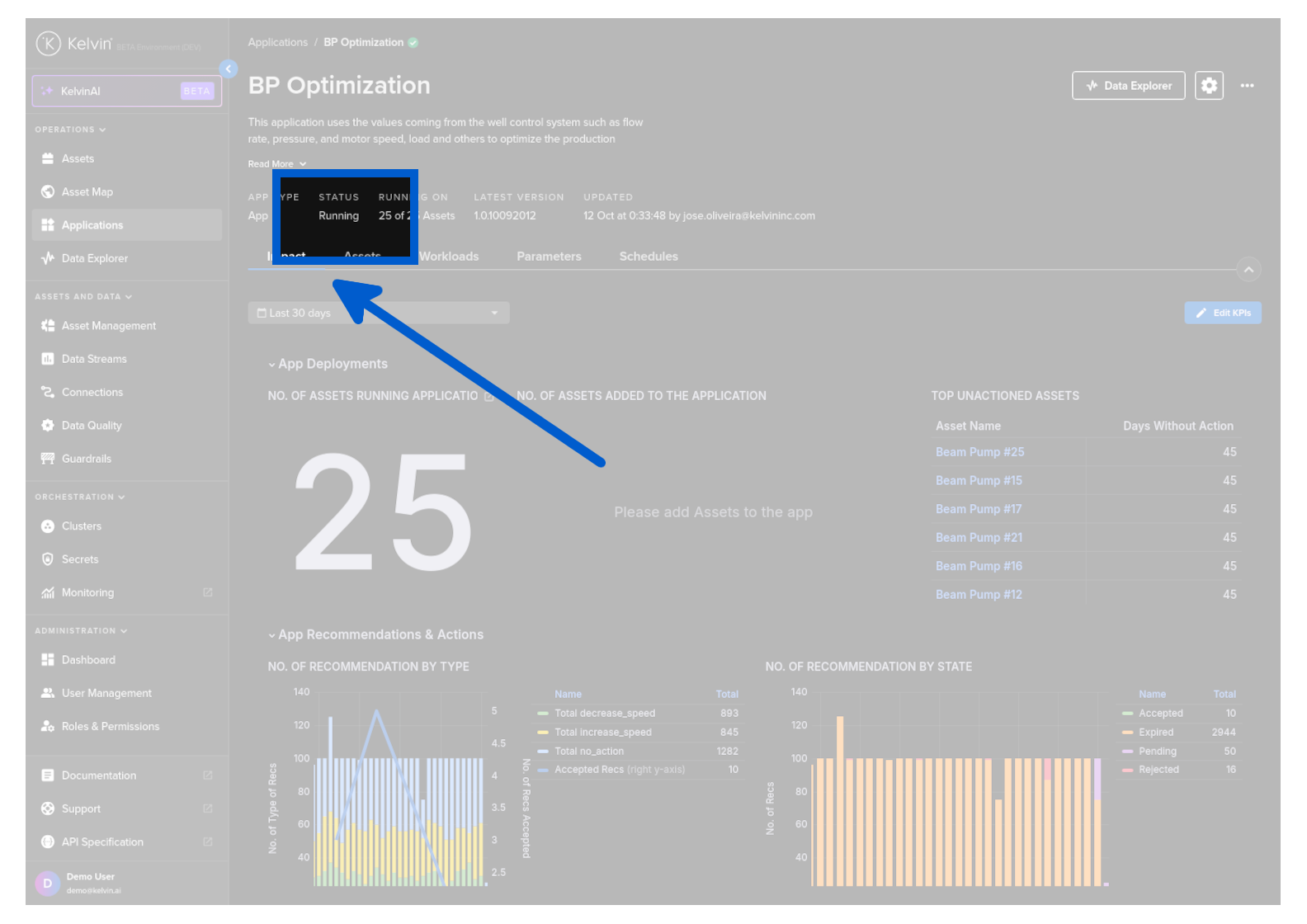
Note
This is only available for the Application type Kelvin SmartApp™.
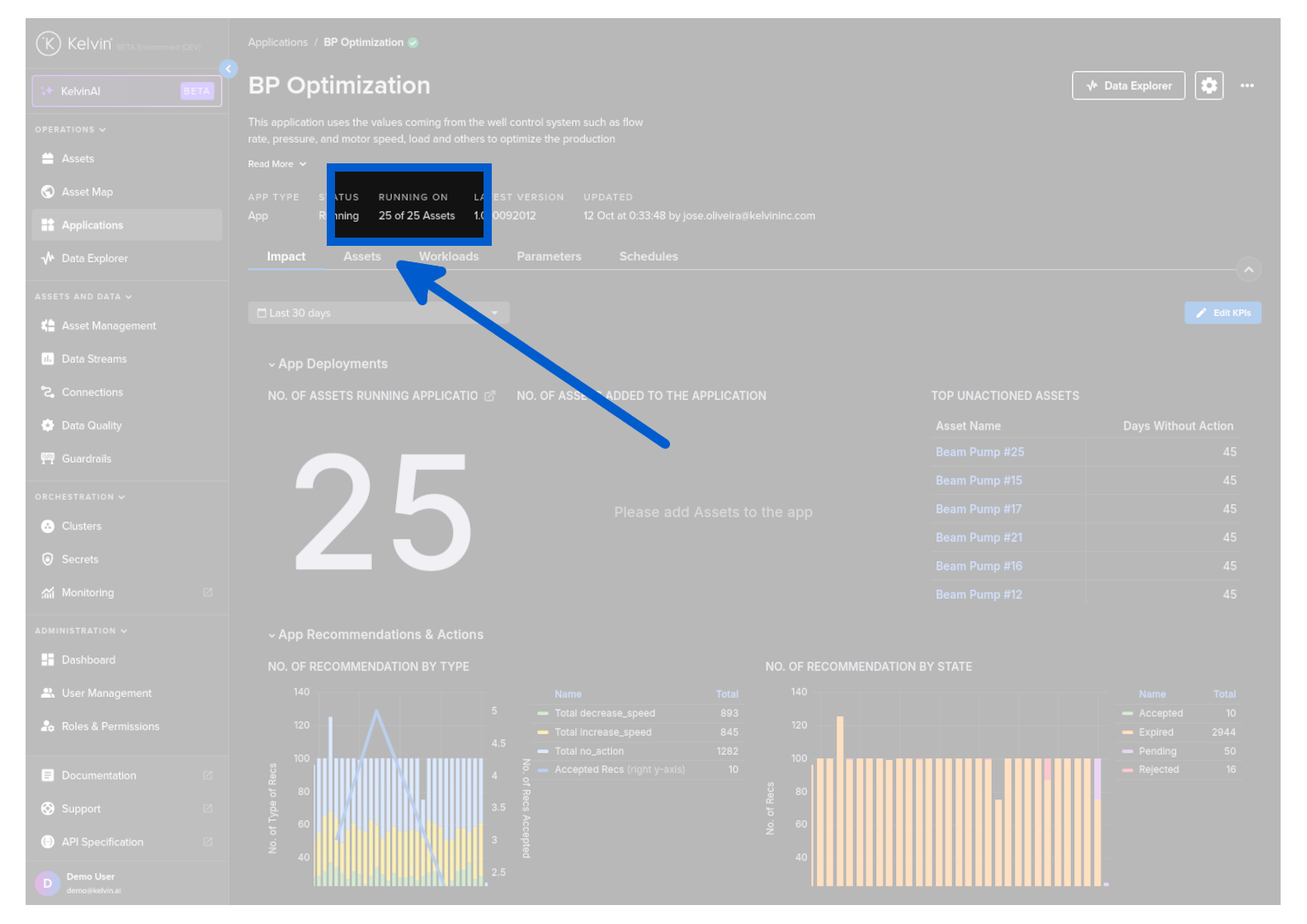
Summary of how many Assets are being processed by the Kelvin SmartApp™.
See when each Assets had its last data update applied and a summary of the latest for all Assets.
Note
This is only available for the Application type Kelvin SmartApp™.
Data Explorer is setup so that you can see or quickly switch between all your Assets for the Kelvin SmartApp™.
To go to this specialized Data Explorer, either click on the asset name to immediately open that asset in Data Explorer or click on Data Explorer at the top right hand corner and then select the Assets you want to view.
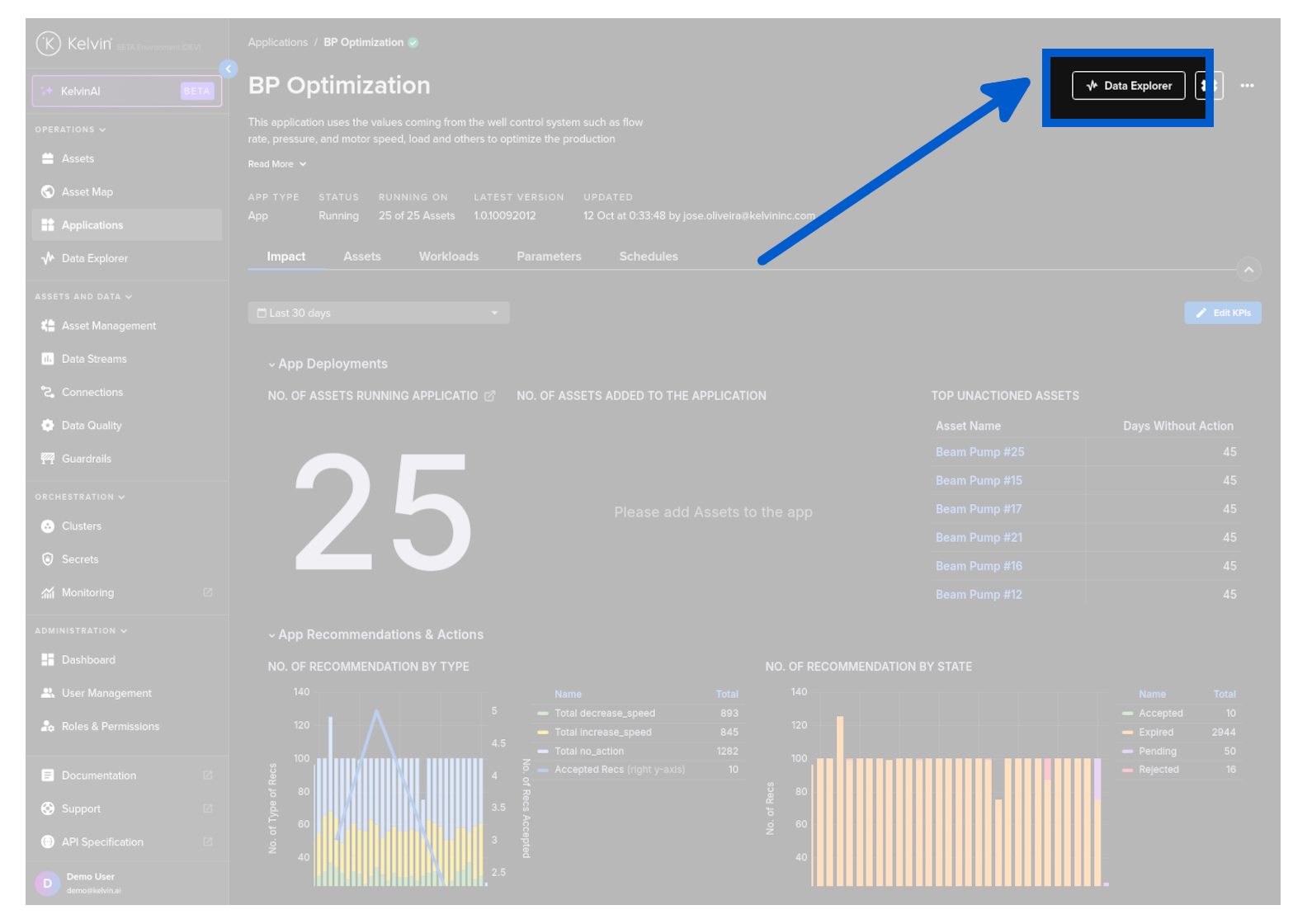
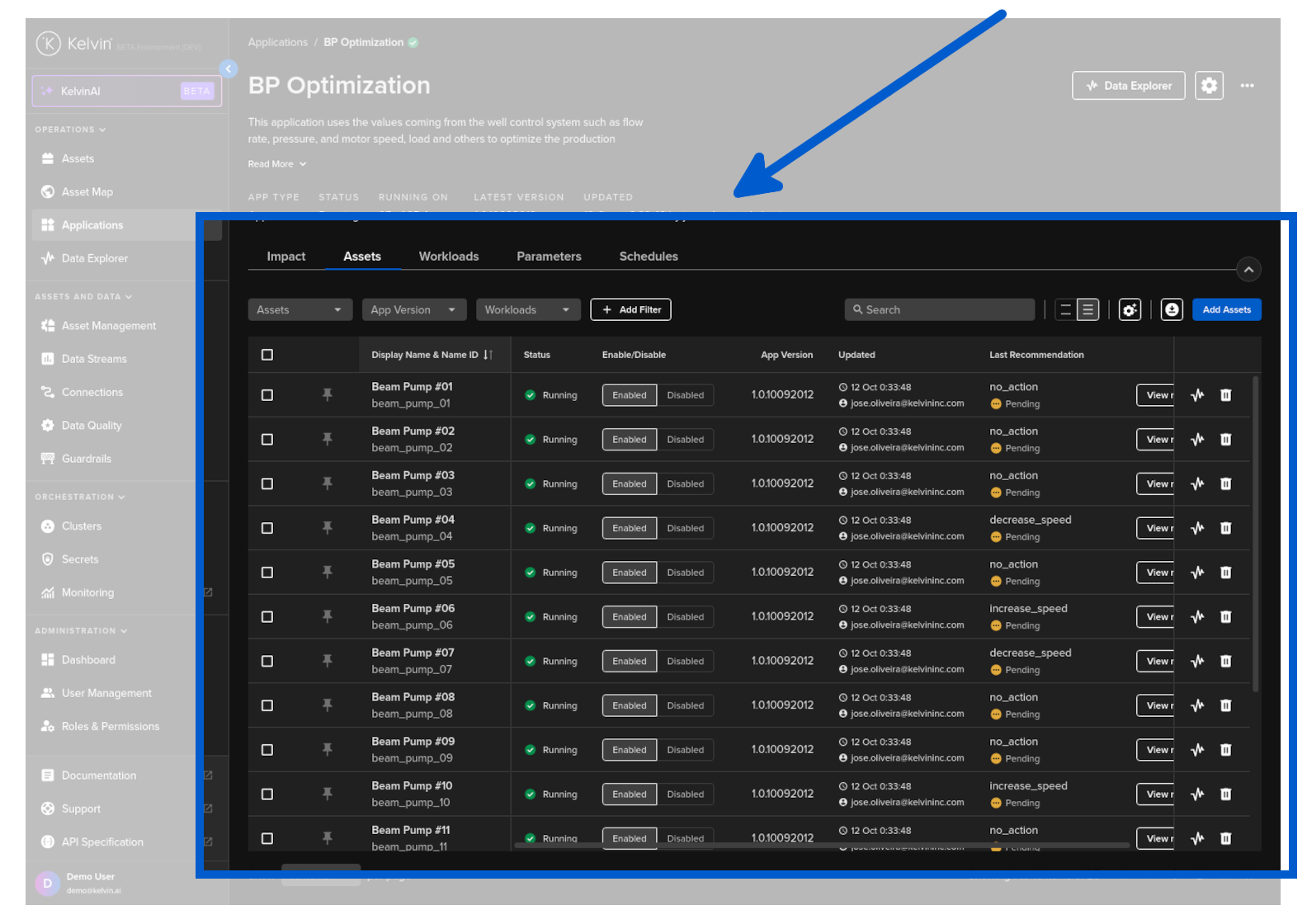
Or you can select the Assets tab, find the Asset in the list that you want to view, then click on graph icon  .
.
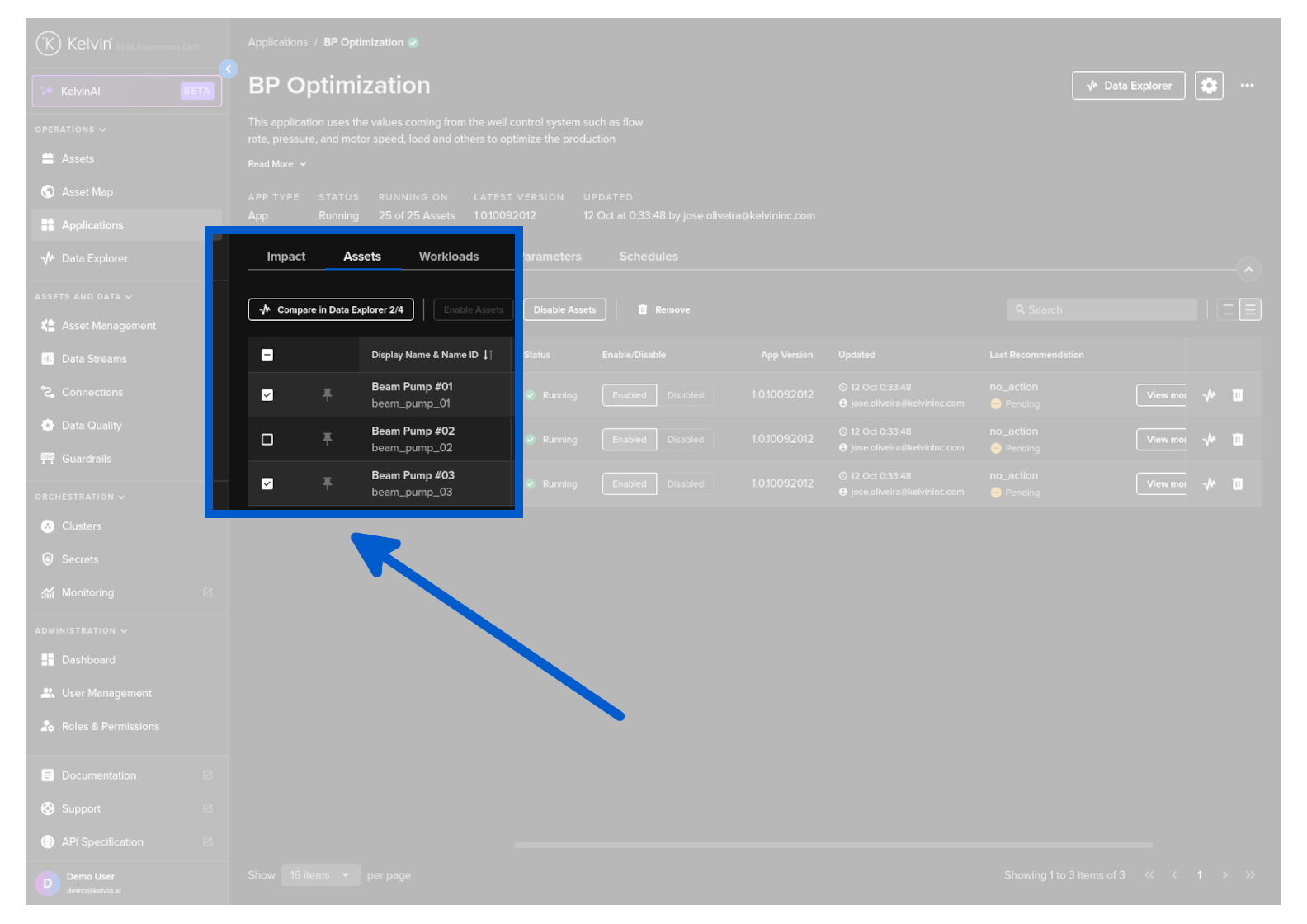
Or to open a multi-Asset Data Explorer page, select the wanted Assets (maximum 4) and click on Compare in Data Explorer button.
You can also change to a multi-asset Explorer page when viewing a single Asset on the page through the Data Source options.
Application Tabs
Depending on the type of the application, you will have a range of tab options available.
Note
The type is set by the developer.
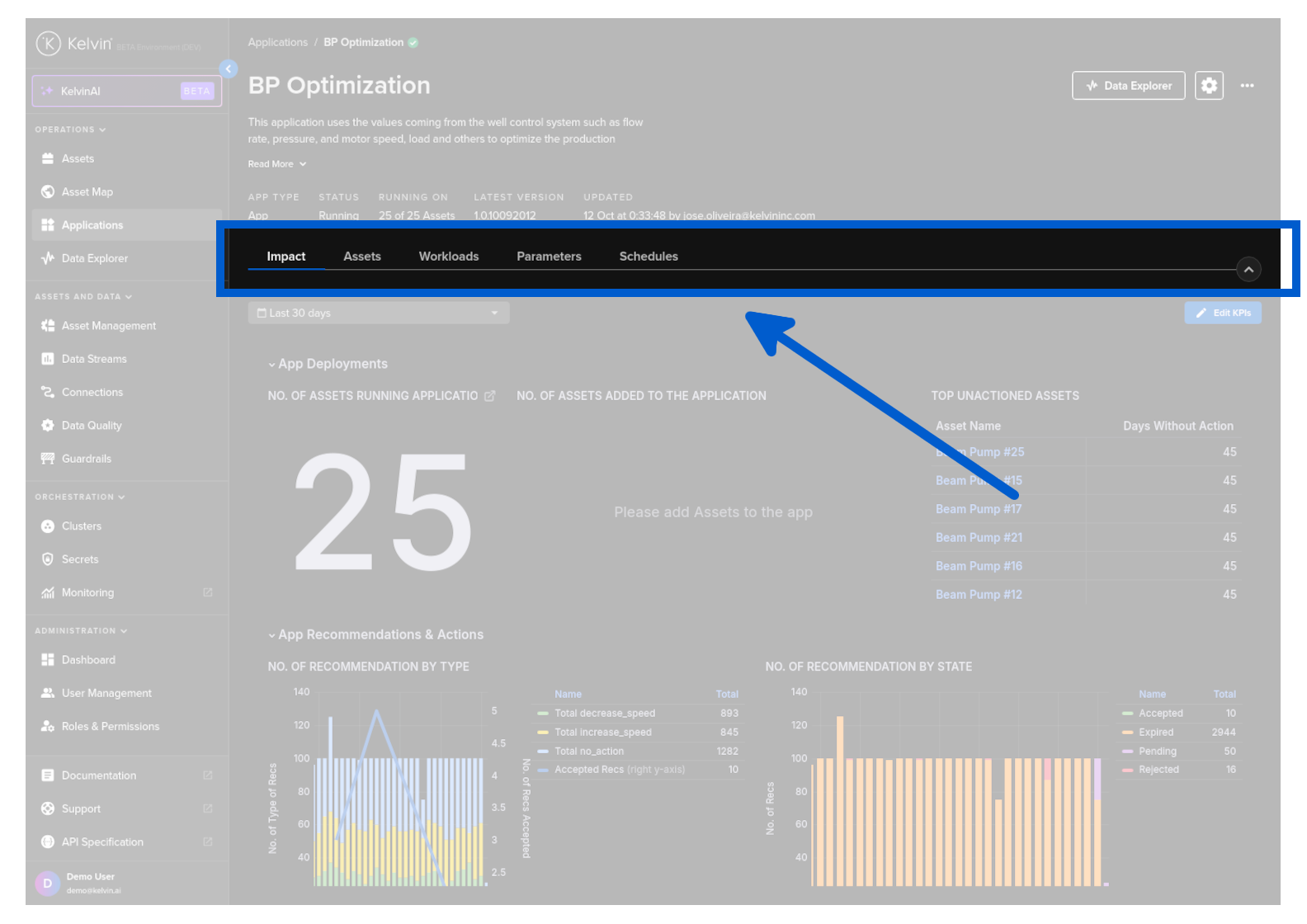
These are Applications designed with the Kelvin SDK development tools and are referred to as Kelvin SmartApps™.
There are a number of tabs available.
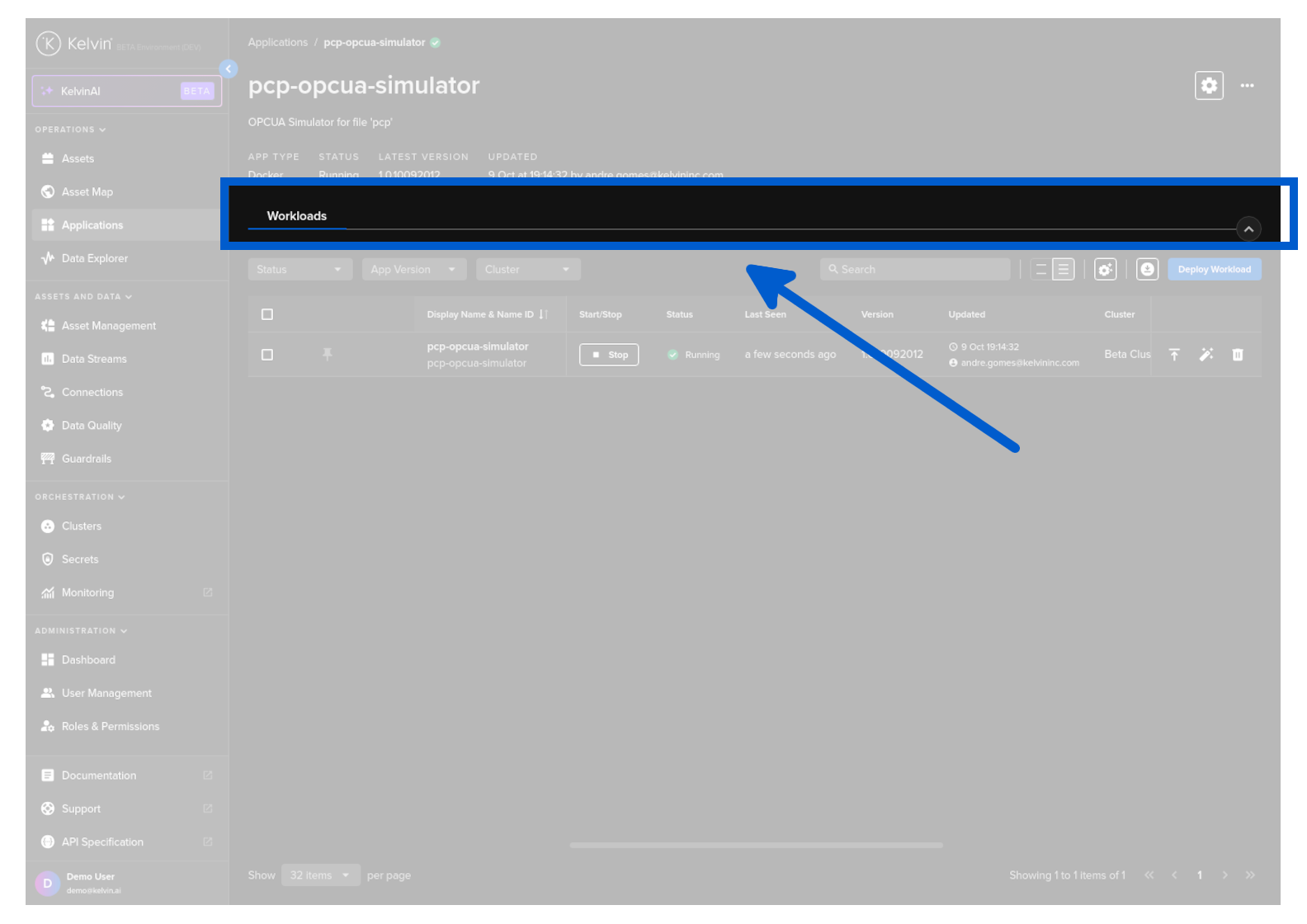
These are applications that the Developers have designed using any development architecture outside of the Kelvin Platform.
Without the tight integration to Kelvin, Docker Apps have limited tabs.