Provision a Kubernetes Cluster - How to
On this page you will learn how to setup an edge system with a generic Kubernetes cluster using the cluster installation tools in the Kelvin UI.
If you want Kelvin to be responsible to also install the Kubernetes cluster directly and handle all the management of the cluster, you can choose the K3S option.
Kubernetes
Kubernetes is an open-source platform that automates the deployment, scaling, and management of containerized Applications. It enables portability, efficient resource utilization, and provides features for rolling updates, self-healing, and service discovery.
It was originally developed by Google and is now maintained by the Cloud Native Computing Foundation (CNCF).
Requirements & Limitations
Before running the Kelvin provision script, we advise you read the edge setup requirements documentation here.
For cloud Kubernetes, implementations vary across providers and even within the same provider there can be different types of stacks based on the selected services.
So it is not possible to list all the requirements, limitations and fixed design options available and will heavily depend on your project and budgets.
When setting up your Kubernetes cluster here are some links to the Kubernetes documentation that can help you decide what type of setup to implement.
Installation
The installation process is very simple and you can have your new Kelvin Cluster cluster up and running within ten minutes depending on your internet speed.
Setup Kubernetes Cluster
To start you need to setup your own Kubernetes cluster. There are four basic steps to installing and setting up Kubernetes clusters;
- Prepare Infrastructure: Set up a group of machines (physical or virtual) to run Kubernetes nodes.
- Install Kubernetes on Each Node: Use a tool like kubeadm, Minikube, or Kops to install Kubernetes on each machine. One machine will act as the master node, and others as worker nodes.
- Initialize the Cluster: On the master node, initialize the Kubernetes cluster.
- Join Worker Nodes: Use a command provided during initialization to join the worker nodes to the cluster.
The Kubernetes documentation website has a getting started guide for achieving all these steps: https://kubernetes.io/docs/setup/production-environment/tools/kubeadm/
Install Cluster
Let's dive in and show you how fast and easy the setup can be by first logging into the Kelvin Platform and going step by through the process.
1. Register Cluster in the Cloud
To start, go to the Orchestration page and click on the Register Cluster button;
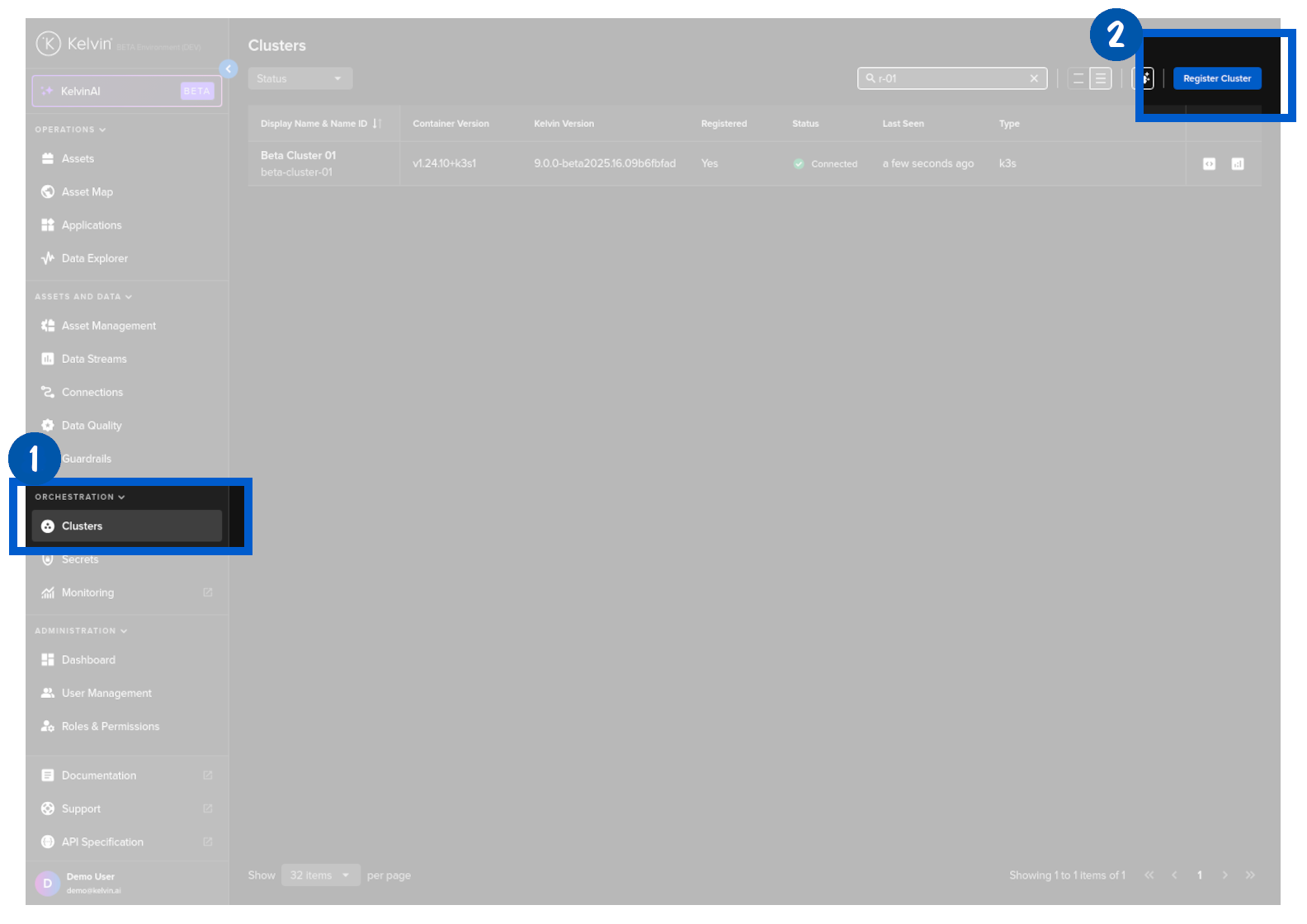
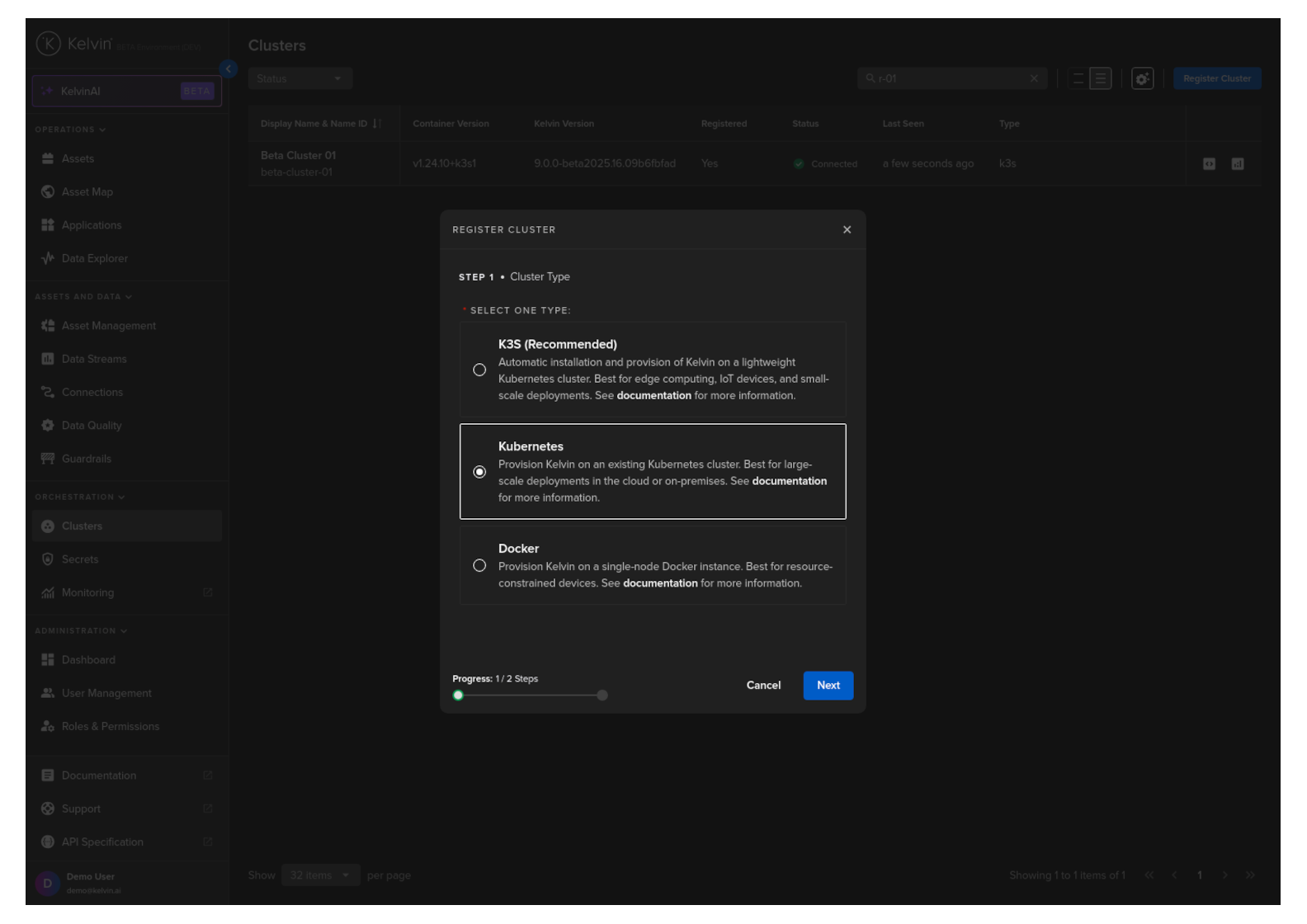
Then in the popup you will see three cluster options to choose from.
Note
Basic users who do not want to maintain their own Kubernetes clusters can choose K3S. In this case Kelvin will install and manage all aspects of the cluster.
Some versions of Kelvin only allow the basic Docker environment create option.
For this tutorial we will select the Kubernetes option.
Then click on the Next button.
In step two, assign the new cluster a recognizable display name. The name id will be automatically created from your display name. It can usually be left unchanged.
Note
The Name ID will be created automatically when you create a Display Name. Normally this default name is satisfactory but you do have the option to customize it if you want.
| Option | Description |
|---|---|
| Display Name | This can be any characters and spaces that gives your cluster a memorable name for reference |
| Name ID | A unique lower-case alphanumeric name which uniquely identifies this cluster. This will be automatically filled in when you type the Display Name. Normally you do not need to change unless the Name ID clashes with another cluster's Name ID. |
The Name ID is the unique identifier name for the cluster. This must contain only lowercase alphanumeric characters. The ., _ and - characters are also allowed to separate words instead of a space BUT can not be at the beginning or end of the name.
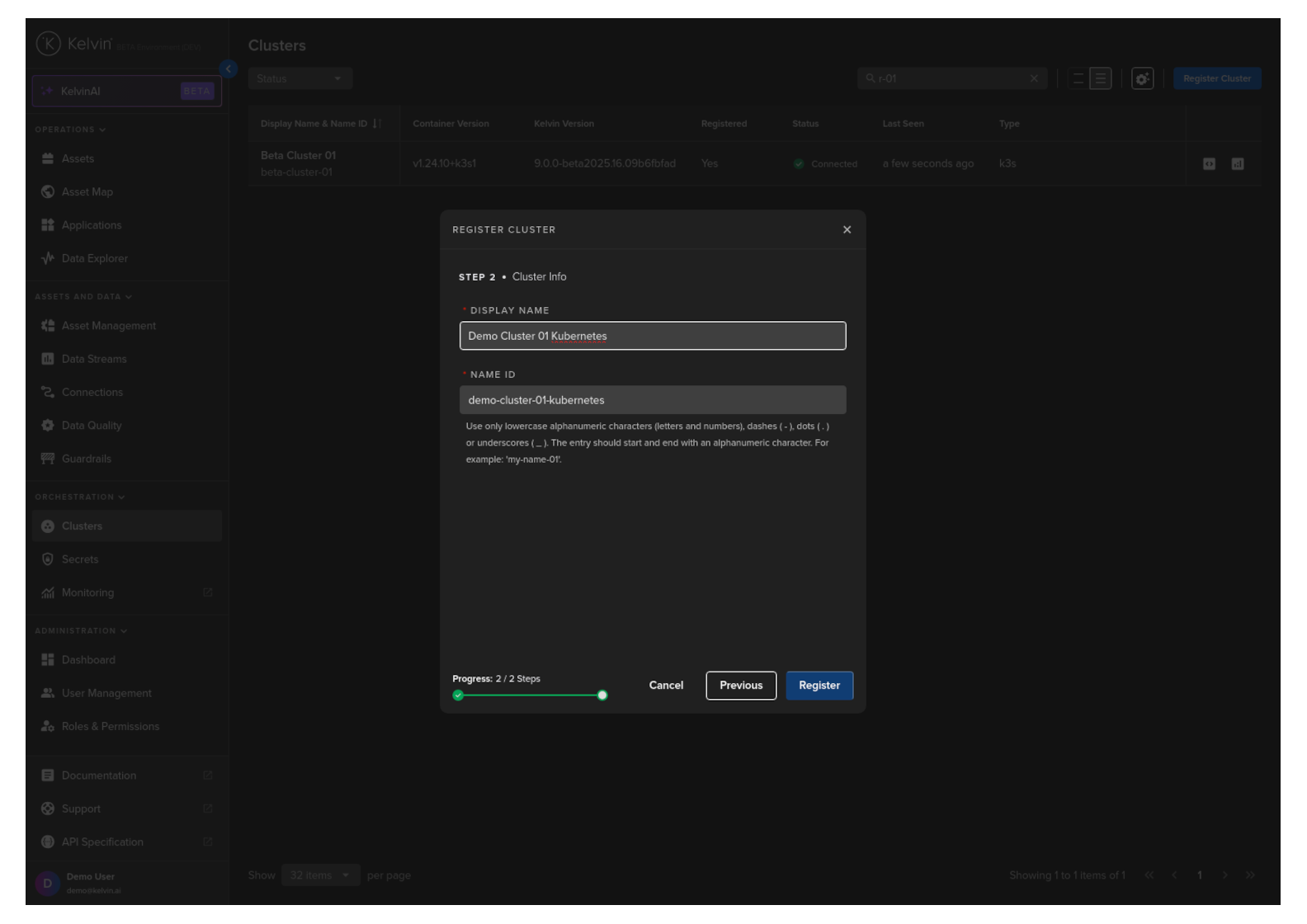
Click Register.
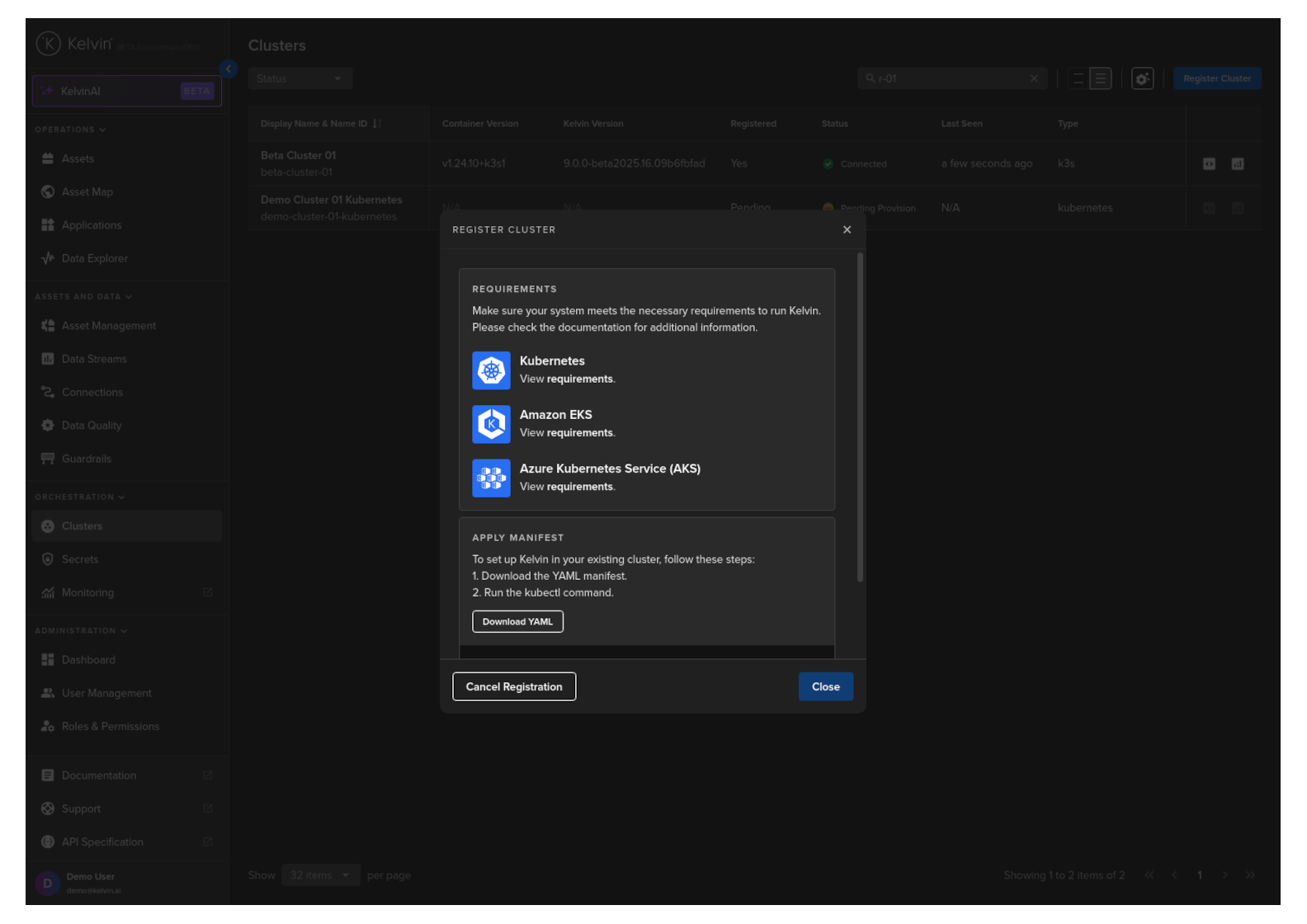
You can then download the manifest YAML file and then run the CLI command in your Kubernetes environment.
Make sure the manifest YAML file is locally accessible to the kubectl command.
Also you can see the sample kubectl command you will need to execute for your Cluster.
| Install Kelvin Specific Pods on Kubernetes Cluster | |
|---|---|
Next click the Close button. The cluster is now registered in the Cloud and you can see it is pending registration.
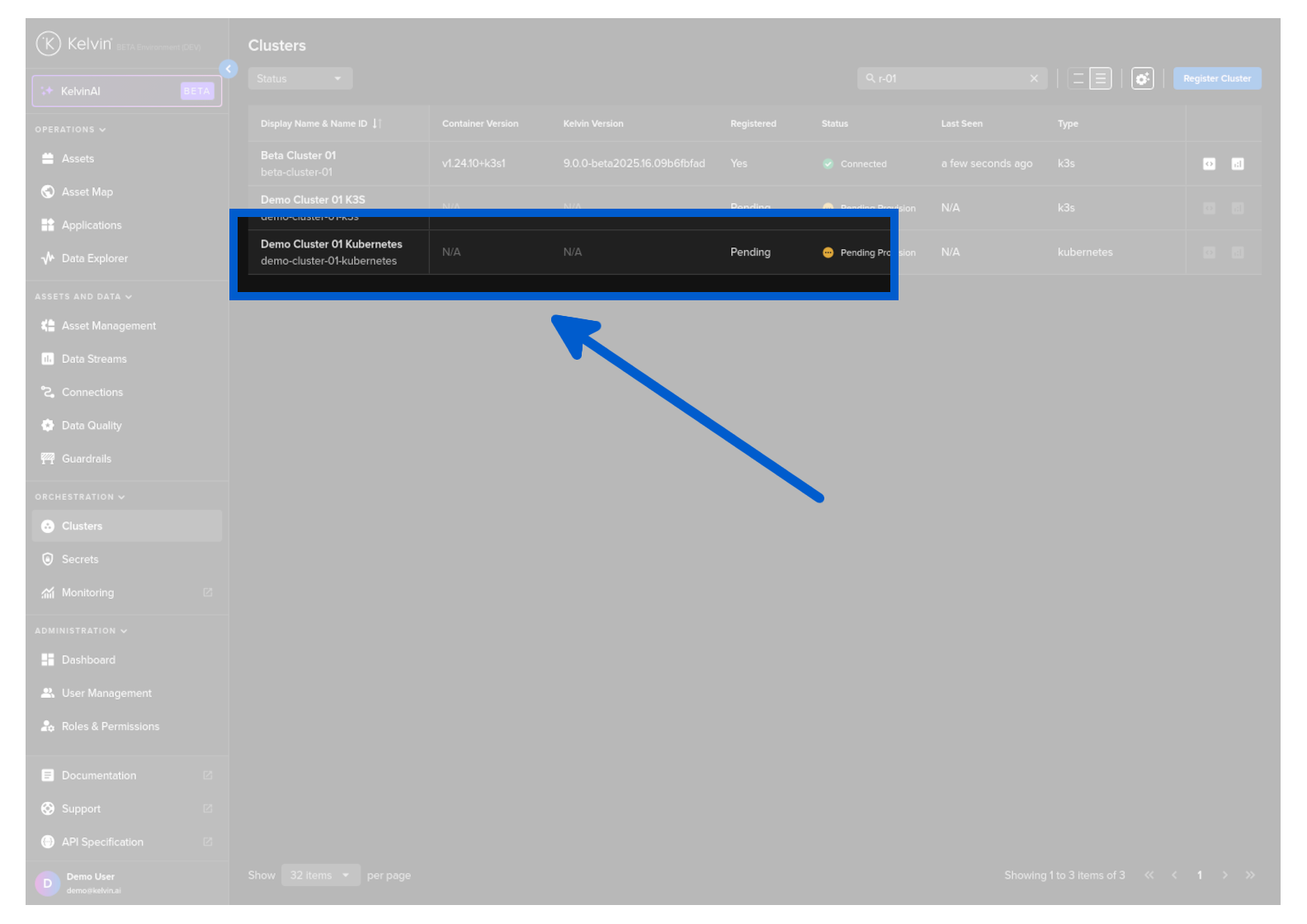
2. Install Kelvin specific pods on your Cluster
Run the command to execute the yaml file parameters into your Cluster.
Congratulations, after a few minutes depending on your Internet speed your new cluster is ready for use.
| Install Kelvin Specific Pods on Kubernetes Cluster | |
|---|---|
The response will look something like this;
You can then get the manifest YAML file that is mentioned in the provision script with the API request;
| API cURL Example | |
|---|---|
which will give a YAML response starting like this;
| API cURL Example Response | |
|---|---|
Copy and paste this into a file called kelvin.yaml and then run the CLI command given in the key provision_script in your Kubernetes environment.
Make sure the manifest YAML file is locally accessible to the kubectl command.
The actual CLI command is;
| Install Kelvin Specific Pods on Kubernetes Cluster | |
|---|---|
Congratulations, after a few minutes depending on your Internet speed your new cluster is ready for use.
You can save the manifest YAML file that is mentioned in the provision script with;
| API Client (Python) Example | |
|---|---|
Make sure the manifest YAML file is locally accessible to the kubectl command.
And then run the CLI command given in the key provision_script in your Kubernetes environment. The actual CLI command is;
| Install Kelvin Specific Pods on Kubernetes Cluster | |
|---|---|
Congratulations, after a few minutes depending on your Internet speed your new cluster is ready for use.