Clusters dashboard
Overview
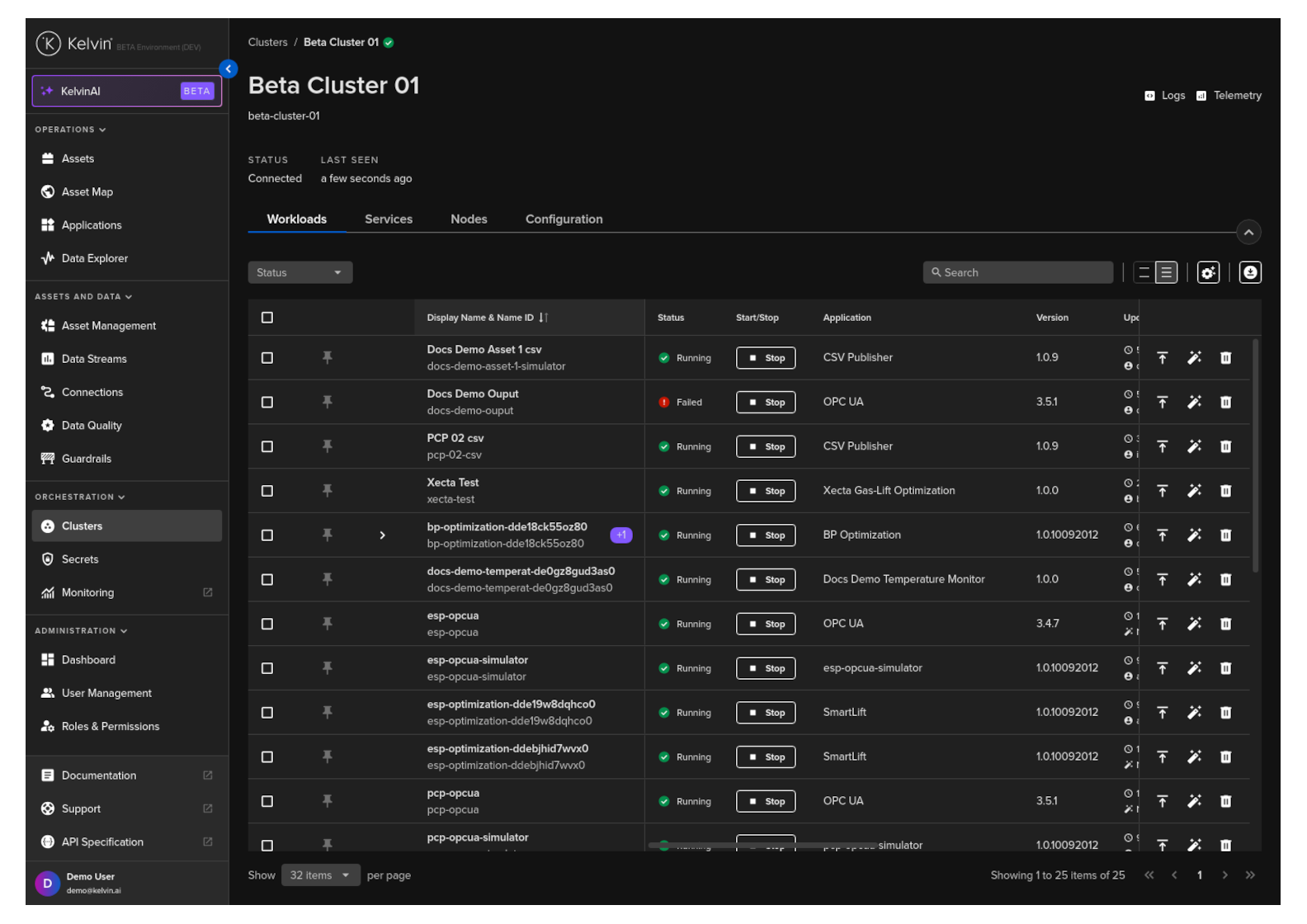
The Cluster dashboard gives you information about the Cluster and its Node and the Workloads that are running on it.
Workloads Overview
When you first look at a Cluster in Kelvin UI you will see the workloads running on any Worker Node in the Cluster.
Note
Workloads are Applications, Docker Apps and Connectors that you have deployed to the Cluster.
From this screen you can do the following actions;
- Start / Stop a workload
- Download workload information as a CSV file
- Create and Download an image for offline deployment
- Update a Workload's version
- Delete a workload
Services
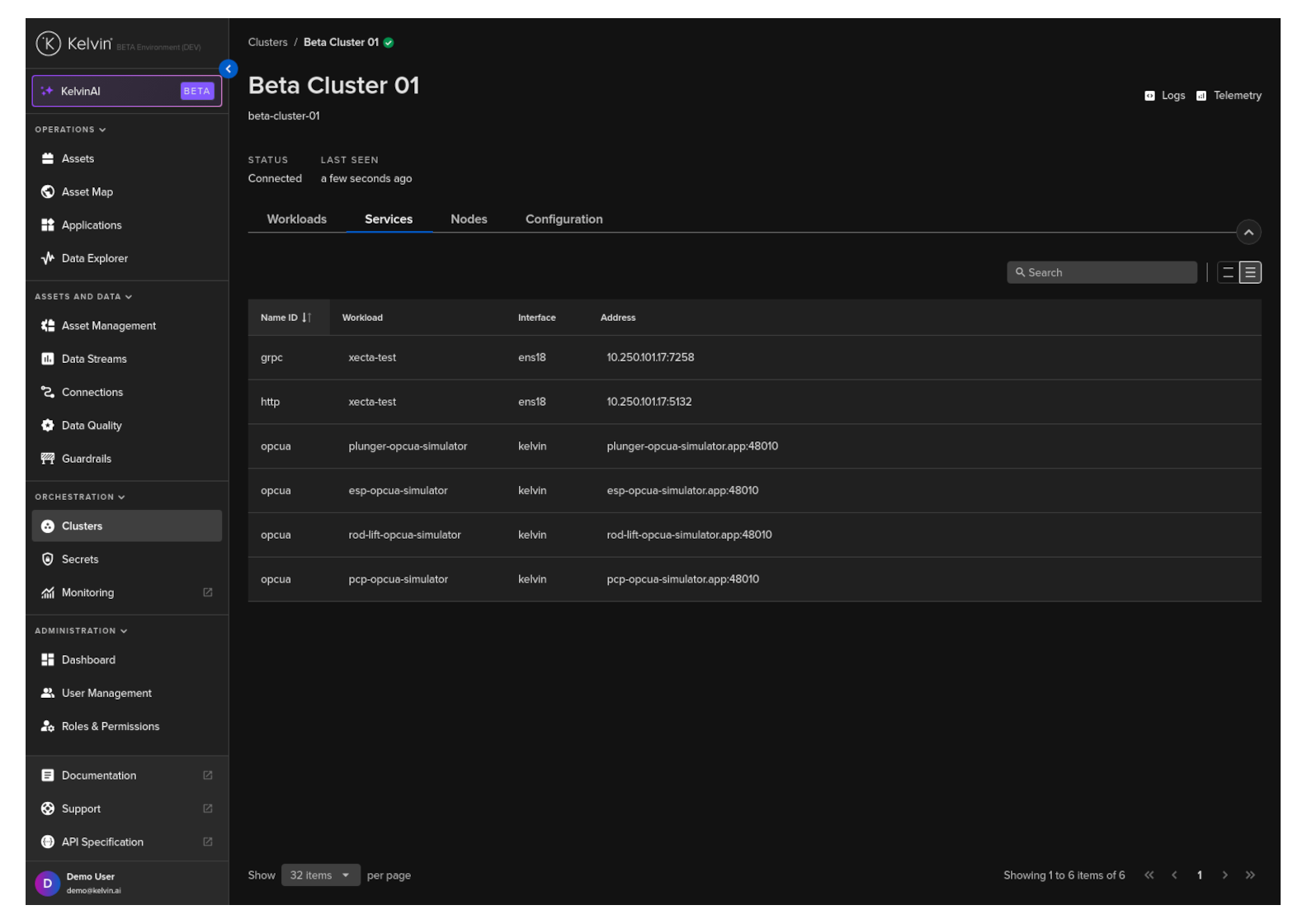
Under the Services tab, you will see a list of all ports that are open on any Node in the Cluster.
Note
Under the Address column it will give you the full IP address and port number that is open to accepting incoming connections.
Nodes
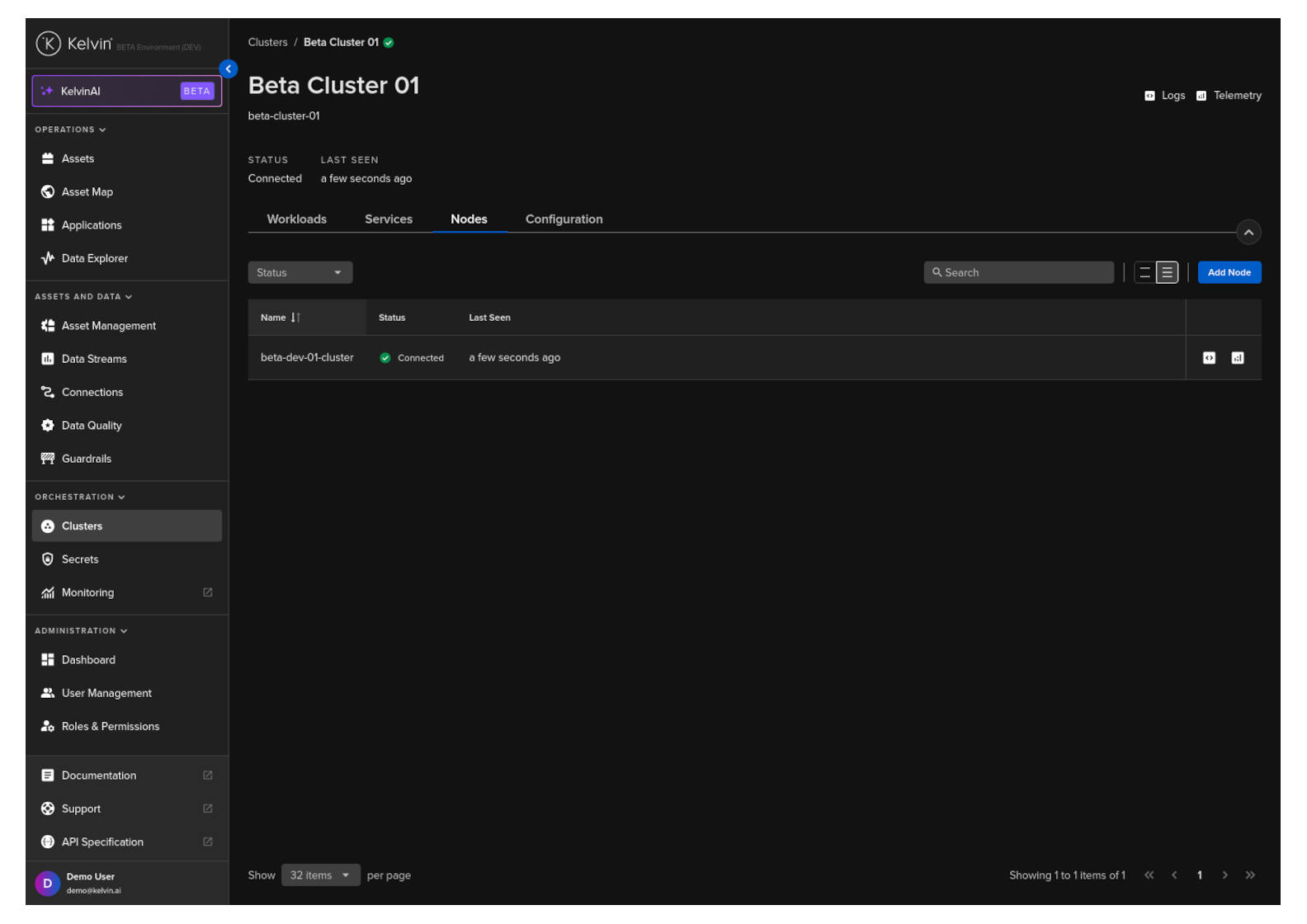
Under the Nodes tab you can see a full list of all Nodes in the Cluster.
You can also click a Node name to see full details about the Node.
Note
You can read the full documentation in the Nodes section here.
Configuration
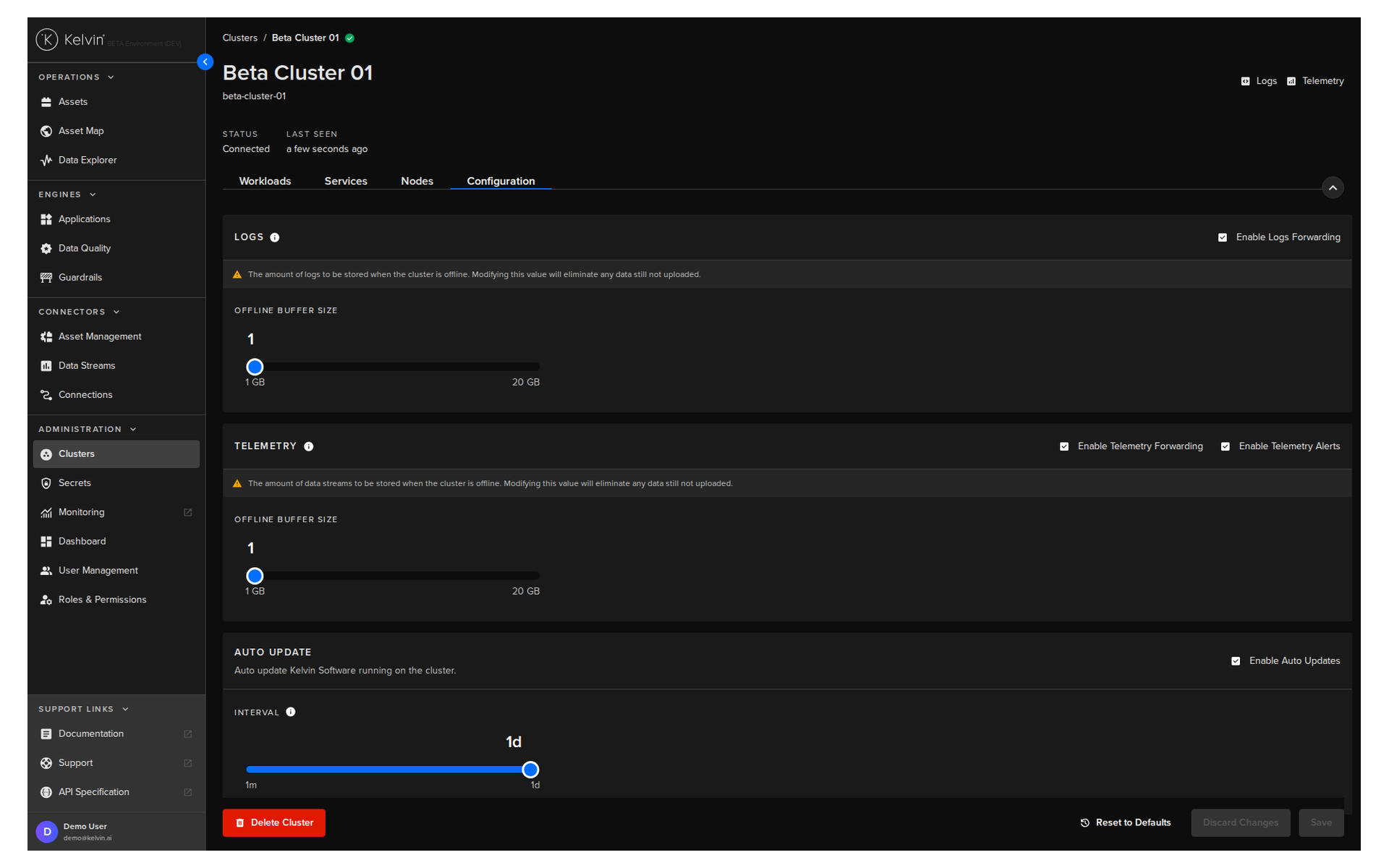
Configuration has a few features;
Configuring Cluster Logs
Enable Forwarding
This will enable the logs to be forwarded and saved in the Kelvin Platform.
These logs can then be seen in the Application Logs online.
Warning
If you disable this, then no logs will be sent to the Kelvin Platform from this Cluster and no logs will be seen in the Applications running on this Cluster.
An alert will show in the Application Logs if this setting is off.
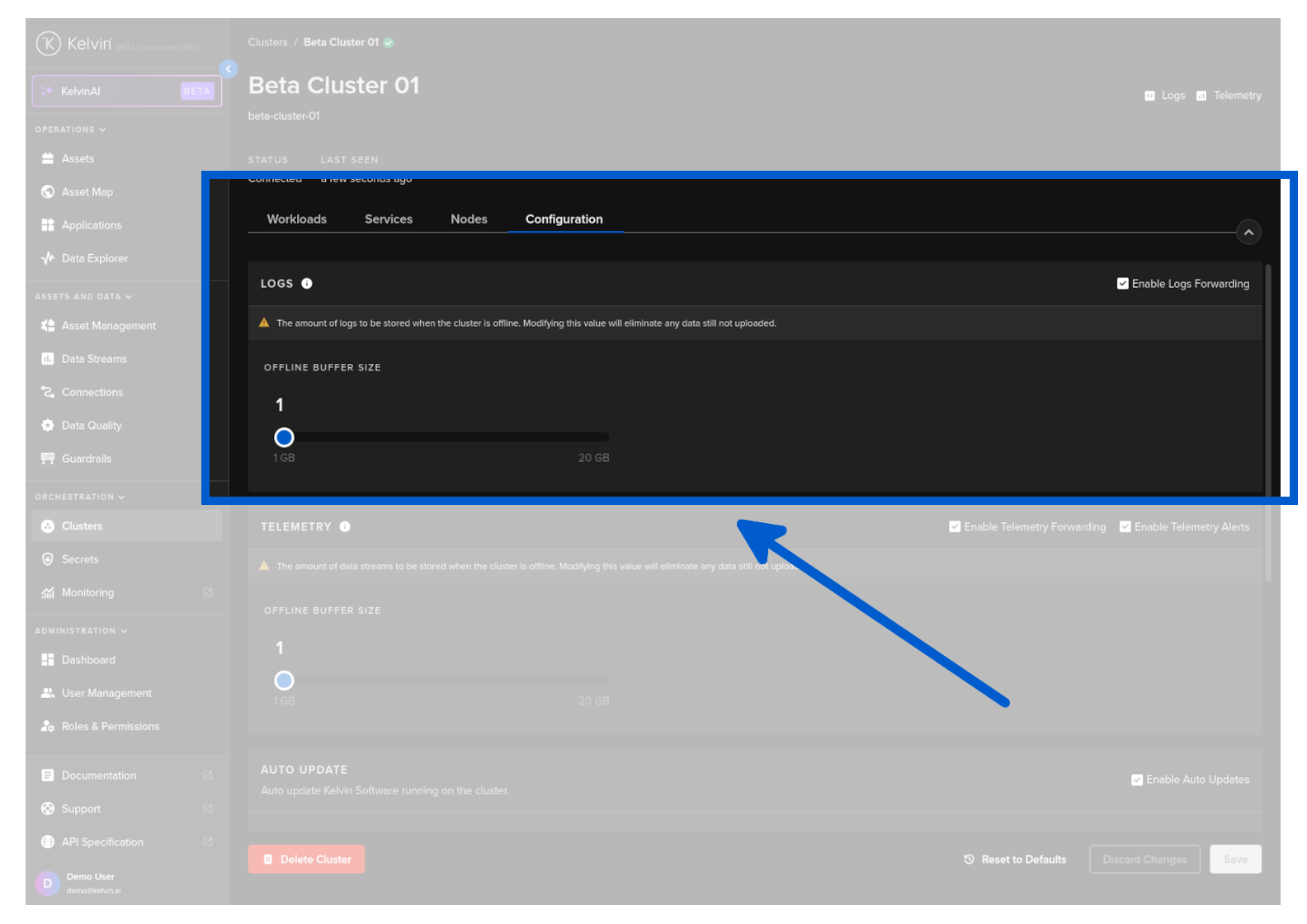
Offline Retention
When the cluster is offline, the Clusters will continue to collect and buffer the log data and transmit it to the Kelvin when it reconnects.
You can set the size of buffer for recording logs while the cluster is offline or not connected to the Kelvin.
Be careful when changing this setting as this will delete all current logs that are currently in the buffer waiting to be loaded to the Kelvin.
Configuring Cluster Telemetry
Enable Forwarding/Alerts
This will enable the telemetry logs and alerts to be forwarded and saved in the Kelvin Platform.
These logs can then be seen in the Application Telemetry online.
Warning
If you disable this, then no logs will be sent to the Kelvin Platform from this Cluster and no logs will be seen in the Applications running on this Cluster.
An alert will show in the Application Telemetry if this setting is off.
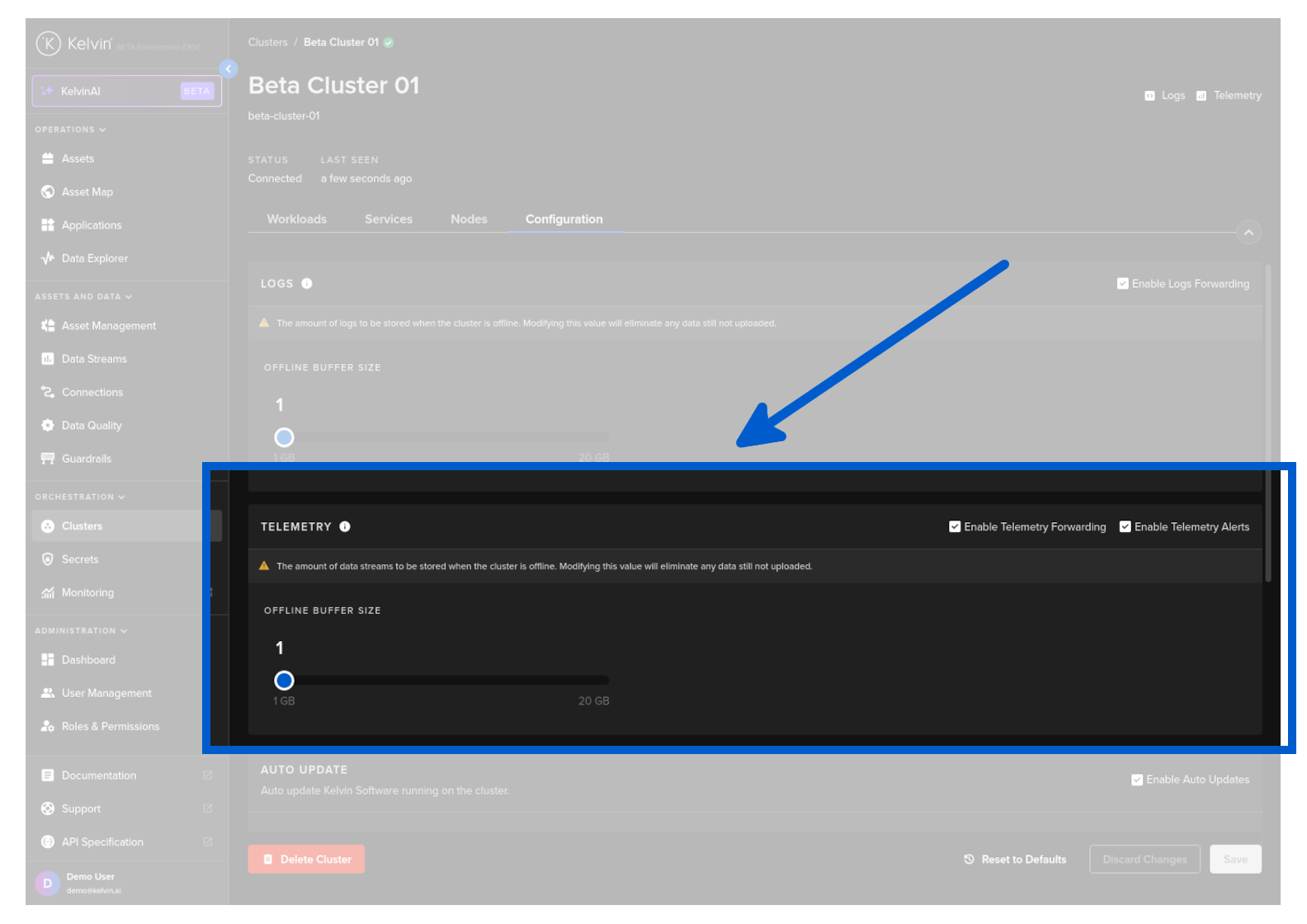
Offline Retention
When the cluster is offline, the Clusters will continue to collect and buffer the telemetry data and transmit it to the Kelvin when it reconnects.
You can adjust the settings for the telemetry buffer size and recording interval while the cluster is not connected to the Kelvin.
Be careful when changing this setting as this will delete all current logs that are currently in the buffer waiting to be loaded to the Kelvin.
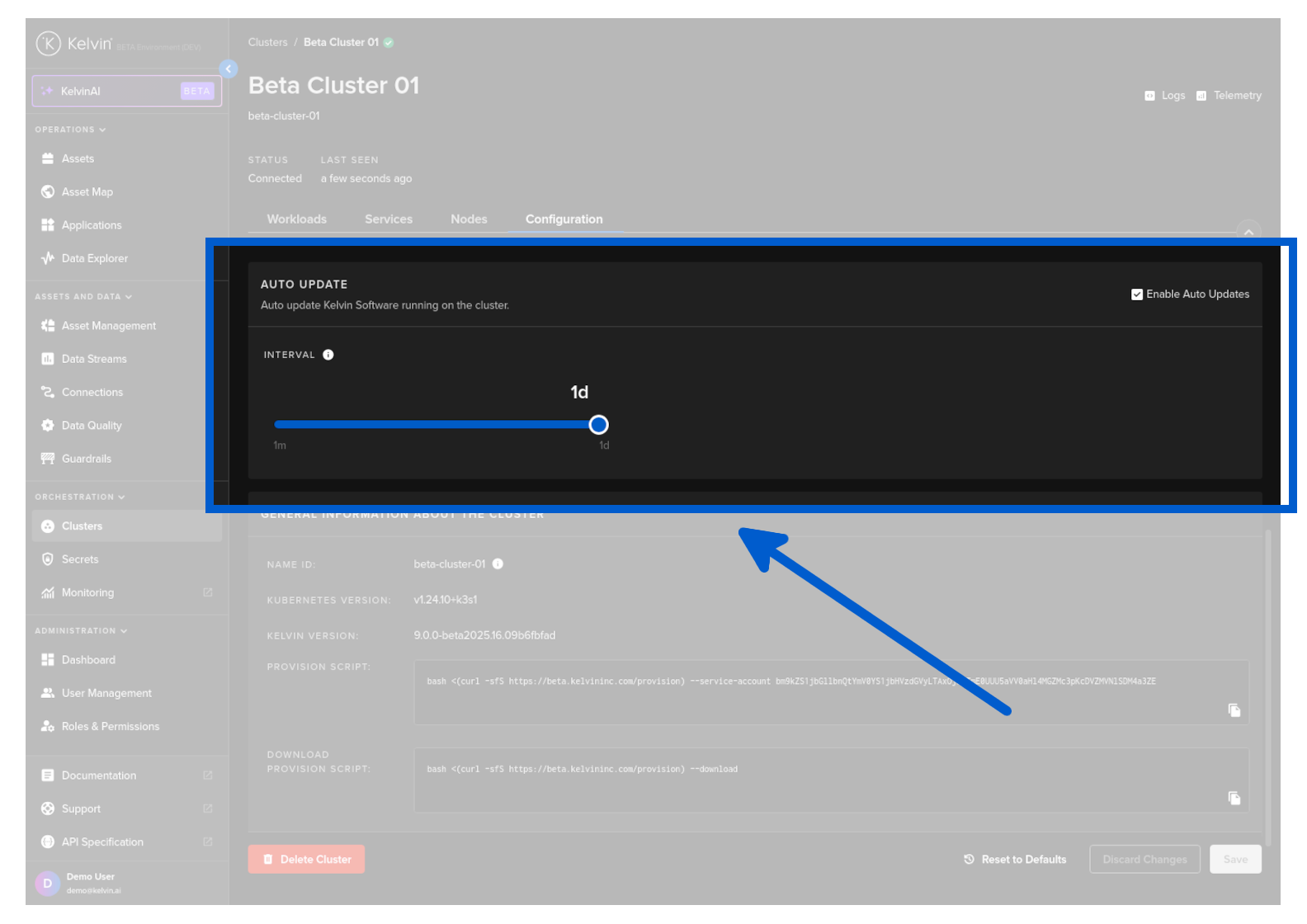
Auto Update
You can set or disable the auto update feature and the frequency to check for updates.
Remember to click save after changing any settings otherwise you will lose those changes.
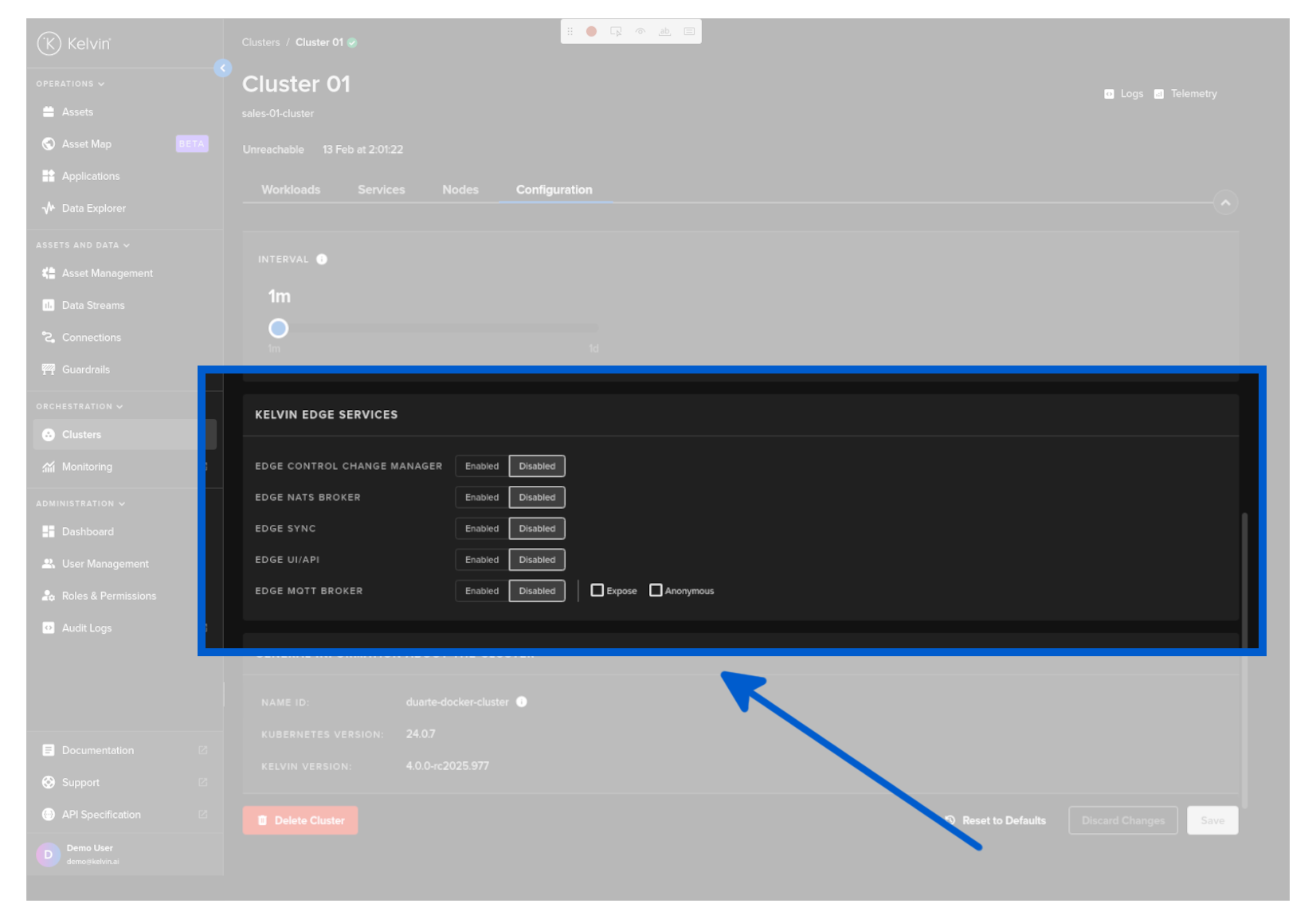
Kelvin Edge Services
!!! note
This feature is available for **DOCKER CLUSTERS ONLY**.
You can choose which Kelvin services will be deployed and run on the Docker Cluster.
General Information
Software Versions
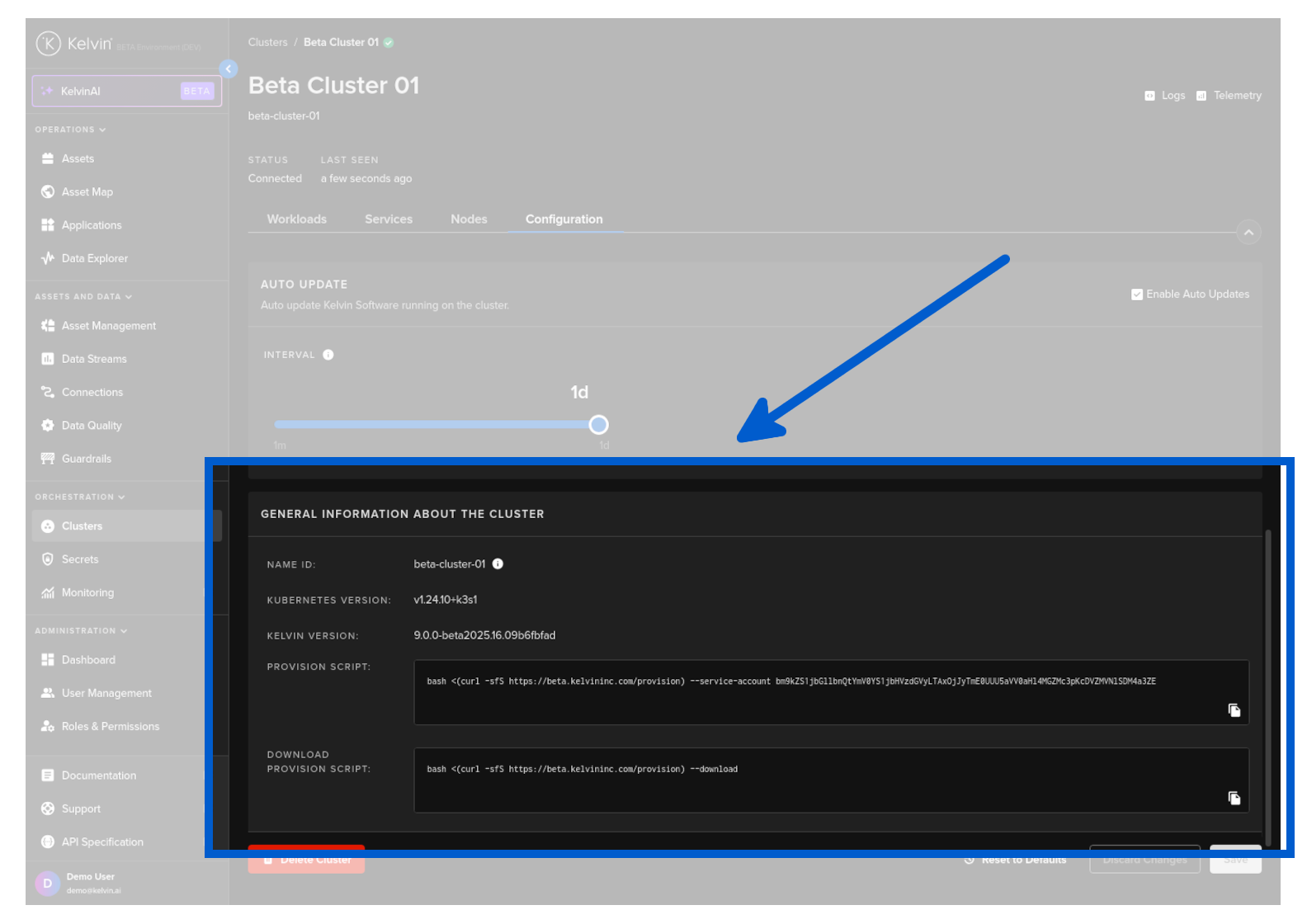
Here you can see the software versions on the node for Kubernetes and Kelvin core services.
Note
You also can see the provision script used to initially setup the Edge device.
Provision Scripts
Here is the original provision script with the service account for setting up this Cluster on the remote computer.
There is also a command for downloading the provision script only.
Note
This is useful in cases for you to quickly bootstrap a system without cloning any repositories.