Operations Tools
On this page you will learn how Production Engineers, Operations Engineers and other manufacturing SMEs can use Kelvin to augment their existing operations workflows using the Operations Menu.
What is Kelvin UI ?
Kelvin UI provides tools for Operations Engineers be able to monitor, manage, configure and control assets as well as Applications that they are responsible for using a simple UI.
Even though the Kelvin UI is accessed through any modern browser, it is recommended and fully tested on the latest versions of the Chrome browser.
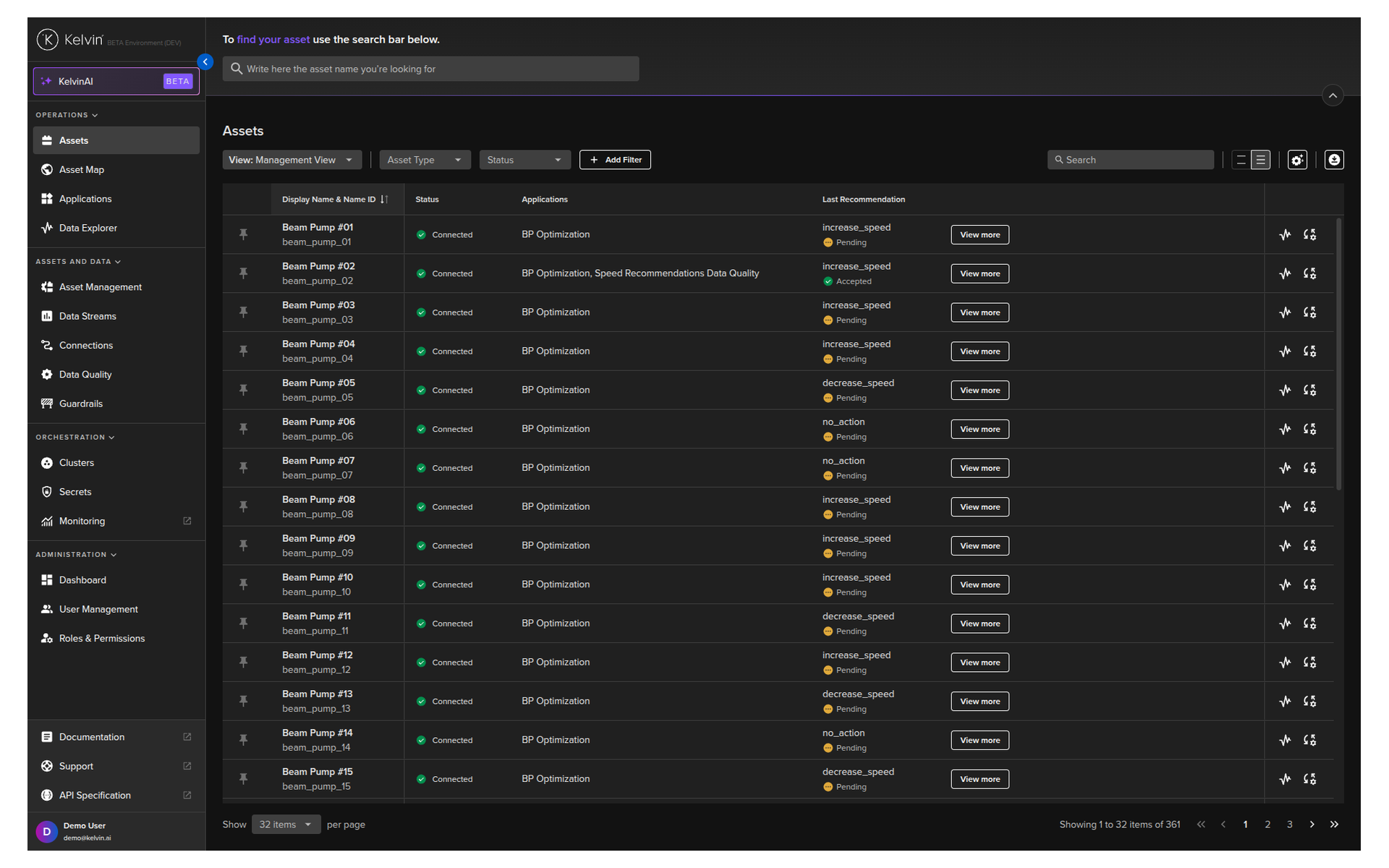
Operations Engineers will use the Kelvin UI mainly to manage and control the assets under their responsibility. Some key features for Operations Engineers are;
- Managing Assets
- Monitoring the data streams both live and historical
- Making decisions on recommendations from Applications and machine learning models
- Changing Asset App Parameter values for Applications and assets.
- Analyze and compare Asset's historical data and decisions all in one graph
There are areas in Kelvin UI specifically for Software Engineers and Administrators. These are covered in the Developer Tools and Platform Administrators sections of the documentation.
Light and dark mode
Kelvin UI supports light and dark display modes, allowing you to switch the interface theme to suit your preference or environment.
You can change the theme from the user menu. Click your username in the top-right corner to open the account dropdown, then use the System Mode toggle to select System, Light, or Dark.
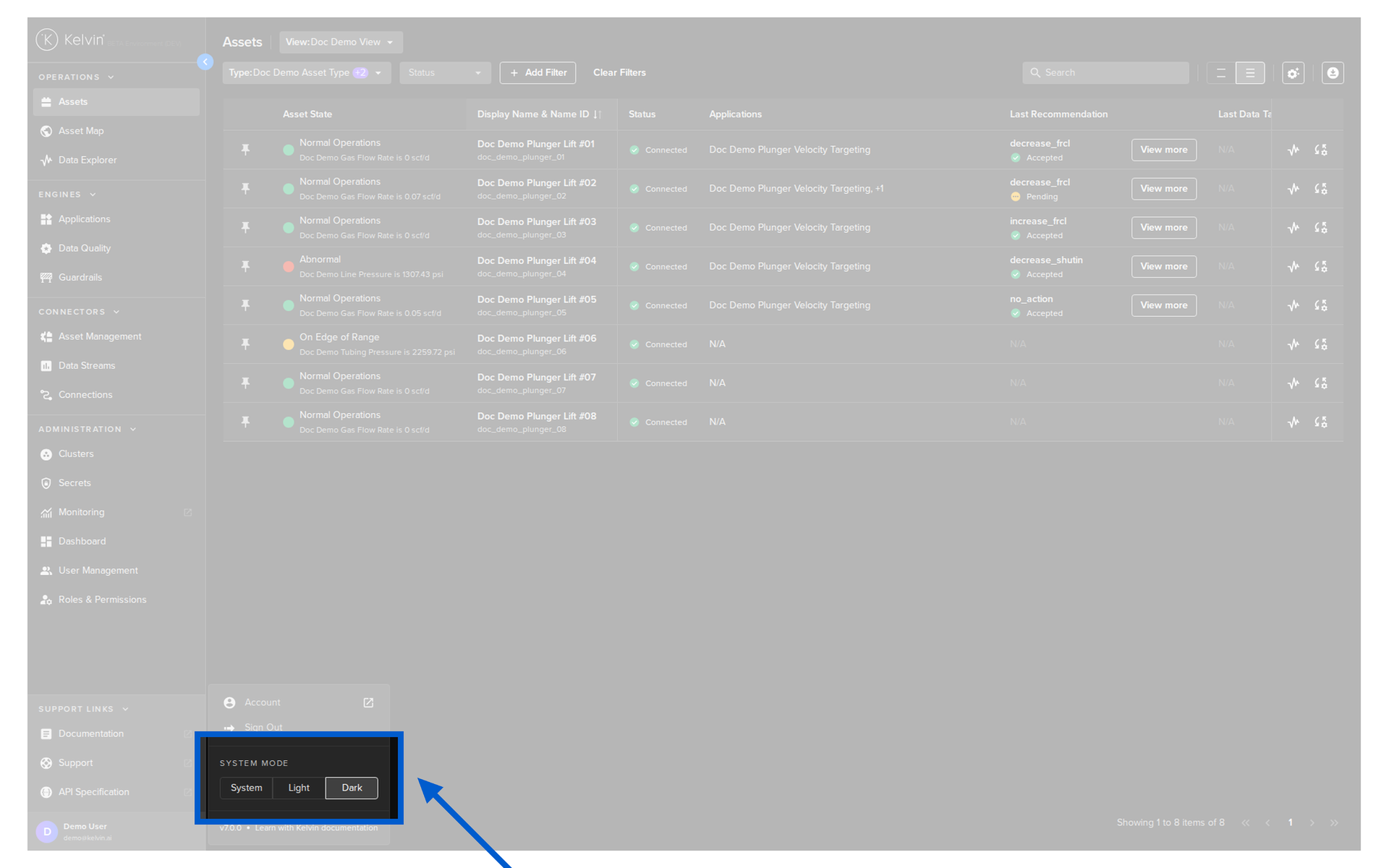
Selecting Light switches the interface to a light color scheme.
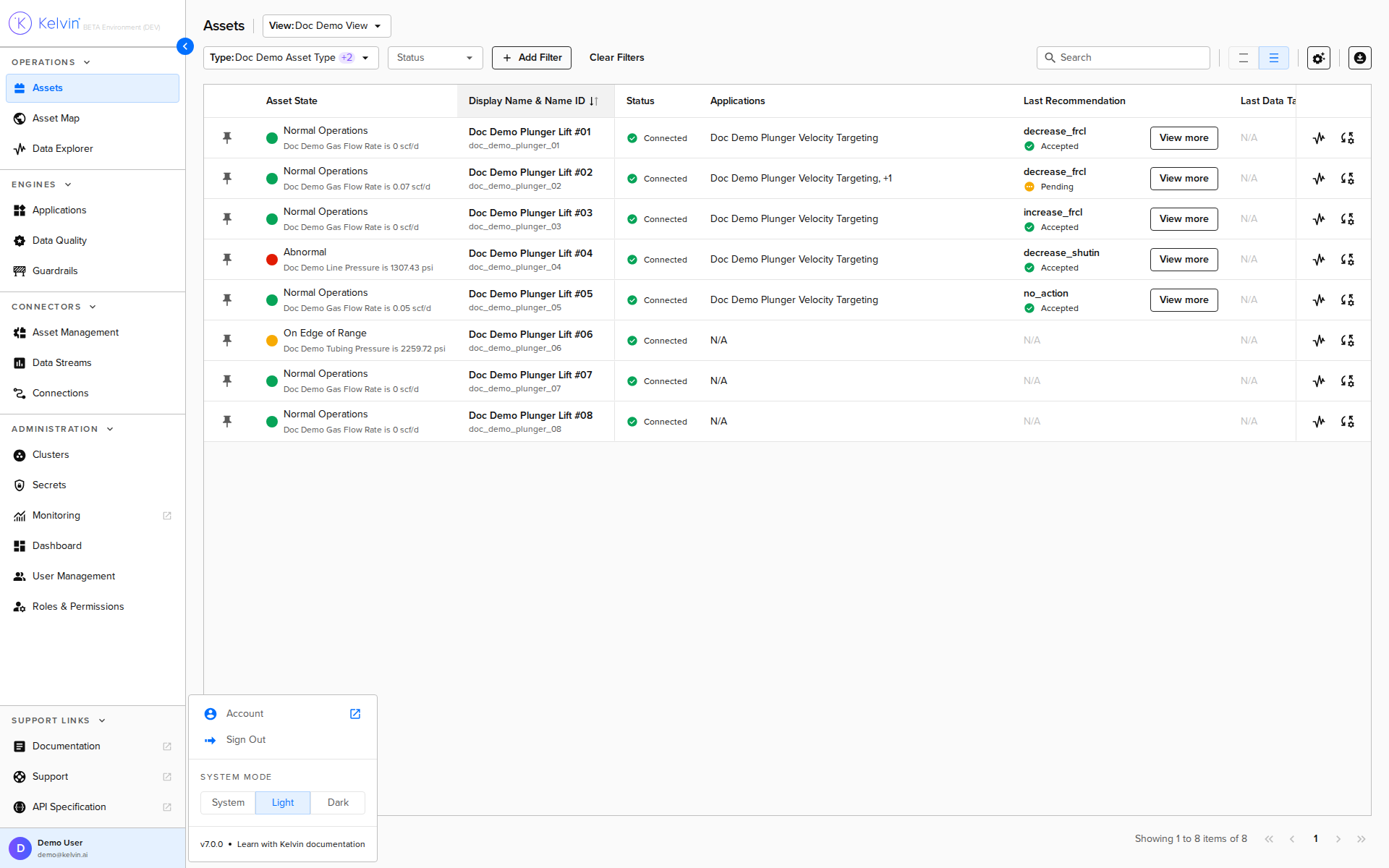
The System option follows your operating system's current theme setting.
Requirements
Kelvin UI works with most modern browsers but it is only fully tested in the latest version of Google Chrome, so you may find some odd quirks when running it on older versions of Google Chrome or in other browsers such as Firefox.

For a seamless and guaranteed experience, only use the latest Google Chrome version (v145.0.7632 as of last writing this page) as your browser.
Using the latest version also guarantees you have the latest security patches installed.
Operation Tools
Operations Engineers will predominantly use Kelvin UI to handle all their assets.
On the left hand side menu, the Operations section brings the asset and data management tools that Operations Engineers need to monitor, manage, configure and control all assets under their responsibility.
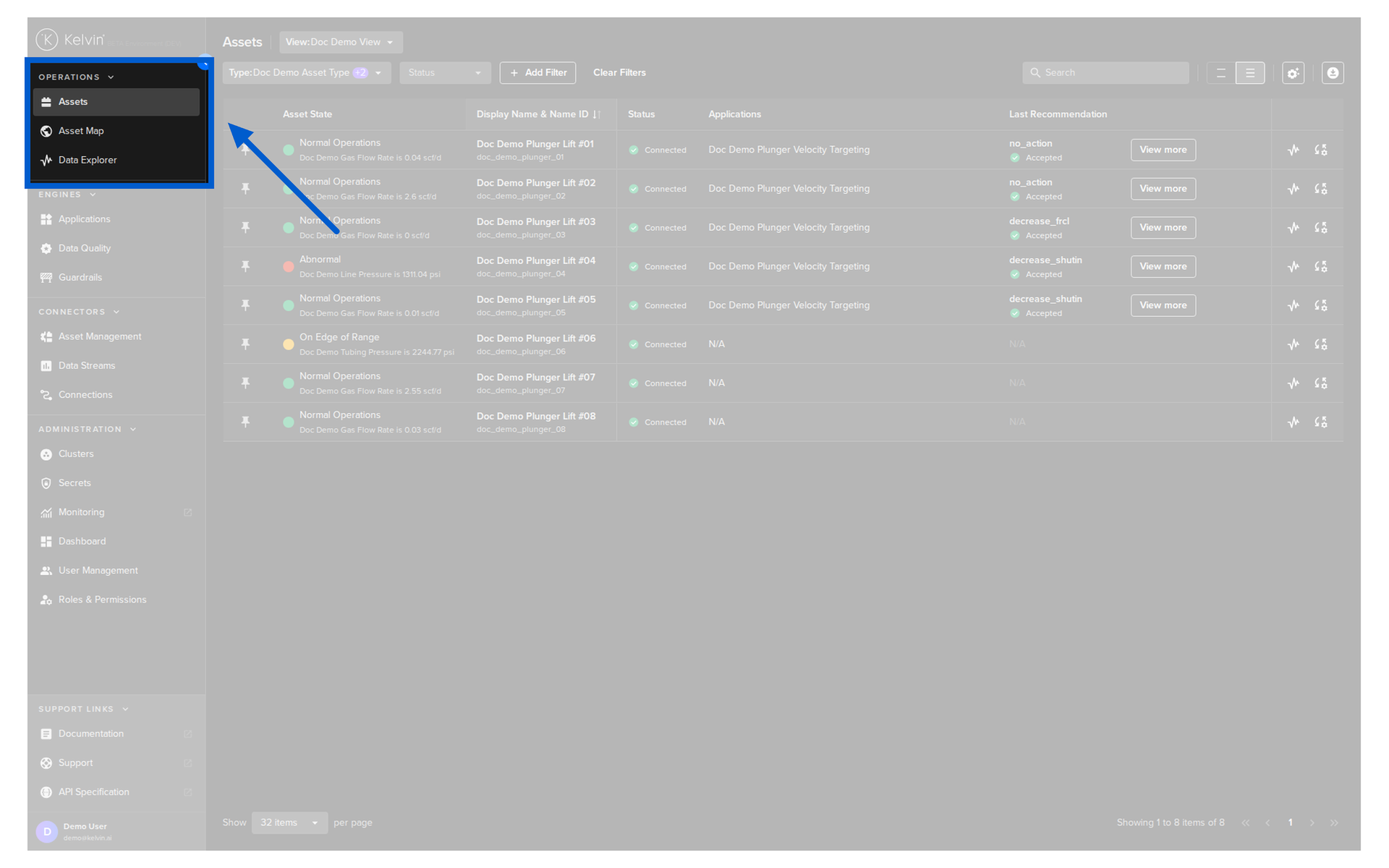
The Engines section brings the intelligence tools that you will use.
- Monitor the applications that are running your assets
- Check the quality of the data being received from the assets
- Manage the guardrails for writing to the assets to guarantee it never sends obviously problematic or dangerous settings to the assets

Kelvin AI
Kelvin AI is your smart assistant built to streamline your workflow on the Kelvin Platform.
It helps you complete tasks faster and with less effort.
Kelvin uses specialized agents to enhance response accuracy and reduce common hallucination issues found in typical LLM architectures.
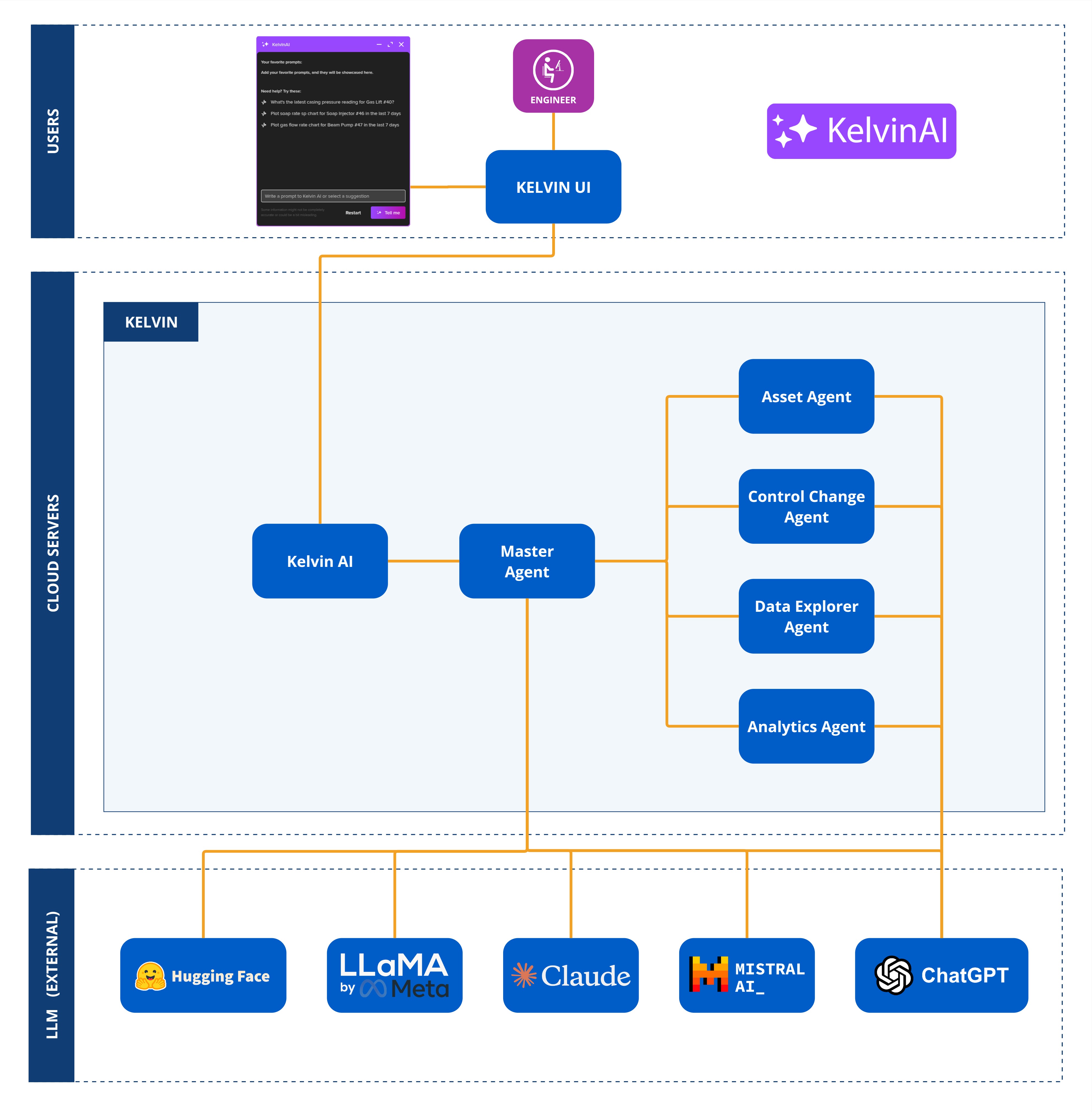
Kelvin has three main agents;
There is also a selected history.
Assets
In Kelvin UI you can manage both your Asset and Data Streams.
For Assets you see a full filterable list of Assets with shortcut links to go to the Data Explorer where you can view all the data coming in through the Data Streams associated with the Asset.
For each Asset you will be able to see many details related to the Asset including;
- Create custom control dashboard for quick management and views
- Current status and general information
- All recommendations
- All Applications that process the Asset data
- Monitor and change App Parameters for Applications.
- Manually change the values of Data Streams associated with the Asset.
- View the graphs in Data Explorer for all Data Streams.
Asset Maps
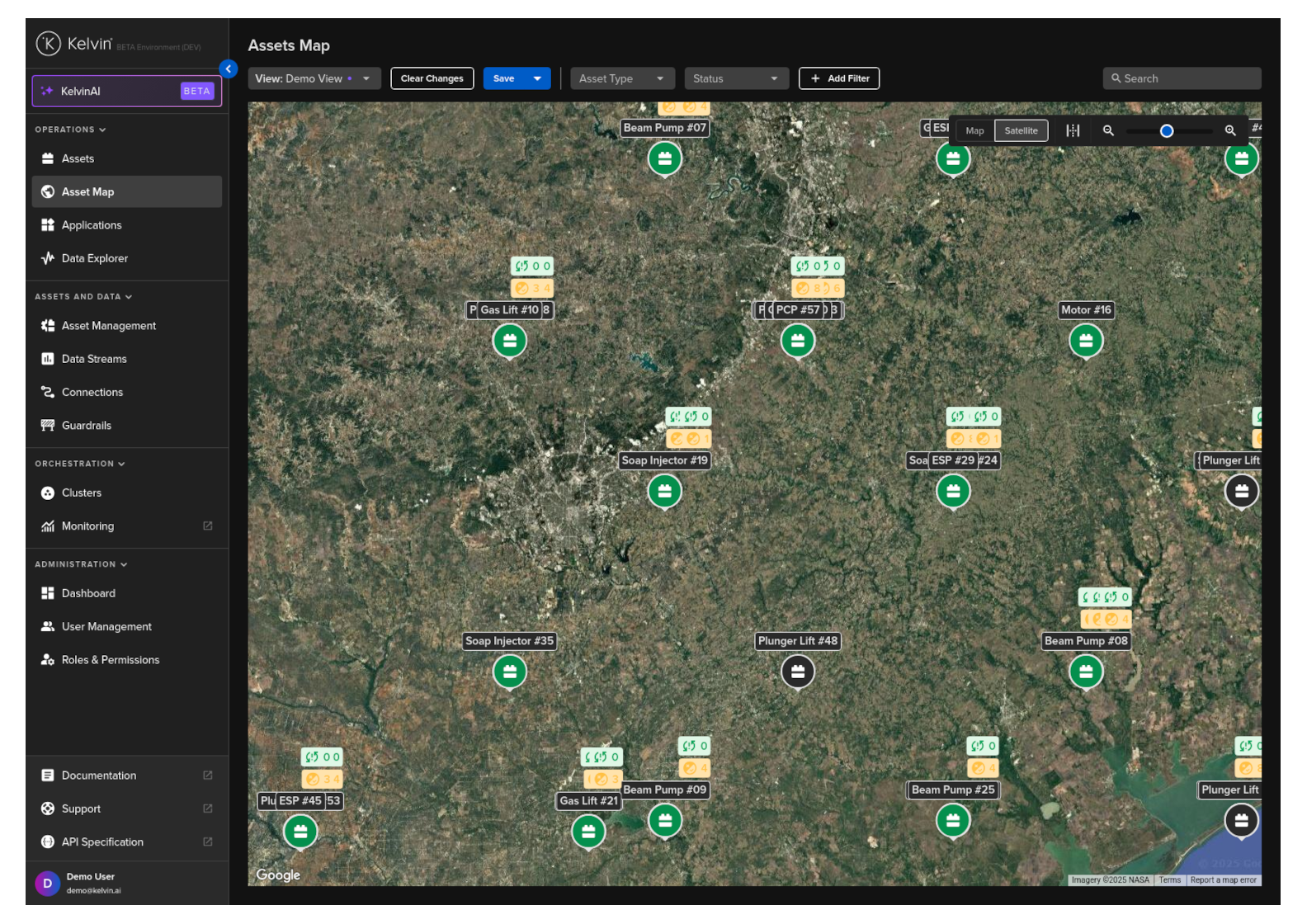
Asset Maps enables precise geospatial visualization and analysis of both stationary and dynamic assets. This tool is designed for real-time insights and operational clarity.
Applications
Found under Engines in the sidebar, Applications shows all Applications that have been developed by Software Engineers and uploaded to the App Registry in the Kelvin Cloud.
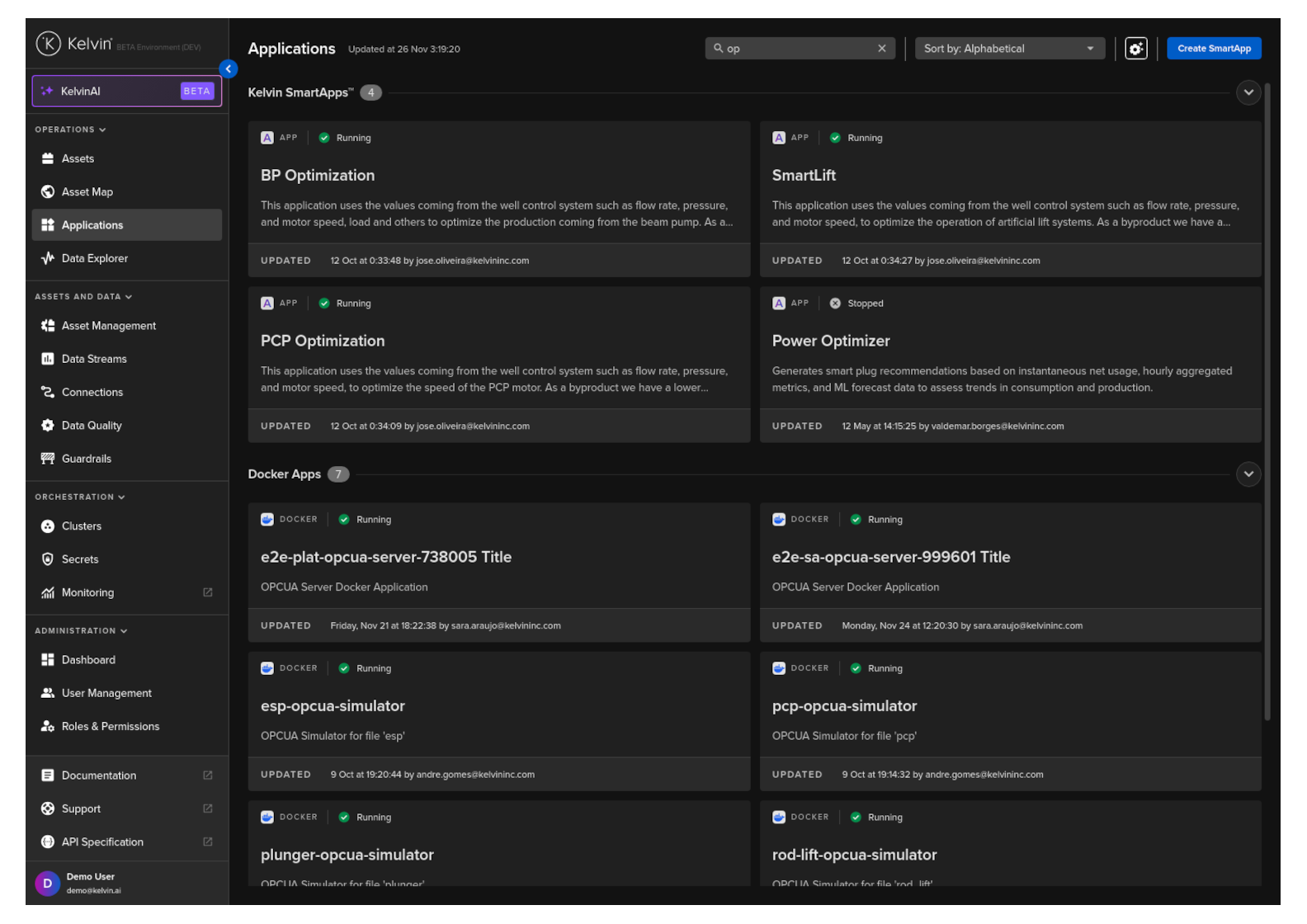
For each Applications you can;
- Manage the different versions of Applications and their associated deployed Assets.
- Update App Parameters for one or multiple Assets at the edge.
- Go to the Data Explorer to view all historical data associated with Applications.
Data Explorer
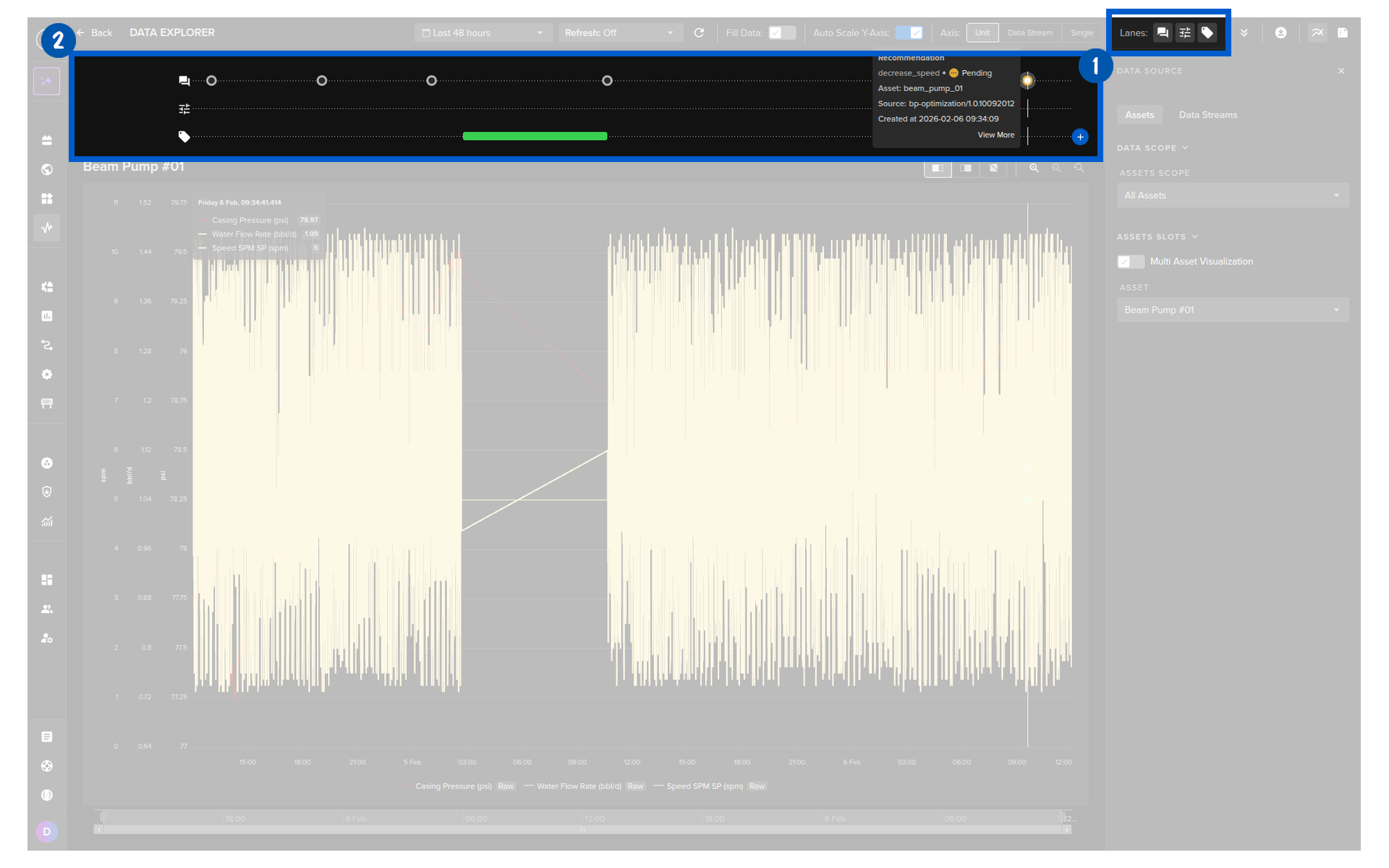
Data Explorer gives you a full set of features to review historical data from Asset / Data Stream pairs.
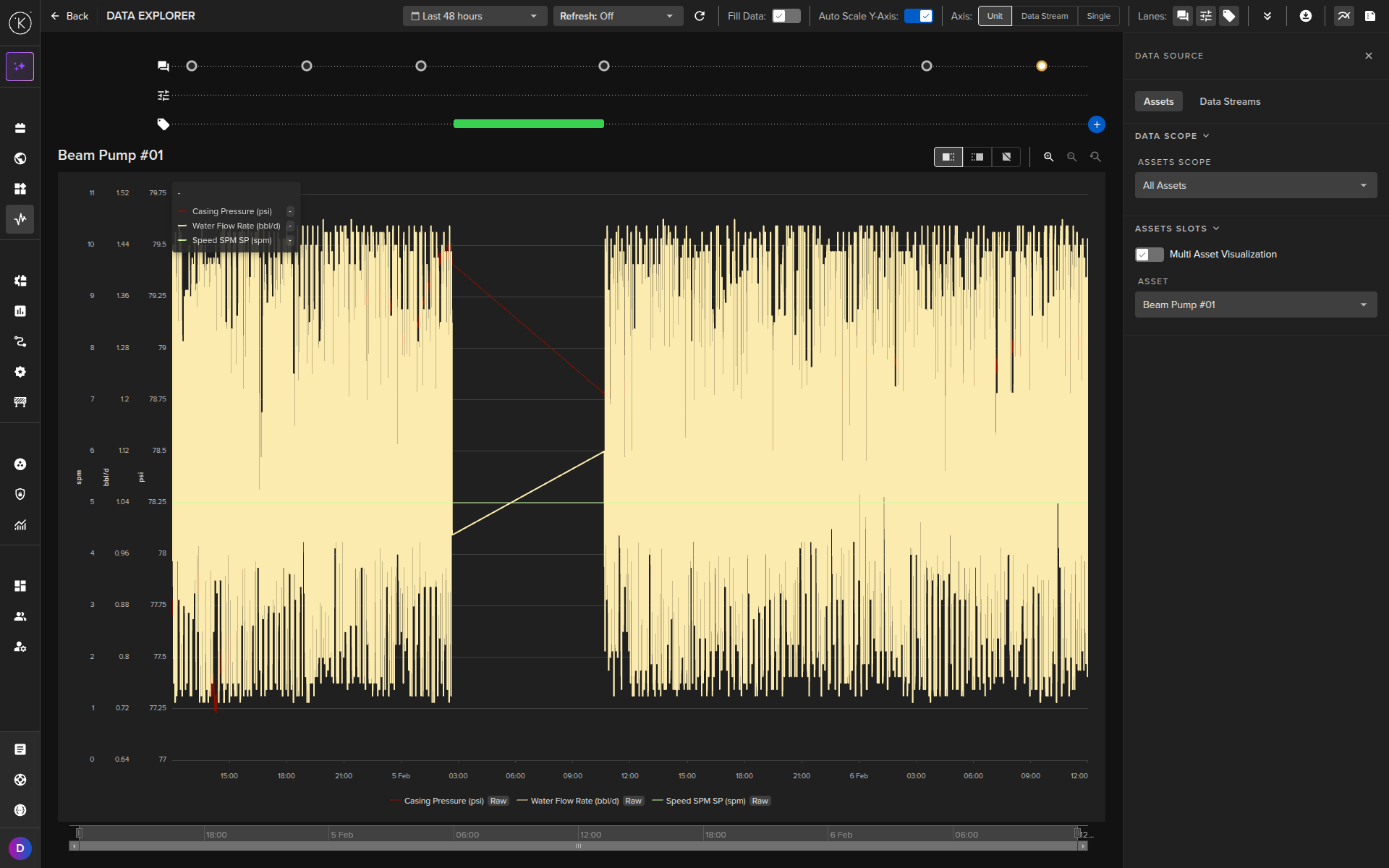
You can also see all control systems changes and Recommendation initiated for the selected Assets.