Provision Docker - How to
On this page you will learn how to setup an edge system with basic Docker using the cluster installation tools in the Kelvin UI.
If you want Kelvin to install a single node Docker instance directly and handle all the management, you can choose the Docker option.
Note
The Docker environment option is called Edge Light and is primarily used in hardware that has limited hardware resources.
For this option you only need to have Ubuntu Server to start the installation process.
This is an effortless, all-encompassing solution for clients using the Edge Light solutions.
For all other options, you will need to install and manage the Kubernetes cluster yourself. Kelvin will only install and maintain the Kelvin-specific management pods on the existing Kubernetes cluster.
Docker

Docker clusters is a single node container based environment. Unlike Kubernetes, everything is installed and managed on one edge device only.
It requires only a modern kernel.
Requirements
Before running the Kelvin provision script, we advise you read the edge setup requirements documentation here.
Installation
The installation process is very simple and you can have your new Kelvin Cluster up and running within ten minutes depending on your internet speed.
Install OS
To start you need to install a compatible operating system onto your computer/server.
We recommend using Ubuntu Server version 20.04 or newer. We also strongly advise that you use only long term support versions of Ubuntu server which are released in April every two years. and has security support for 5 years minimum with options to extend it up to ten years with an ESM contract.
At a minimum you only need to install a command line server without a graphic user interface.
You can download Ubuntu Server here.
Install Cluster
This will install Docker and setup and register the Cluster with the Kelvin Cloud.
Let's dive in and show you how fast and easy the setup can be by first logging into the Kelvin Platform and going step by through the process.
1. Register Cluster in the Cloud
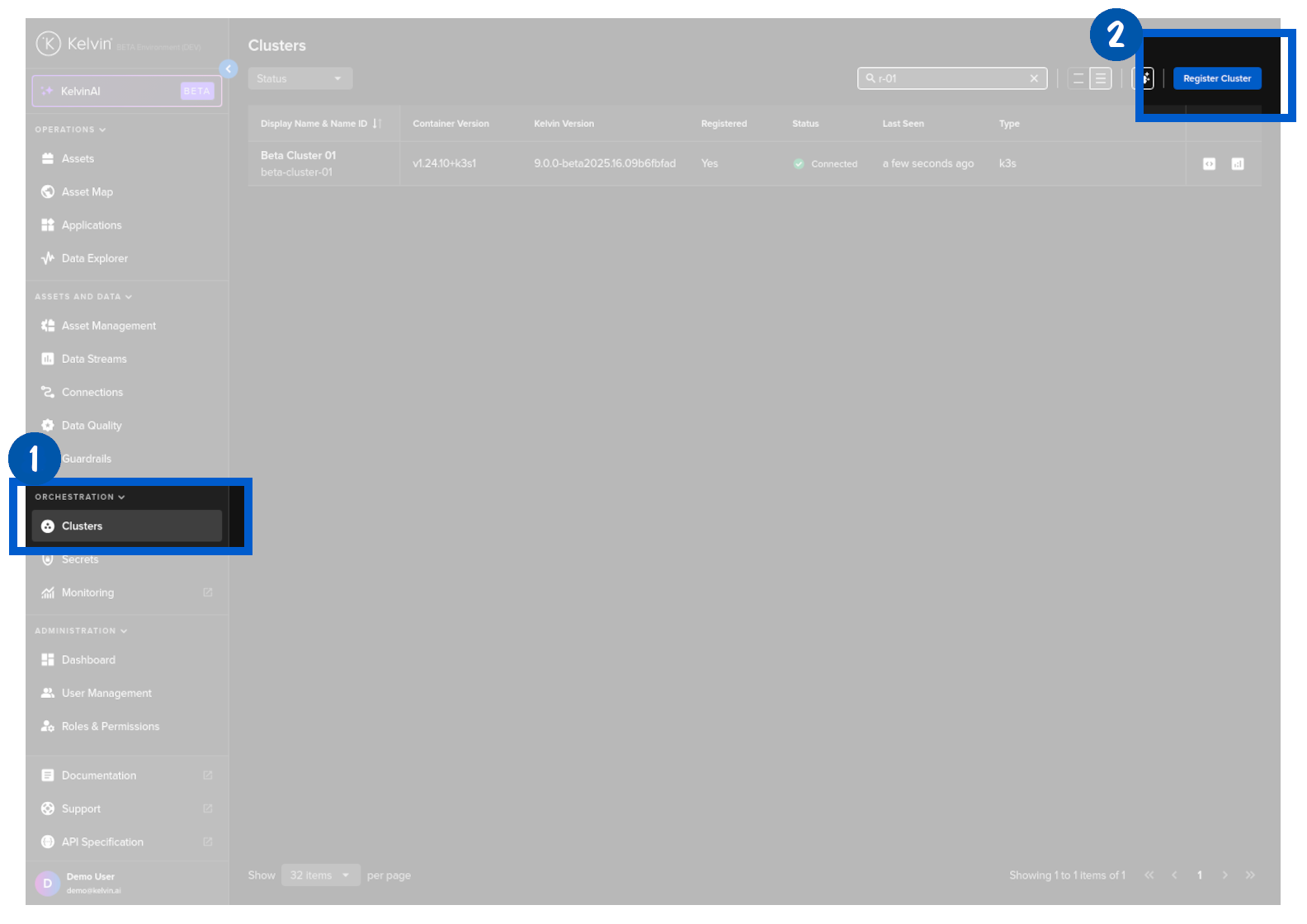
In the Kelvin UI, first head over to the Clusters section under orchestration and click on the register cluster button.
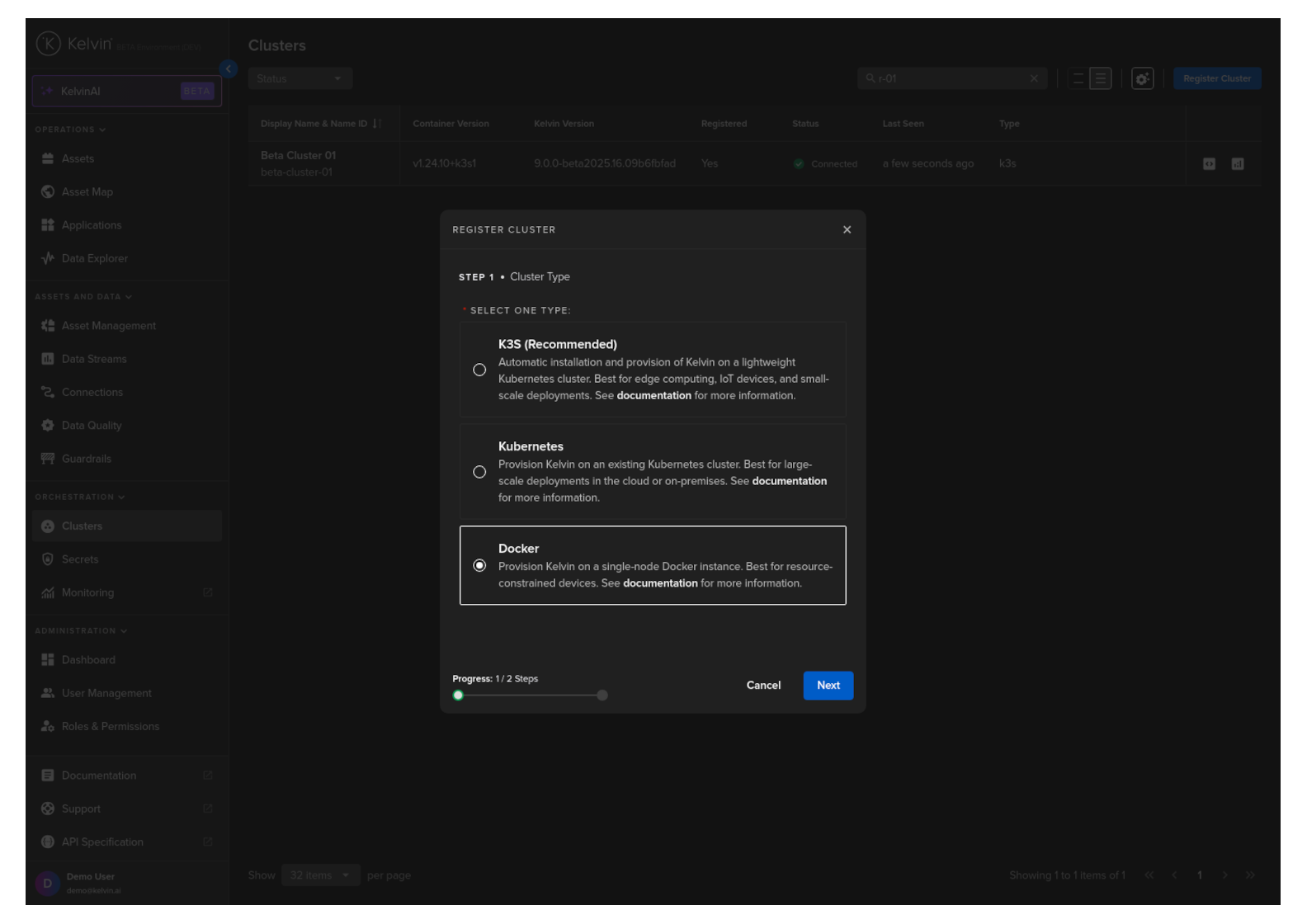
In the popup, at step 1 choose the type of cluster to setup. For this example we will choose the Docker option.
With this option, no cluster or Docker knowledge is required as Kelvin will handle the installation and ongoing maintenance transparently.
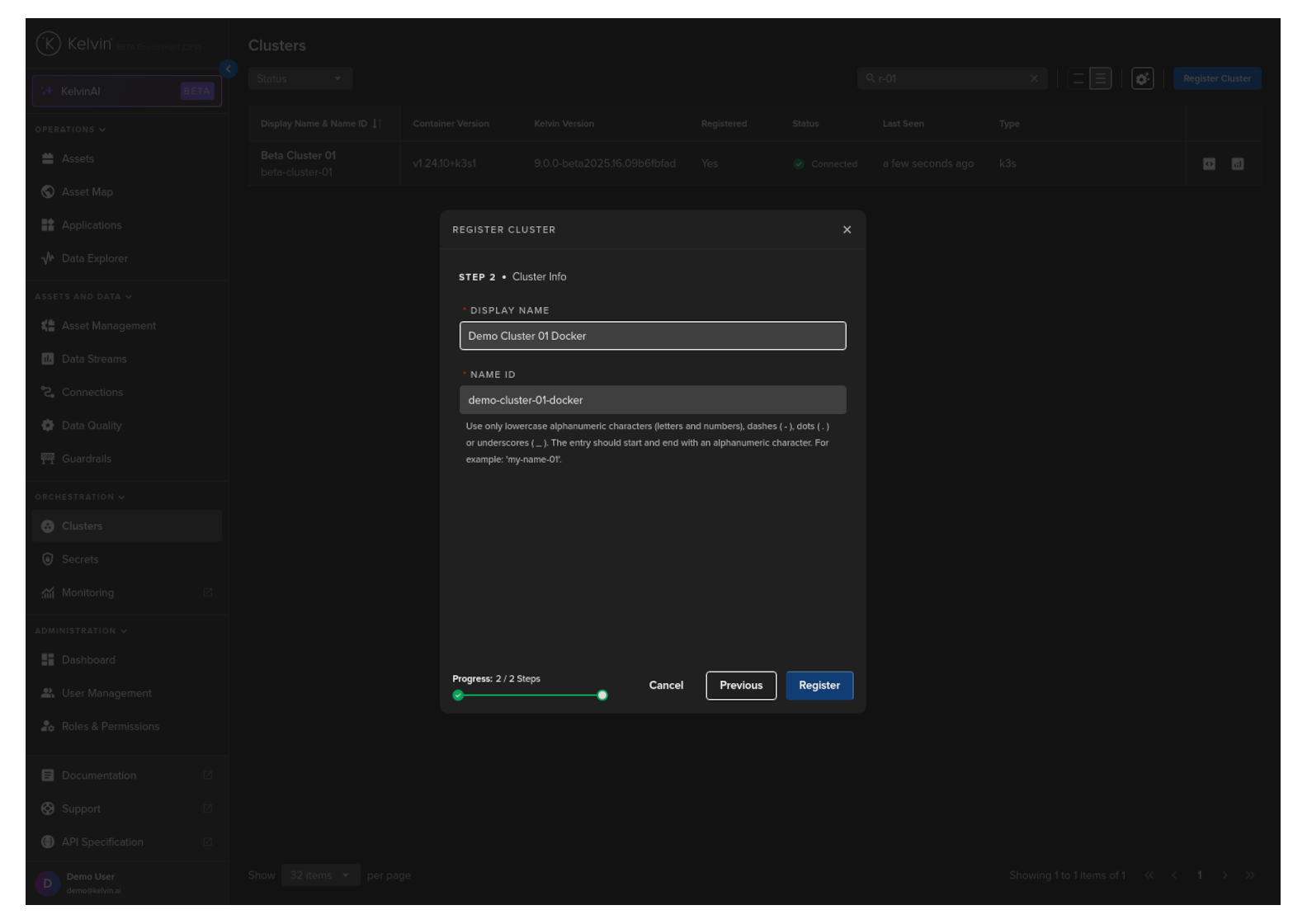
Click next to step two and assign the new cluster a recognizable display name. The name id will be automatically created from your display name. It can usually be left unchanged.
Then click Register. You will then be provided with a script that needs to be executed on the edge system.
If you are using SSH to manage the edge system remotely, copy this script to your clipboard.
If you're accessing the edge system directly, note down the script.
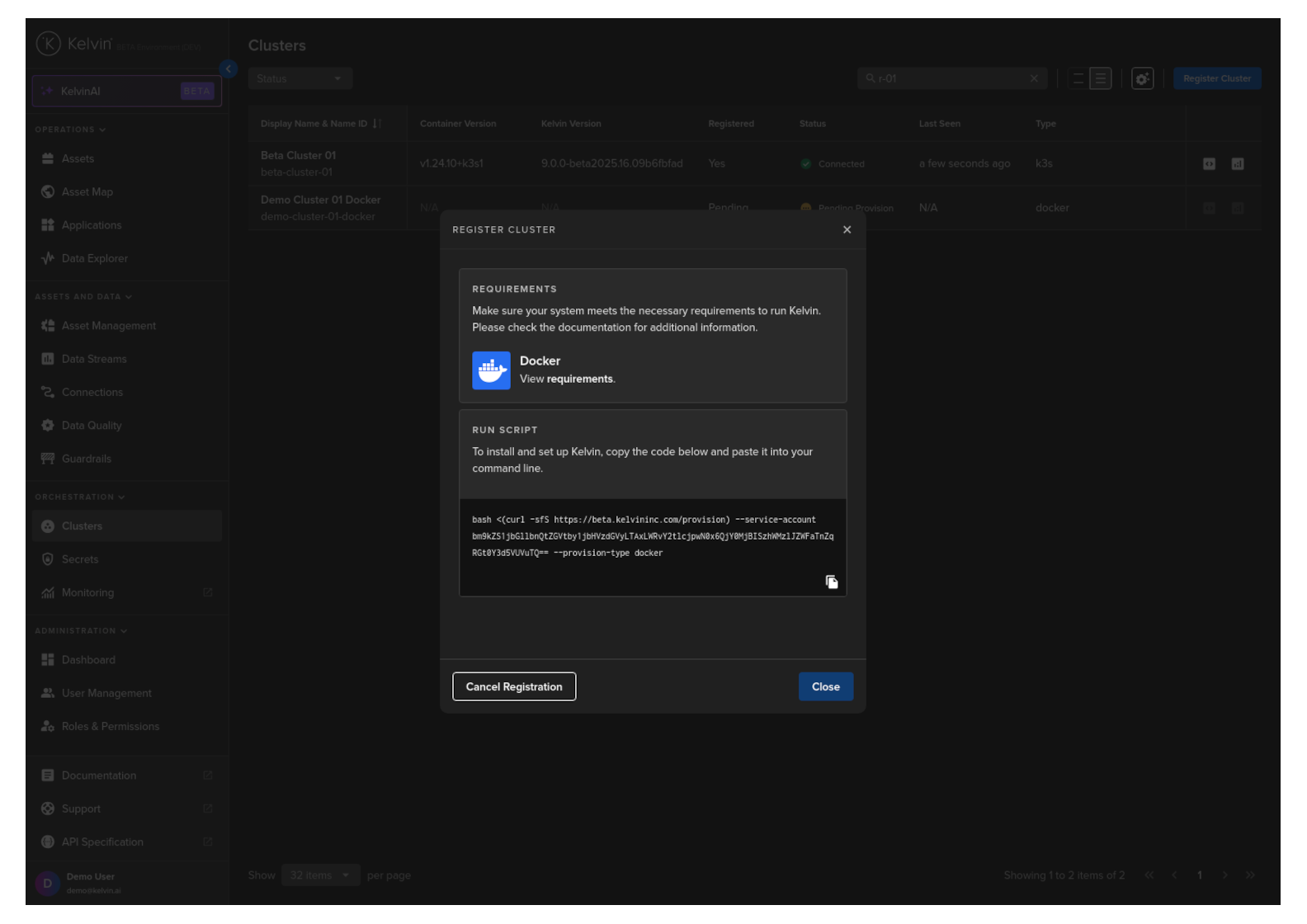
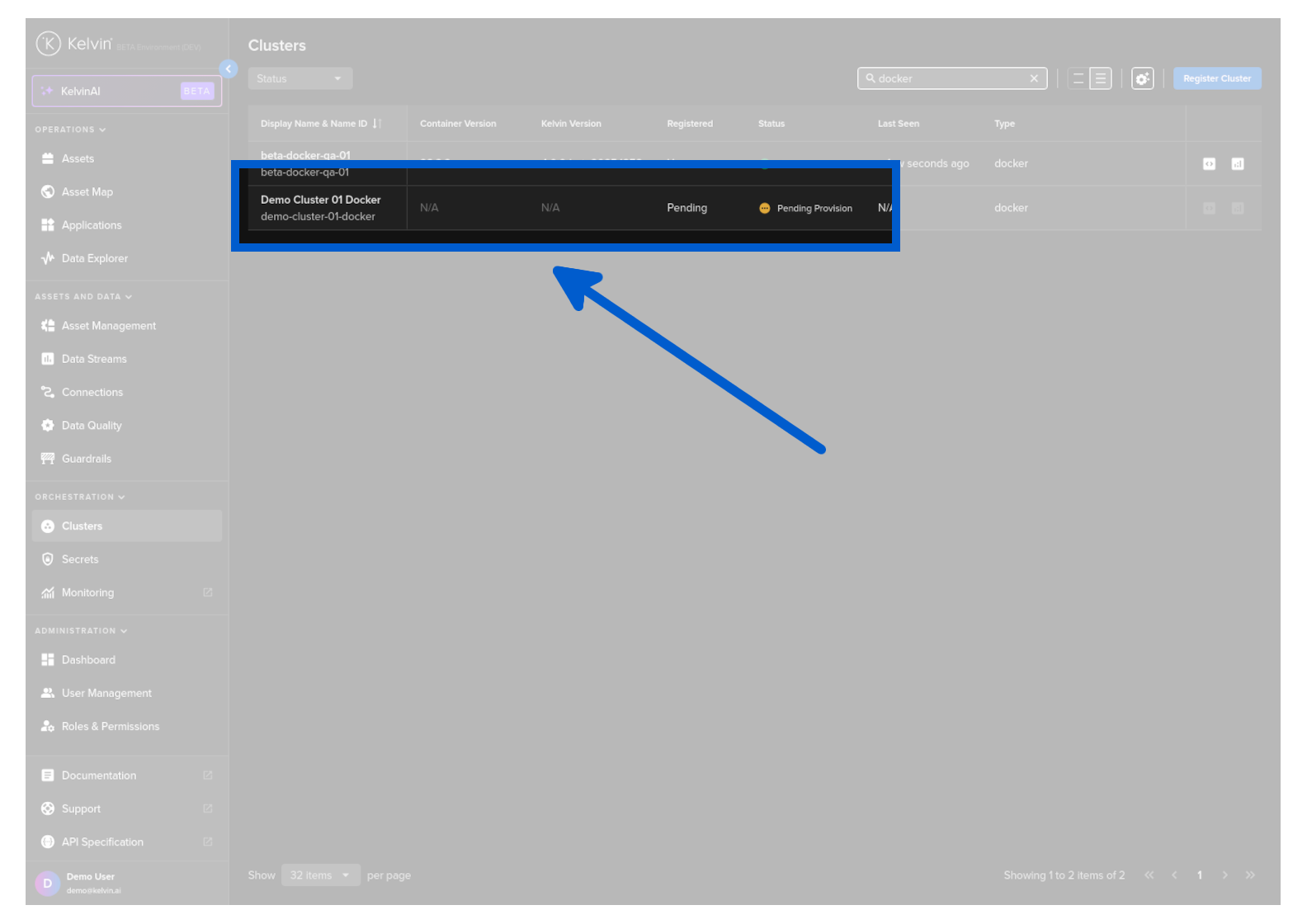
Next click the close button. The cluster is now registered in the Cloud and you can see it is pending registration.
2. Install Cluster on the Edge System
In the terminal of the edge system, before running the provision script there are some requirements to install.
Warning
Avoid using Snap to install Docker
If Ubuntu Server is the operating system for your Edge computer, installing Docker via Snap may lead to conflicts with the provisioning script due to sandboxing restrictions.
| Install Requirements | |
|---|---|
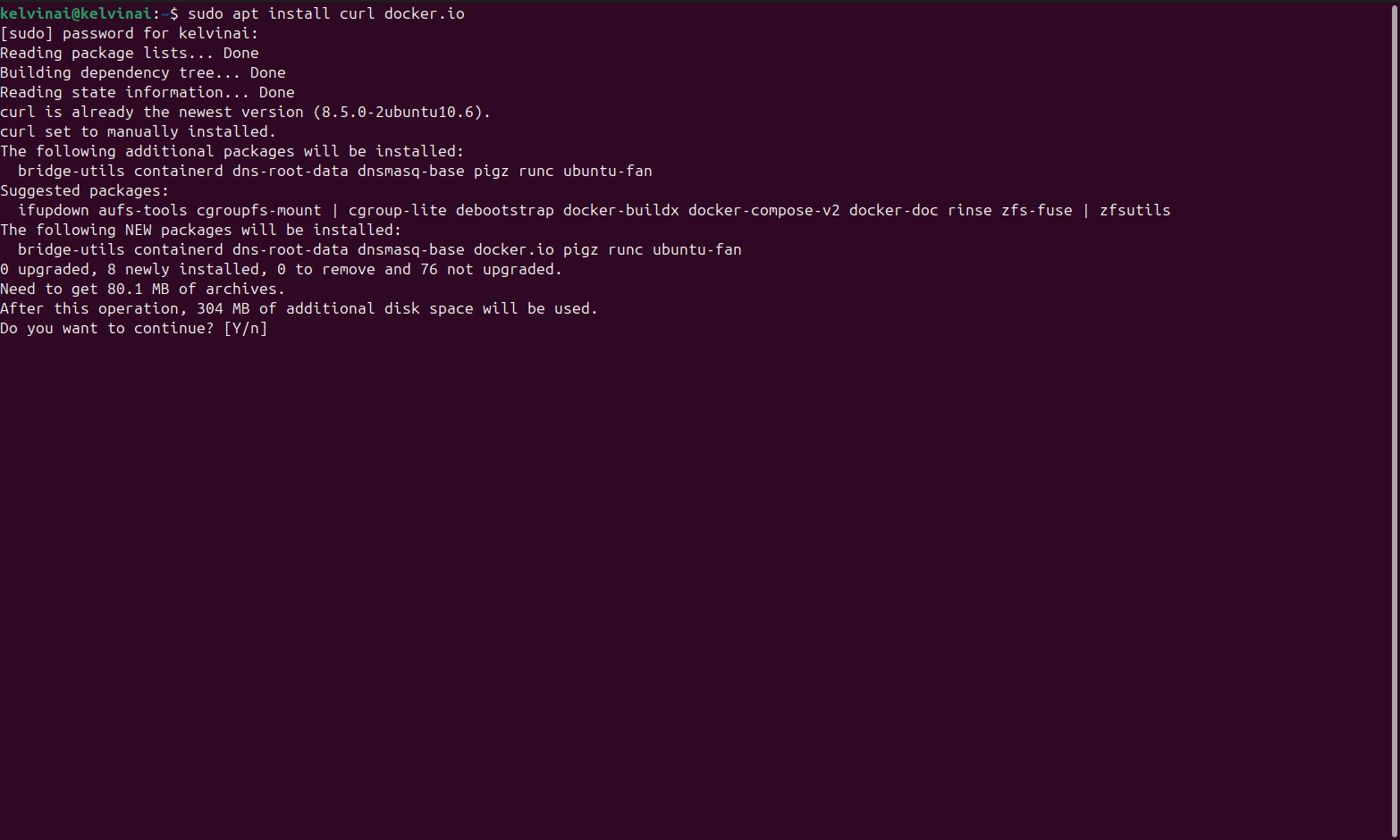
Once installed, then you can enter the script provided earlier.
Since we have SSH'd into the edge system we can simply paste the script from the clipboard, enter the edge computer's password to gain sudo rights. Note that this is not your Kelvin Platform password.
The rest of the process, including installing the cluster and connecting it to the Kelvin platform, is fully automated. Sit back and enjoy a cup of coffee. It should only take about a minute, so we'll skip ahead.
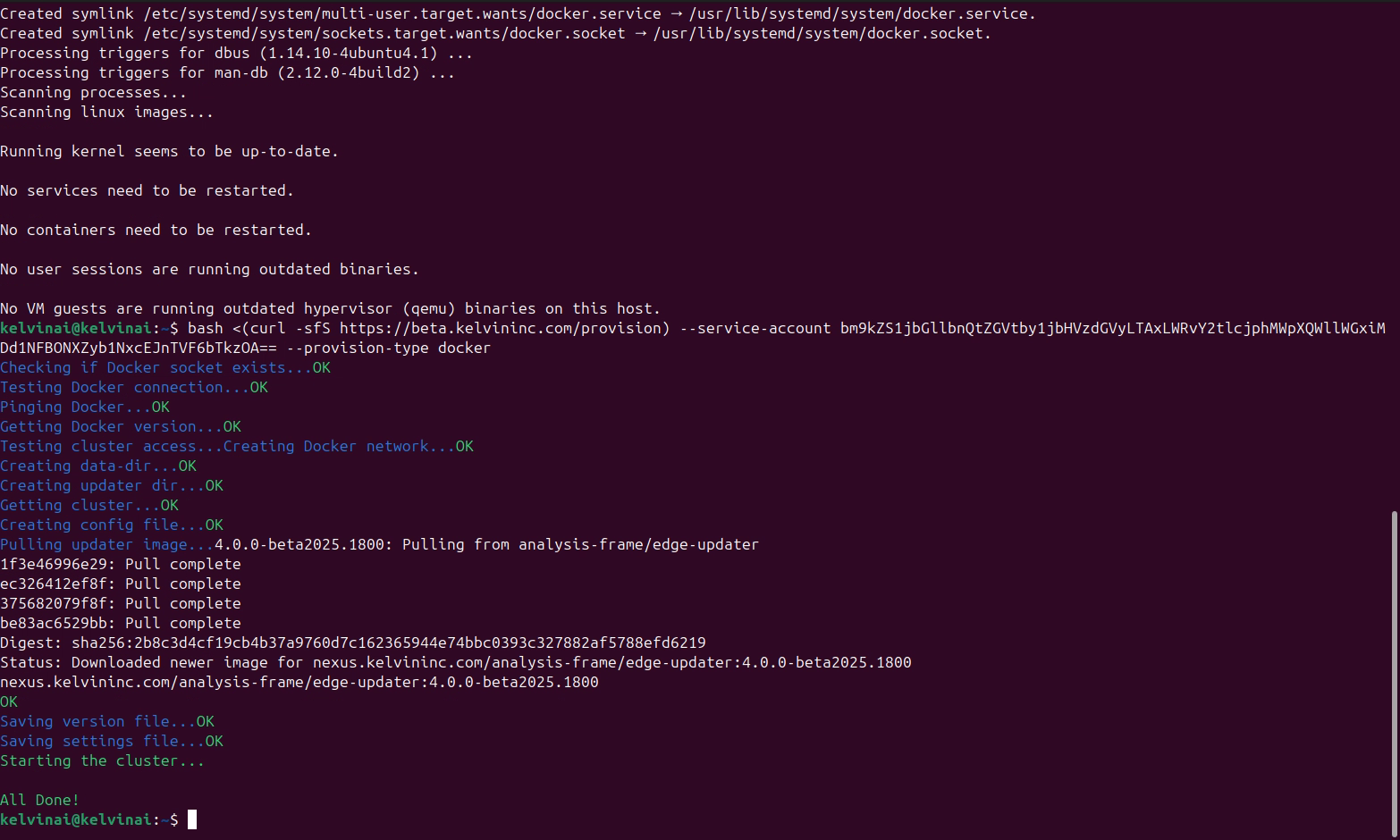
Once completed, you can go back to the Kelvin UI and see the cluster is up and running.
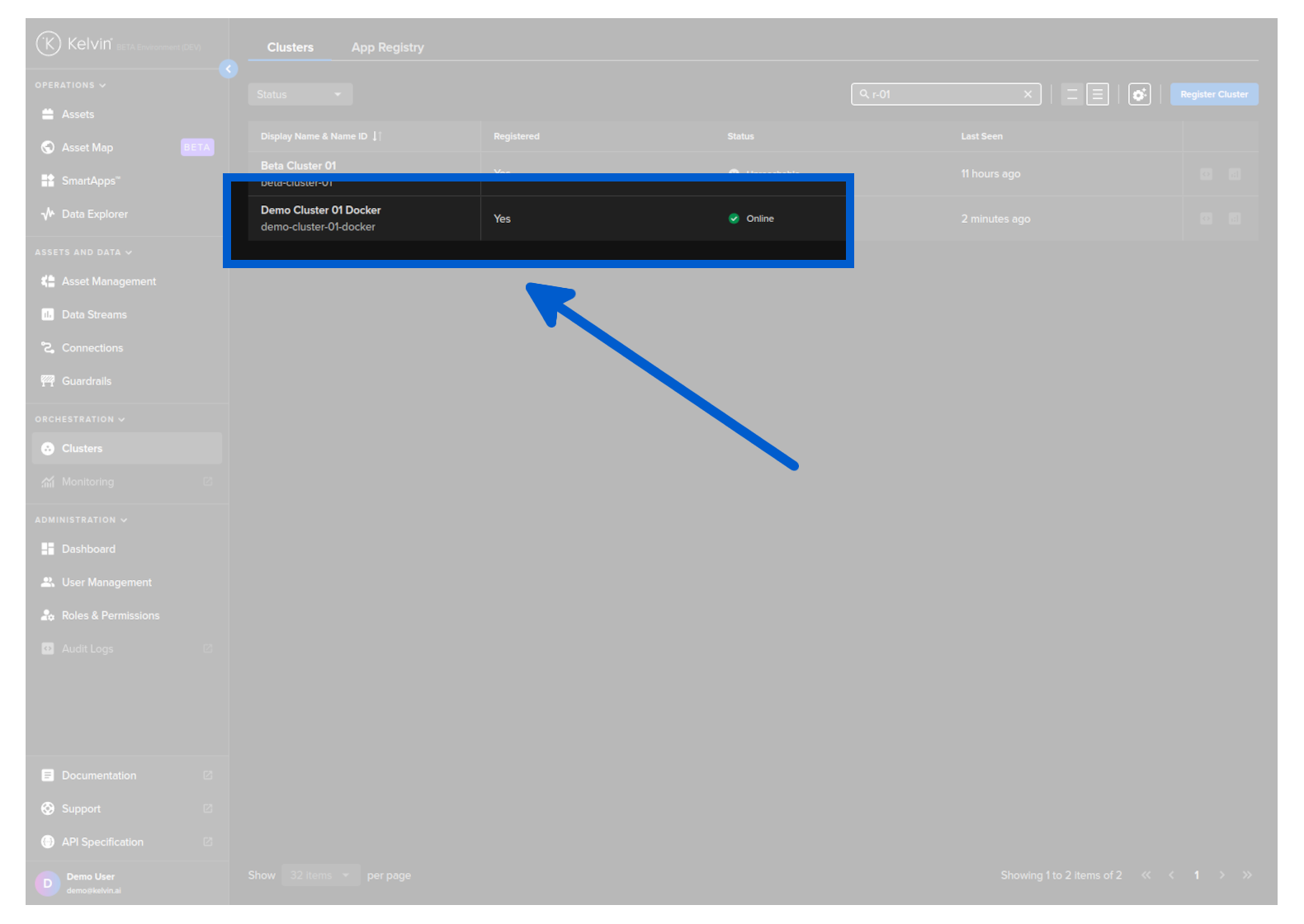
Congratulations, you have setup your first edge cluster. Now, let's stop the clock.
If you have followed this in the video tutorial you will see have created a cluster in this tutorial with two simple steps in under three minutes.
| API cURL Example | |
|---|---|
The response will look something like this;
Use the value from the key provision_script which will look something like this;
| Provision Script to Install on Edge Device | |
|---|---|
Copy and type this into the Ubuntu server terminal. The whole setup procedure is then setup automatically.
Optionally you can ignore the --service-account parameter. When the installation is started you will be asked to give your username and password and the name of the Cluster to install.
| Provision Script to Install on Edge Device | |
|---|---|
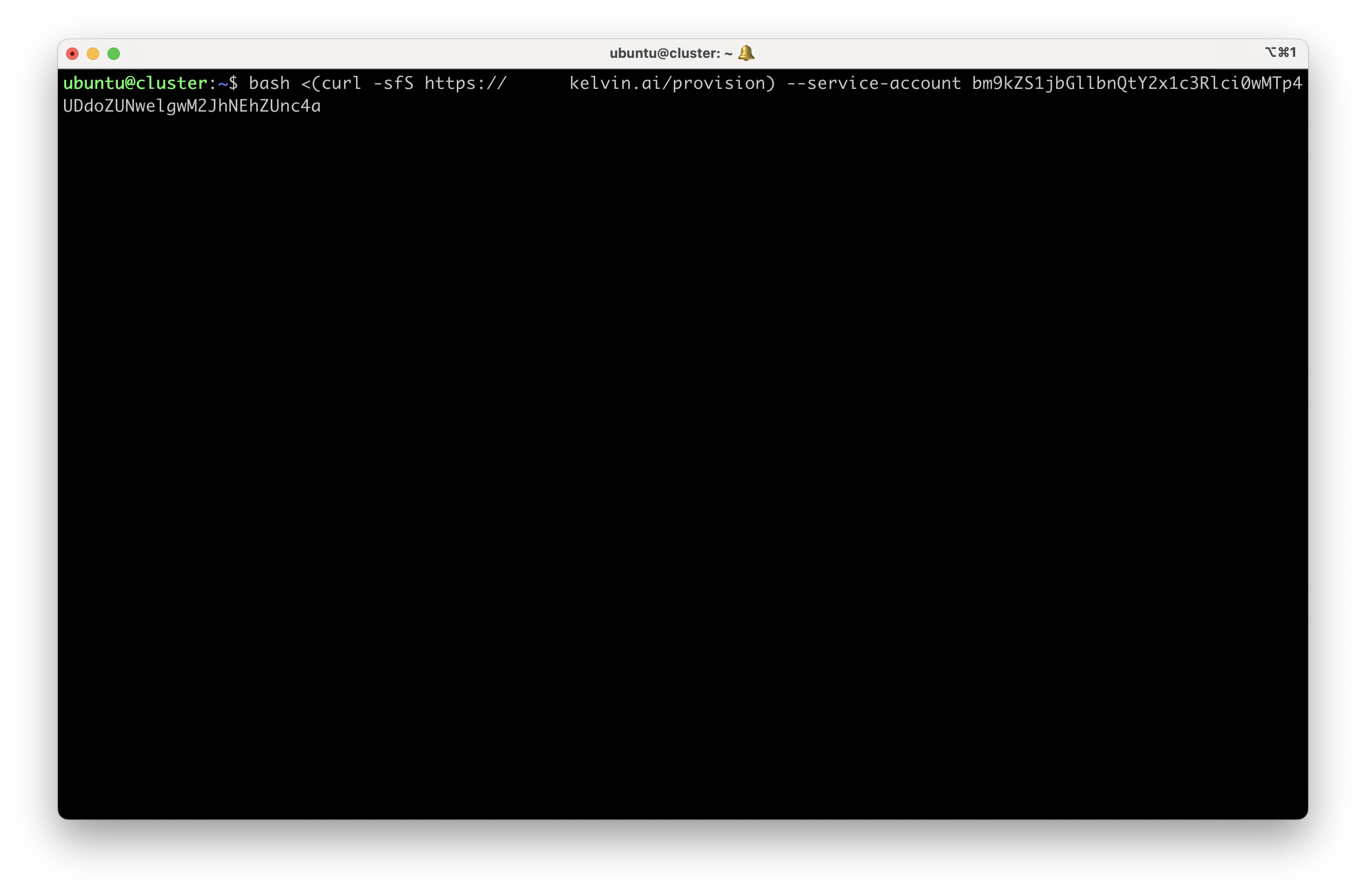
Wait a couple of minutes for the script to finish.
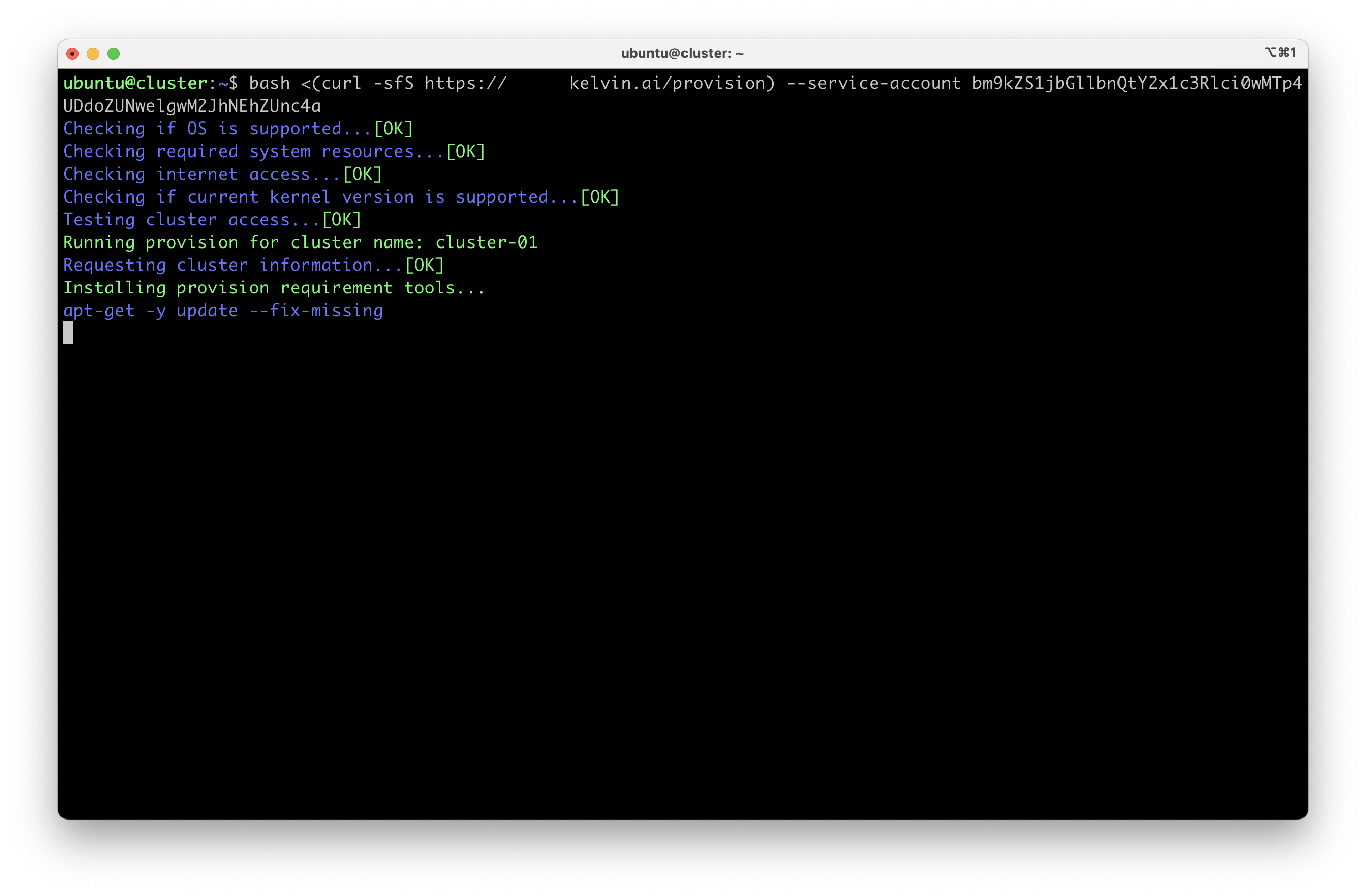
When the script finishes, you will see the following output:
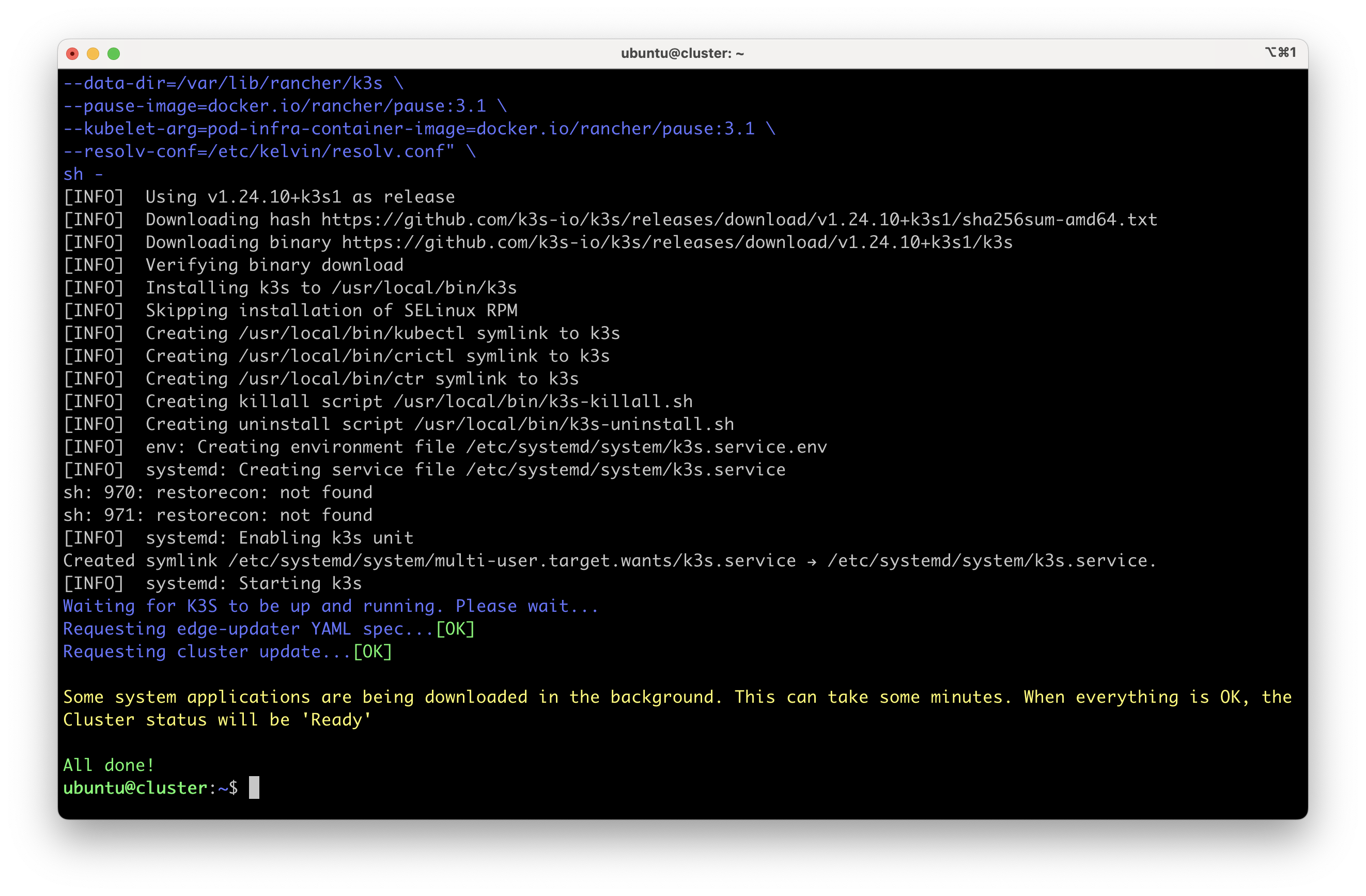
Congratulations, after a few minutes depending on your Internet speed your new cluster is ready for use.
You will see an output like this;
| API Client (Python) Example Response | |
|---|---|
Copy and type the provision script into the Ubuntu server terminal of your edge computer. The whole K3s setup procedure is then installed and configured automatically.
Optionally you can ignore the --service-account parameter. When the installation is started you will be asked to give your username and password and the name of the Cluster to install.
| Provision Script to Install on Edge Device | |
|---|---|
Wait a couple of minutes for the script to finish.
When the script finishes, you will see the following output:
Congratulations, after a few minutes depending on your Internet speed your new cluster is ready for use.