Delete assets bulk
Reference:
| Field | Description |
|---|---|
| Name (Name ID) | Unique name identifier. It must contain only lowercase alphanumeric characters. The characters ., _ and - are allowed to separate words instead of a space BUT can not be at the beginning or end of the name. |
| Title (Display Name) | The display name to show on the Kelvin UI. It can contain any characters, including spaces. |
| Asset Type | The name of the Asset Type that this Asset belongs to. This must be a valid Asset Type name. |
| Properties | A list of key/value pairs that define custom properties of the asset. Use this to define attributes like: Location, Site, PLC Type, Manufacturer, Serial Number, etc. |
Bulk Delete Assets
Deleting many Assets with one command is very simple. The only information you need is the actual name of all the Assets.
Assets can be managed from the Administration section of the UI.
Do not get confused with the Asset management in the Operations section which is designed for the Production Engineers.
To start, go to the Assets in the Administration section of the left side bar.
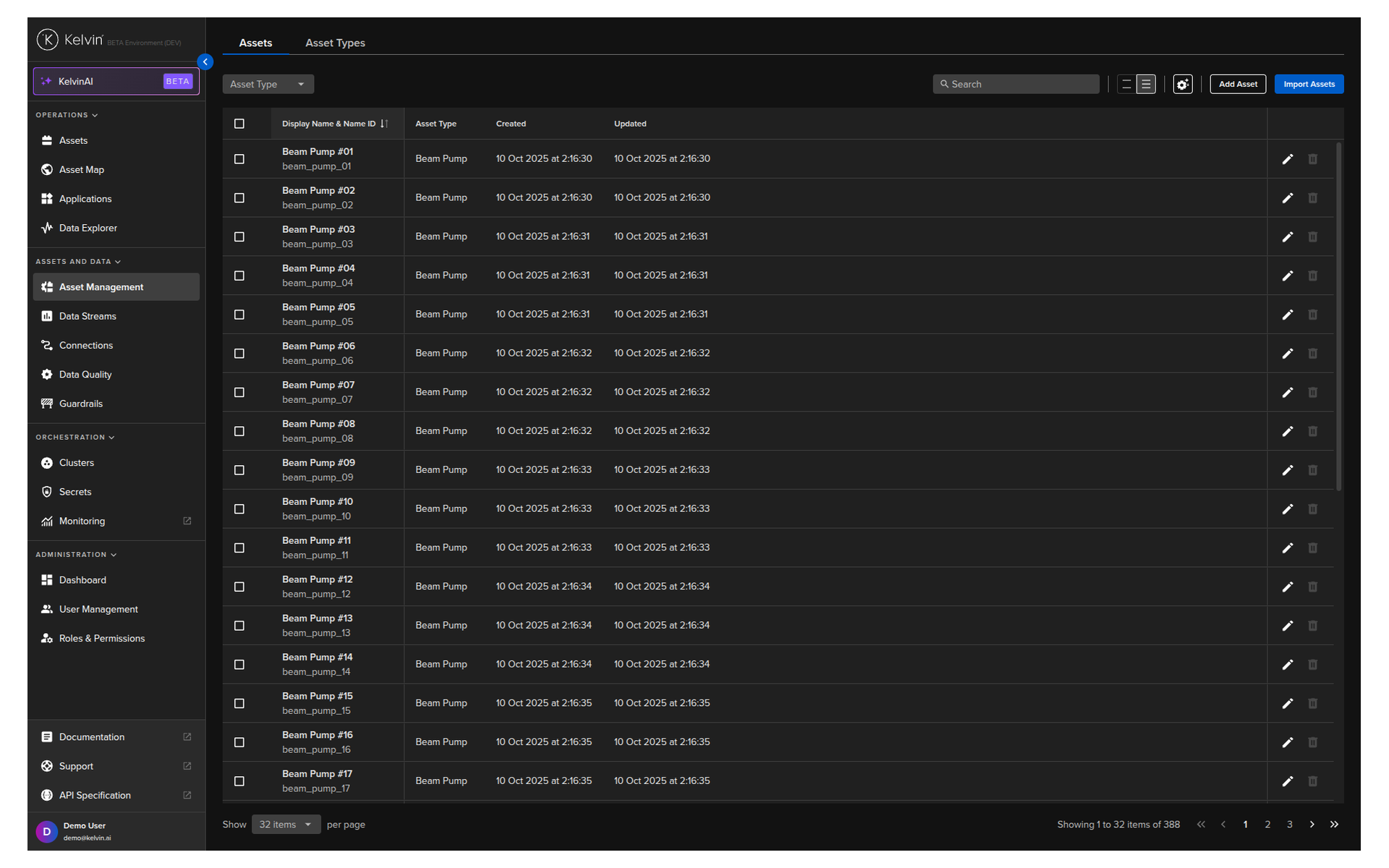
To delete an Asset, check multiple Assets and a Delete button will appear above the table. When ready click on the button to delete the selected Assets.
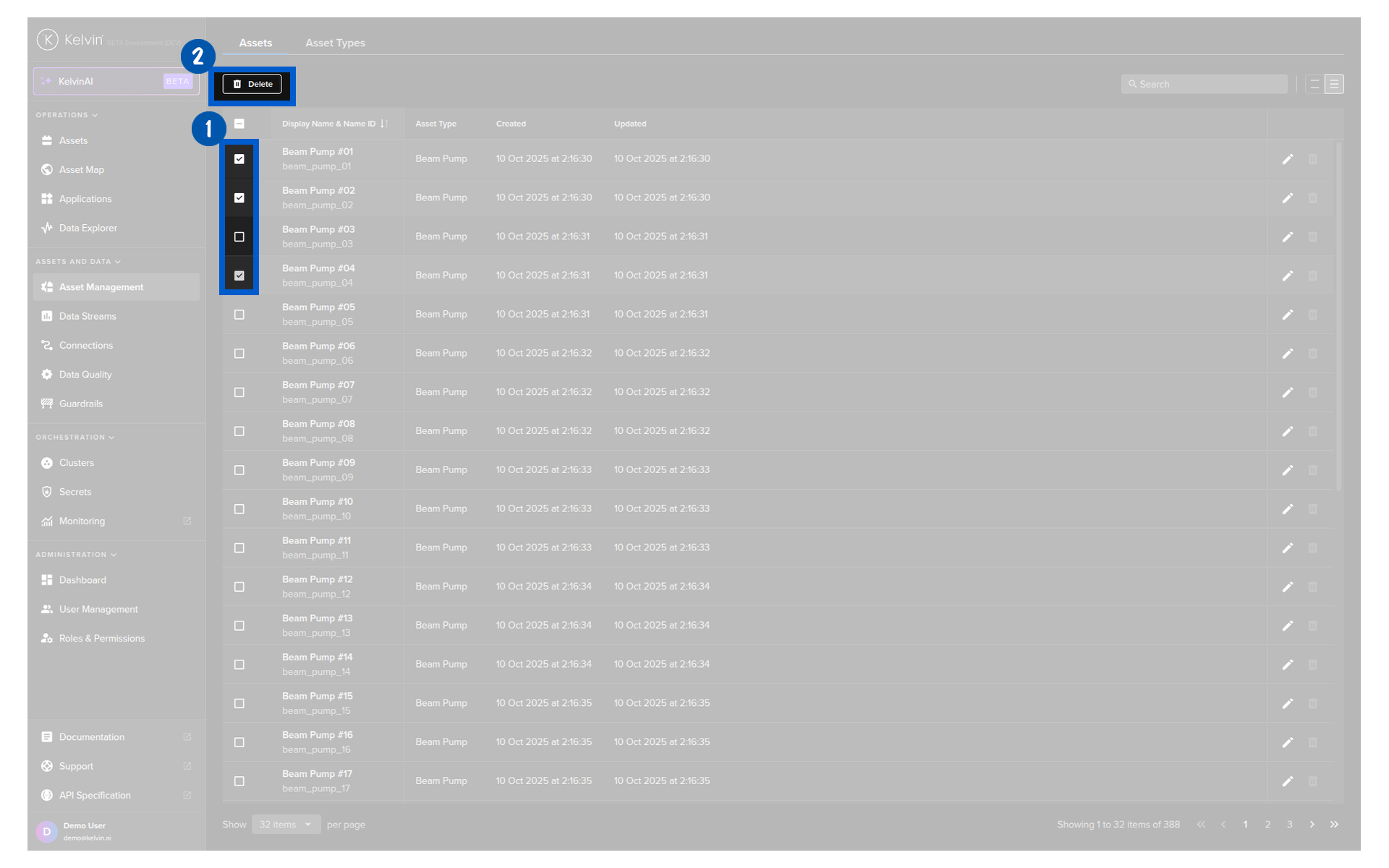
Then in the popup type PERMANENTLY DELETE to confirm the delete action.
To make life easier, you can copy the Asset Name from the Kelvin UI in Operations → Assets. Hover over the Asset Name below the Asset Title in the table, then click on the copy icon that will appear to the right of the name.
| API cURL Example | |
|---|---|
The response will be only <Response [200]>.
To make life easier, you can copy the Asset Name from the Kelvin UI in Operations → Assets. Hover over the Asset Name below the Asset Title in the table, then click on the copy icon that will appear to the right of the name.
| API Client (Python) Example | |
|---|---|
You will not receive a response.