Manage User Groups
On this page you will learn as an Administrator of a Kelvin Cloud how to manage User Groups inside Keycloak.
Groups is a way to assign a set of common permissions to users without having to individually assign them to the user.
Groups that have permissions modified will affect the access rights to the Kelvin Cloud for all users who are associated with the group.
To create a new group, click on the Groups option in the left sidebar and then click on the New button in the top right hand corner.

Now just type an understandable name and click save.
You will then see the editing section of the new Group you just created. For the basic operations the only area of importance is the Realm Roles in Role Mappings. So click on the Role Mappings tab.
You do not need to save the Realm Roles. It will be automatically saved every time you to click Add Selected or Remove Selected.
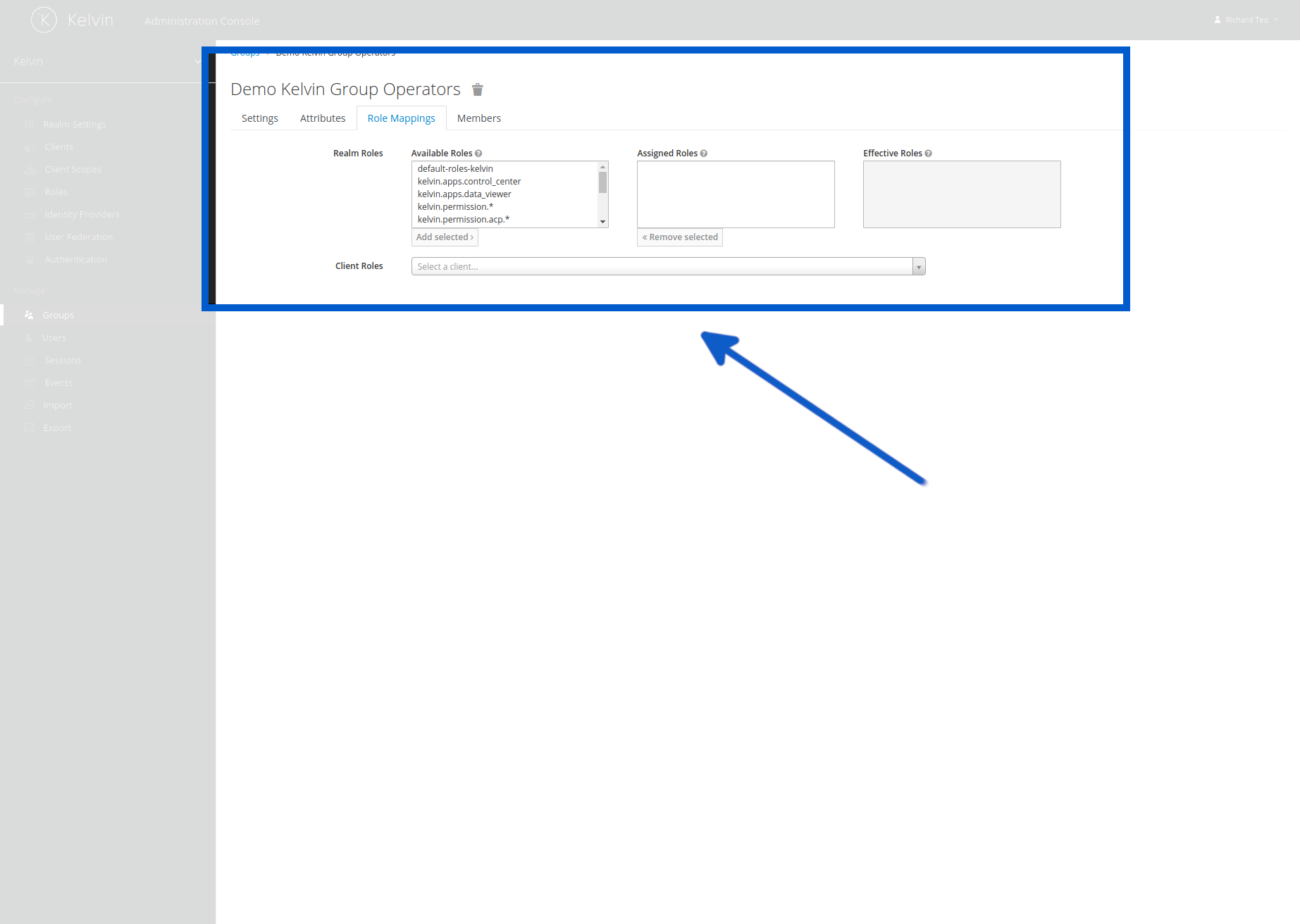
Add from the list of available roles the ones that are relevant to your group.
To edit the Realm Roles in a group, click on the Groups option in the left sidebar and then click on any group name you wish to edit, then click Edit.
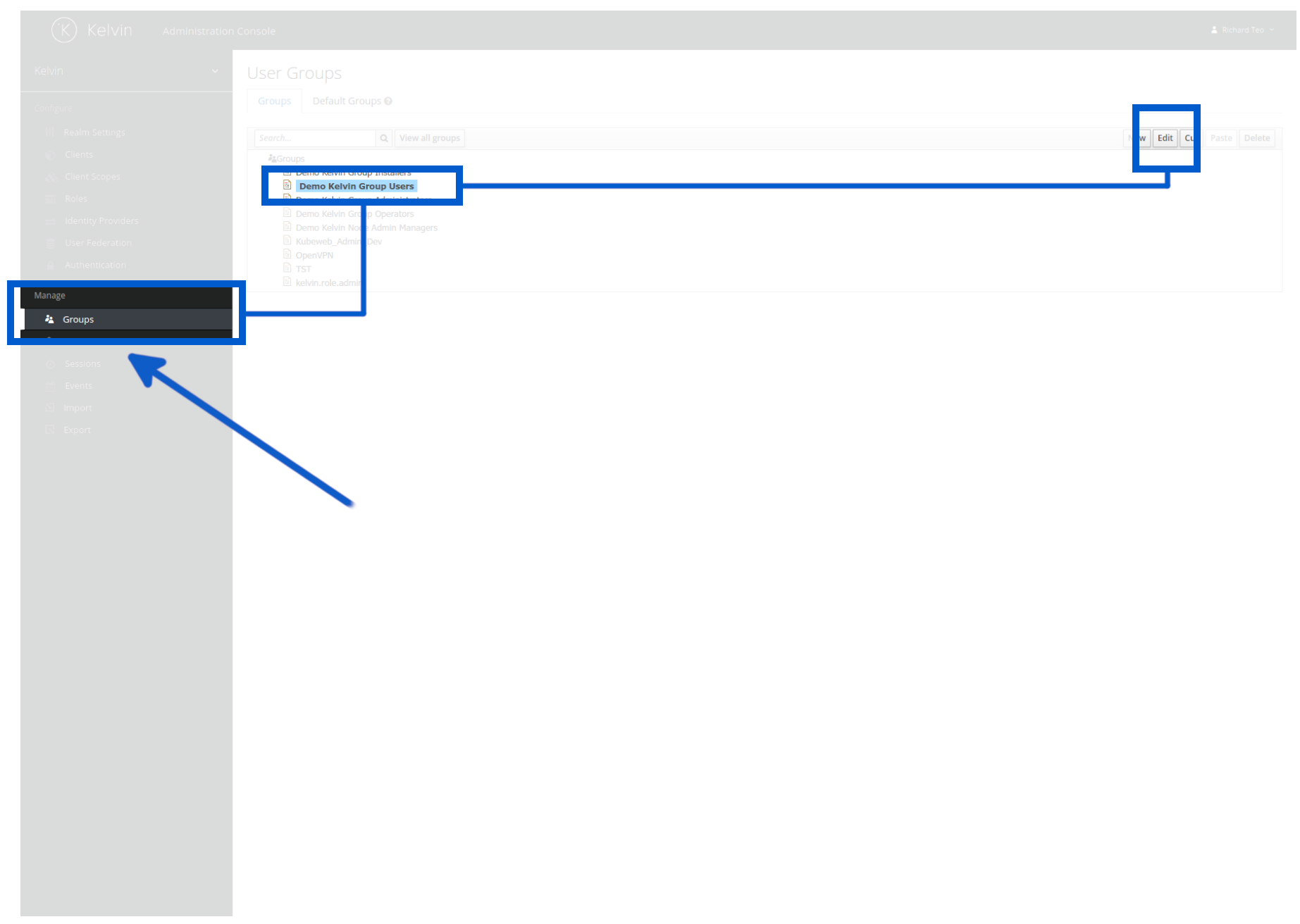
You will then see the editing section of the selected Group. For the basic operations the only area of importance is the Realm Roles in Role Mappings. So click on the Role Mappings tab.
You do not need to save the realm Roles. It will be automatically saved every time you to click Add Selected or Remove Selected.
Add from the list of available roles the ones that are relevant to your group.
When creating new users, you can have groups automatically assigned to the user by default. To select which groups are automatically assigned to any new user click on the Groups option in the left sidebar, then on the Default Groups tab.
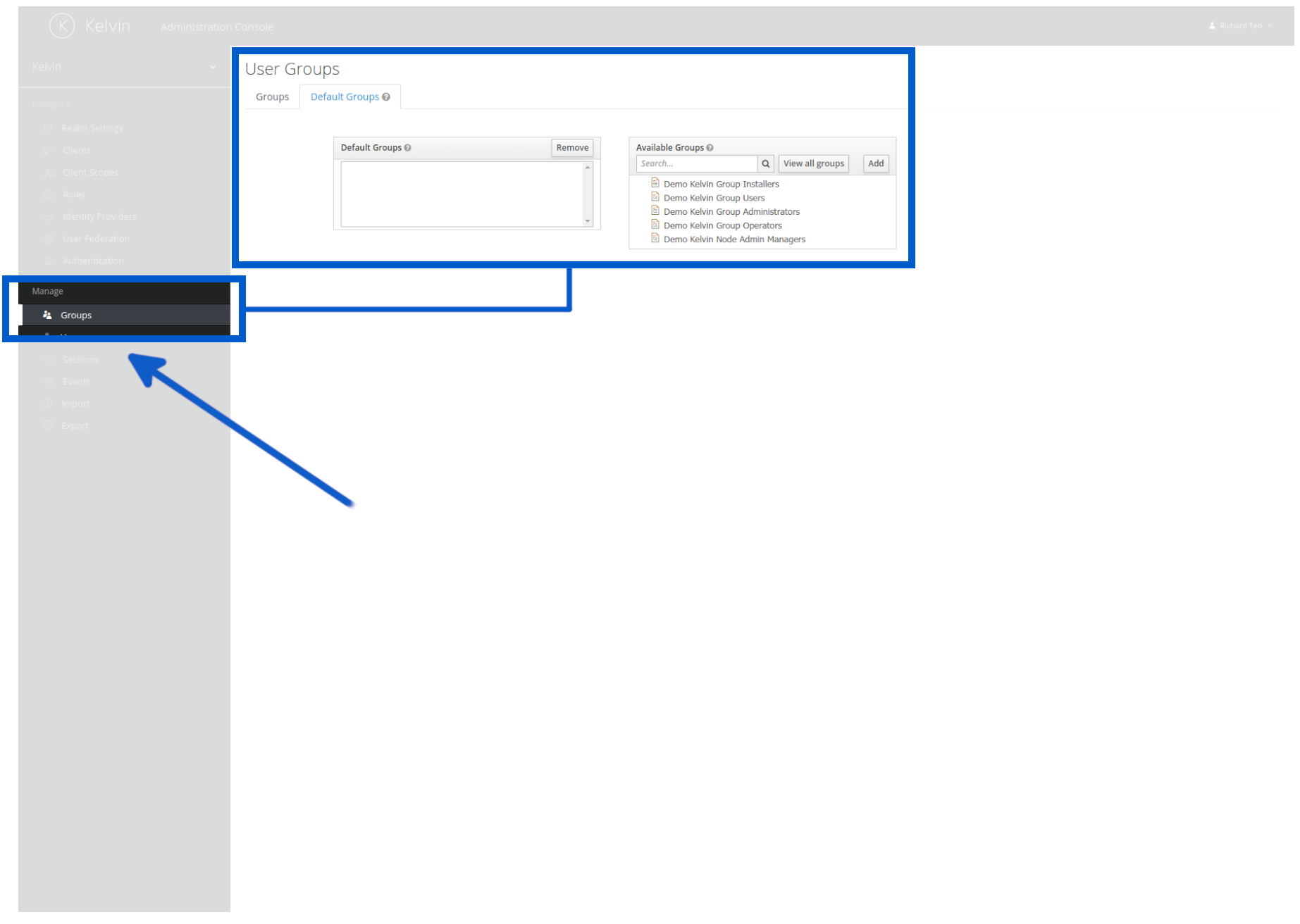
Now add or remove which groups should be automatically assigned to new users. The system will automatically save each time you select or remove.