Add OPC-UA Connection - How To
You can add an OPC-UA connection through the Kelvin UI, Kelvin SDK and Kelvin API.
Connections can be deployed to both x86_64 and ARM64 devices.
Deploy
To start click on the Connections menu option from the left side bar menu.
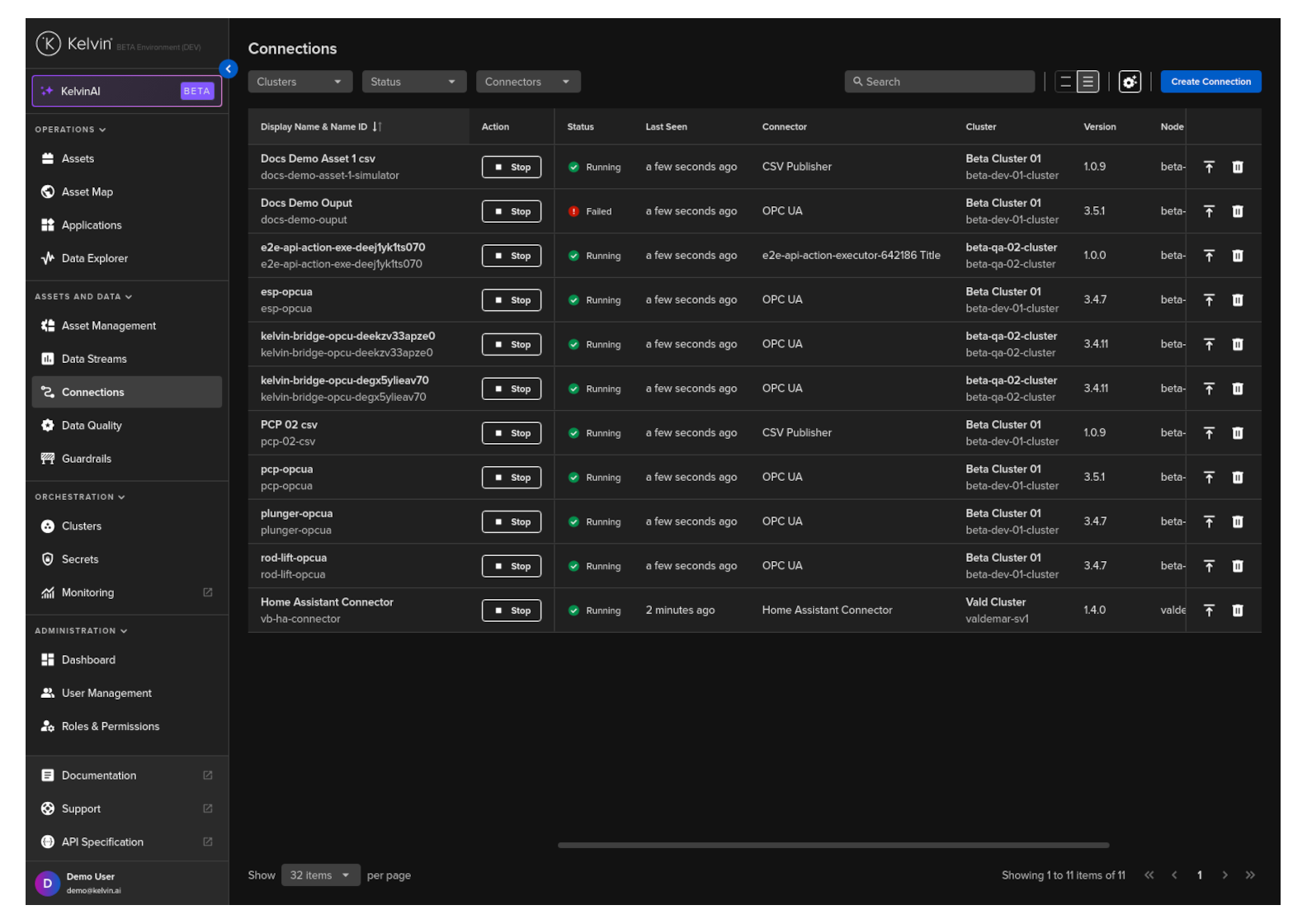
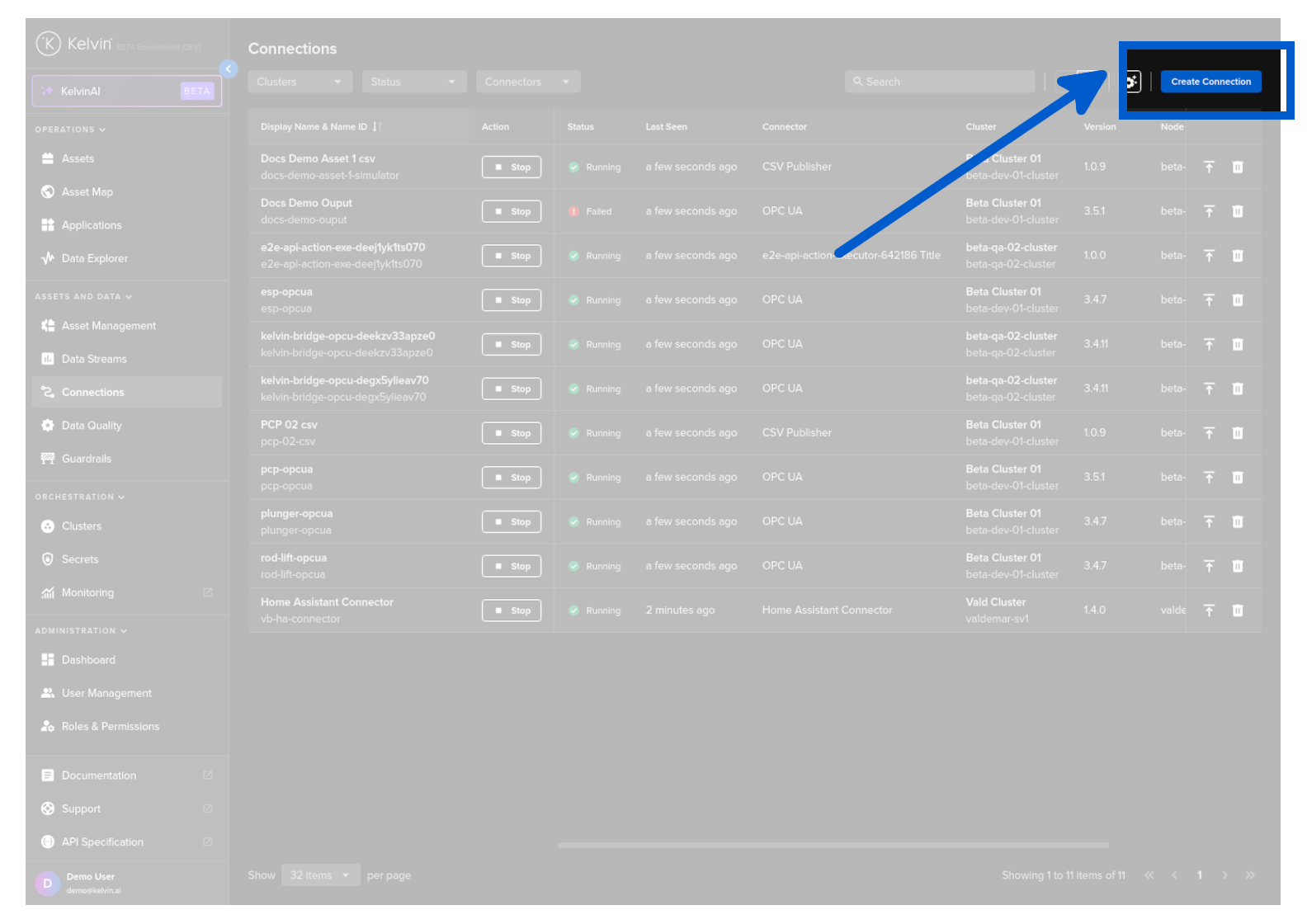
click on the Create Connection button.
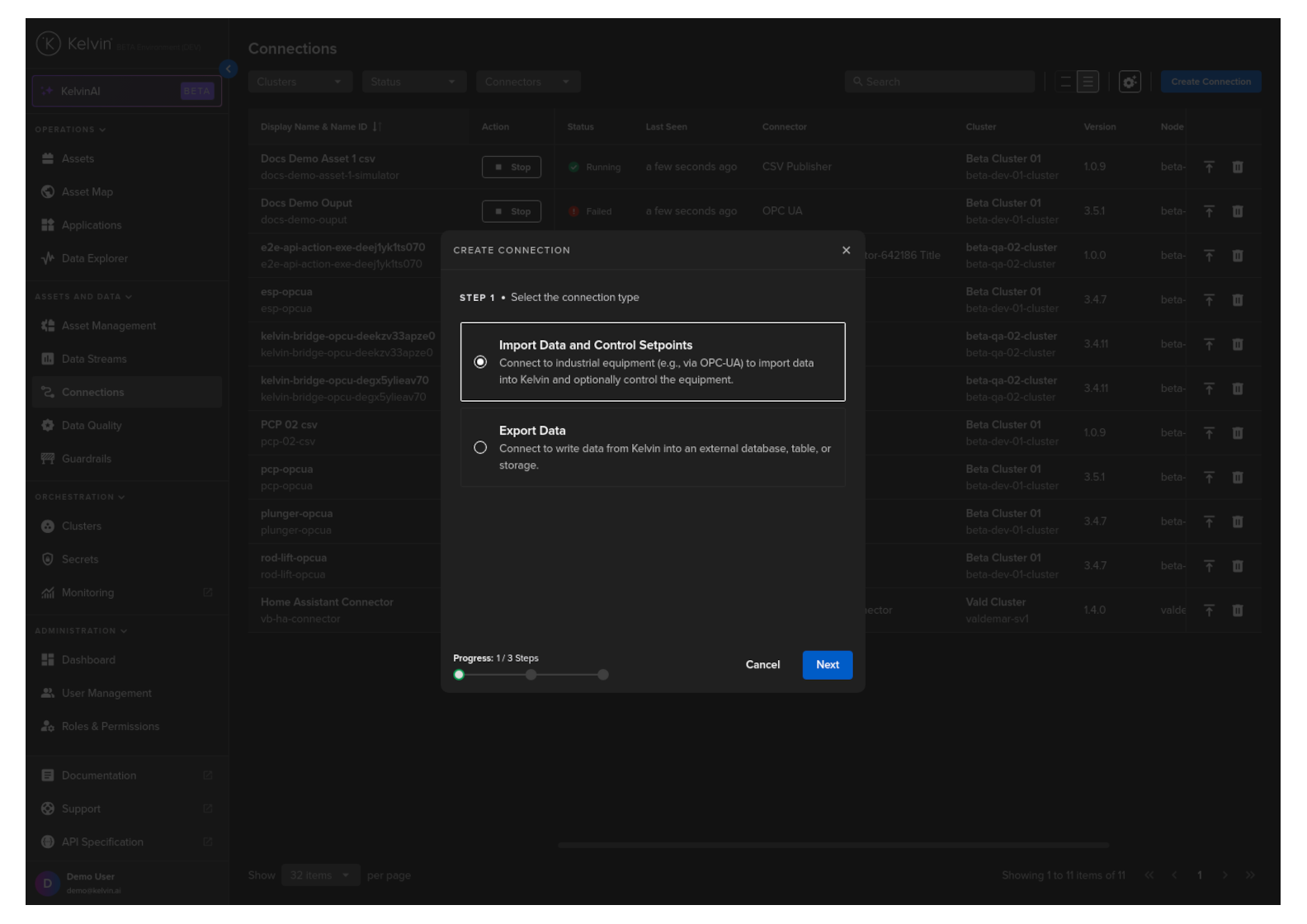
Step 1
Select Import Data and Control Setpoints and click Next.
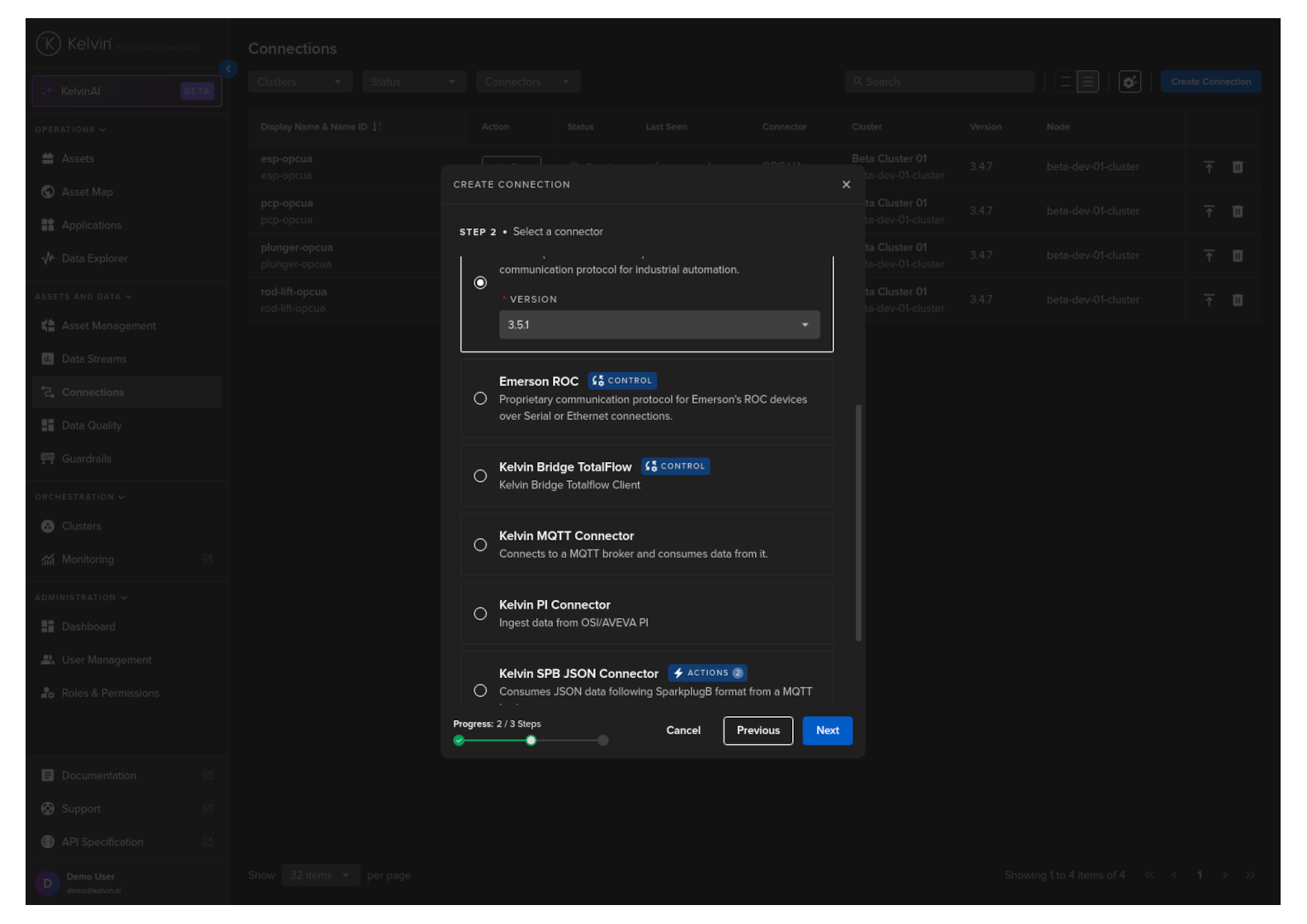
Step 2
Here you will see a list of Import Connection Applications available in the App Registry.
Select the OPC UA option, select a Version and click Next.
Step 3
In Step 3 you have a range of options available.
Note
You will only be able to deploy your workload once all options have a green check  .
.
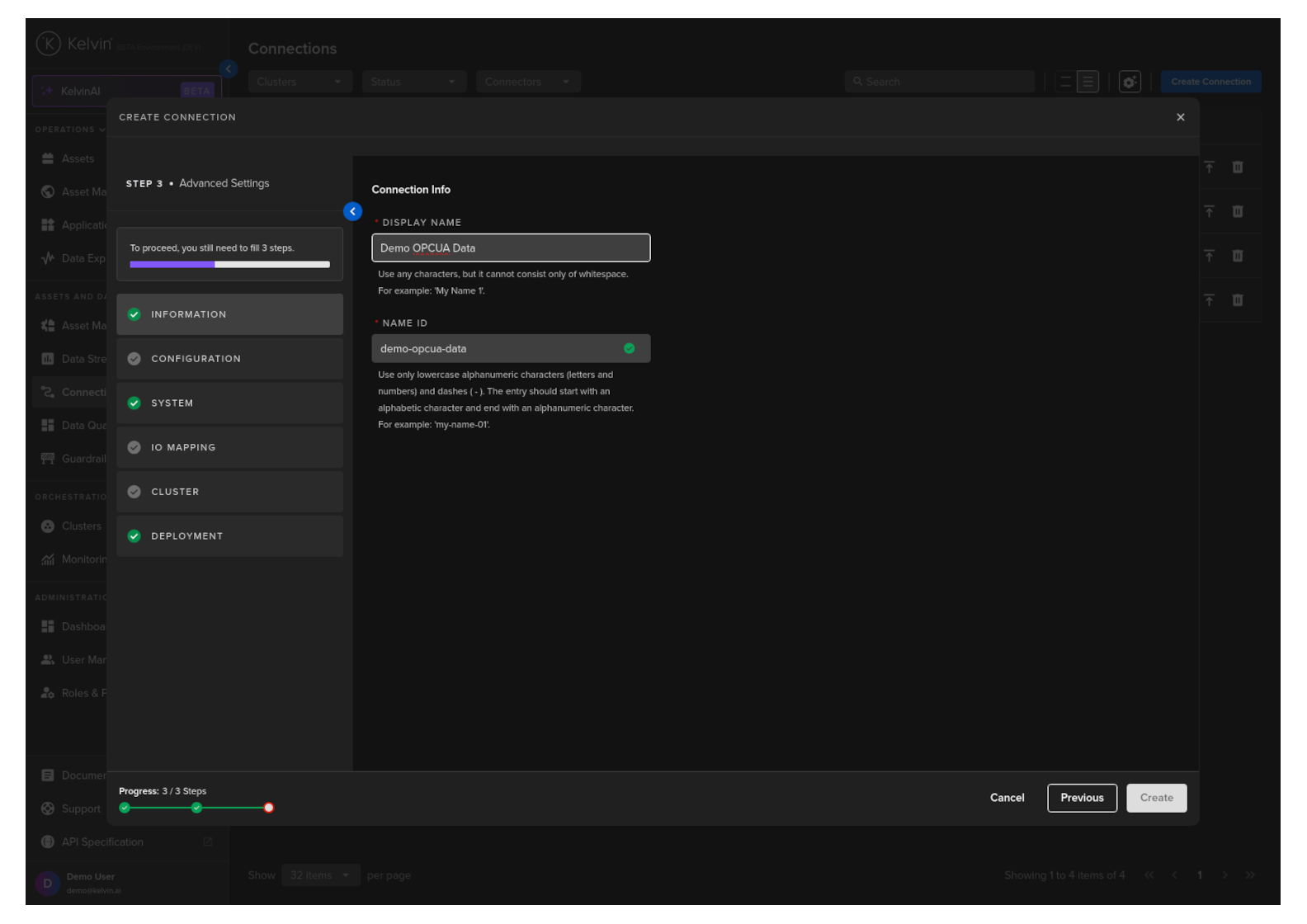
Information
Type in a memorable name in the Display Name text input. You can use any letters, numbers and special characters.
The Connection Name text input will be automatically converted and filled in as you type in the Display Name section. The conversion ensures the Connection Name only contains lowercase alphanumeric characters and ., _ or - characters.
Configuration
Configure the OPC-UA connection to the asset. There are a number of optional and mandatory parameters to fill in.
Info
You can choose to use the UI view, or work directly in YAML or JSON format.
For the optional parameters, if you do not fill in any values, the default values will be used.
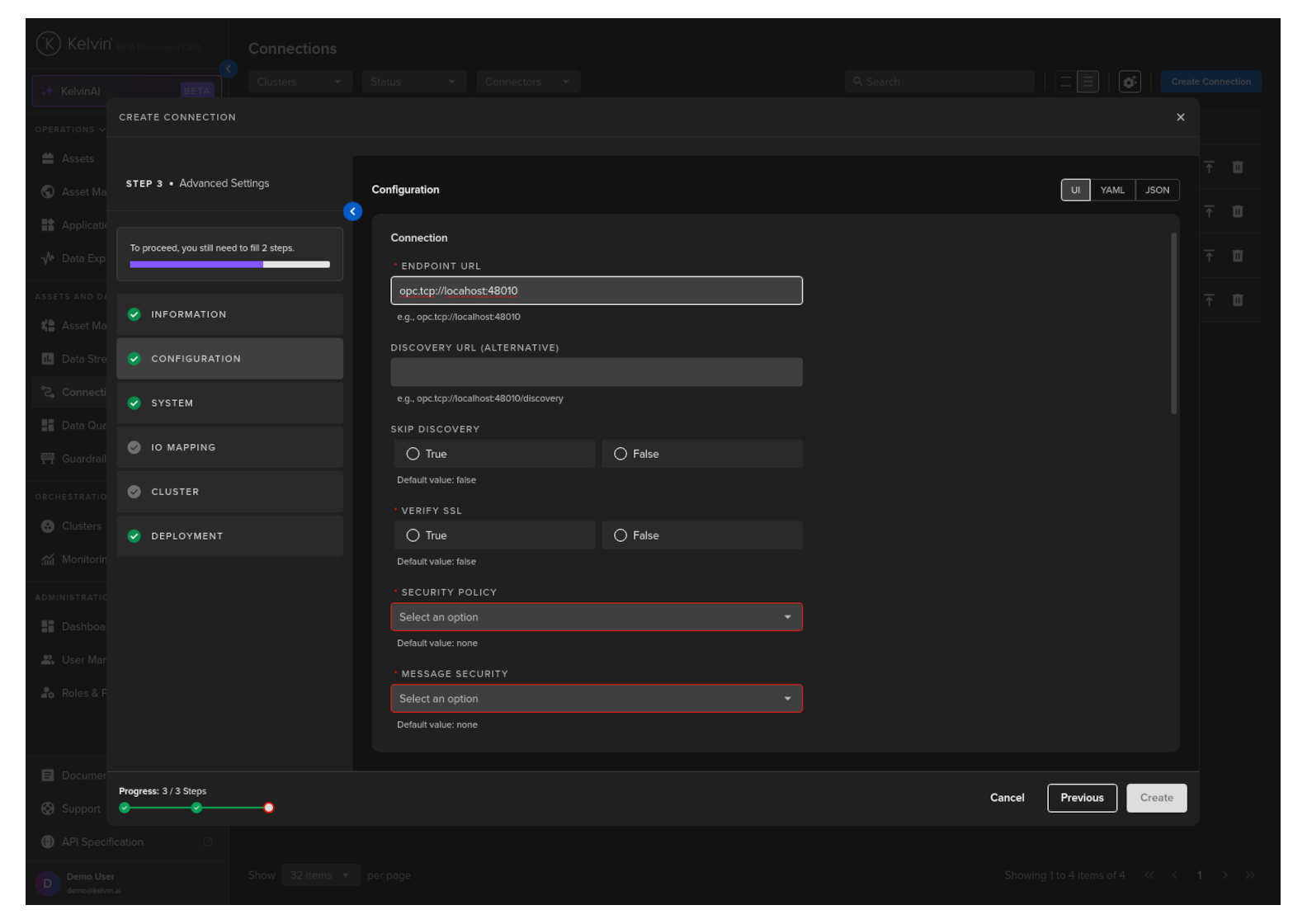
| Parameter | Options | Description | Default | Mandatory |
|---|---|---|---|---|
| Endpoint URL | String (opc.tcp://localhost:48010) | The URL of the OPC UA server endpoint to connect to. | Yes | |
| Verify SSL | Boolean (True/False) | Determines whether SSL certificates are verified when connecting to an OPC UA server over a secure channel. | False | Yes |
| Security Policy | String (specifying security type) | Specifies the security policy for the connection, such as None, Basic256Sha256, etc. This defines the level of security like encryption and data integrity. |
Yes | |
| Message Security | String (specifying security mode) | Determines the security mode of the messages, such as None, Sign, or SignAndEncrypt. |
None | Yes |
| Authentication Method | String (specifying method) | Specifies the method of authentication used when connecting to the OPC UA server, such as Credentials or Certificate. |
None | Yes |
| Username (Visible with credentials method only) | String | The username used for authentication if the Credentials option is chosen in Authentication Method. |
Depends | |
| Password (Visible with credentials method only) | String | The password corresponding to the username if the Credentials option is chosen in Authentication Method. |
Depends | |
| Certificates (Visible with certificate method only) | File path or certificate object | The path to the certificate file(s) or the certificate object itself if the Certificate option is chosen in Authentication Method. |
Depends | |
| Key Password (Visible with certificate method only) | String | The password for the private key associated with the client's certificate if the Certificate option is chosen in Authentication Method. |
Depends | |
| Read Timeout | Numeric value (in milliseconds) | Specifies the maximum time to wait for a response when reading data from an OPC UA server. | No | |
| Write Timeout | Numeric value (in milliseconds) | Specifies the maximum time to wait for a response when writing data to an OPC UA server. | No | |
| Watchdog Timeout | Numeric value (in milliseconds) | Defines the timeout for the watchdog mechanism, which monitors the health of the connection to the OPC UA server. | No | |
| Session Name | String | A custom name for the session, used for identification and logging purposes. | No | |
| Force Read After Write | Boolean (True/False) | Immediately tries to confirm if the write succeeded on the Asset and not wait for the standard read cycle. | False | Yes |
| Subscription Monitoring Interval | Numeric value (Seconds) | False | Yes | |
| Logging Level | String | Info, Debug, Warning, Error |
False | No |
System
Here you will be able to tune all the system variables that are present in the app.yaml file of the Application.
You can choose to edit it using a UI or directly on the YAML or JSON.
Note
Using YAML or JSON is very useful for fast application of settings if you have preset configurations and want to copy/paste them into here.
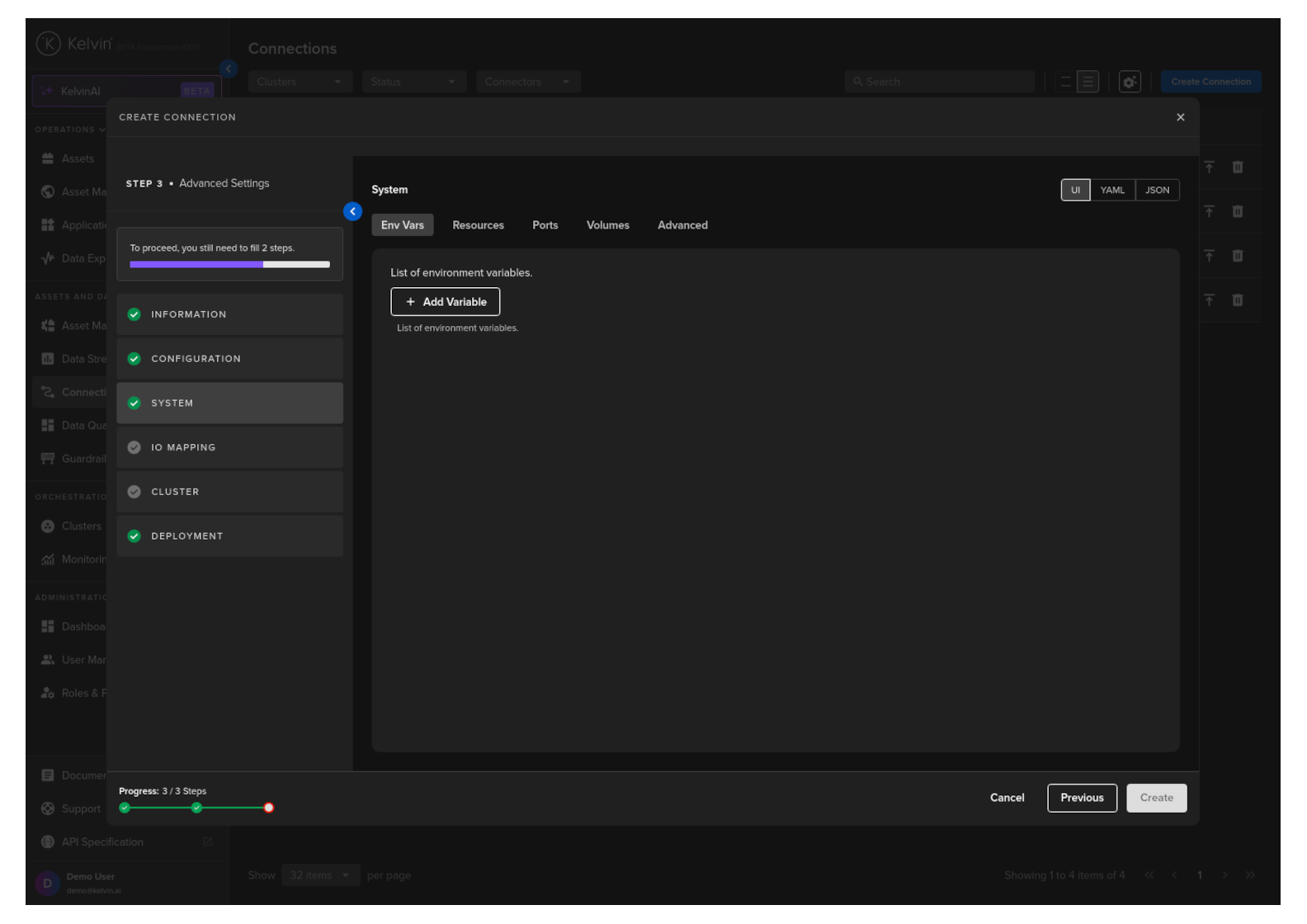
Env Vars
Here will be shown the list of default Environment Variables and the default values that were set in the app.yaml file of the Application during development.
You can edit these and change both the environment name or value. You can also add addition Environment variables.
Resources
Apply resources available for the Workload.
See Set CPU/Memory Limits for detailed documentation on this section.

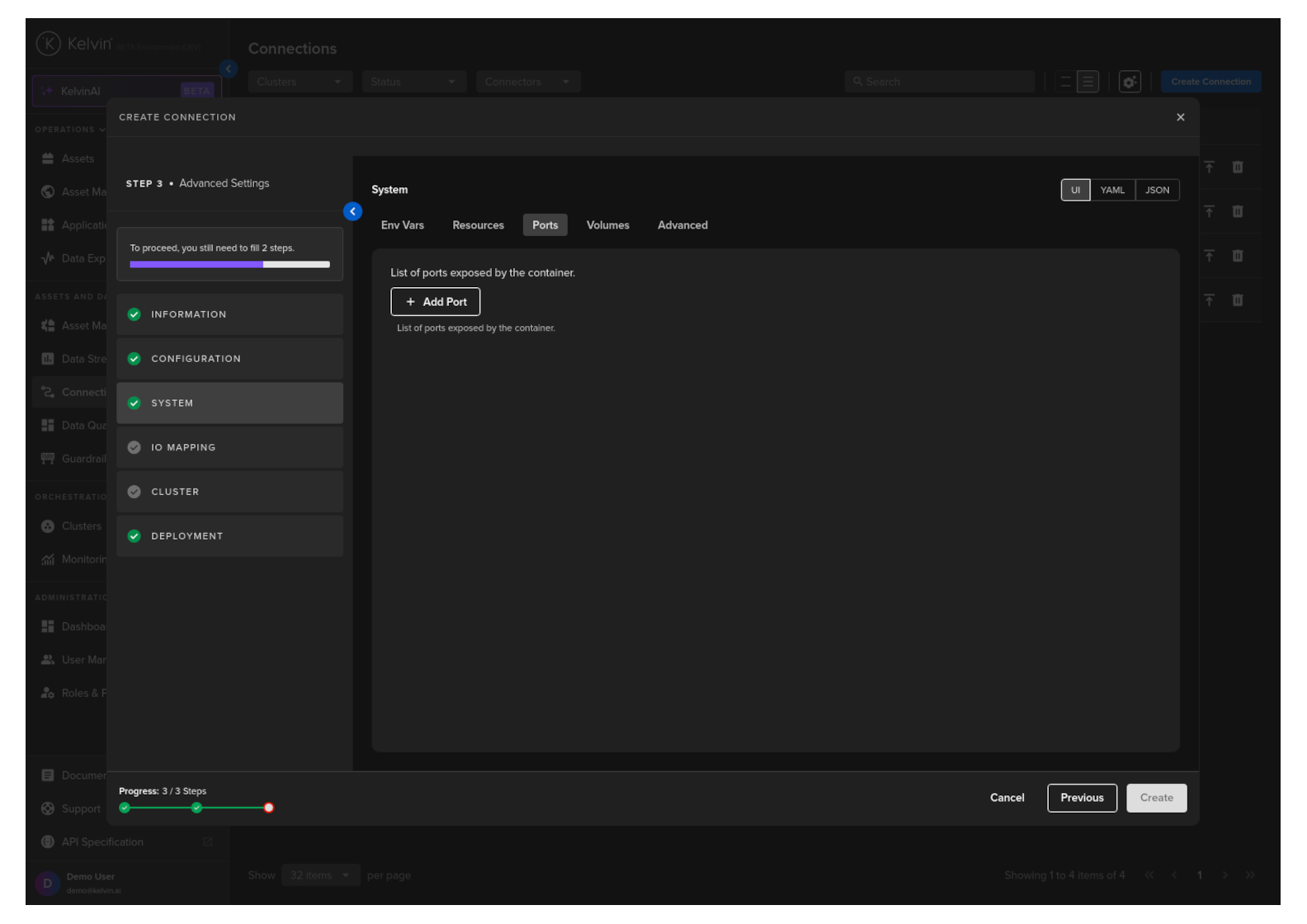
Ports
Open ports to your Workload.
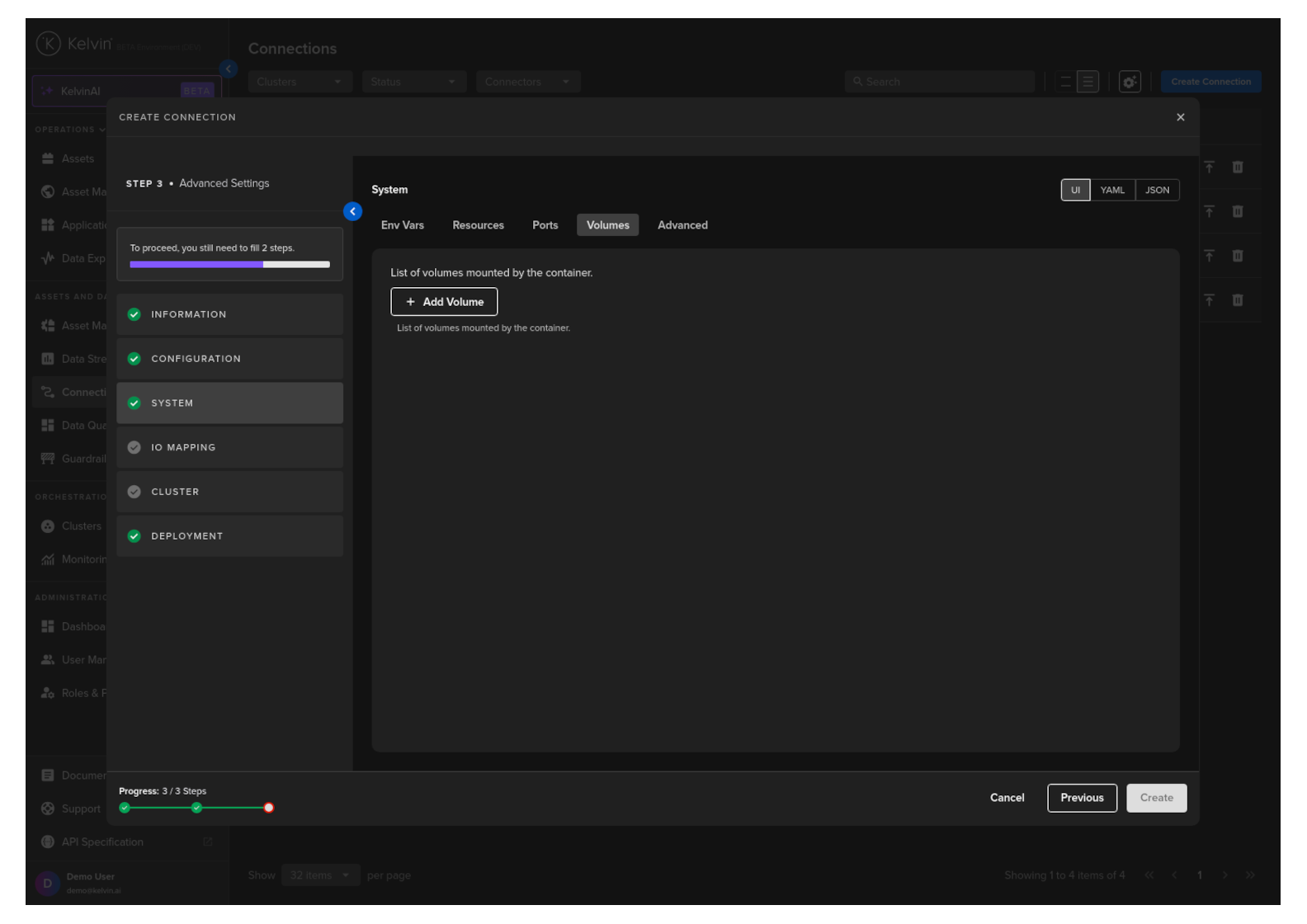
Volumes
Mount volumes to your Workload.
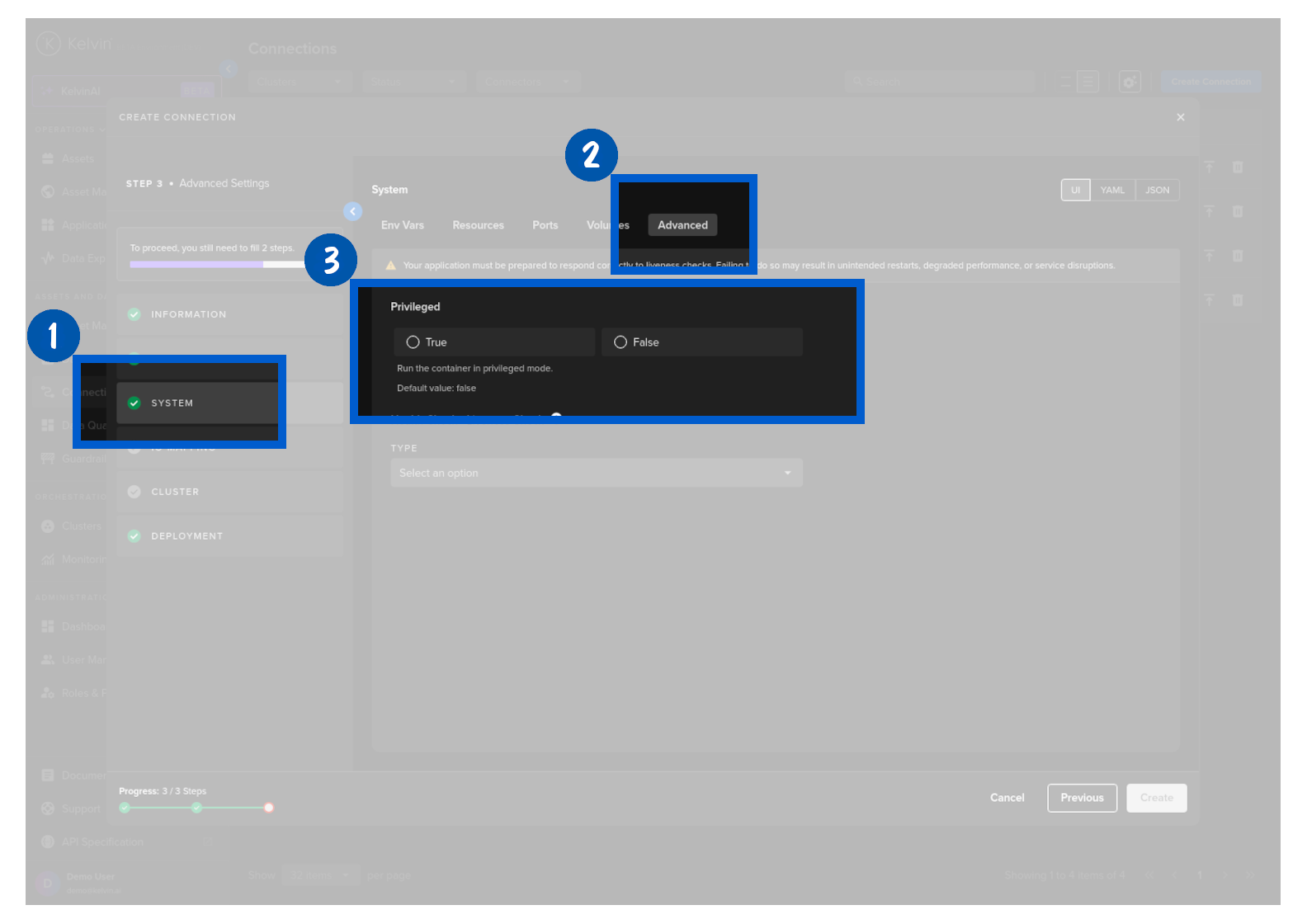
Advanced
Choose if you would like to add Privileged mode to the Workload
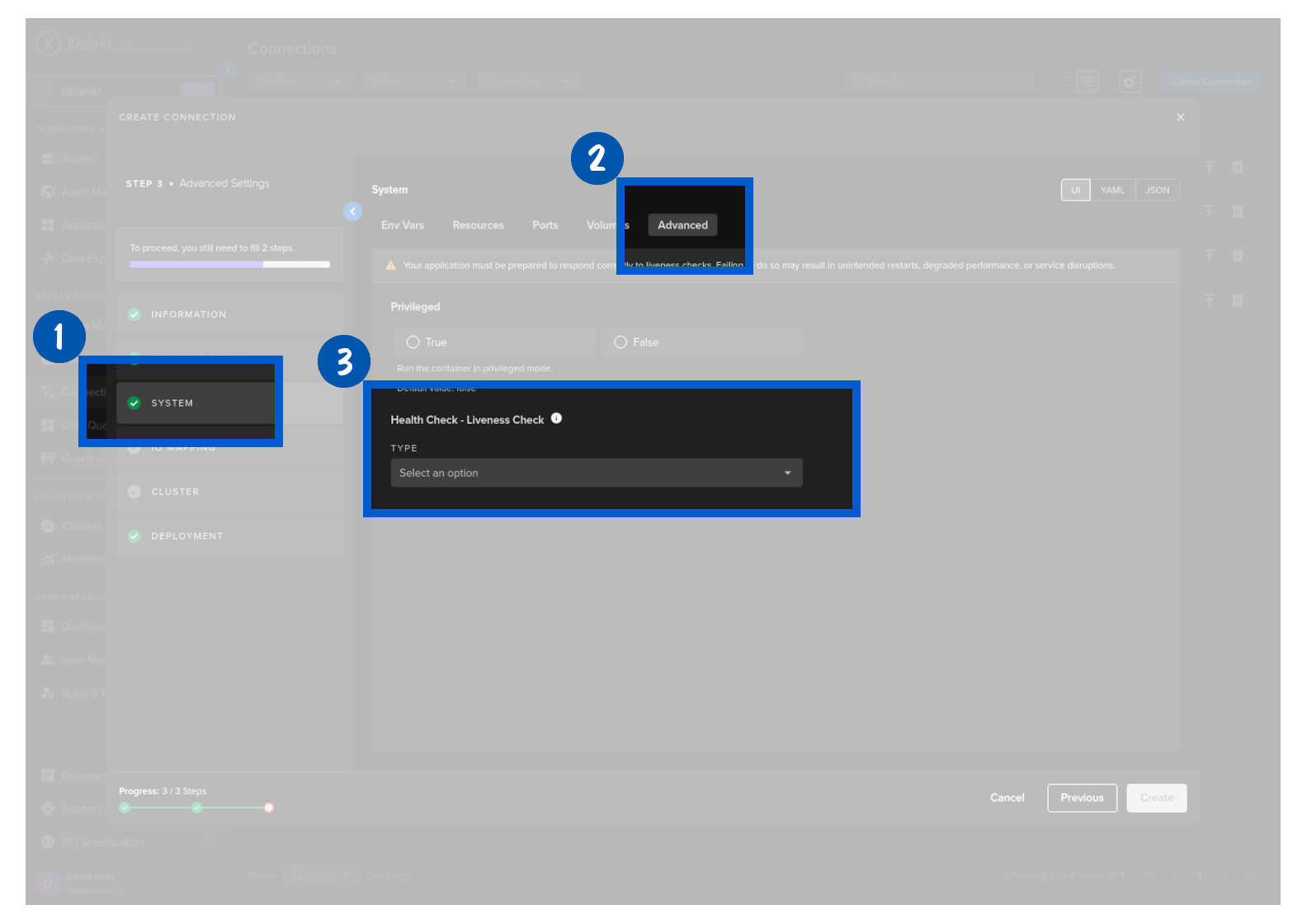
Optionally choose a health check service for your Workload. These are Kubernetes liveness probes and detailed information can be found on the Kubernetes Website.
Warning
If you use a Health check option, make sure you add code to respond to the liveness probe requests.
IO Mapping
Select an Asset, Data Stream and fill in the connection and other optional values.
Full descriptions of each column is giving below.
Success
If you have many connection IO to fill in, you can save time with the download/upload csv file option in the top right hand corner of the popup.
Use Microsoft Excel or Google Sheets to fill in all the Connection IO details.
You can only upload one file. Multiple file uploads is not allowed and only the latest selected file will be used.
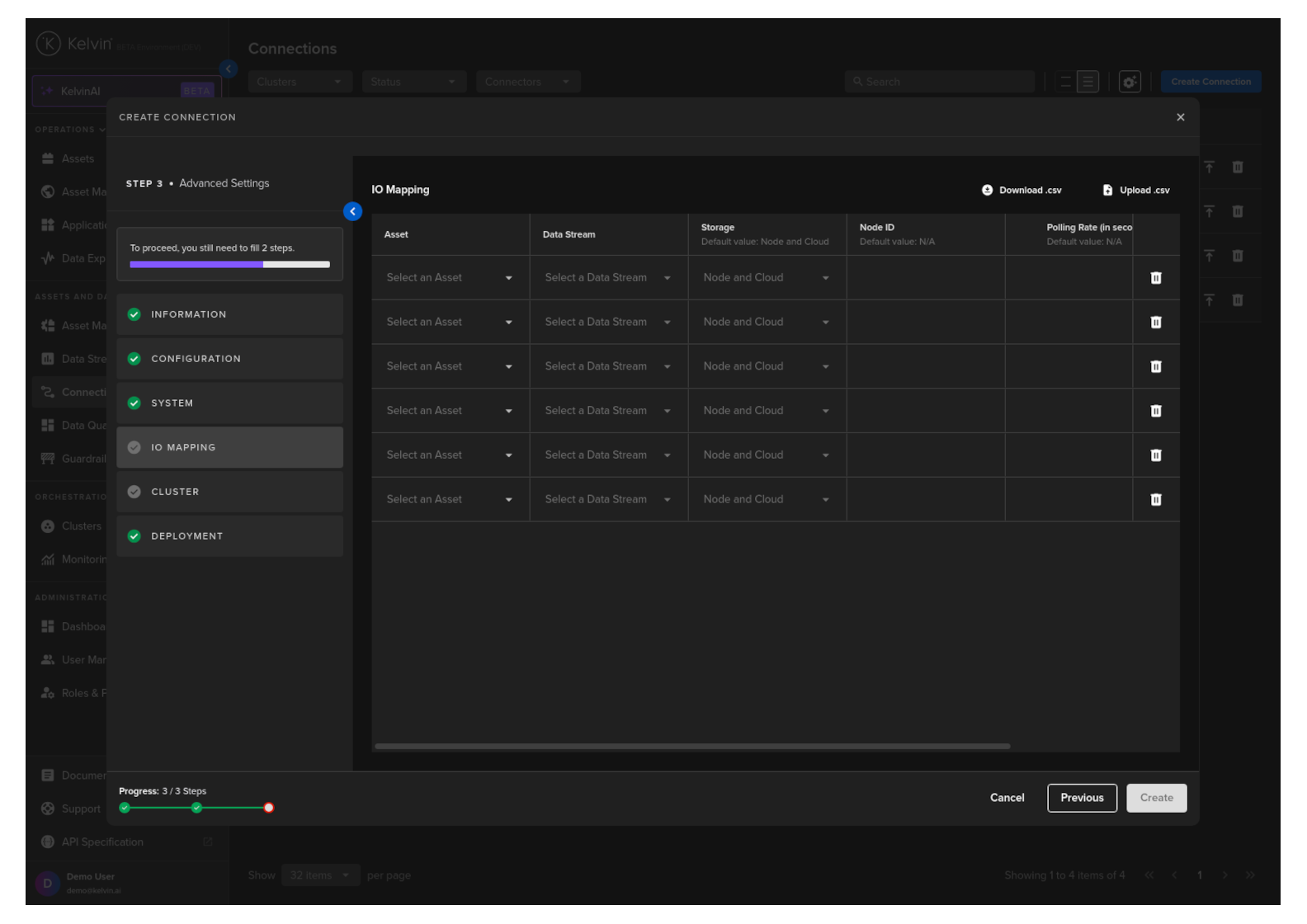
Option Descriptions
| Header | Description | Example | Mandatory |
|---|---|---|---|
| Asset | The Kelvin Asset name (must be lowercase alphanumeric with no spaces) | well-01 | Yes |
| DataStream | The Kelvin Data Stream name (must be lowercase alphanumeric with no spaces) | water-flow | Yes |
| Storage | Location of the storage; "none", "node", "node-and-cloud" | node-and-cloud | No |
| Node ID | OPC UA data address | ns=4;i=1002 | Yes |
| Polling Rate (in seconds) | How often to pull the data from the asset | 30 | Yes |
| Control Writable | Read/Write (RW) or Read Only (RO) | RO | Yes |
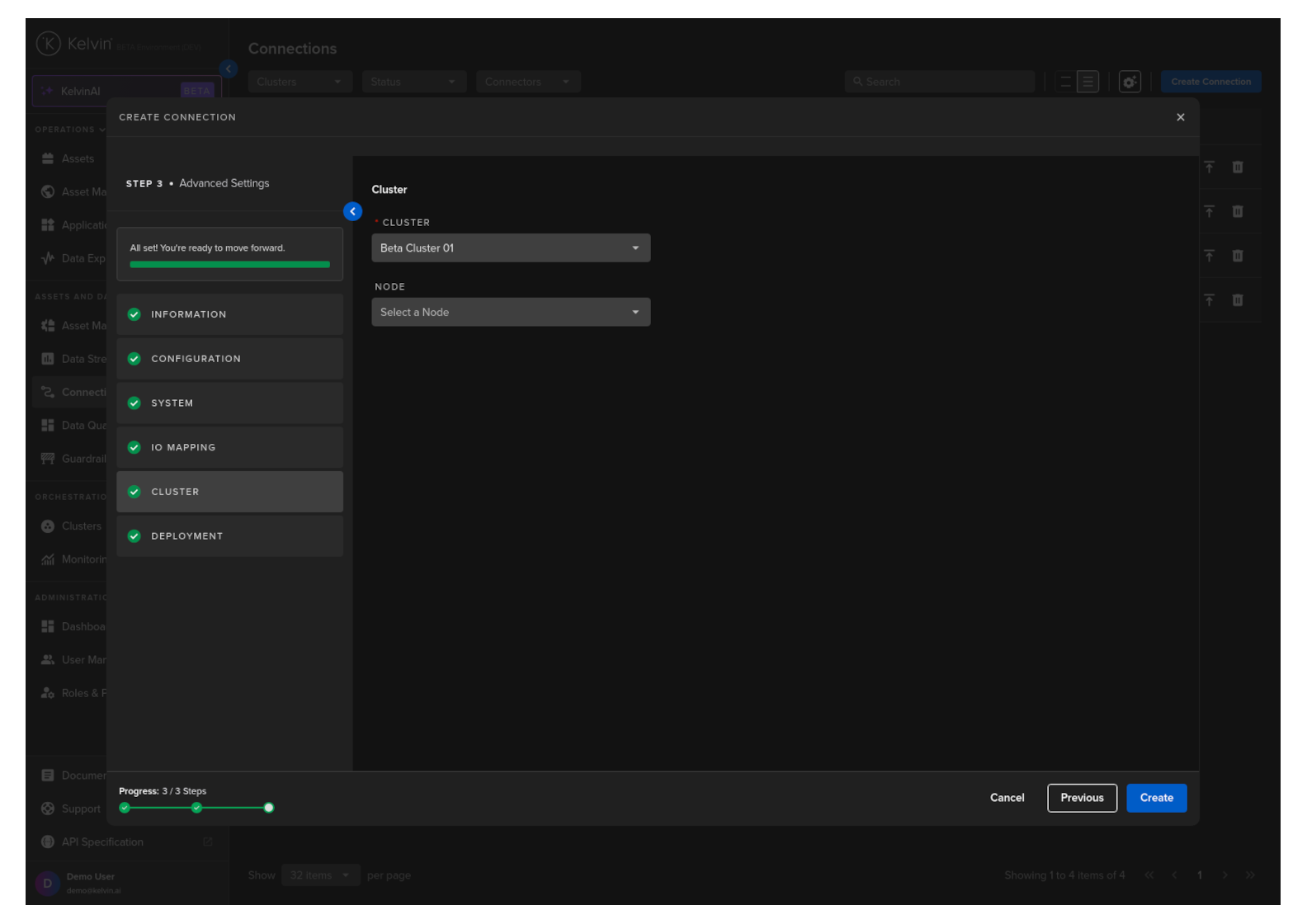
Cluster
Then select which Cluster to deploy the new Connector to.
Optionally you can also select the Node in the Cluster. If you do not then the system will automatically assign the Node.
It is important that the asset is reachable from the selected Cluster and Node.
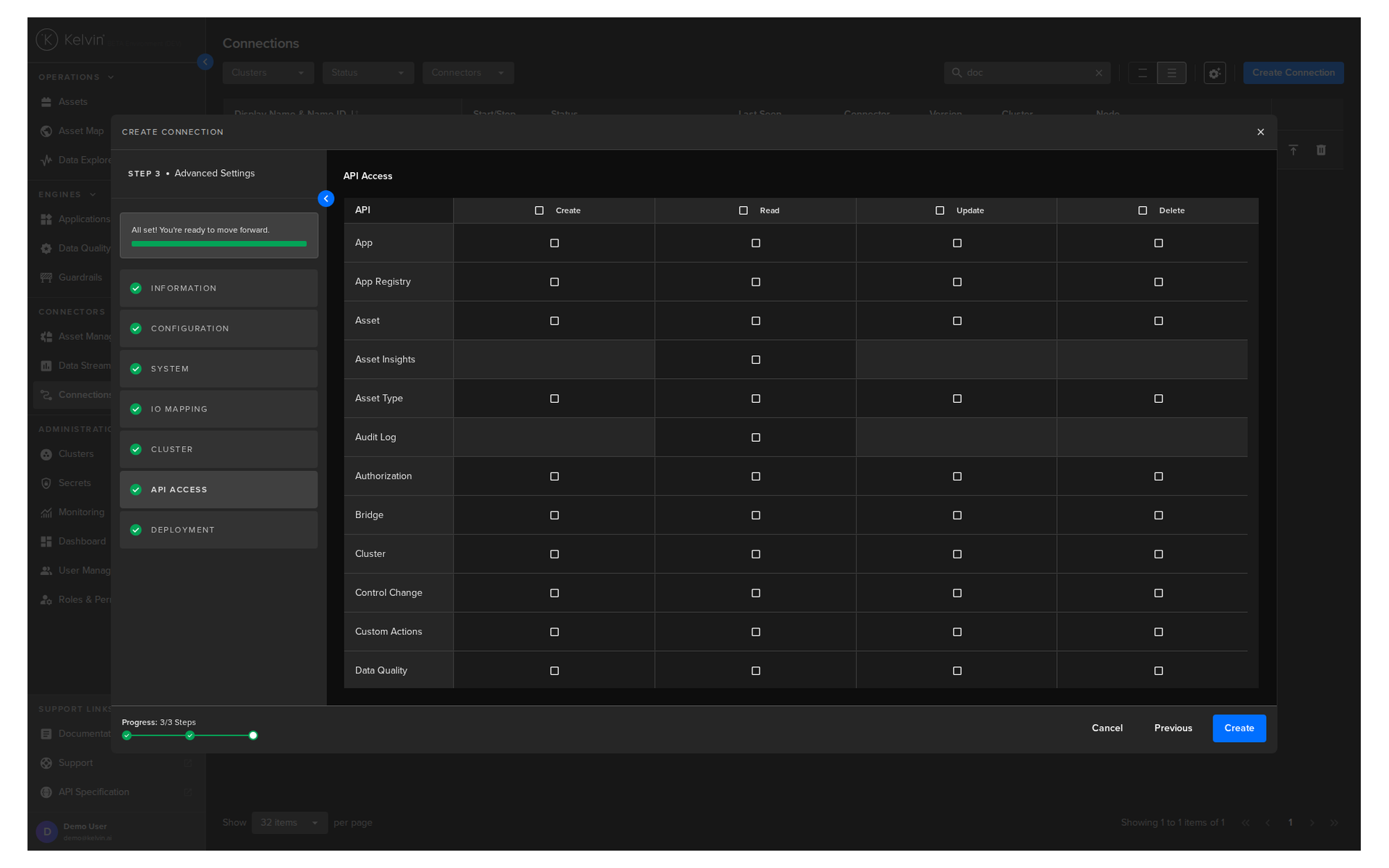
API Access
Define the API access permissions for the connection. This allows you to specify exactly which API endpoints the connection is authorized to use, improving security by granting only the permissions required to run the application.
Warning
The API Access selection can NOT be changed once the connection has been deployed.
To alter the API Access settings, you must delete and redeploy the connection.
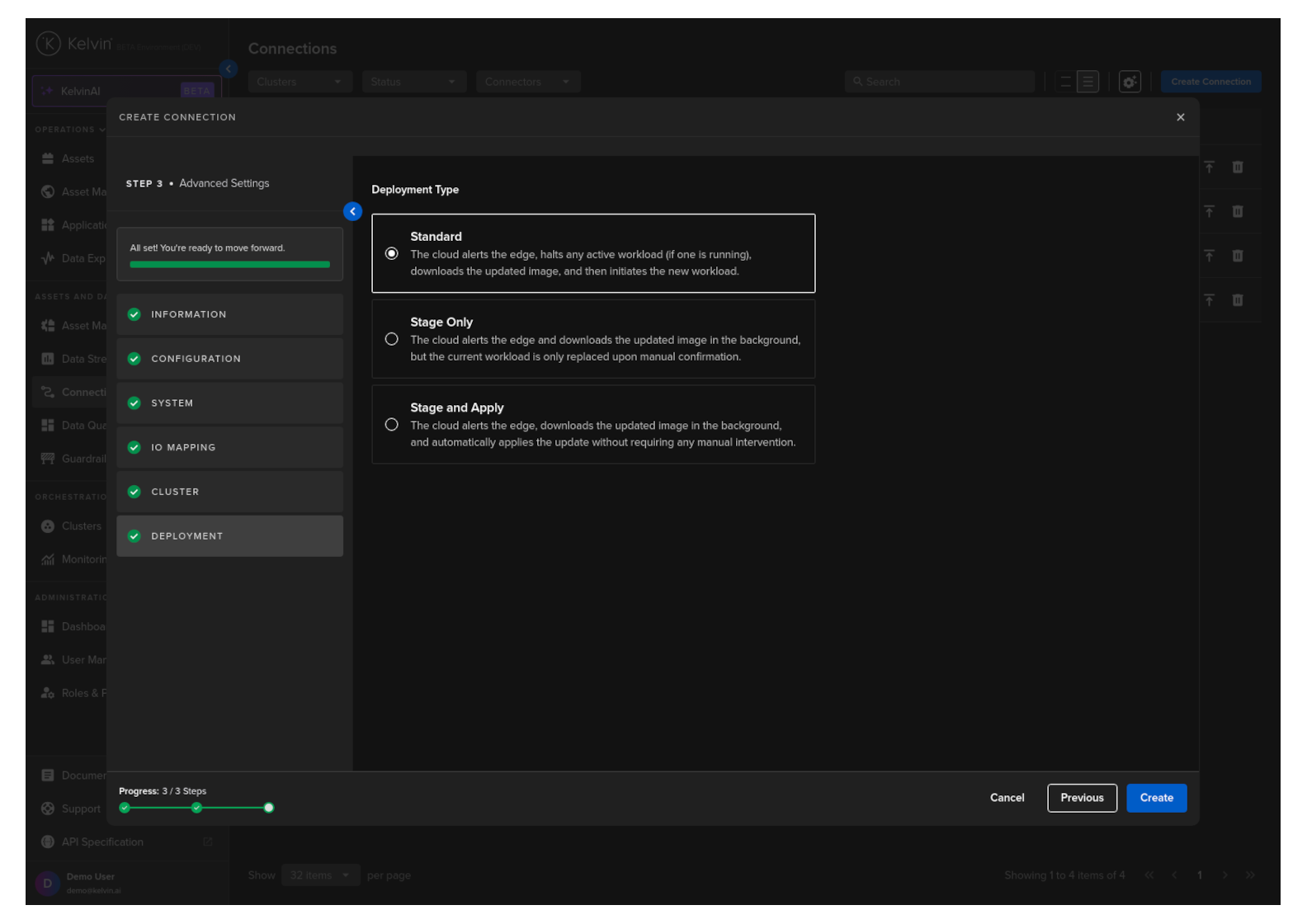
Deployment
For a standard Workload deployment, choose the Standard option.
Note
Stage Only and Instant Apply are covered in a different documentation section.
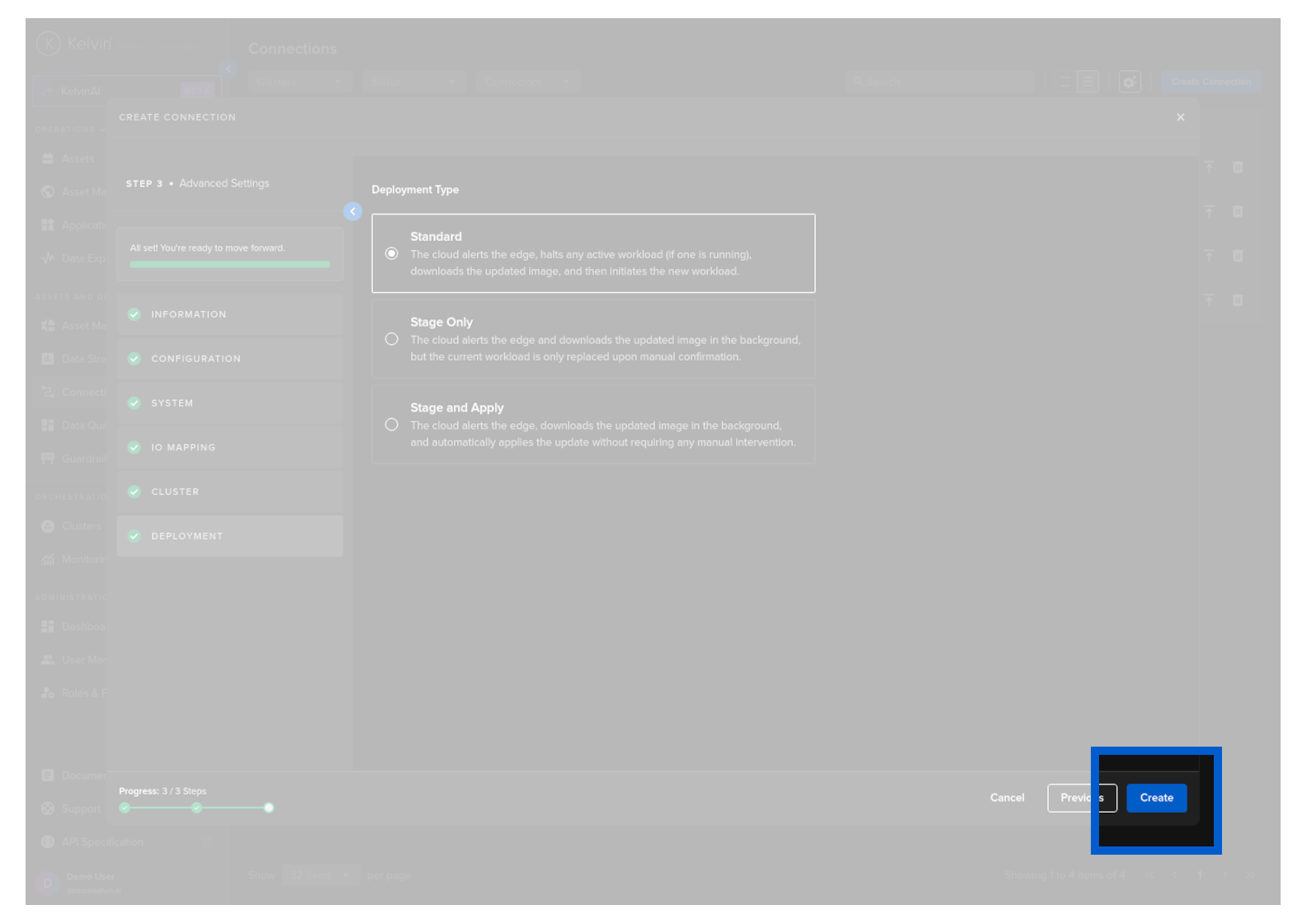
When you are ready and you have a green check on all options, you will see the Create button turn blue.
Click on the button to initiate the deployment.
You can then see the status of the Connection in the Connections list going from Pending, Deploying to Running. It will start automatically, connect to the asset and start collecting data.
You can even create and deploy the Connection if the Cluster is offline. It will be placed in a queue with a status of Pending and will be automatically deployed when the Cluster comes back online.
The response will look something like this;
Then in Kelvin UI under Connections you will see your Connection deployed and running.
If you have any issues in the deployment and the /bridges/deploy fails to run, then you can check its logs.
app.yaml
All the information for the Connection is stored in the app.yaml file which is deployed with the Connection Application.
This includes the core information that comes with the Application and all options that are filled in the Kelvin UI or added as the data in the API.
Most of the app.yaml is copied from the default Application app.yaml file. There are options to customize it when deploying. Full information on these parts can be found in the developer tools section here.
There are a number of unique elements of the app.yaml which is deployed with the Connection.
| Key | Sub Key | Descriptions | Other Related Keys |
|---|---|---|---|
| runtime | A list of all the Connection specific information | ||
| datastreams | The Data Streams used in the Resources | name, title, data_type_name, unit_name |
|
| resources | A list of all Asset / Data Stream connections | Each object in the list is defined in the resource key |
|
| resource | The KRN of the Asset name and the list of Data Streams | datastreams, way, storage, remote, configuration |
|
| configuration | The global Connection configurations to connect to the physical asset | authentication type, connection, endpoint_url, message_security, security_policy, verify_ssl, read_timeout, write_timeout |
|
| system | System related information | ||
| resources | Resource allocation for the Connection | requests, cpu, memory |
In the deployed app.yaml you will have the following options;