Timeseries data messages
Timeseries Data Messages
Note
Visit the concept overview for Data Streams to understand how time series data references are constructed using one Asset name and one Data Stream name as a pair.
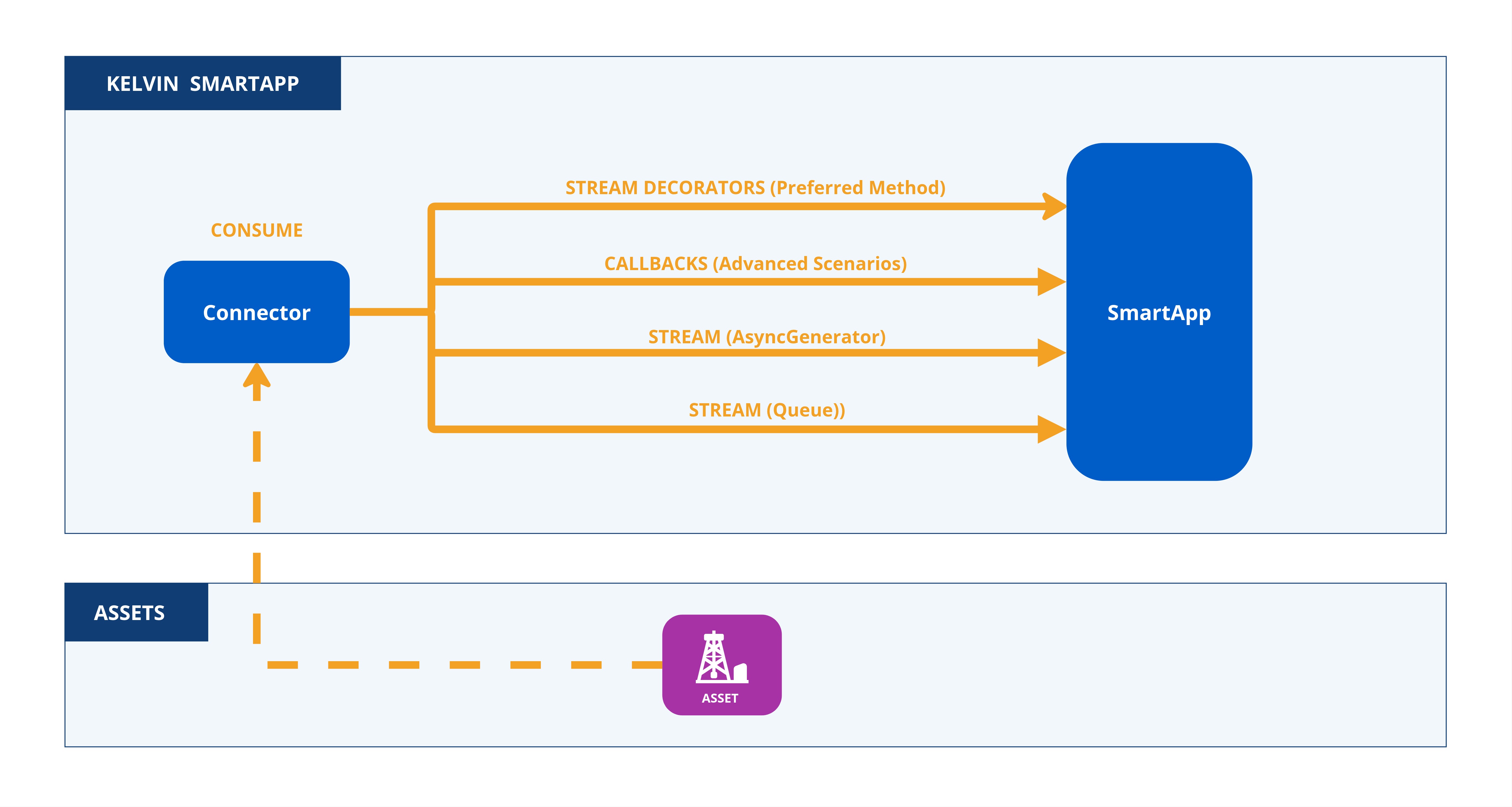
Timeseries data from Assets can be served to the Application in multiple ways, depending on the preferred data consumption method.
app.yaml setup
To consume streaming data, you must define the inputs section in the app.yaml file.
Note
That means that Applications is only going to be able to consume the specified inputs. i.e.:
| app.yaml Example | |
|---|---|
inputs is an array (list) composed by two fields:
- A unique name to identify the input. This will be used in the Python code to reference the input. It must contain only lowercase alphanumeric characters. The characters
.,_and-are allowed to separate words instead of a space BUT can not be at the beginning or end of the name. - An expected data type, which can be:
number,booleanorstring.
Now that the Applications inputs are defined, use one of the following methods to monitor and react to new incoming messages.
Stream Decorators (Preferred)
The preferred and simplest method for consuming incoming timeseries data is to create a Stream Decorator function.
You use the Data Stream filter to process only the relevant data.
Note
You can use filtering to only react and process specific incoming messages.
Note
You can see a full list of stream decorators available in the SDK documentation section here.
Callbacks (Advanced)
For advanced scenarios, you can define callbacks for specific lifecycle events.
Callbacks work on a "per asset" message, so you will need to manually program filters for individual data stream processing.
The callback on_asset_input can be used to read every input flowing into Applications:
Asynchronous Consumption
This approach pauses program execution until new data arrives, resuming only when data is available. To enhance efficiency and reduce unnecessary executions, filters can also be applied to limit the types of data that trigger events.
Streams are a different way of filtering inputs as a Python Async Generator, also based upon a filter function.
Info
Different Data filters are available within the filters class, such as input_equals(input: str), resource_equals(resource: KRN) and asset_equals(asset: str). On the following example we're gonna use the most common and expected use case (input_equals(input: str)).
Filters to limit which inputs are monitored can be expressed as filters.input_equals(input: str).
Filters can be used to filter a specific subset of the Kelvin Inputs as a Python Message Queue based upon a filter function.
Info
Different Data filters are available within the filters class, such as input_equals(input: str), resource_equals(resource: KRN) and asset_equals(asset: str). On the following example we're gonna use the most common and expected use case (input_equals(input: str)).
Filters to limit which inputs are monitored can be expressed as filters.input_equals(input: str).
Filters
When working with queues or async streams, you can apply filters to receive only the timeseries data that matches your criteria.
Note
In our earlier examples above you will see how we use filters.
Built-in Filters
There are a number of built-in filters available.
By Data Stream Name
You can receive Messages that only have certain Data Stream names.
| Filter by input data stream name(s) | |
|---|---|
By Asset Name
You can receive Messages that only have certain Asset names.
| Filter by asset name(s) | |
|---|---|
By KRN Resource
You can receive Messages that only have certain Resources by Kelvin Resource Name (KRN).
Note
You can see a full list of KRN names in Developer Tools KRN page here.
| Filter by resource KRN | |
|---|---|
By Message Type
You can receive certain types of Messages only.
| Filter by message type | |
|---|---|
Custom Filters
You can also create your own custom filters.
For example, you only want to receive Messages where the value is greater than 100.