Recommendations
Recommendations are generated from Application or from third party sources using the Kelvin API endpoint and will either be automatically accepted and implemented or wait for the Operations Engineers decision on the actions to take.
Recommendations can be accessed and controlled from many locations.
You can see how to view Recommendations from the different areas of the Kelvin UI
Assets Menu
There are two main locations that you can view Recommendations for Assets.
Assets View
If you customize the Asset-centric table columns, you can add a filtered Recommendations column.
Note
The default Asset-centric table does not show Recommendations in the column.
You can read the documentation on how to show Recommendation Columns here.
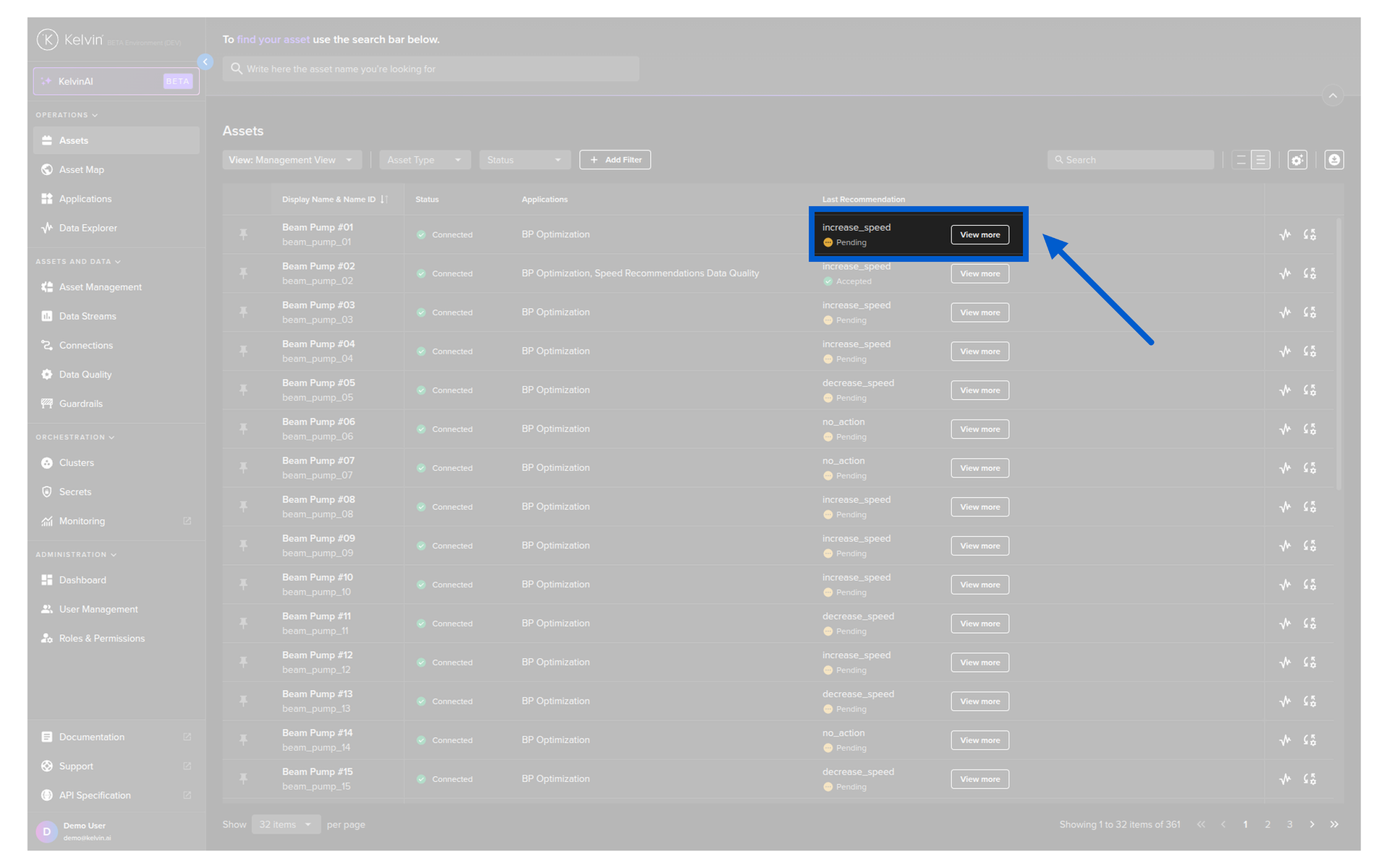
In the recommendations column you will see two types of options;
| Option | UI | Description |
|---|---|---|
| View More Button |  |
This means that there is a pending Recommendation. Clicking will show a popup where you can accept/reject the pending Recommendation. |
| Details Link |  |
This means that there are NO pending Recommendations. Clicking will show a popup with the last Recommendation details. |
When you click on the View More or Details button, then the inline Recommendation will appear below the Asset row.
Note
You can read about all the features in the inline Recommendation here.
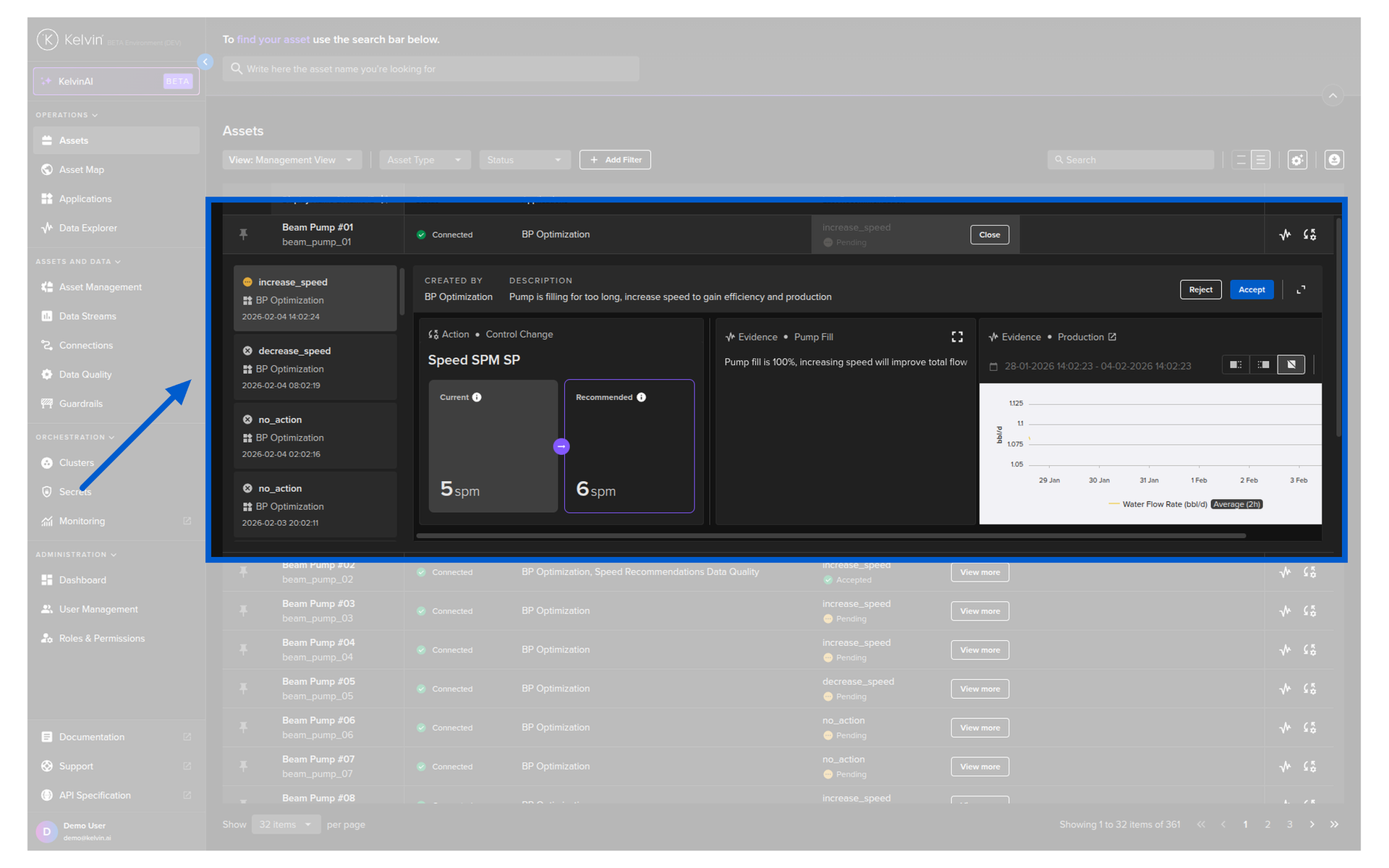
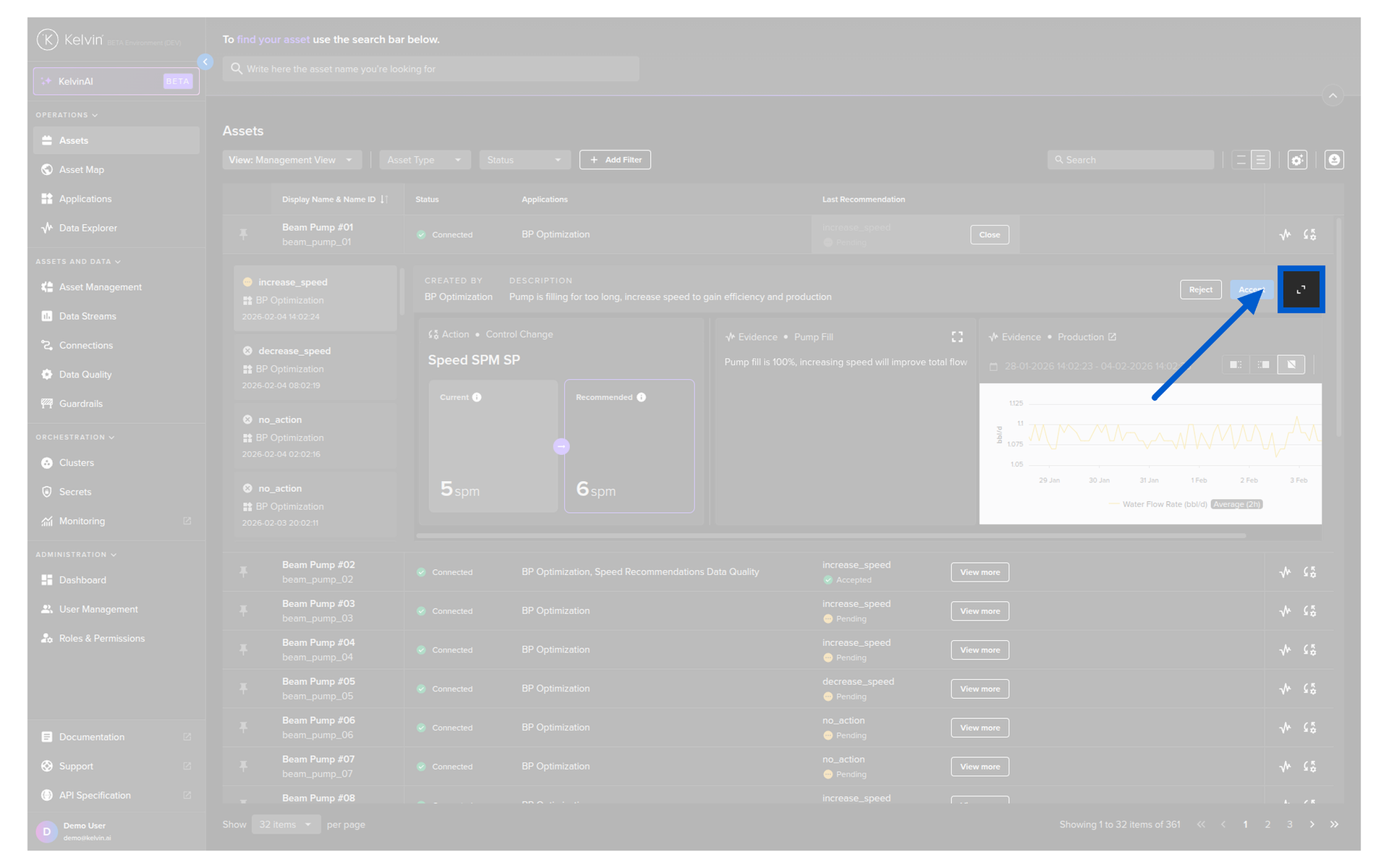
And in the Inline Recommendation, click on the expand icon to see the full Recommendation in a popup window.
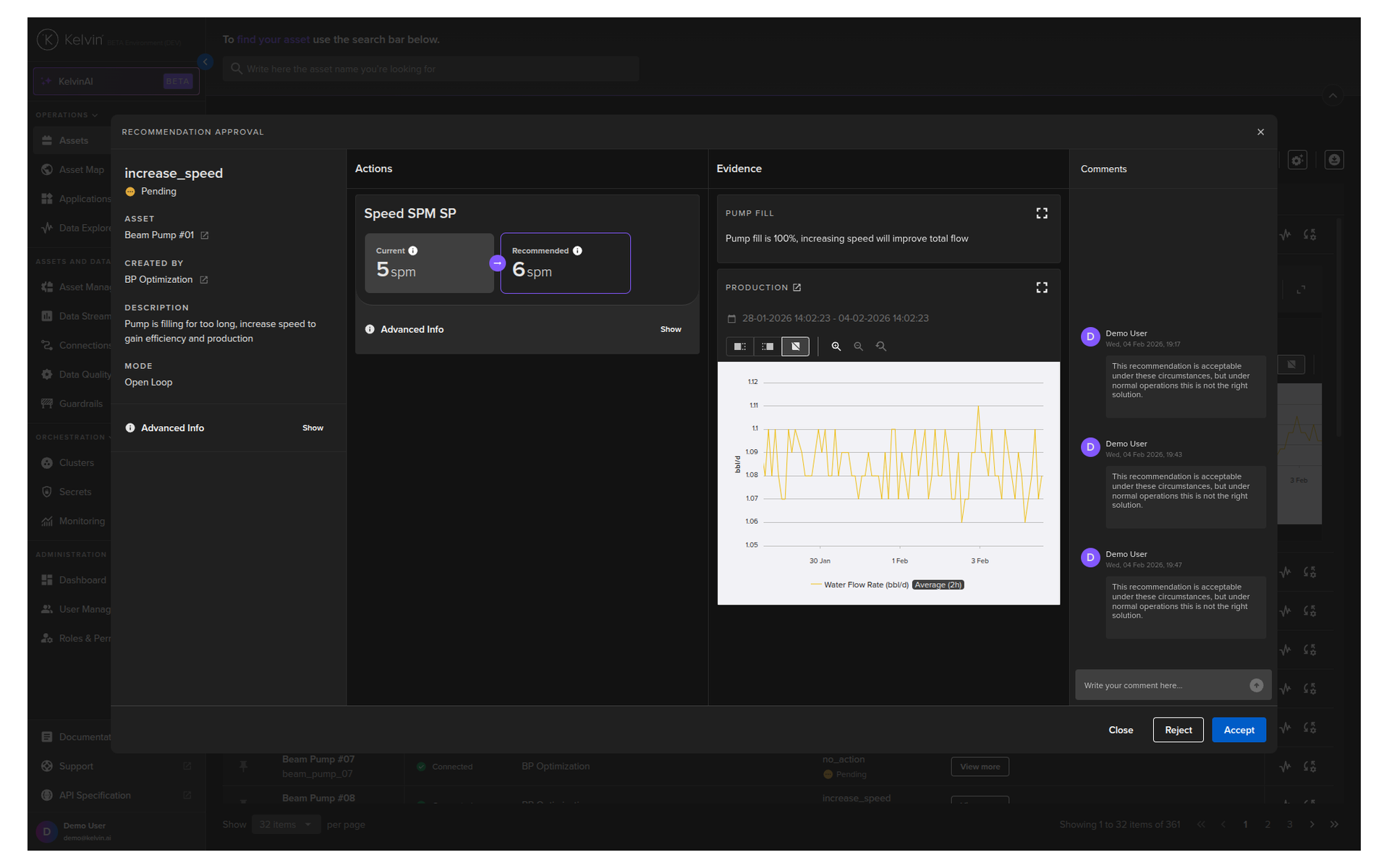
The popup Recommendation will look like this.
Note
You can read about all the features in the Popup Recommendation here
Asset Details Page
When you select an Asset, in the Asset Details page under Applications tab you can view and filter all the Recommendations by status (Pending, Accepted, Rejected and Expired) for the selected Application. You can read more about this feature here.
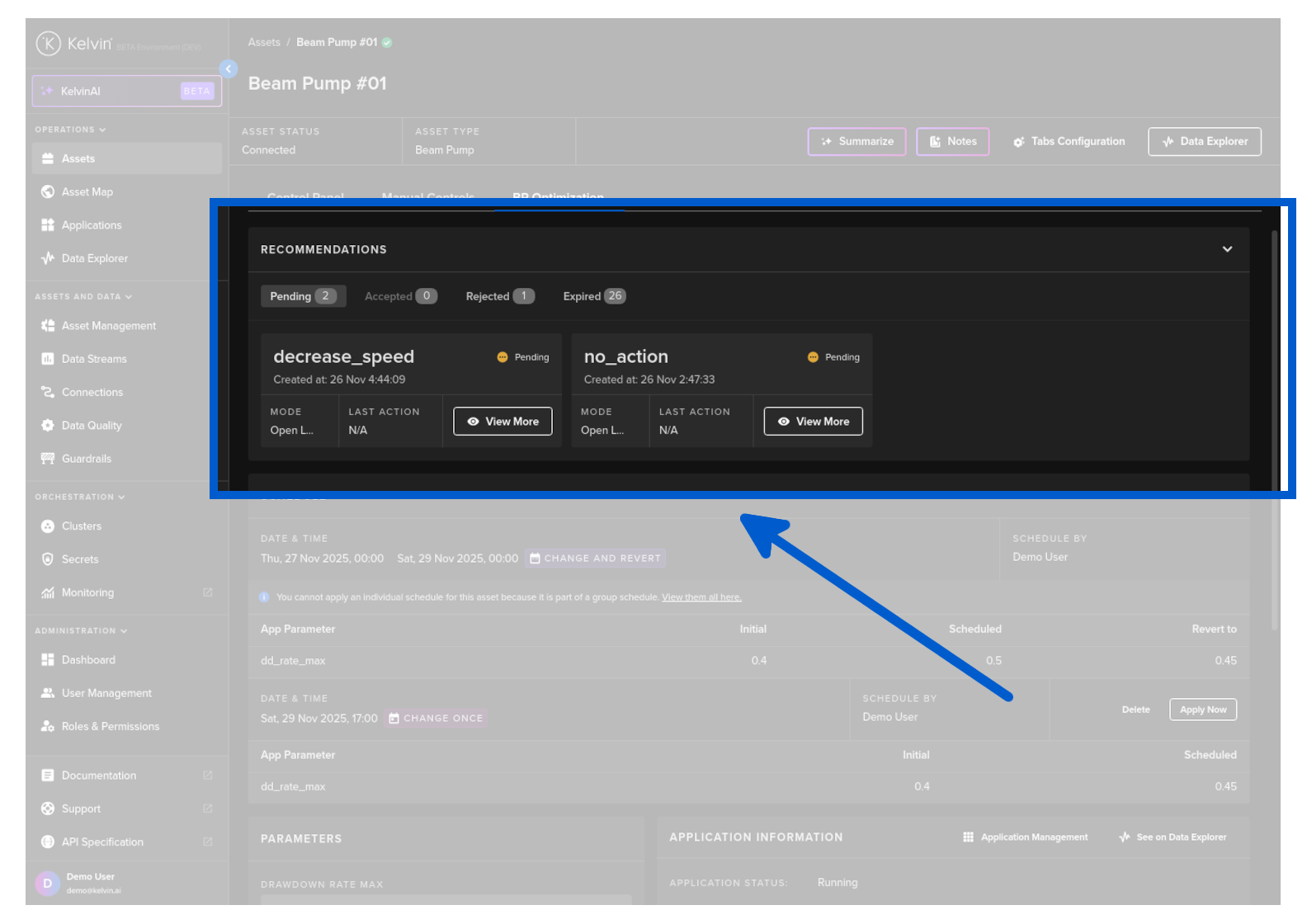
In the recommendation card you will see two types of options;
| Option | UI | Description |
|---|---|---|
| View More Button | |
This means that there is a pending Recommendation. Clicking will show a popup where you can accept/reject the pending Recommendation. |
| Details Link | |
This means that there are NO pending Recommendations. Clicking will show a popup with the last Recommendation details. |
The popup Recommendation will look like this.
Note
You can read about all the features in the Popup Recommendation here