Monitor Asset Data with Data Explorer
On this page you will learn how to use the Data Explorer to monitor, analyze and compare Asset data in Kelvin UI.
Available Guides
- Open Data Explorer
- Select Assets and Data Streams
- Set the Time Range
- Monitor Data in Real Time
- Compare Multiple Assets
- Customize the Y-Axis
- Zoom Into Data
- Show or Hide Activity Lanes
- Visualization Settings Reference
Overview
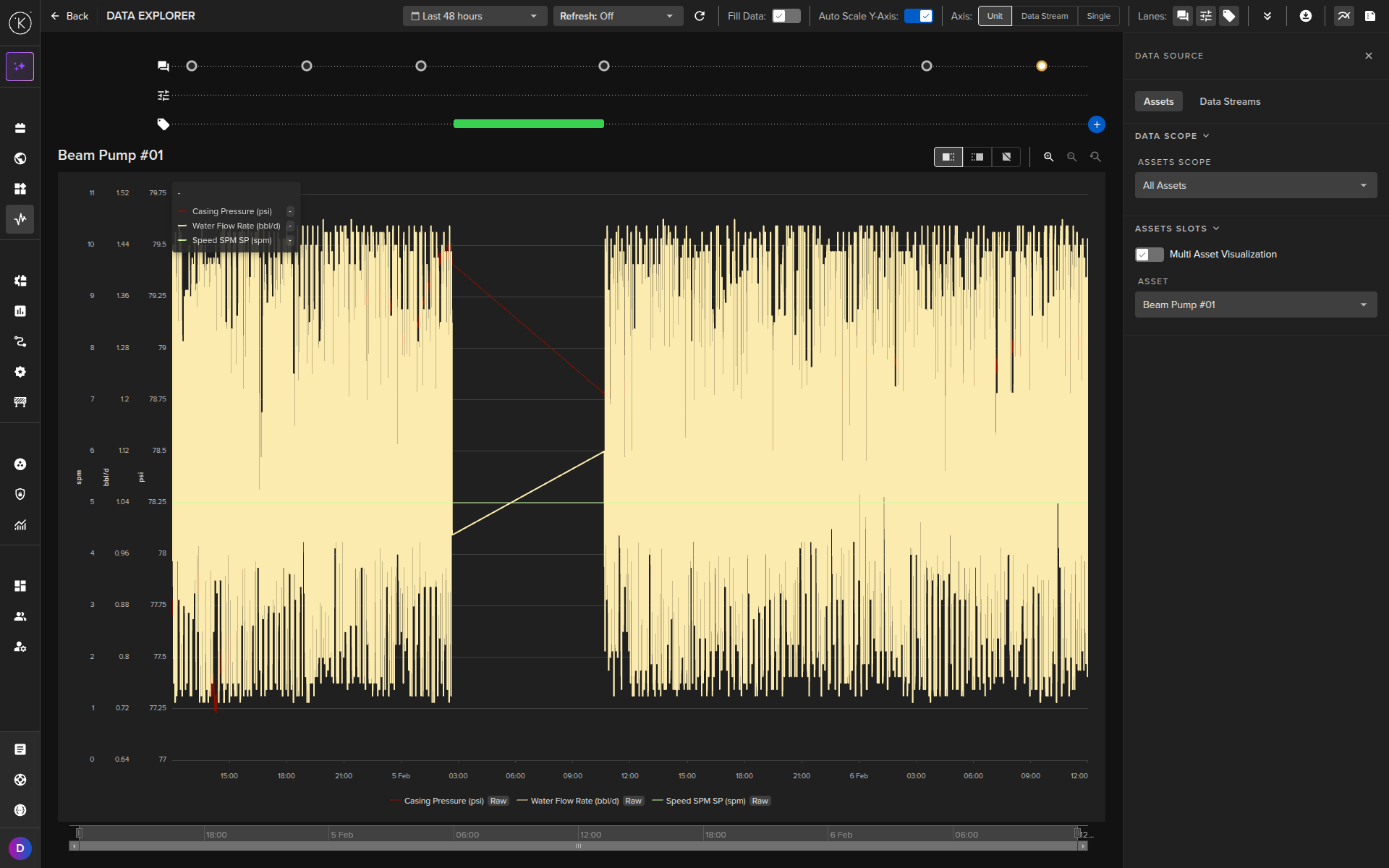
The Data Explorer provides historical and real-time graphical views of Asset Data Streams. Key capabilities include:
- View when Control Changes were performed on a Data Stream
- View when Recommendations were activated
- Add custom tags for Asset time ranges
- Change timezone to match Asset location
- Filter by Assets and Data Streams
- Configure Y-axis display per unit, per Data Stream, or single axis
- Independent Y-axis zoom controls
- Compare up to four Assets side-by-side
Open Data Explorer
You can open the Data Explorer from several locations in the Kelvin UI.
Note
When you are in Data Explorer view, you can return to the Asset page by clicking on the Asset name.
From the Left Side Menu
Click on Data Explorer under Operations in the left sidebar.
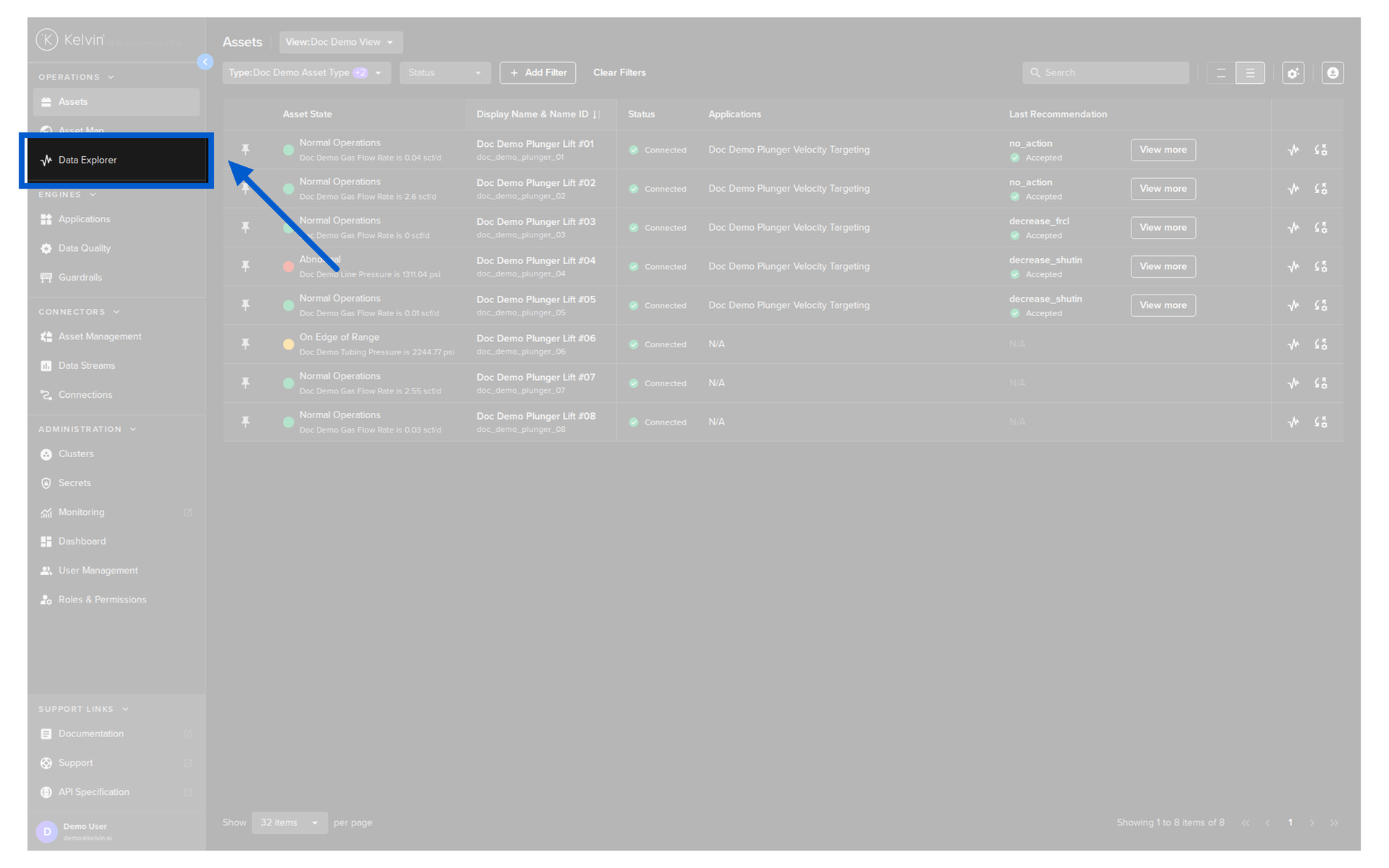
The left and right sidebars will automatically collapse to allow more space for the historical data display.
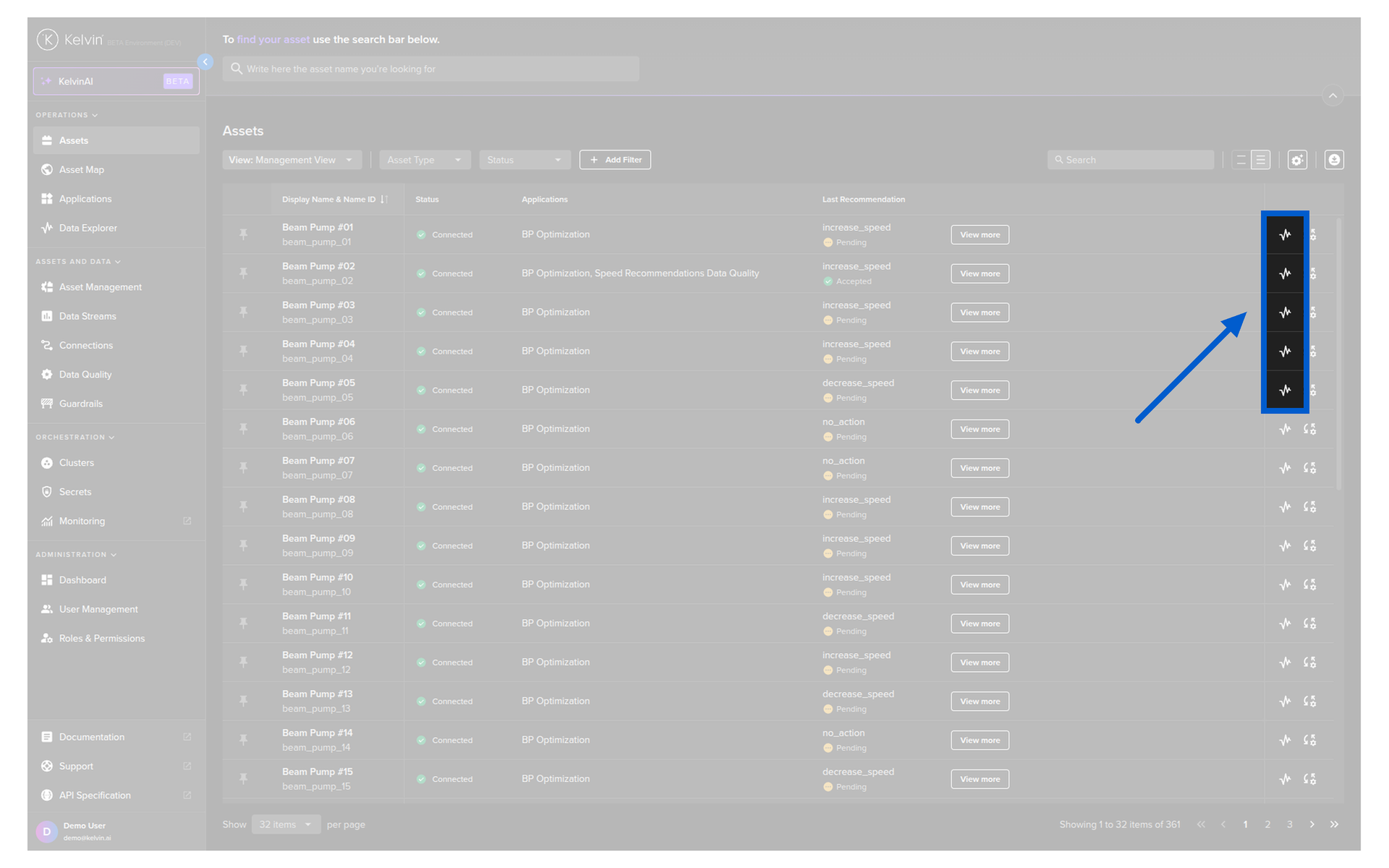
From the Assets Page
Click on the Data Explorer icon in the Asset row. This will automatically select that Asset.
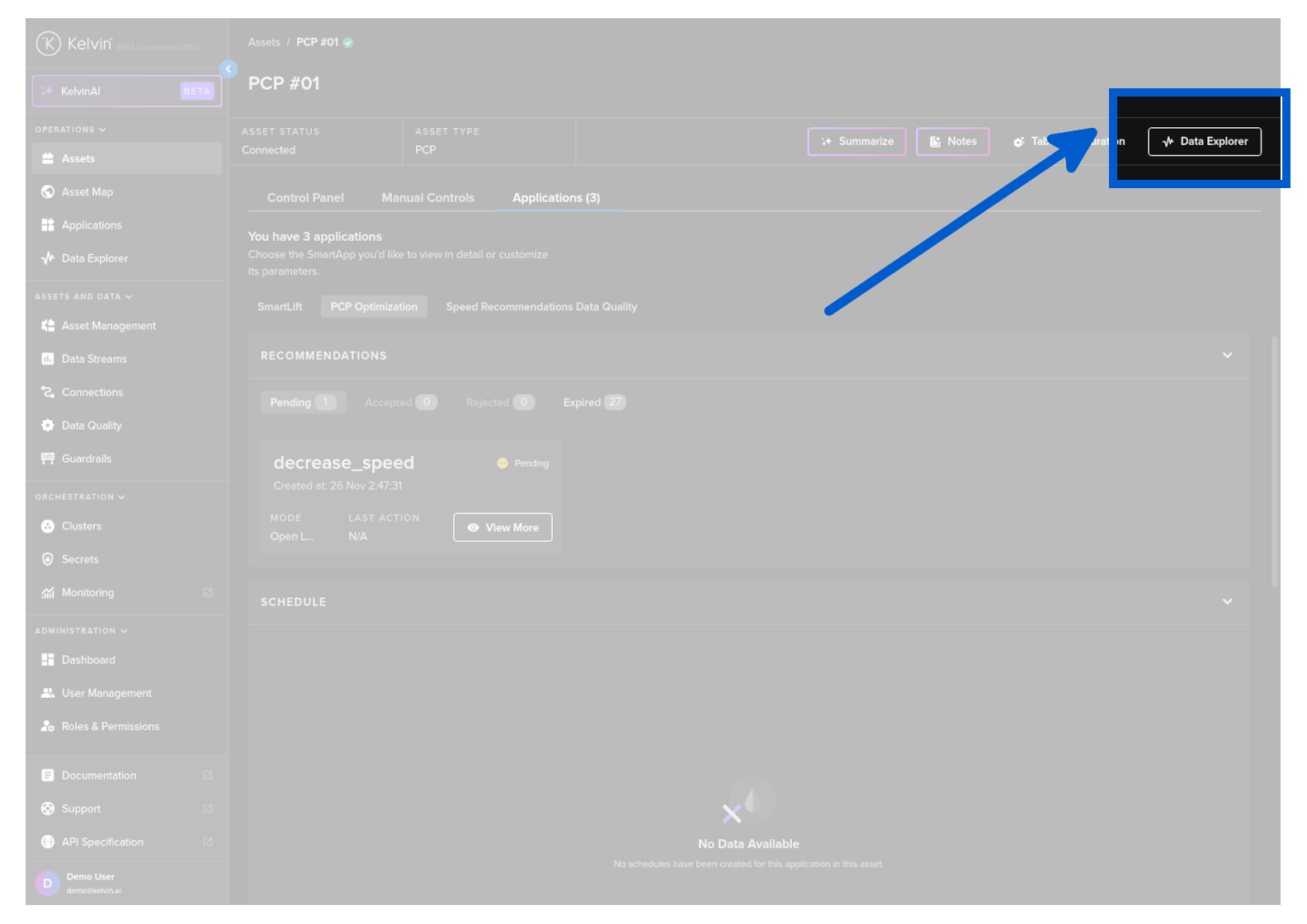
From the Asset Details Page
Click the Data Explorer button at the top of the page. This will automatically fill in the Asset name.
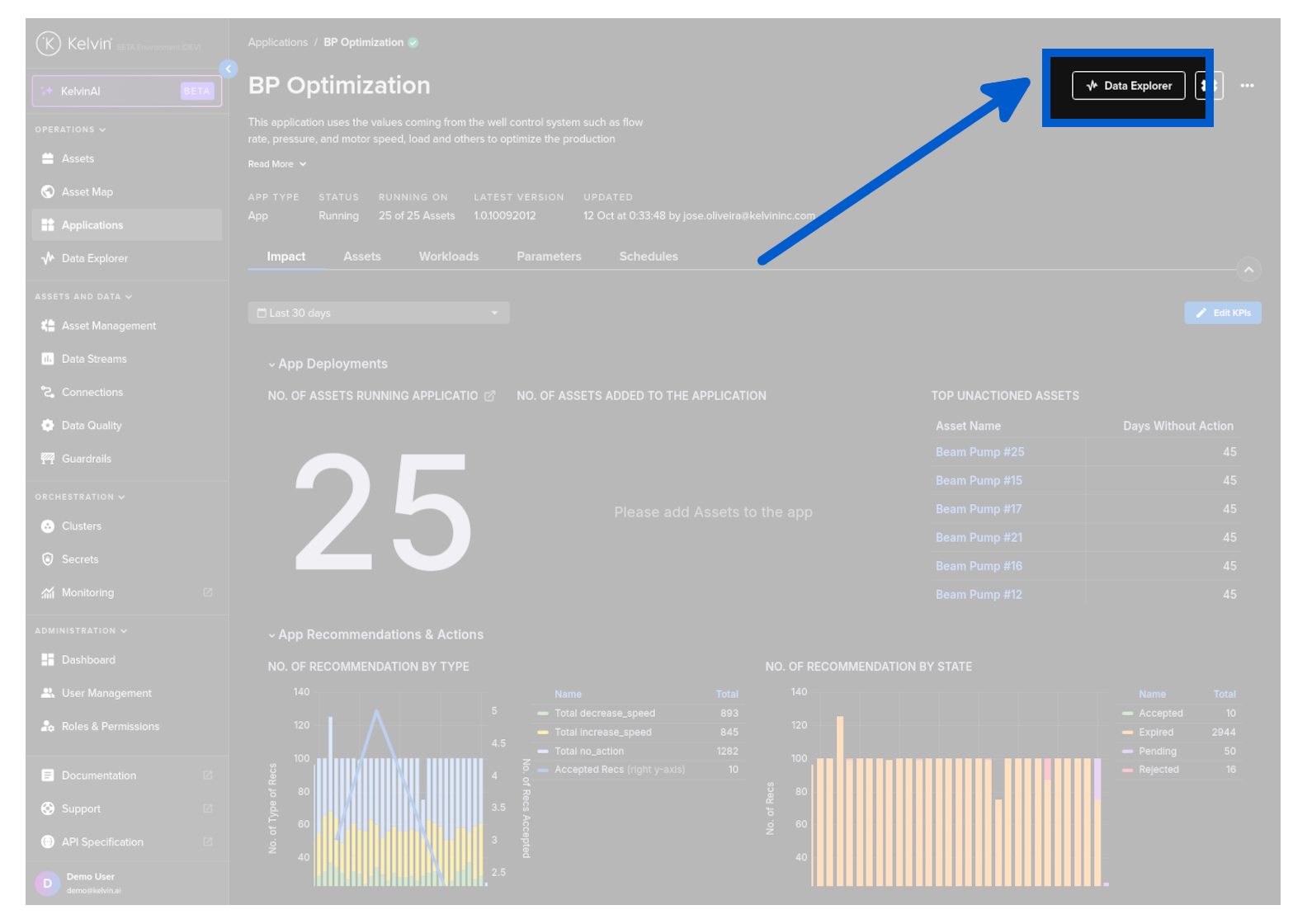
From the Applications Page
Click on the Data Explorer button on the Application summary page.
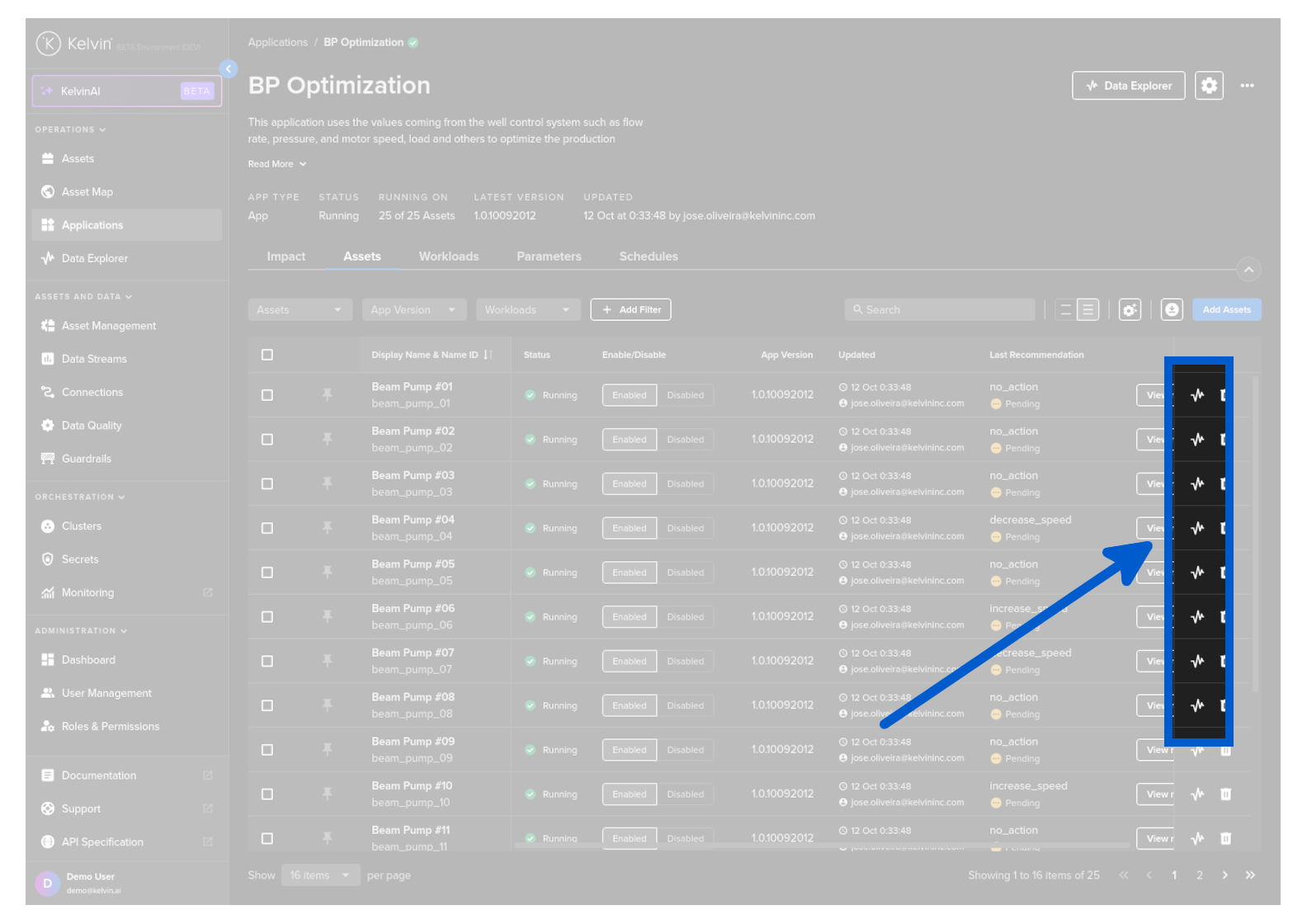
Or click on an Asset name in the Assets tab of the Application page.
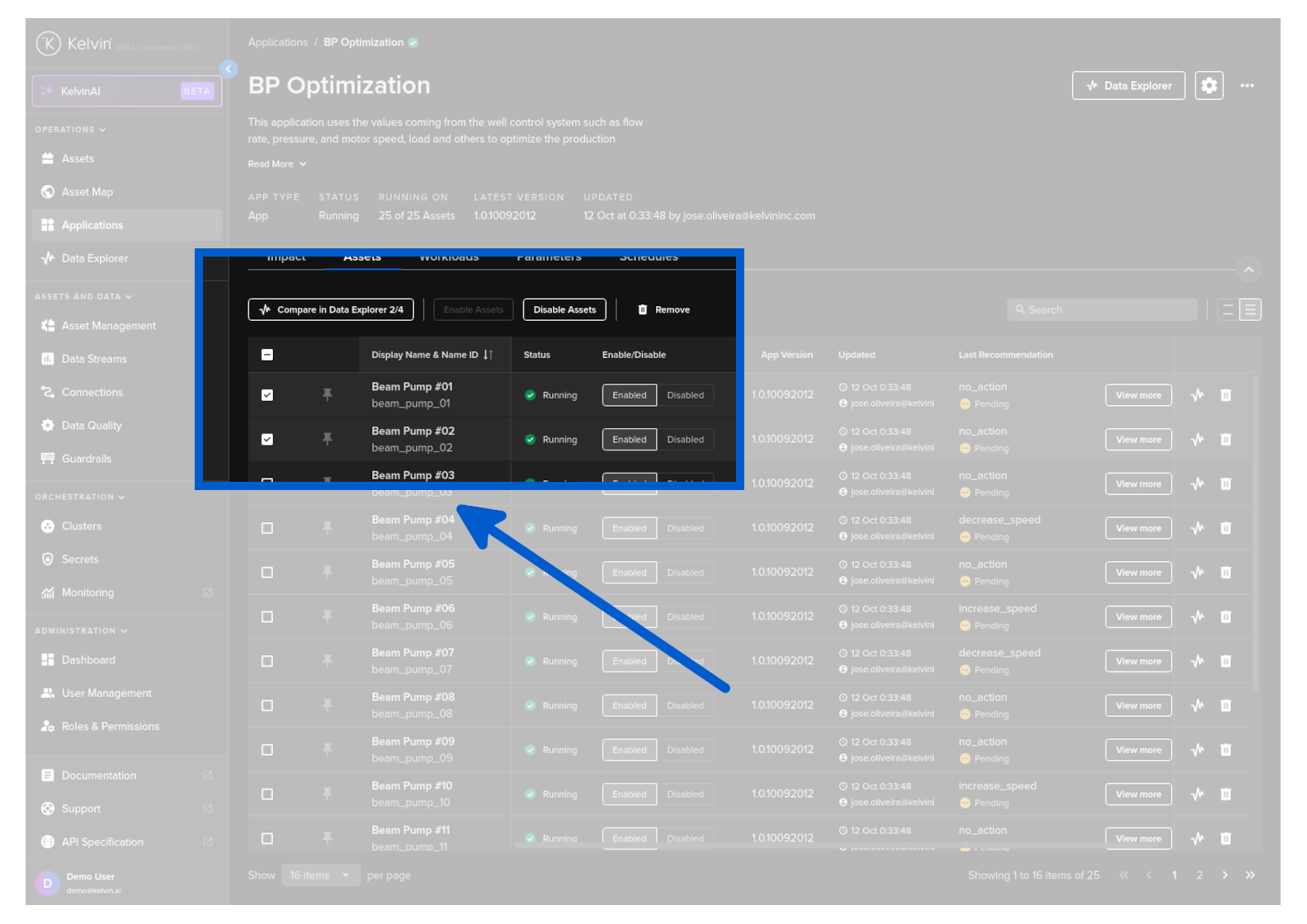
You can also quickly open multiple Assets together in Data Explorer by selecting Assets (maximum 4) and clicking the Compare in Data Explorer button.
Select Assets and Data Streams
The right sidebar contains all options for configuring your Data Explorer view. Expand it to access the Data Source settings.
Select an Asset
The Data Source panel has an Assets tab where you select which Asset to visualize.
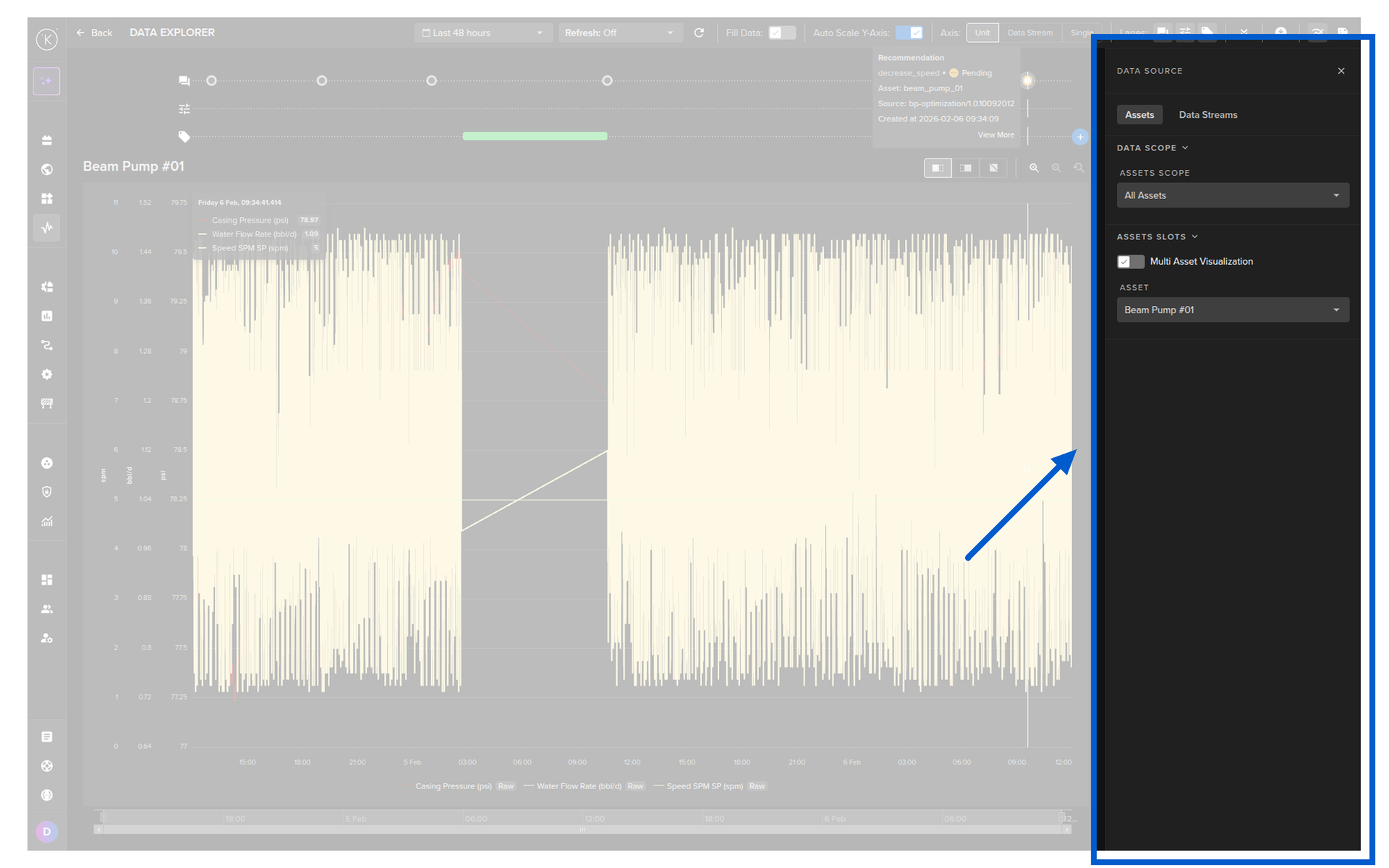
You can control which Assets appear in the selection list using the Assets Scope setting:
| Assets Scope | Description |
|---|---|
| All Assets | All Assets on the Kelvin Cloud are available. |
| Same Asset Type | Only Assets that share the same Asset Type are available. |
| Same Application | Only Assets that belong to the same Application are available. |
Select Data Streams
Switch to the Data Streams tab to choose which Data Streams associated with the selected Asset to display.
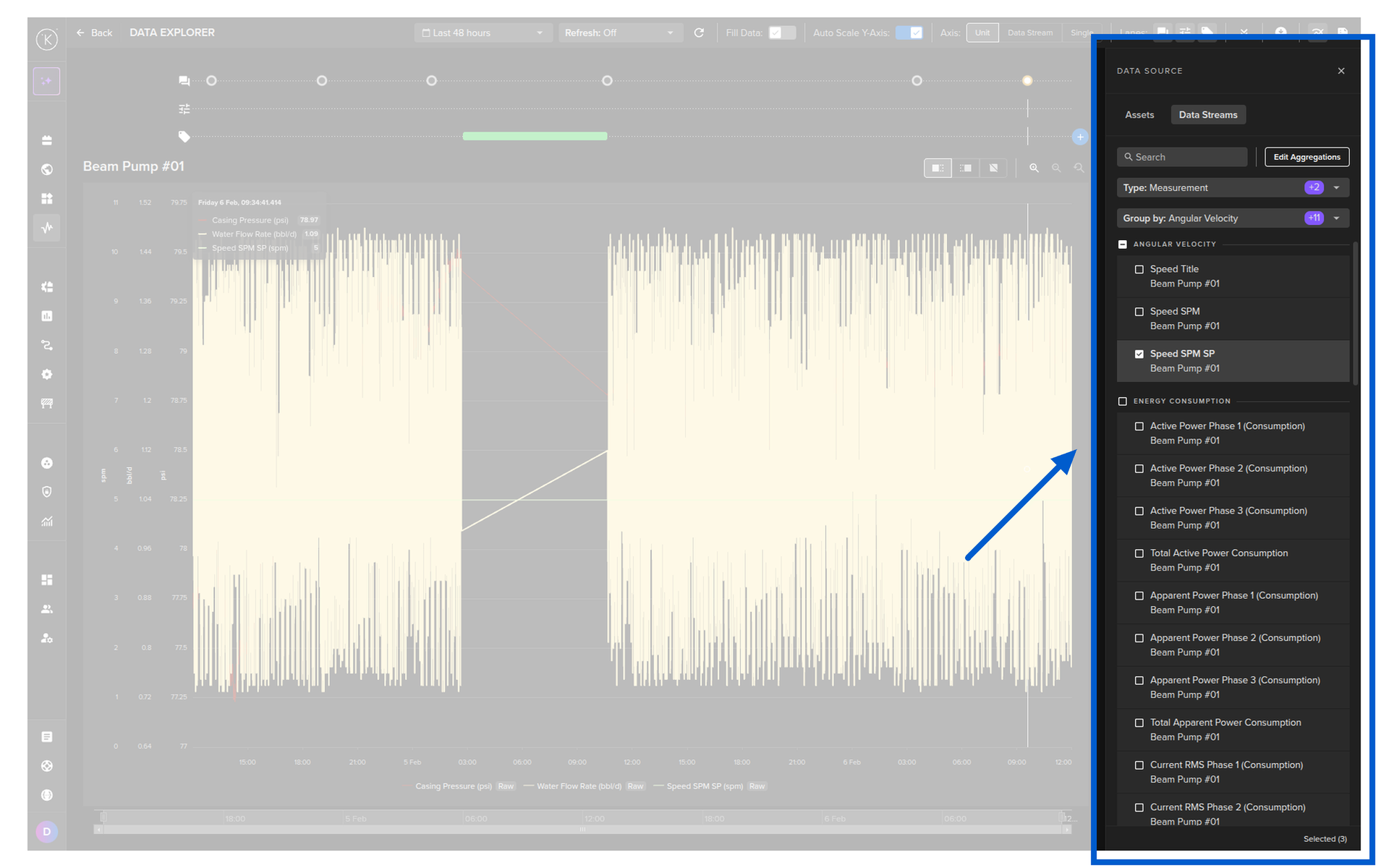
You can filter Data Streams by Measurement and/or Computed types. These are defined when the Data Stream is first created by Software Engineers or Administrators.
If you have selected multiple Assets, you can group the Data Stream options by Assets and Semantic Type.
Click the Edit Aggregation button to control how each Data Stream values are displayed. By default, raw data is shown. You can apply an aggregation function over a selected time interval.
| Option | Description |
|---|---|
| None | Display raw data with no aggregation applied. |
| Average | Display the average value over the selected interval. |
| Sum | Display the sum of values over the selected interval. |
| Min | Display the minimum value over the selected interval. |
| Max | Display the maximum value over the selected interval. |
Interval options range from 1 minute to 1 week.
Set the Time Range
Click on the calendar icon to open the time range selector.
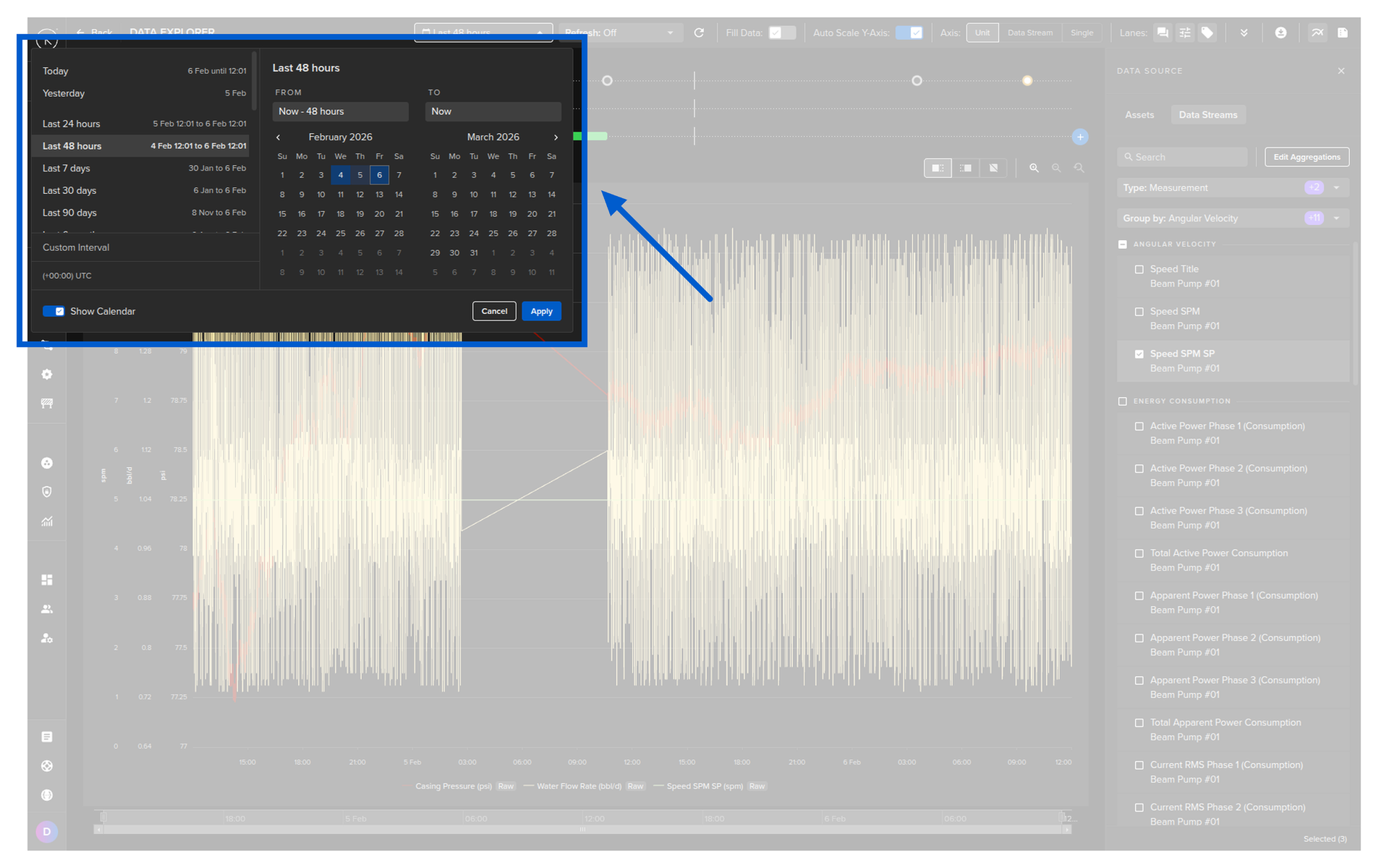
| Feature | Description |
|---|---|
| Quick Time Range | Quickly select preset ranges such as Today, Yesterday, Last 1 hour, Last 24 hours, Last 7 days, Last 90 days, All time and more. The actual date range is displayed next to each option. |
| Customize Interval | Select a custom time range relative to the current time. |
| Time Zone | Change the timezone of the graph to match the Asset's location. This is useful when reports reference local time and you want to view graphs at that time without manual conversion. |
| Show Calendar | Show both the Quick Time Range, Custom Interval and Time Zone options together with a calendar date picker. |
Use a Custom Interval
Click Show Calendar to select a time range from a calendar picker. You can also set your local timezone here.
Monitor Data in Real Time
You can use Data Explorer for live monitoring by setting a refresh rate.
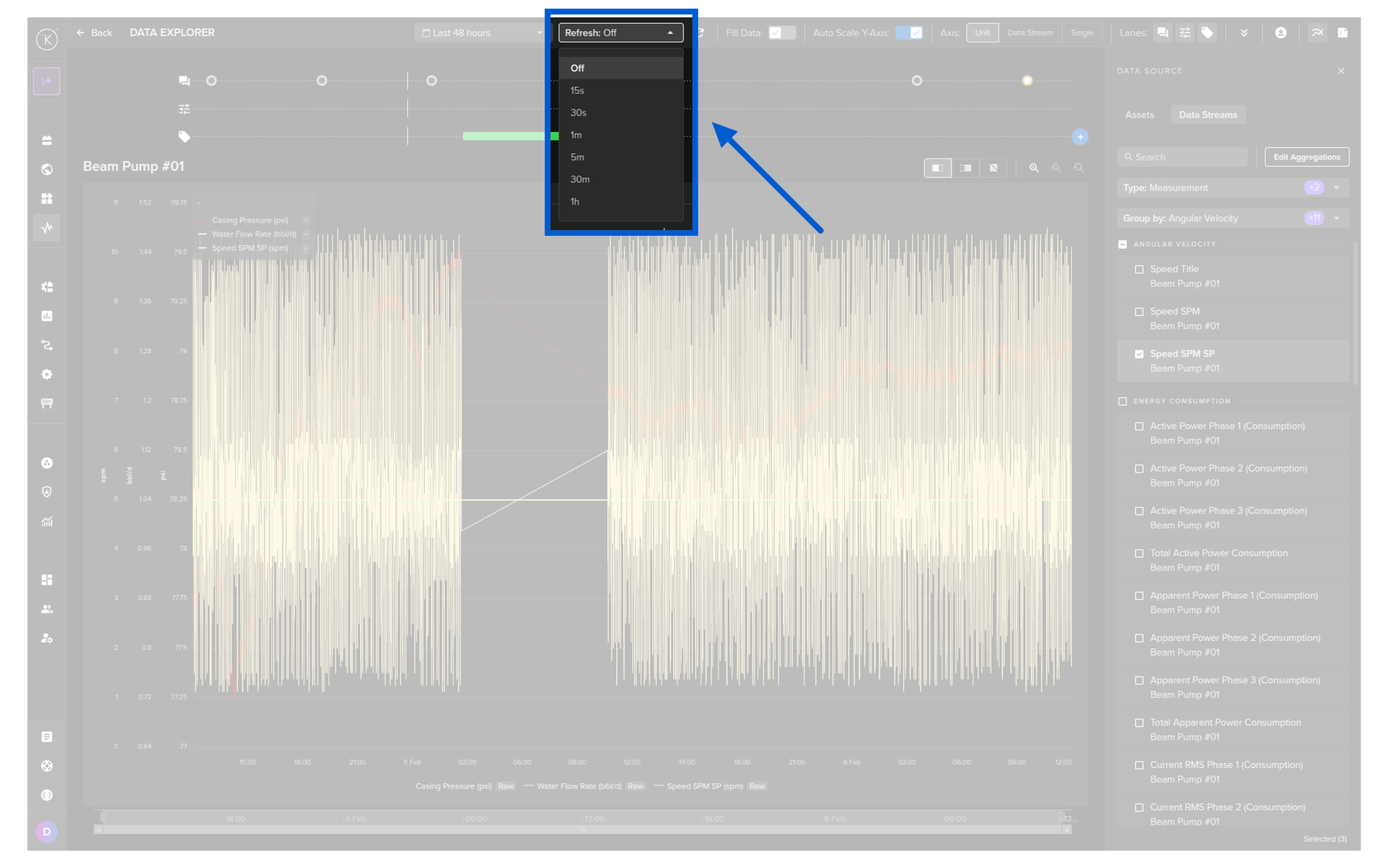
The refresh rate can be set from 5 seconds to 1 hour. To return to historical analysis mode, select Off.
Compare Multiple Assets
You can view up to four Assets and their associated Data Streams simultaneously, all synced to the same time axis.
To enable this, turn on Multi Asset Visualization in the Data Source settings on the right sidebar. Then assign an Asset to each slot (Slot 1 to Slot 4).
When selecting Assets for Slot 2 to 4, any Assets that have a relationship with the Asset in Slot 1 will be shown at the top of the selection dropdown list.
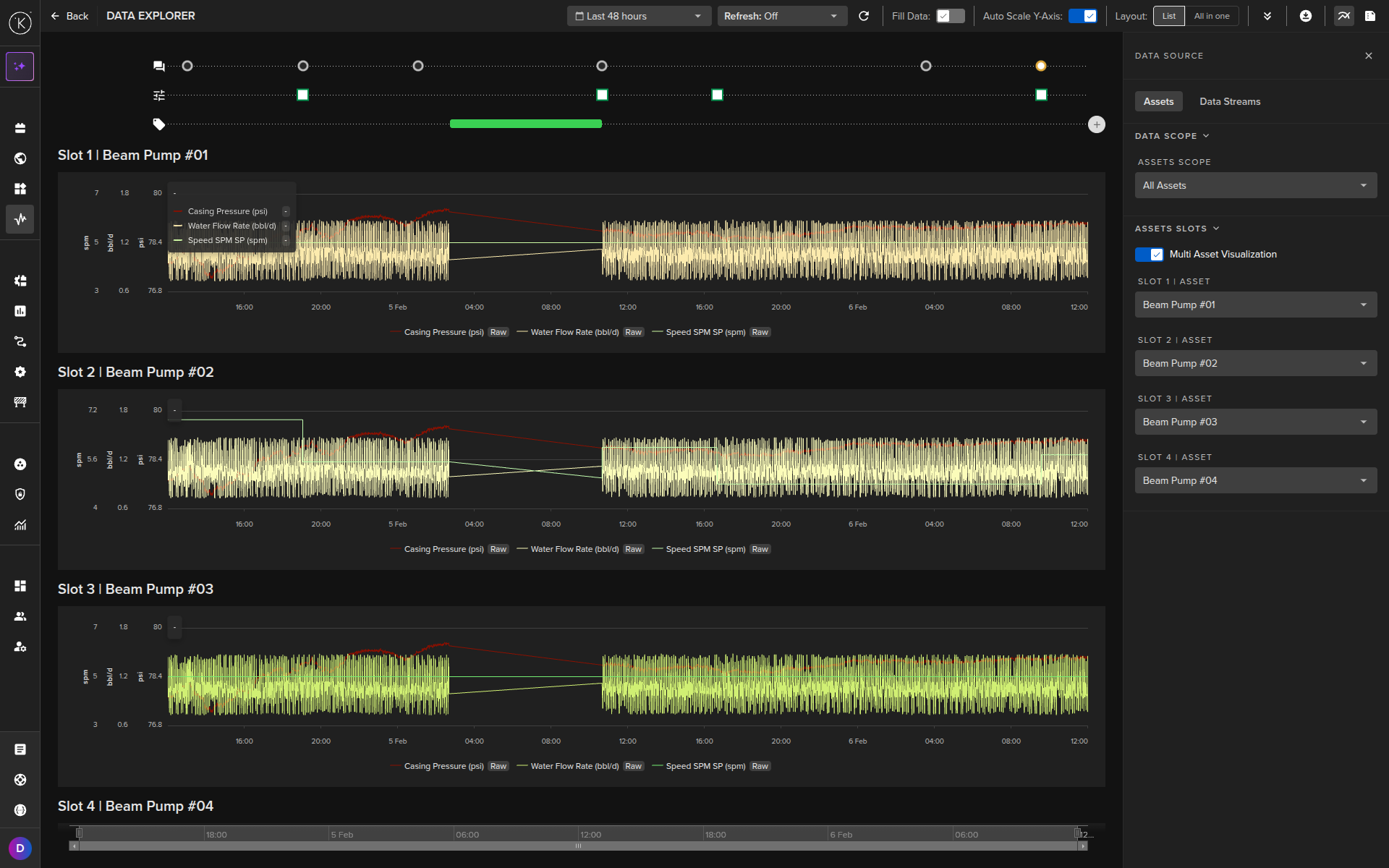
| Setting | Description |
|---|---|
| Multi Asset Visualization | Turn On to enable up to four Asset slots. |
| Layout: List | Each Asset is displayed in a separate chart, stacked horizontally with a common time axis. |
| Layout: All in one | All Assets are displayed in one chart. |
Customize the Y-Axis
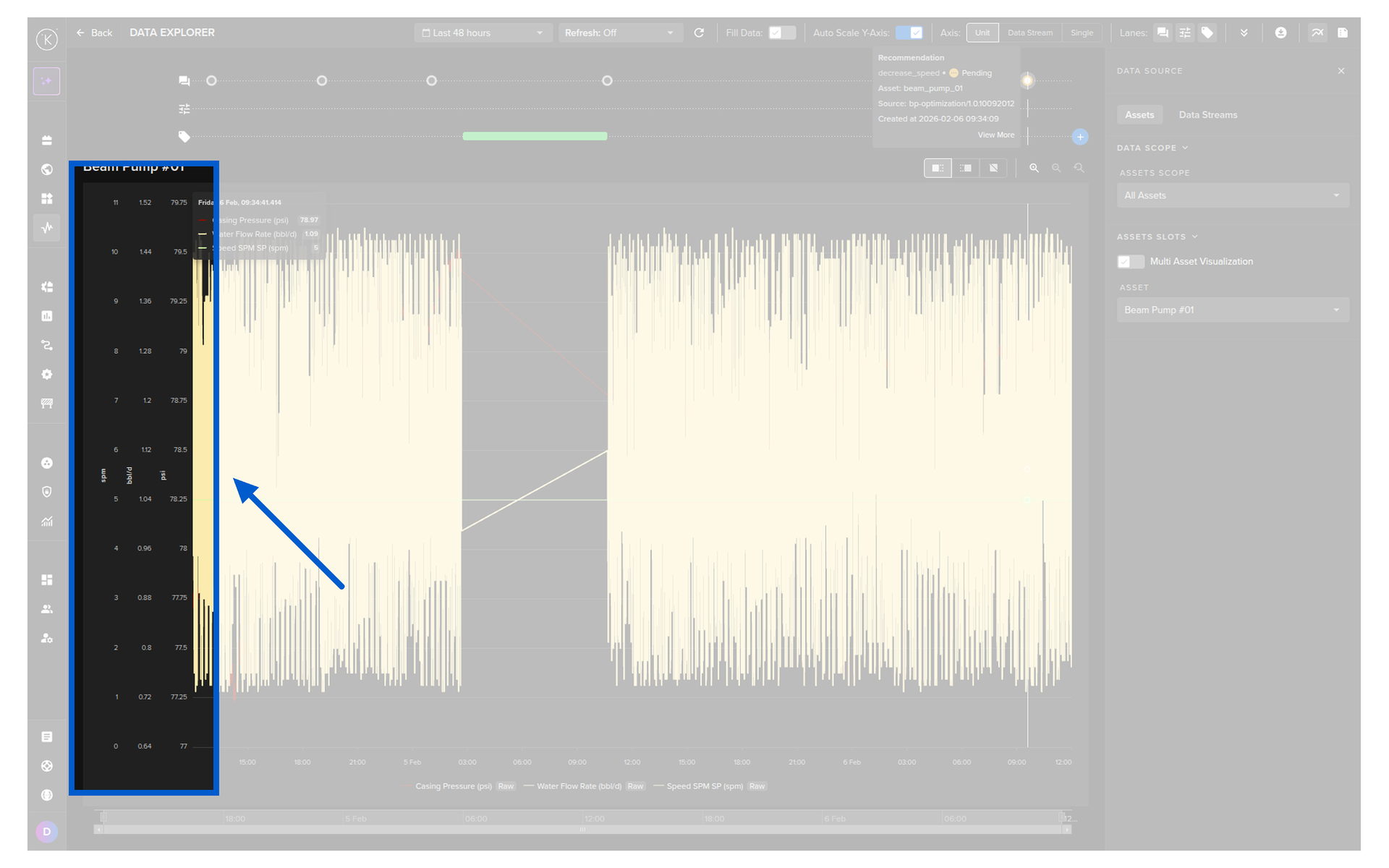
Inside the graph you have three options for displaying the Y-axis. Select the option from the toolbar at the top.
| Option | Description |
|---|---|
| Single | All Data Streams share one Y-axis range. |
| Axis/Unit | Data Streams are grouped by unit. For example, two Data Streams with units m² share one Y-axis while a Data Stream with units g/kg gets a separate Y-axis. |
| Axis/Line | Each Data Stream gets its own Y-axis range, but the Y-axis labels are not shown on the graph. |
You can also toggle Auto Scale Y-Axis:
- On — The minimum Y value is adjusted to the smallest data point to maximize visual resolution.
- Off — The minimum Y value is fixed at 0 unless negative values exist.
Zoom Into Data
Zoom the Y-Axis
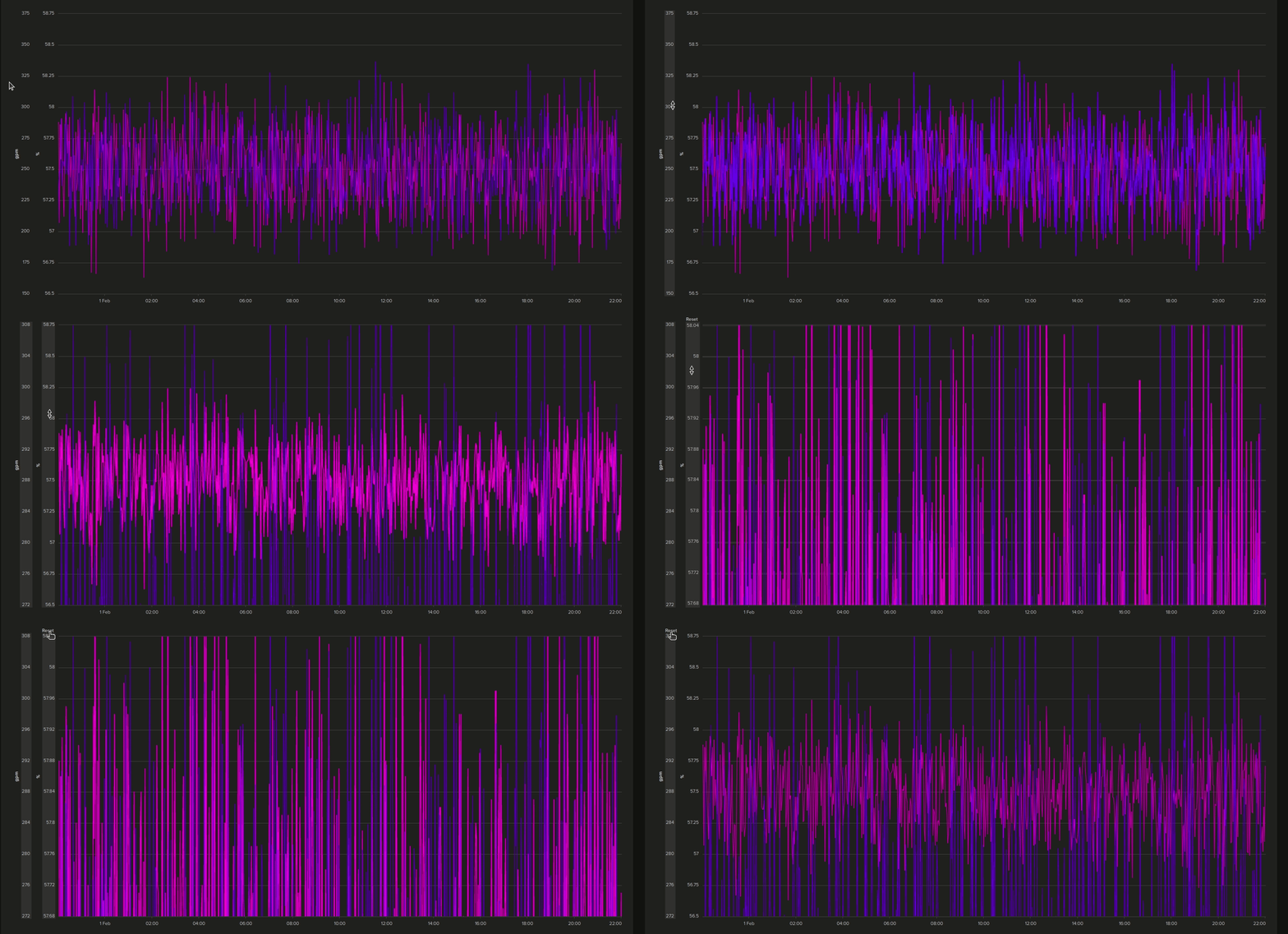
You can individually zoom into each variable's Y-axis separately. This is useful for viewing a section of data in high detail.
To zoom all axes at the same time, click on the Single axis option at the top.
Zoom the X-Axis (Time)
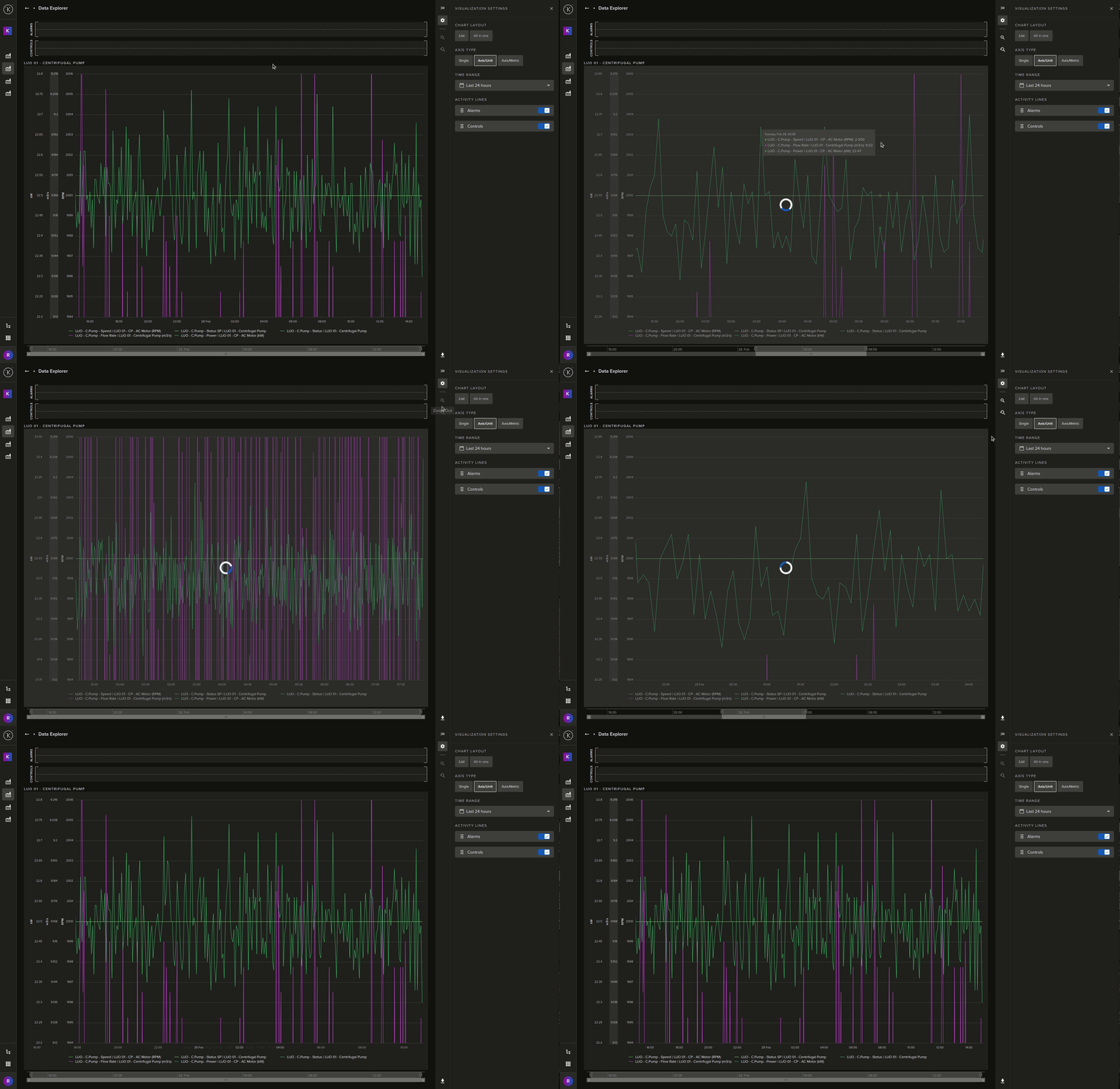
You can zoom the time span on the X-axis. When zoomed in, the Zoom Out / Zoom Reset controls in the right sidebar become active.
Show or Hide Activity Lanes
The Data Explorer displays two main areas:
- Activity Lanes — Recommendations, Control Changes and Tags shown by time of action
- Line Graphs — Asset / Data Stream time series data
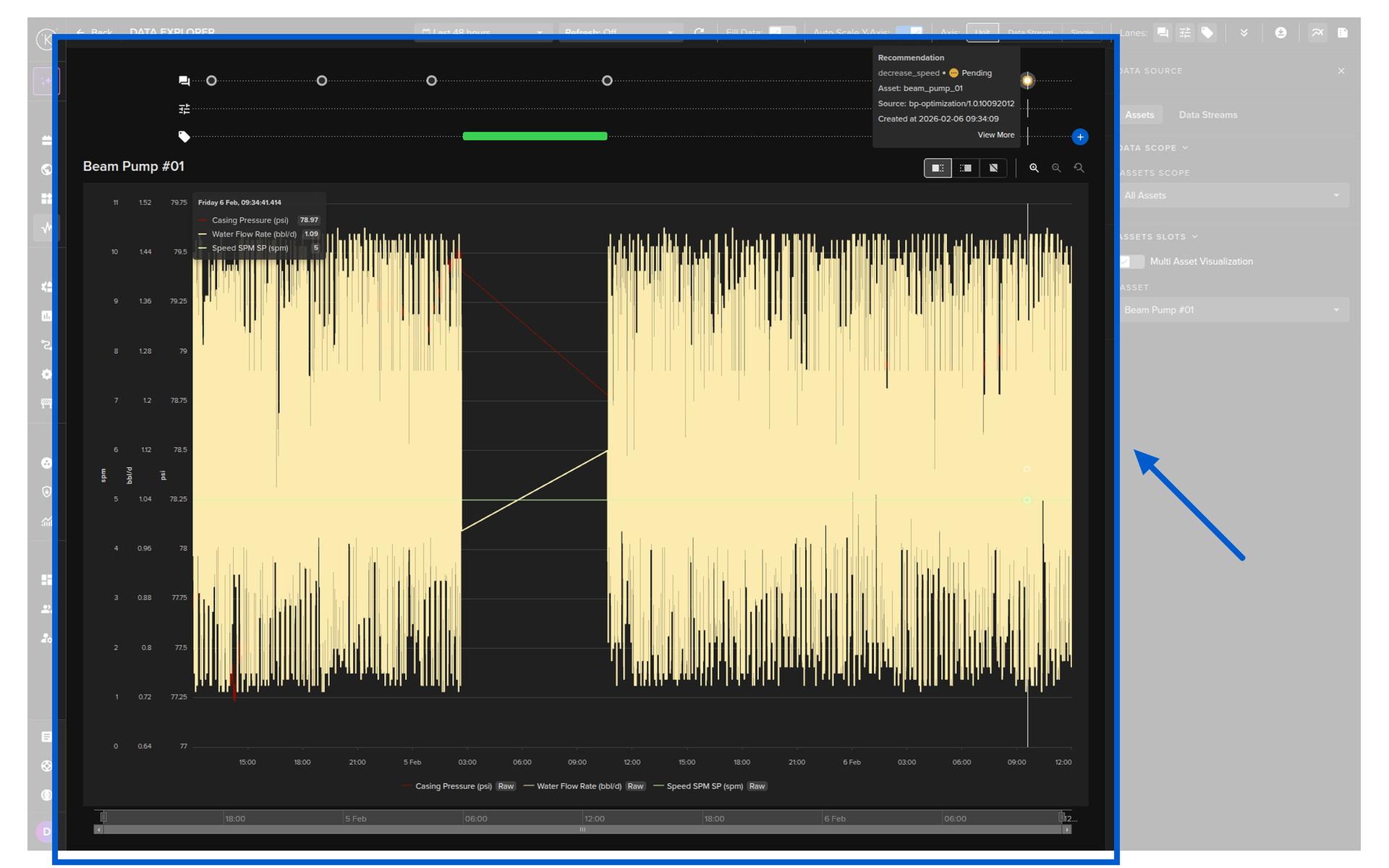
You can toggle each lane independently from the Visualization Settings:
| Lane | Description |
|---|---|
| Controls | Show or hide the Control Changes lane. |
| Recs | Show or hide the Recommendations lane. |
| Tags | Show or hide the Tags lane. |
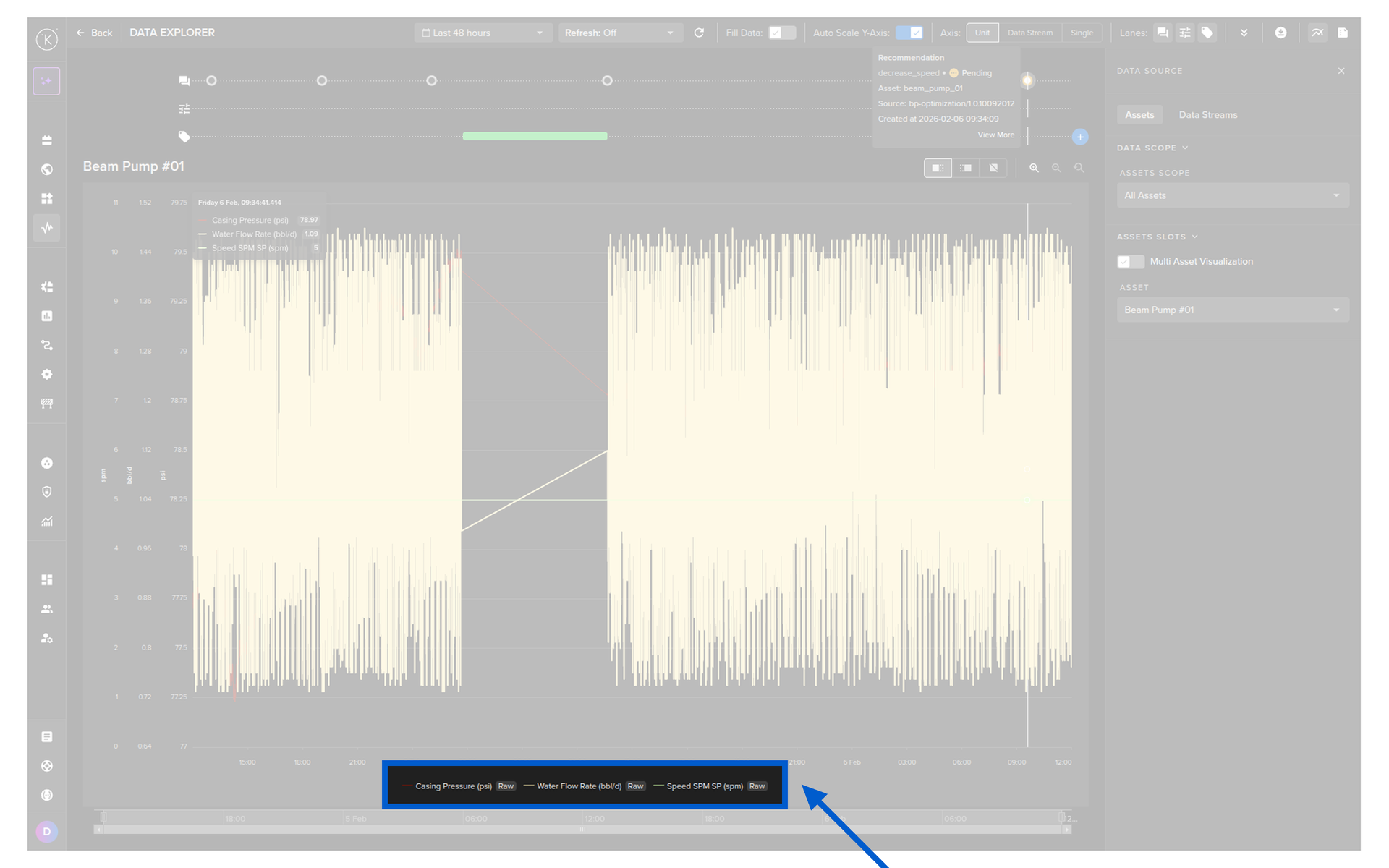
Legend
At the bottom of the graph is a legend showing the Data Streams and their corresponding colors.
Visualization Settings Reference
All visualization settings are accessed from the configurations button in the top right corner.
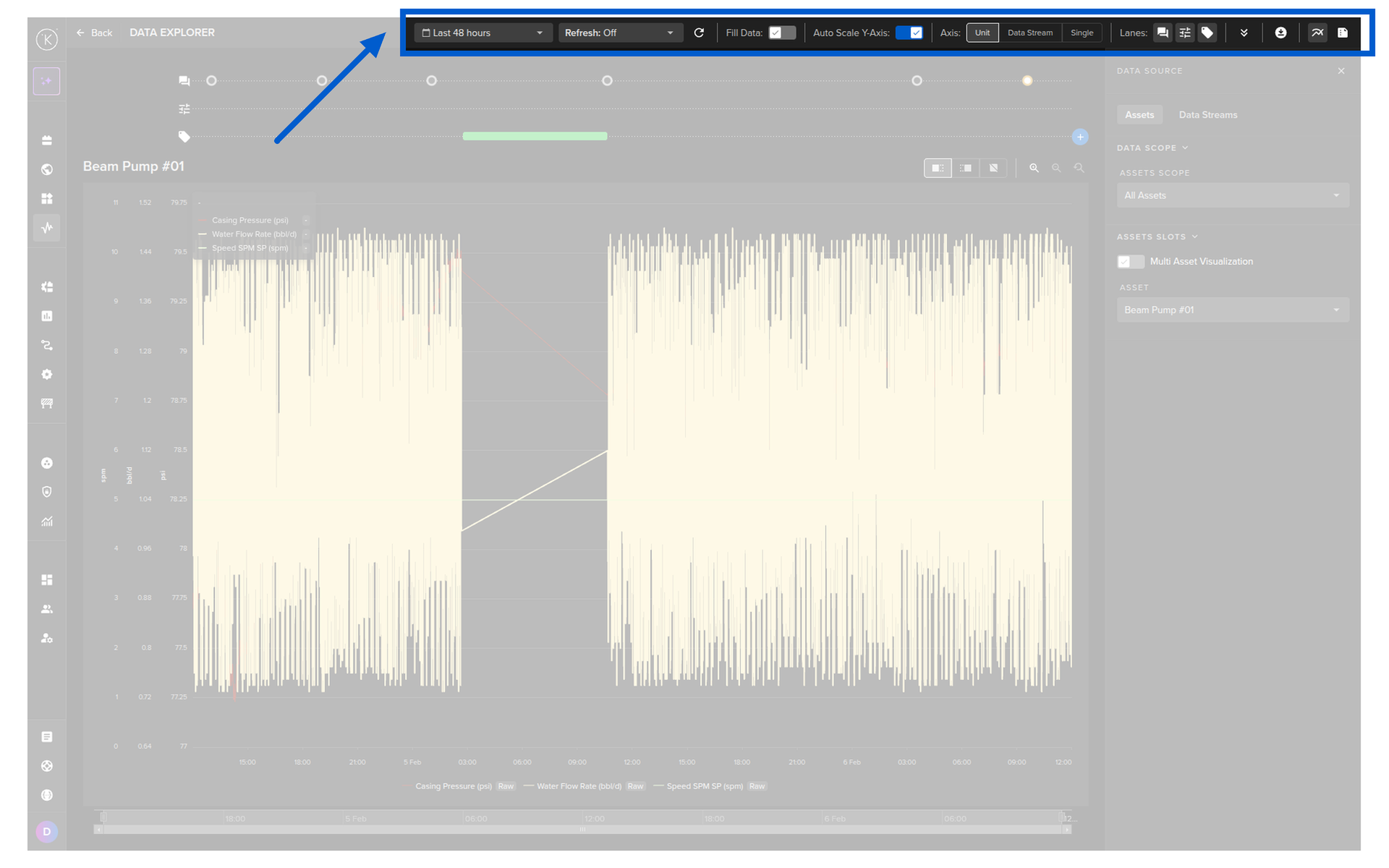
| Settings | Options | Description |
|---|---|---|
| Time Range | Multiple | See Set the Time Range. |
| Refresh | Multiple | See Monitor Data in Real Time. |
| Fill Data | On/Off | Data gaps will be filled with the previous known value. |
| Auto Scale Y-Axis | On / Off | See Customize the Y-Axis. |
| Layout | List / All in one | See Compare Multiple Assets. |
| Axis | Unit / Datastream / Single | See Customize the Y-Axis. |
| Lanes | Controls / Recs / Tags | See Show or Hide Activity Lanes. |
Data Source  |
Select | Show/Hide the Data Source options in the right sidebar. |
Activity  |
Select | Show/Hide the Insight options in the right sidebar. |