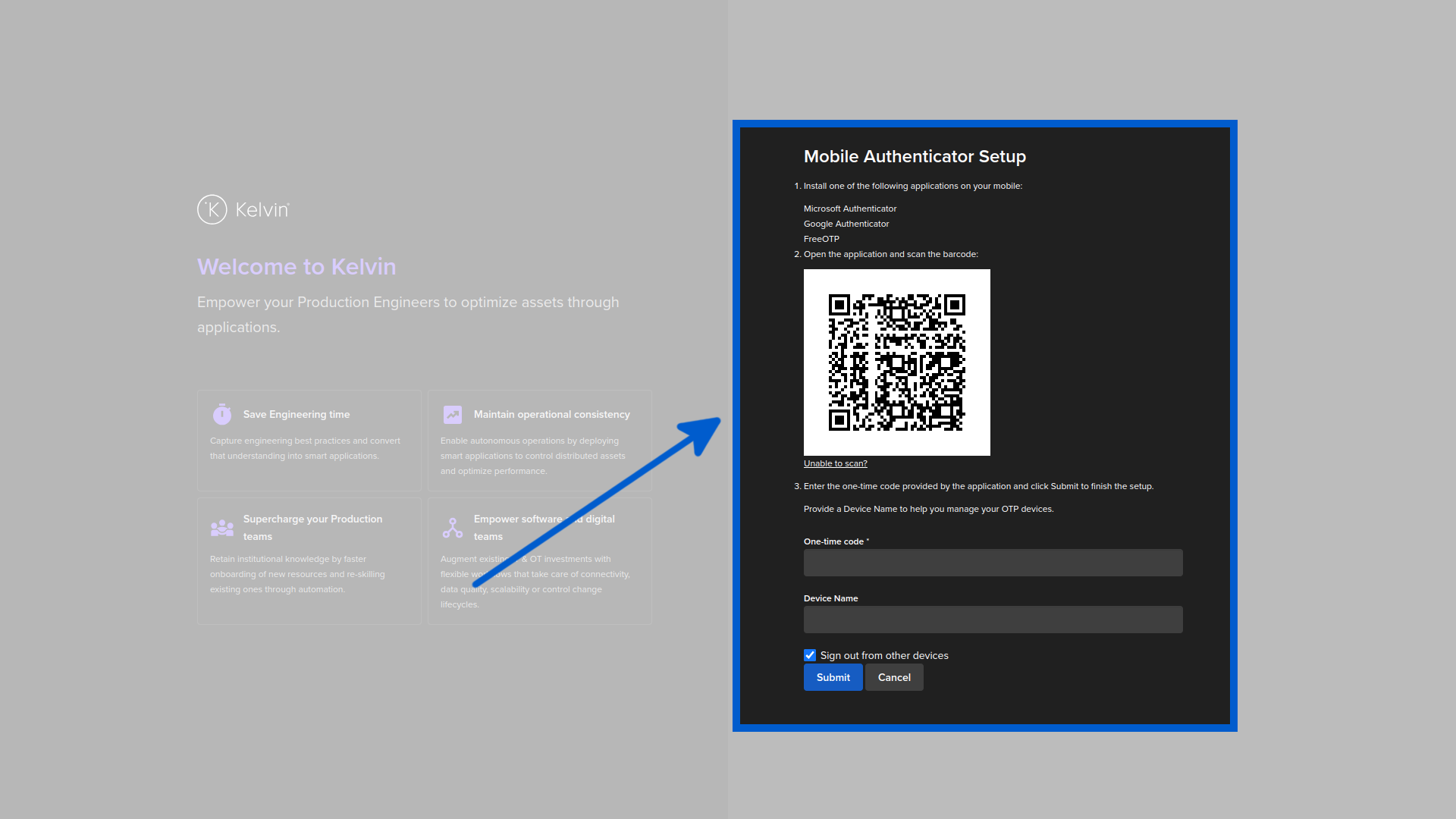
Enable 2FA
On this page you will learn how to activate two factor authentication for your account.
The instructions here are only for the built-in Keycloak solution. For other SSO solutions, refer to your SSO's documentation on how to activate two-factor authentication.
Authenticator App
Before proceeding you have to choose an authenticator app that you want to use. There are three choices available
When you have install the app on your phone or tablet, then you can setup 2-Step verification. Simply use the app to scan the QR code on the Authenticator page, then type in the one time code which is displayed next to the Kelvin name.
Activating 2FA
In Kelvin you have the option to activate two factor authentications for better security.
To start go to your username and click on the account menu item;
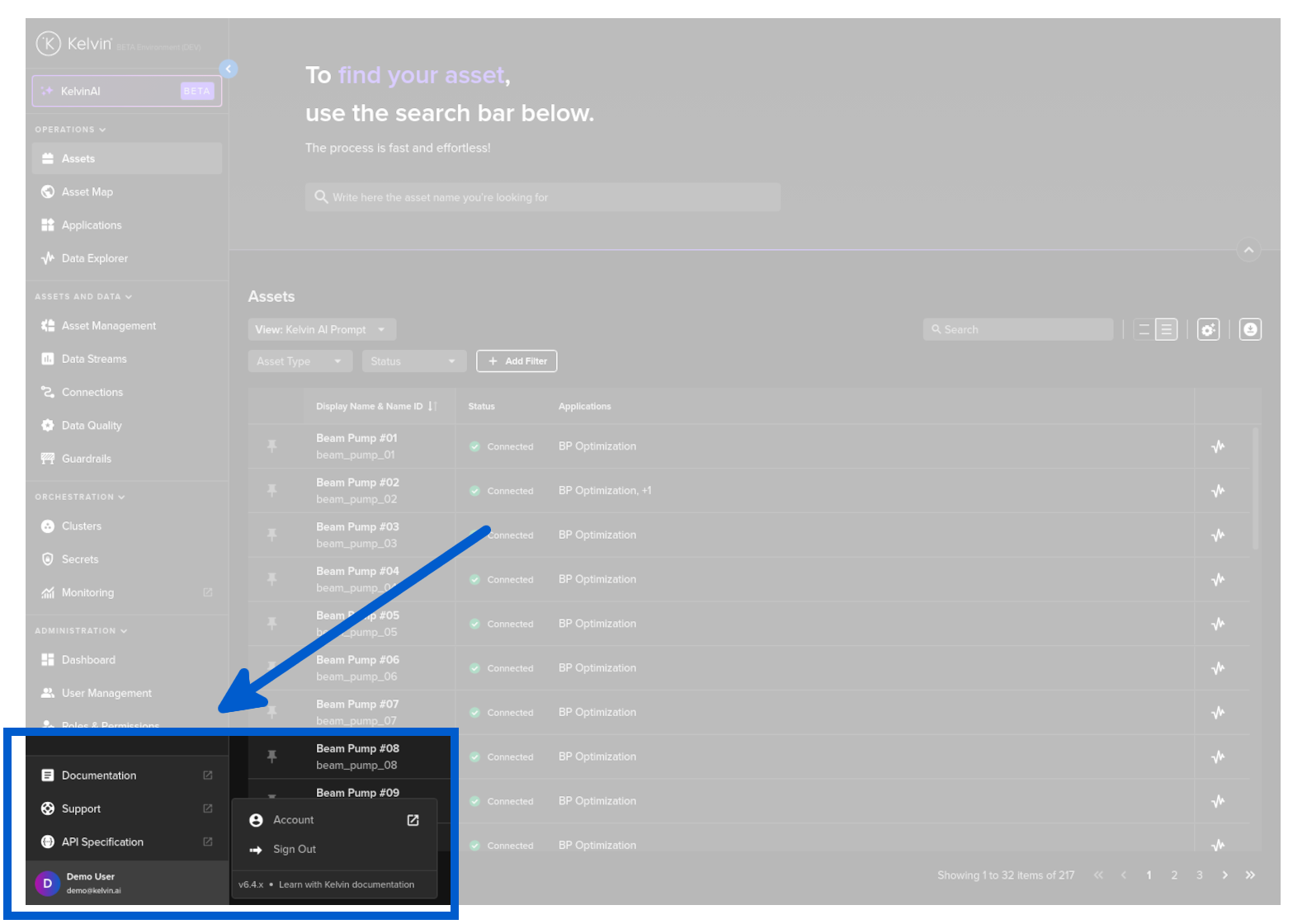
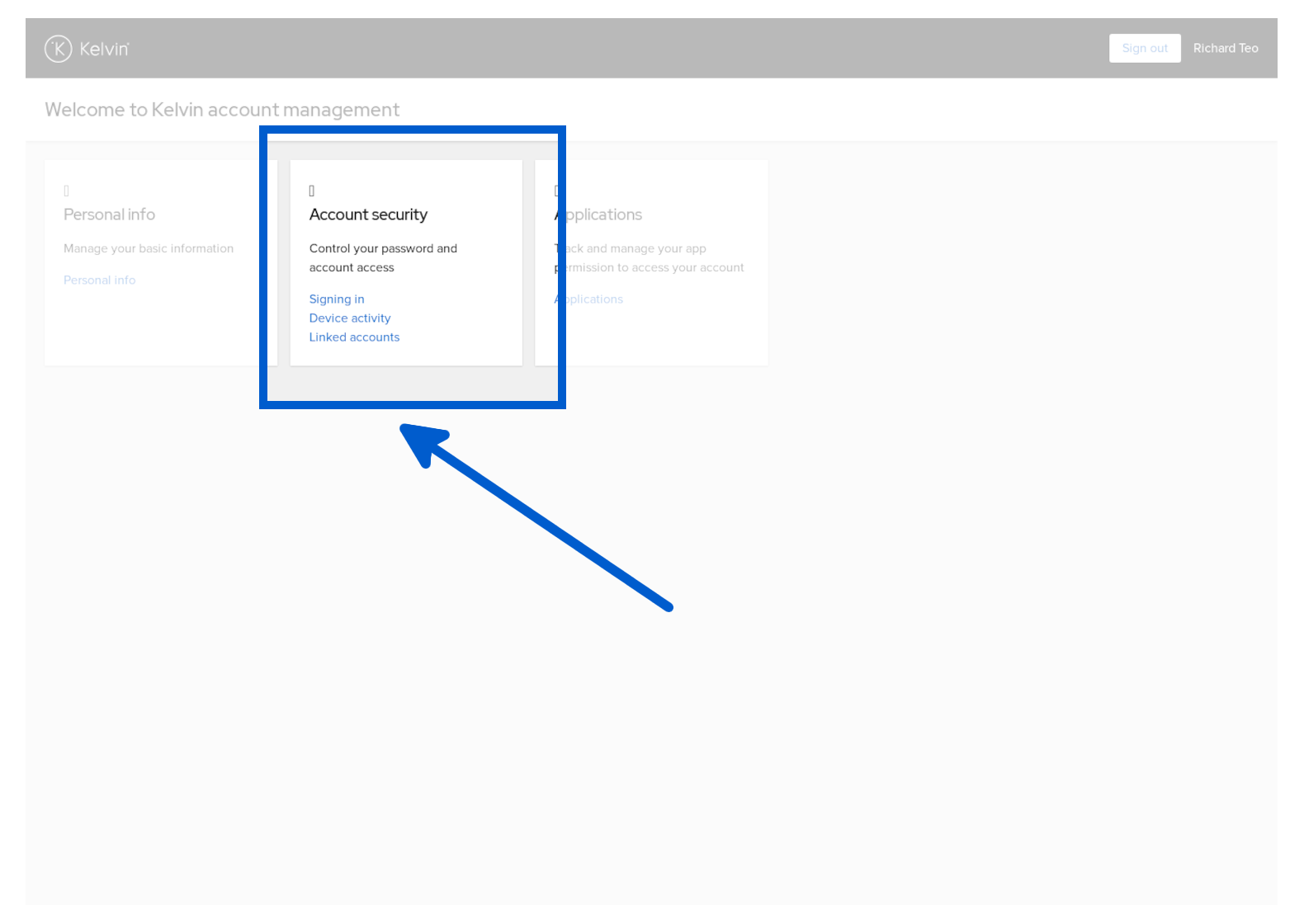
This will open a new tab with all user account options.

Click on the Signing in link in Account Security;
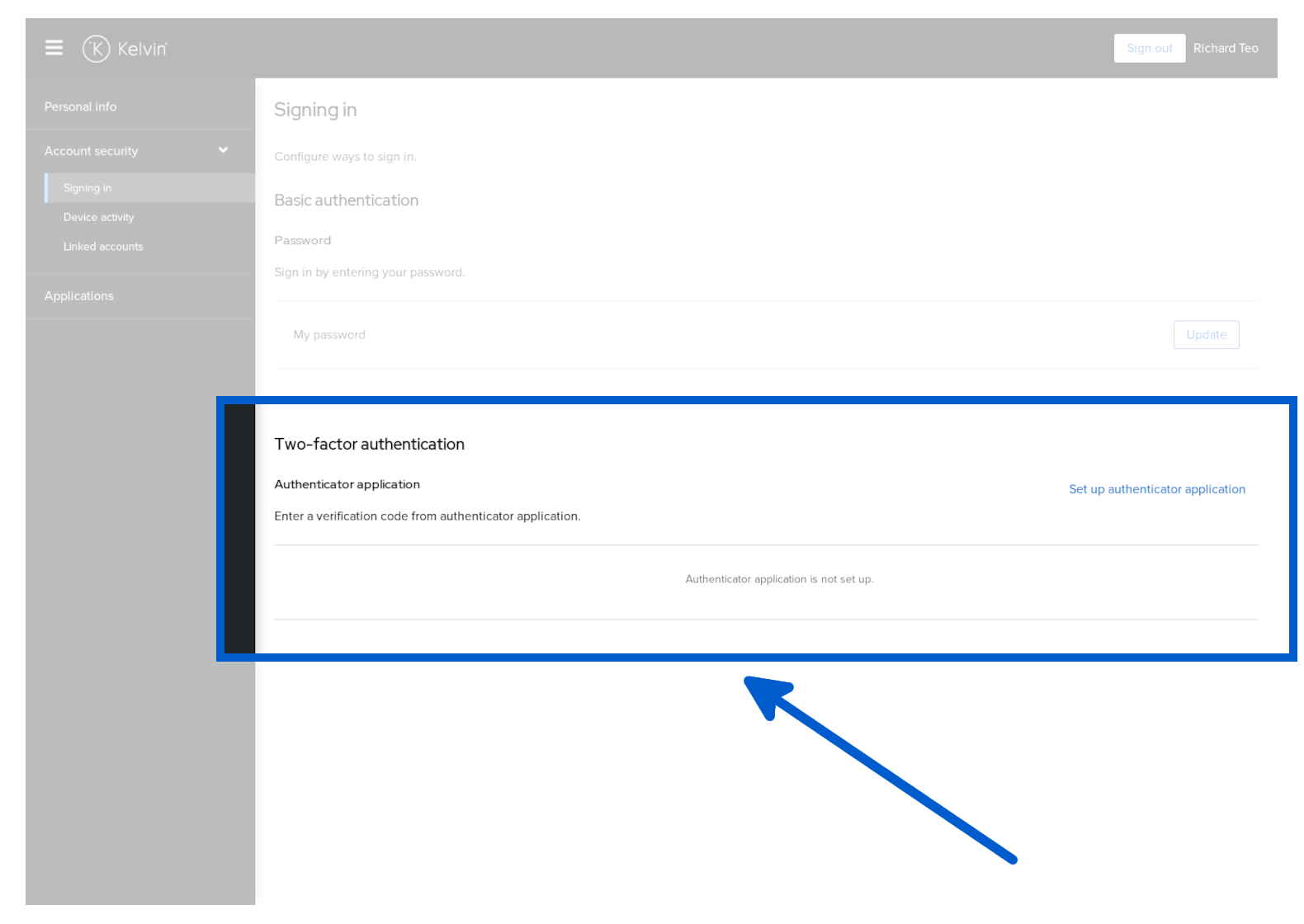
Next click on the Set up authenticator application link to setup a new 2fa authenticator.
You will be asked to reconfirm your password before proceeding. Then you will see the usual QR code that you can scan and then type in the one time code which is displayed next to the Kelvin name for verification.