Create docker
Create a Docker App
A Docker App is a standard Docker container and is created and developed like any normal container for Docker and Kubernetes.
You can build for both x86_64 and arm64 devices.
| create default application | |
|---|---|
This will give a response similar to this;
This will automatically create an Import Application bootstrap within a new directory and populated with some default files and configurations.
Folder Structure
You can now open the folder in your favorite IDE or editor and start to modify the files to create your Import Application.
| default folder structure | |
|---|---|
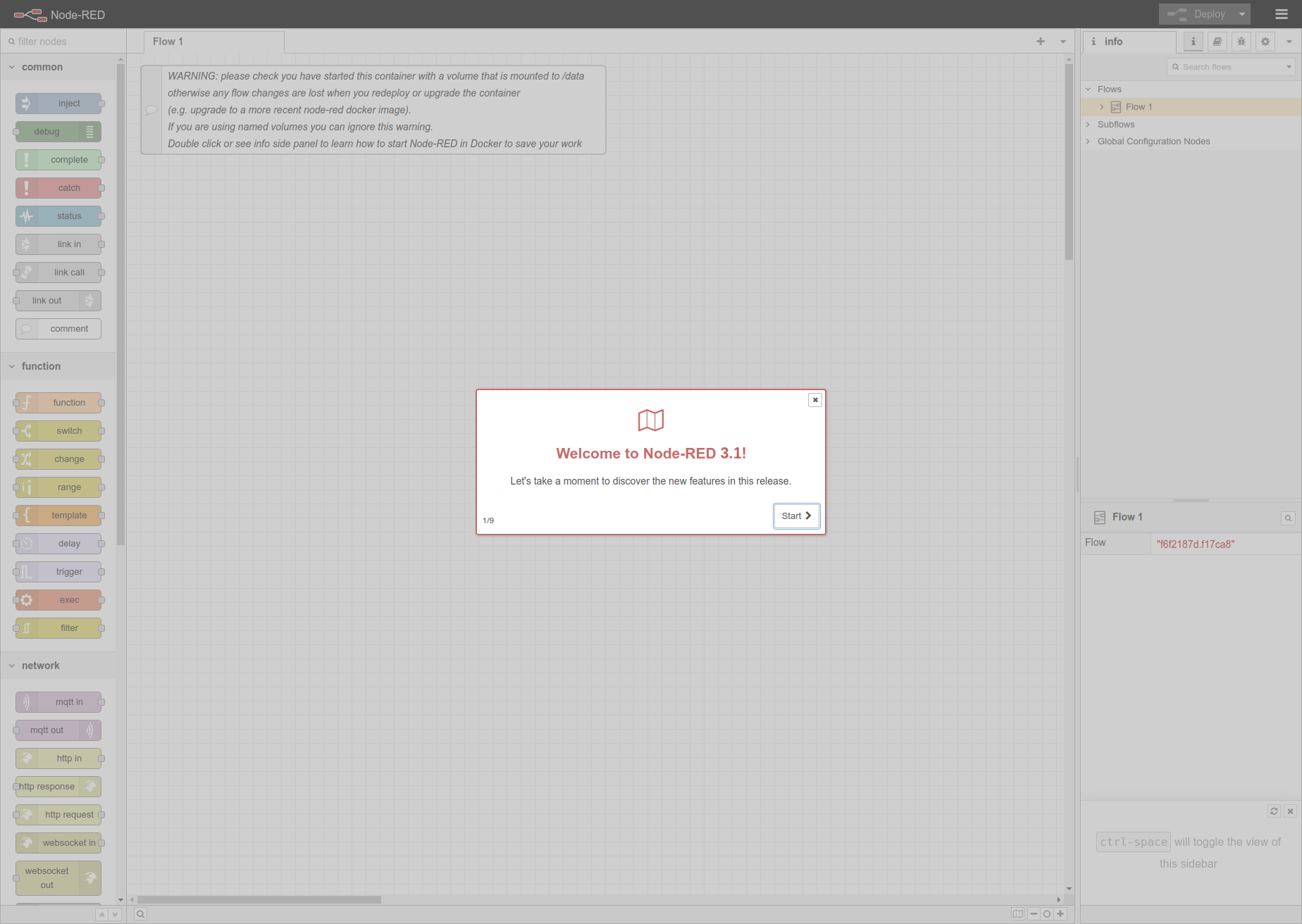
For this example we will get ready for deploying a stock Node Red Server to the edge which can then be accessed on the local LAN network at port 1880 in any modern browser.
The app.yaml is the main configuration file that holds both Applications definition as well as the deployment/runtime configuration.
For our example it would look like this;
It is composed by the following sections:
-
The
spec_versionsection is automatically injected and specifies Applications JSON Schema(latest) version which both defines and validates theapp.yamlstructure.app.yaml Example -
The
typesection defines the type for the application.app: A Smart App that allows mapping inputs and outputs to data streams, sending control changes, recommendations, and data tags.docker: An docker application that does not connect to the platform's data streams.importer: Connects to an external system to import data into the platform as well as receive control changes to act on the external system.exporter: Connects to the platform to export data to an external system.
app.yaml Example -
The
infosection holds Docker App's basic information required to make itself uploadable to Kelvin's App Registry.app.yaml Example The
nameis the Docker App's unique identifier.The
titleanddescriptionwill appear in App Registry on the Kelvin UI once the Docker App is uploaded.Info
The
versionshould be bumped every time Docker App gets an update, and before it gets uploaded to the App Registry.The upload will be rejected if there is the version already exists on the Kelvin Platform.
-
The
flagssection is where you are able to set some of the application capabilities. -
The
ui_schemassection is where the Docker App configuration is defined for the Kelvin UI.The actual information is kept in a
jsonfile in the ui_schemas folder of the project. The file location is defined in theapp.yamlfile like this;The json file will come with default blank schemas when first created.
Note
configuration.jsoninformation is optional, and if not provided, the Kelvin UI will display the configuration settings in a raw JSON or YAML file format without verifying the structure or content before applying them to the Application.Default ui_schemas/configuration.json An example of a App Configurations JSON file filled in would look something like this;
-
The
defaults/systemsection is [optional] and can be used to set different system requirements/constraints within the Docker App's running environment. i.e. Resources, Environment Variables, Volumes, Ports, etc: -
The
defaults\system\portsis where you can define ports to open on the container to the local network: -
The
defaults\system\resourcesis where you want to limit resources a container can use. This defines the reserved (requests) andlimitsthe resources allocated to the Docker App: -
The
defaults\system\environment_varsis used to define Environment Variables available within the Docker App container. i.e.:Info
KELVIN_GW_MODEis an Environment Variable that is [required] by Kelvin's platform. Others can optionally be added. -
The
defaults\system\volumesis to share and persist data generated by Applications or used by it in a specific place. They act like a shared folder between the Docker App and the host. Kelvin supports directory volumes, such as folders or serial ports, persistent, and file/test volumes: -
The
defaults\system\privilegedis [optional] and used to grant extended privileges to Applications, allowing it to access any devices on the host, such as a Serial device: -
The
defaults\configurationare the default global Docker App configuration values.Note
Operations will have the option to change these at runtime from the Kelvin UI.
You use config.yaml to override default configurations defined in your app.yaml file during local development and testing.
Note
If there is no config.yaml or it is empty, then the app.yaml default configurations will be used in any local testing.
This file provides a secure way to manage sensitive data like credentials, API keys, and environment-specific settings without committing them to version control or uploading them to the cloud platform.
The configuration loading follows a strict hierarchy: config.yaml → app.yaml defaults → graceful failure.
Note
This ONLY takes precedence over the default/configurations section of the app.yaml during local testing.
All other sections in the app.yaml are not affected.
This ensures your Application always prioritizes local overrides while falling back to safe defaults when appropriate.
The file itself will contain any hierarchy from the configurations key only.
If the app.yaml has this;
| app.yaml default configurations example | |
|---|---|
Then the local config.yaml will look like this;
Note
In this example we have also added sensitive mqtt information that will not be incorporated in the upload to the Kelvin Platform.
The Dockerfile is a script used to define the instructions and configuration for building a Docker image. It specifies the base image, installation of software, file copying, and other setup tasks needed to create a reproducible and isolated environment for running Applications in Docker containers.
For example if you wanted to create a basic Node Red Server for deployment to the edge, your Dockerfile can look something like this;
| Dockerfile Example | |
|---|---|