Display asset in maps
GPS Coordinates
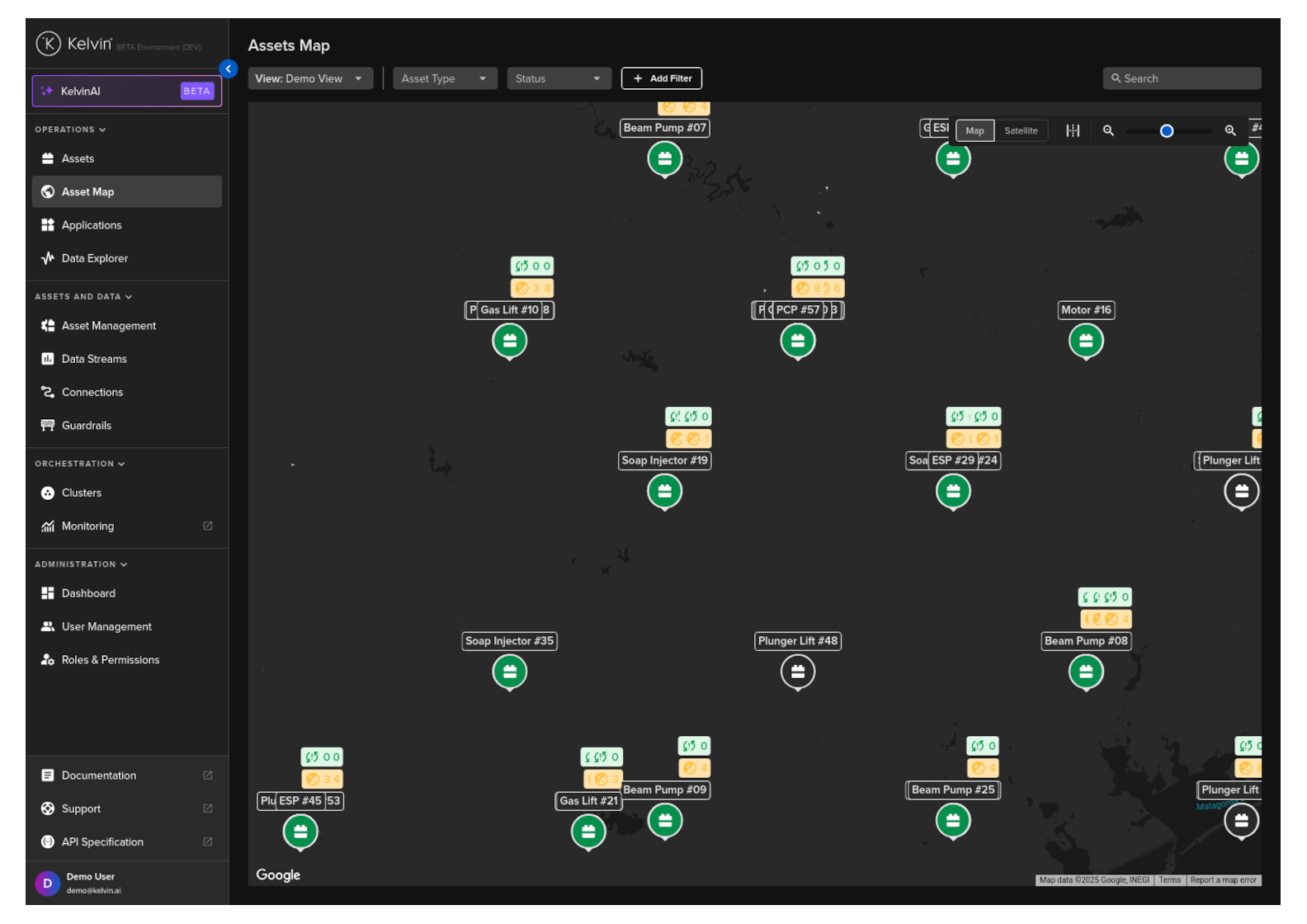
The Kelvin UI can display the Assets on the global map in the Operations Overview page.
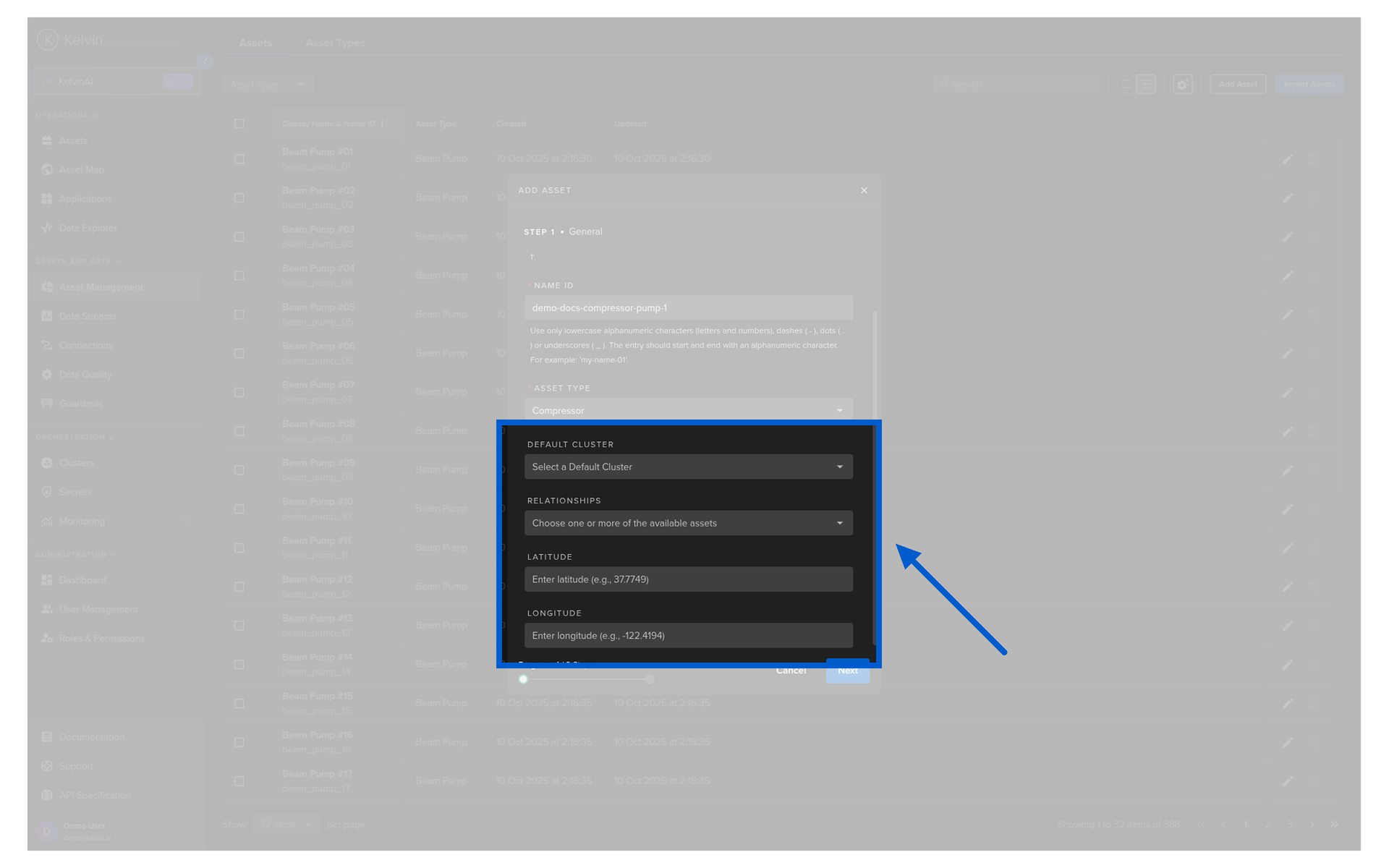
To do this go to the parent Asset and add child Assets by using the longitude and latitude keys in the array under the properties key of the Asset.
Note
The examples here are for creating an Asset. You can also add these properties when updating an Asset.
Kelvin UI Kelvin API Kelvin API Client (Python)
You can setup the Asset's location and Relationships when creating a new Asset.
Adding properties will not work in the built-in Swagger tool provided by Kelvin. If you need to add properties, then you will need to use a different API client or use curl.
API cURL Example -X POST \
"https://<url.kelvin.ai>/api/v4/assets/create" \
"Authorization: Bearer <Your Current Token>" \
"Accept: application/json" \
"Content-Type: application/json" \
'{
"name": "doc_demo_asset_01",
"title": "Documentation Demo Asset",
"asset_type_name": "doc_demo_asset_type",
"properties": [
{
"name": "longitude",
"title": "Longitude",
"value": 37.78
},
{
"name": "latitude",
"title": "Latitude",
"value": -122.45
}
]
}'
The response will look like this;
{
"name" : "doc_demo_asset_01" ,
"title" : "Documentation Demo Asset" ,
"asset_type_name" : "doc_demo_asset_type" ,
"properties" : [
{
"name" : "latitude" ,
"title" : "Latitude" ,
"value" : -122.45
},
{
"name" : "longitude" ,
"title" : "Longitude" ,
"value" : 37.78
}
],
"created" : "2026-01-13T10:30:45.123456Z" ,
"updated" : "2026-01-13T10:30:45.123456Z" ,
"status" : "active"
}
API Client (Python) Example from kelvin.api.client import Client
# Login
client = Client ( url = "https://<url.kelvin.ai>" , username = "<your_username>" )
client . login ( password = "<your_password>" )
# Create asset with GPS coordinates
response = client . asset . create_asset (
data = {
"name" : "doc_demo_asset_01" ,
"title" : "Documentation Demo Asset" ,
"asset_type_name" : "doc_demo_asset_type" ,
"properties" : [
{
"name" : "longitude" ,
"title" : "Longitude" ,
"value" : 37.78
},
{
"name" : "latitude" ,
"title" : "Latitude" ,
"value" : - 122.45
}
]
}
)
# Access response attributes
print ( f "Asset Name: { response . name } " )
print ( f "Longitude: { response . properties [ 1 ] . value } " )
print ( f "Latitude: { response . properties [ 0 ] . value } " )
print ( f "Created: { response . created } " ) # datetime object with tzinfo
You will get a response similar to this;
API Client (Python) Example Response
Asset Relationships
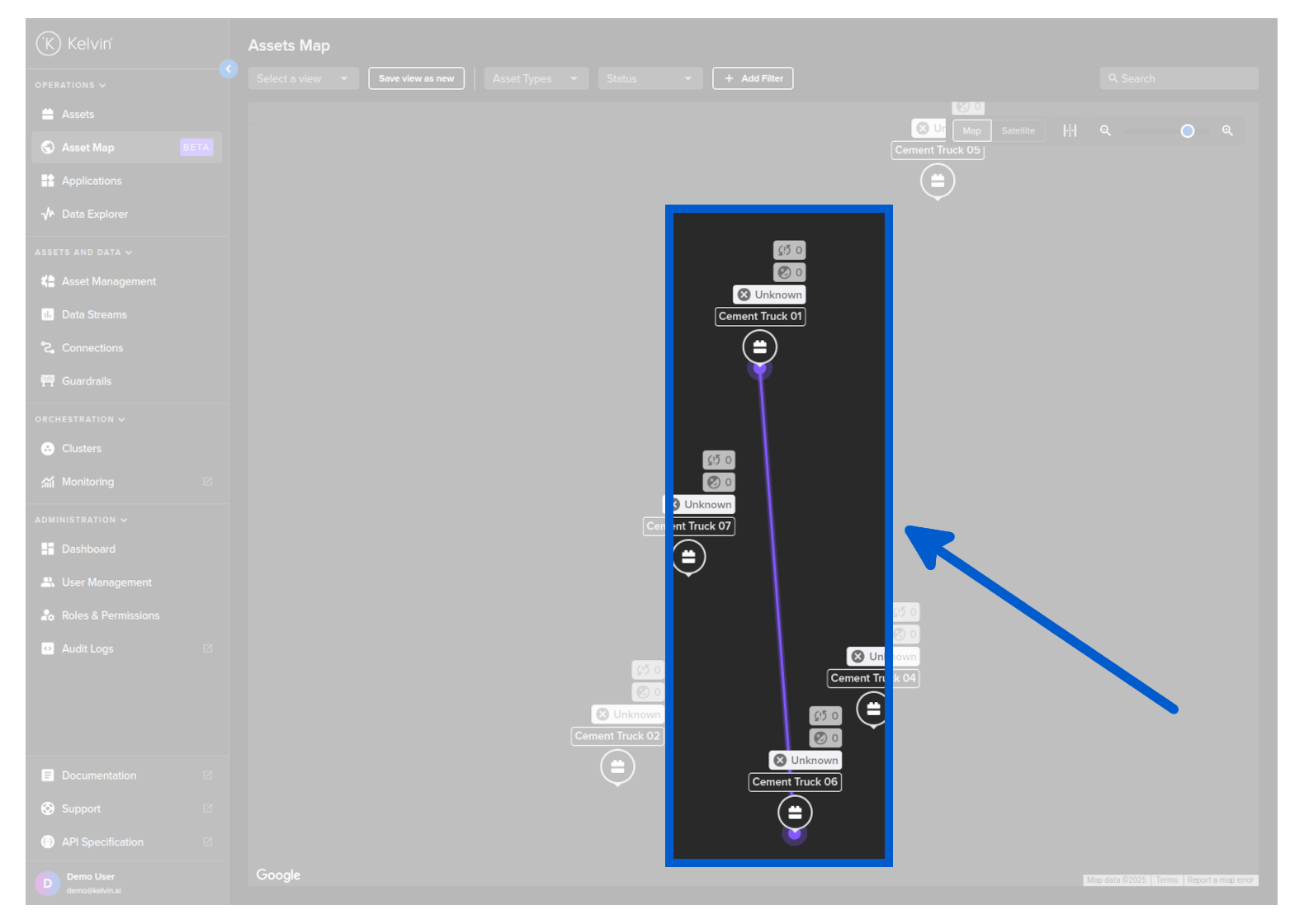
The Kelvin UI can visualize relationships between Assets by connecting them with a line on the global map in the Operations Overview page.
To do this go to the parent Asset and add child Assets by using the relationships keys in the array under the properties key of the Asset.
Note
The examples here are for creating an Asset. You can also add these properties when updating an Asset.
Kelvin UI Kelvin API Kelvin API Client (Python)
You can setup the Asset's Relationships when creating a new Asset.
Adding properties will not work in the built-in Swagger tool provided by Kelvin. If you need to add properties, then you will need to use a different API client or use curl.
API cURL Example -X POST \
"https://<url.kelvin.ai>/api/v4/assets/create" \
"Authorization: Bearer <Your Current Token>" \
"Accept: application/json" \
"Content-Type: application/json" \
'{
"name": "doc_demo_asset_02",
"title": "Documentation Demo Asset",
"asset_type_name": "doc_demo_asset_type",
"properties": [
{
"name": "relationships",
"title": "Asset Relationships",
"value": ["plunger_lift_02", "plunger_lift_03", "plunger_lift_05"]
}
]
}'
The response will look like this;
API cURL Example Response {
"name" : "doc_demo_asset_02" ,
"title" : "Documentation Demo Asset" ,
"asset_type_name" : "doc_demo_asset_type" ,
"properties" : [
{
"name" : "relationships" ,
"title" : "Relationships" ,
"value" : [ "plunger_lift_02" , "plunger_lift_03" , "plunger_lift_05" ]
}
],
"created" : "2026-01-13T10:30:45.123456Z" ,
"updated" : "2026-01-13T10:30:45.123456Z" ,
"status" : "active"
}
API Client (Python) Example from kelvin.api.client import Client
# Login
client = Client ( url = "https://<url.kelvin.ai>" , username = "<your_username>" )
client . login ( password = "<your_password>" )
# Create asset with relationships
response = client . asset . create_asset (
data = {
"name" : "doc_demo_asset_02" ,
"title" : "Documentation Demo Asset" ,
"asset_type_name" : "doc_demo_asset_type" ,
"properties" : [
{
"name" : "relationships" ,
"title" : "Asset Relationships" ,
"value" : [ "plunger_lift_02" , "plunger_lift_03" , "plunger_lift_05" ]
}
]
}
)
# Access response attributes
print ( f "Asset Name: { response . name } " )
print ( f "Relationships: { response . properties [ 0 ] . value } " )
print ( f "Created: { response . created } " ) # datetime object with tzinfo
You will get a response similar to this;
API Client (Python) Example Response created = datetime.datetime( 2026 , 1 , 13 , 10 , 30 , 45 , 123456 , tzinfo = datetime.timezone.utc) name = 'doc_demo_asset_02' title = 'Documentation Demo Asset' asset_type_name = 'doc_demo_asset_type' properties =[ Property( name = 'relationships' , title = 'Relationships' , value =[ 'plunger_lift_02' , 'plunger_lift_03' , 'plunger_lift_05' ])] updated = datetime.datetime( 2026 , 1 , 13 , 10 , 30 , 45 , 123456 , tzinfo = datetime.timezone.utc) status = 'active'