Smartapp details tab assets
Assets Tab
Note
This tab is only available with the Application type Kelvin SmartApp™
The Asset table itself uses Kelvin's asset-centric table.
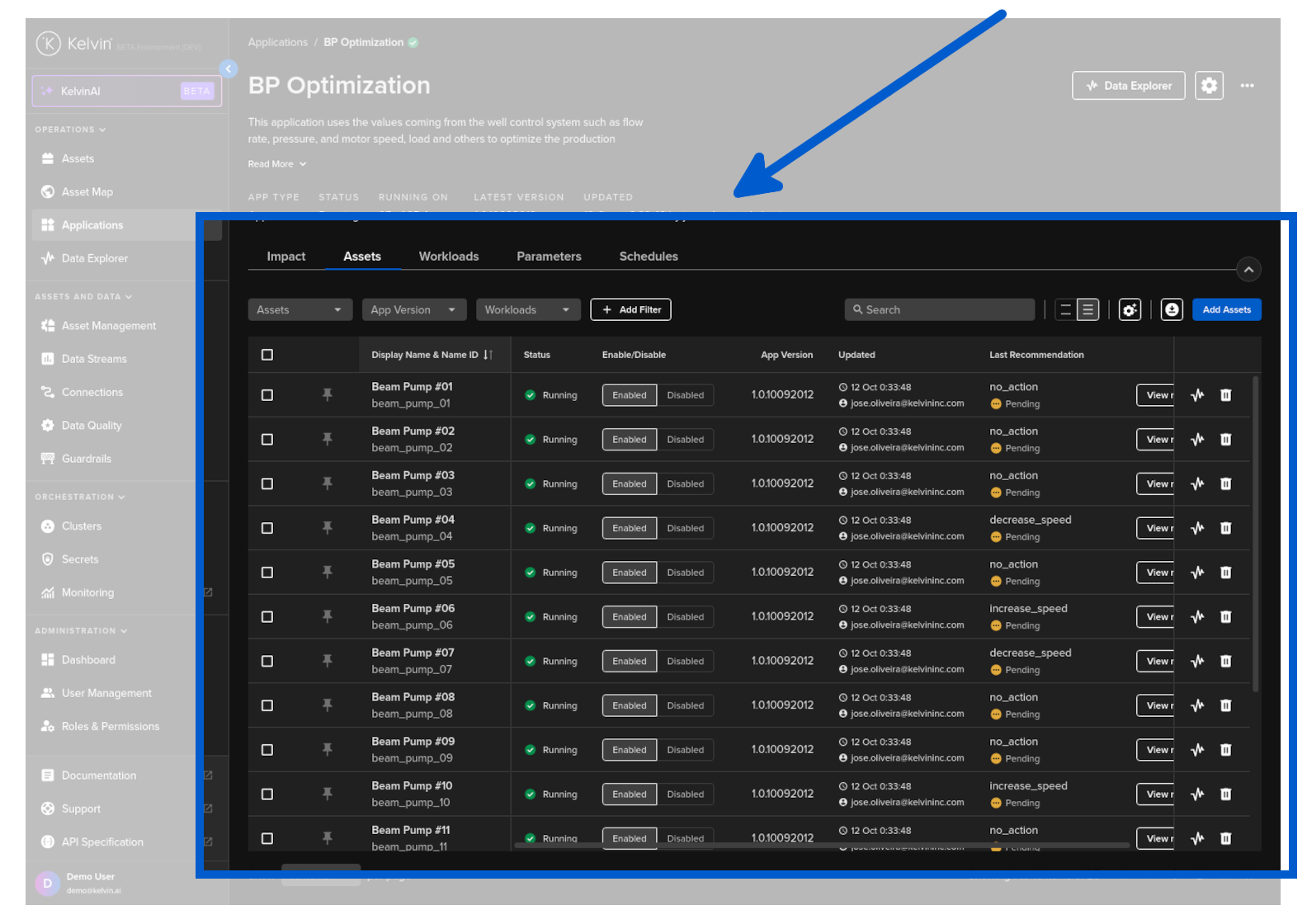
It incorporates many Kelvin features such as Recommendations and Control Changes so that you can monitor and make decisions about your Assets directly from here.
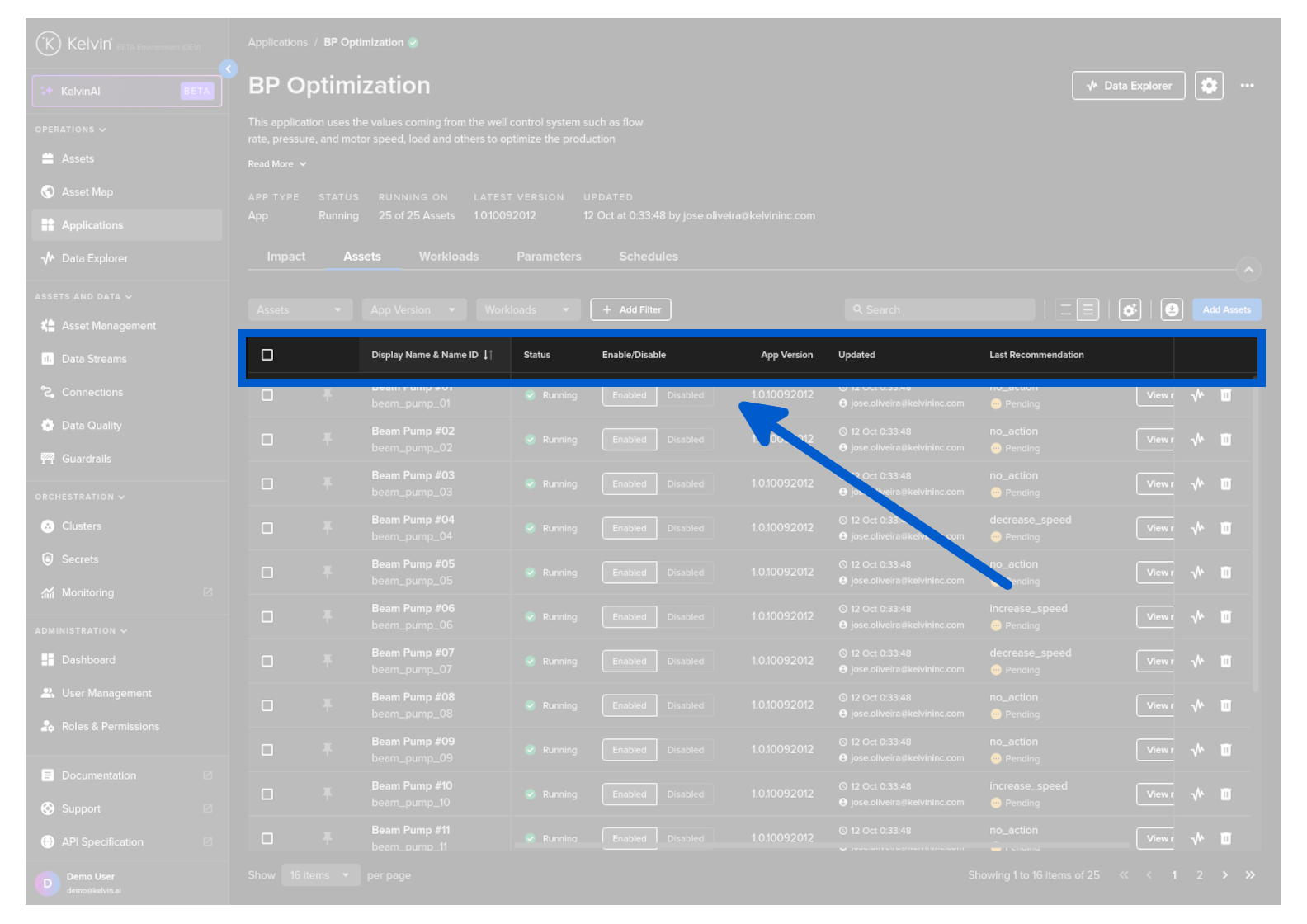
You can sort the table rows simply by clicking on the header name. Clicking it will cancel the other sorts in other headers and each click will rotate between ascending, descending and no sorting.
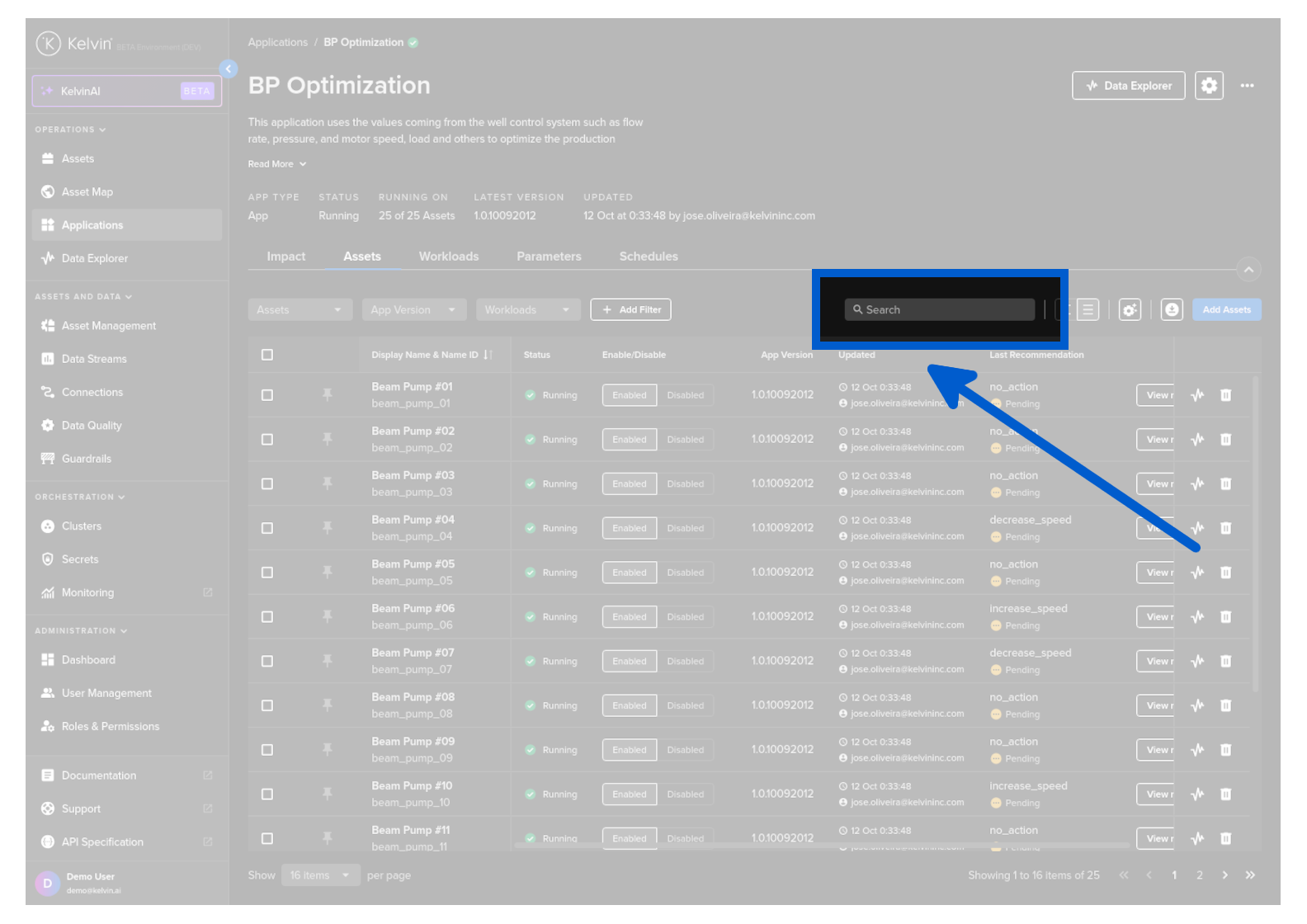
Quickly find the Assets you want to see with the dynamic search which filters the list as you type.
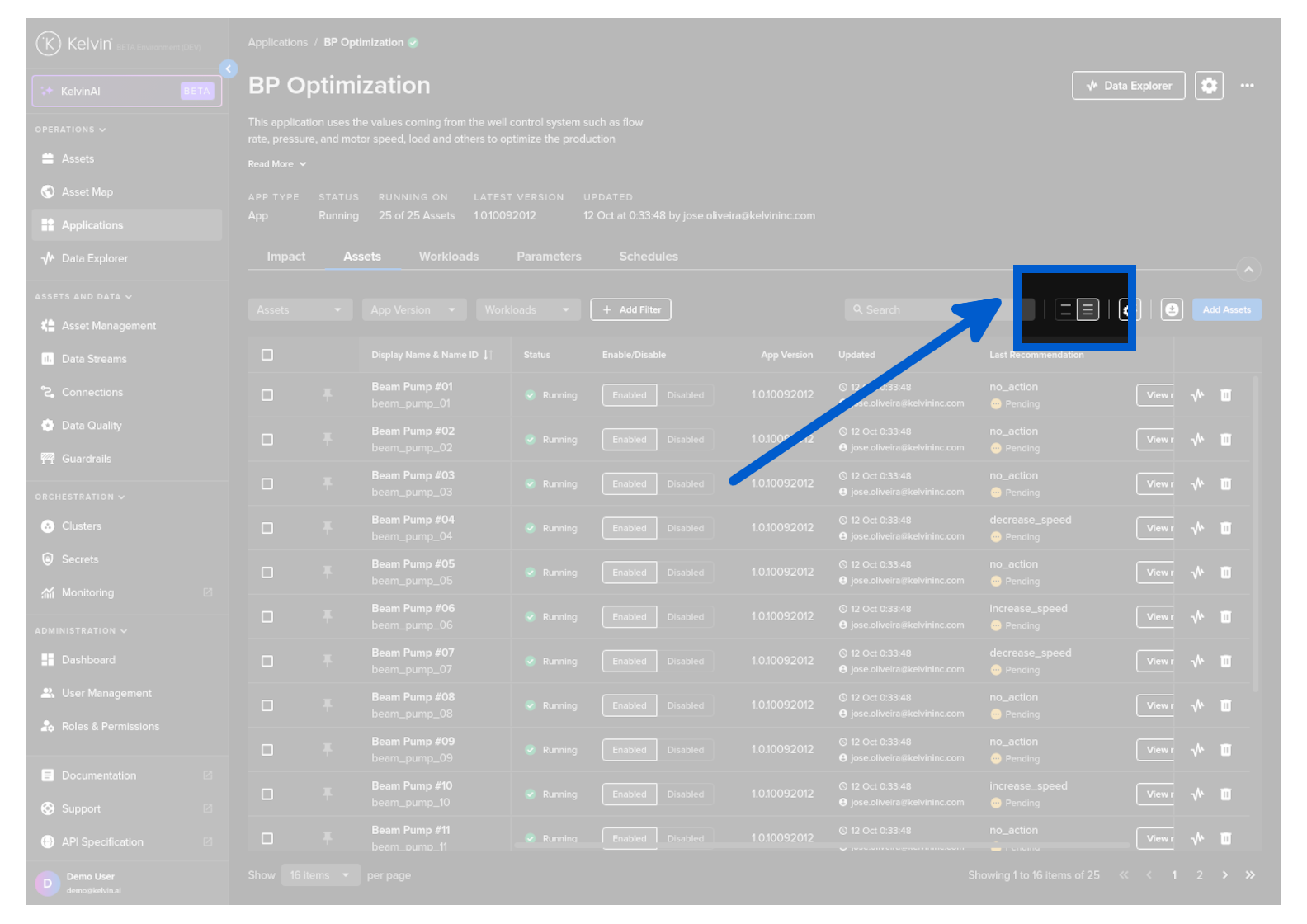
You can choose the height of the row to fit as many rows as possible on the screen, or space them out for easier readability.
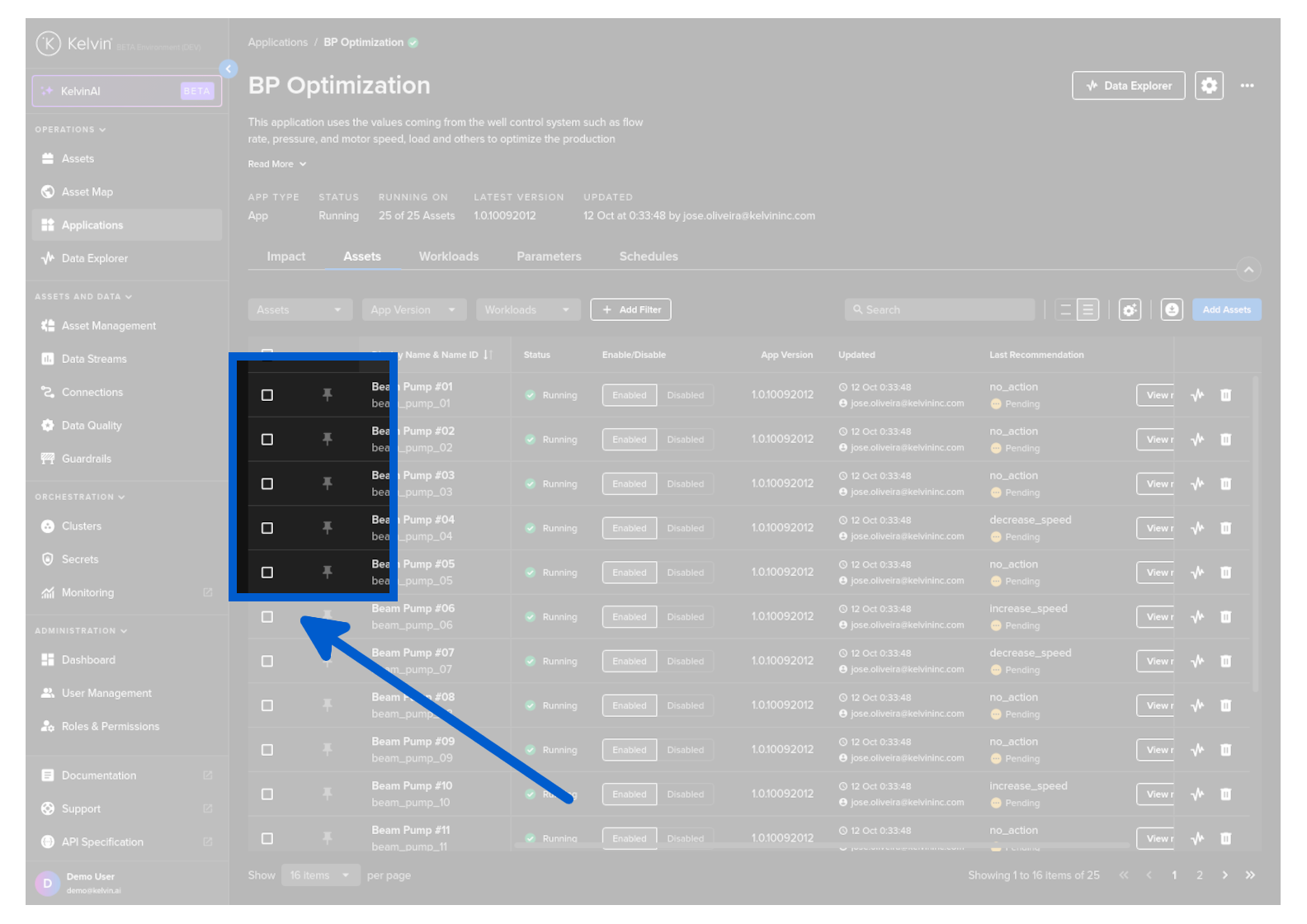
You can keep important Assets pinned to the top of the page simply by clicking on the pin icon.
The pinned Assets will show on the top of every page.
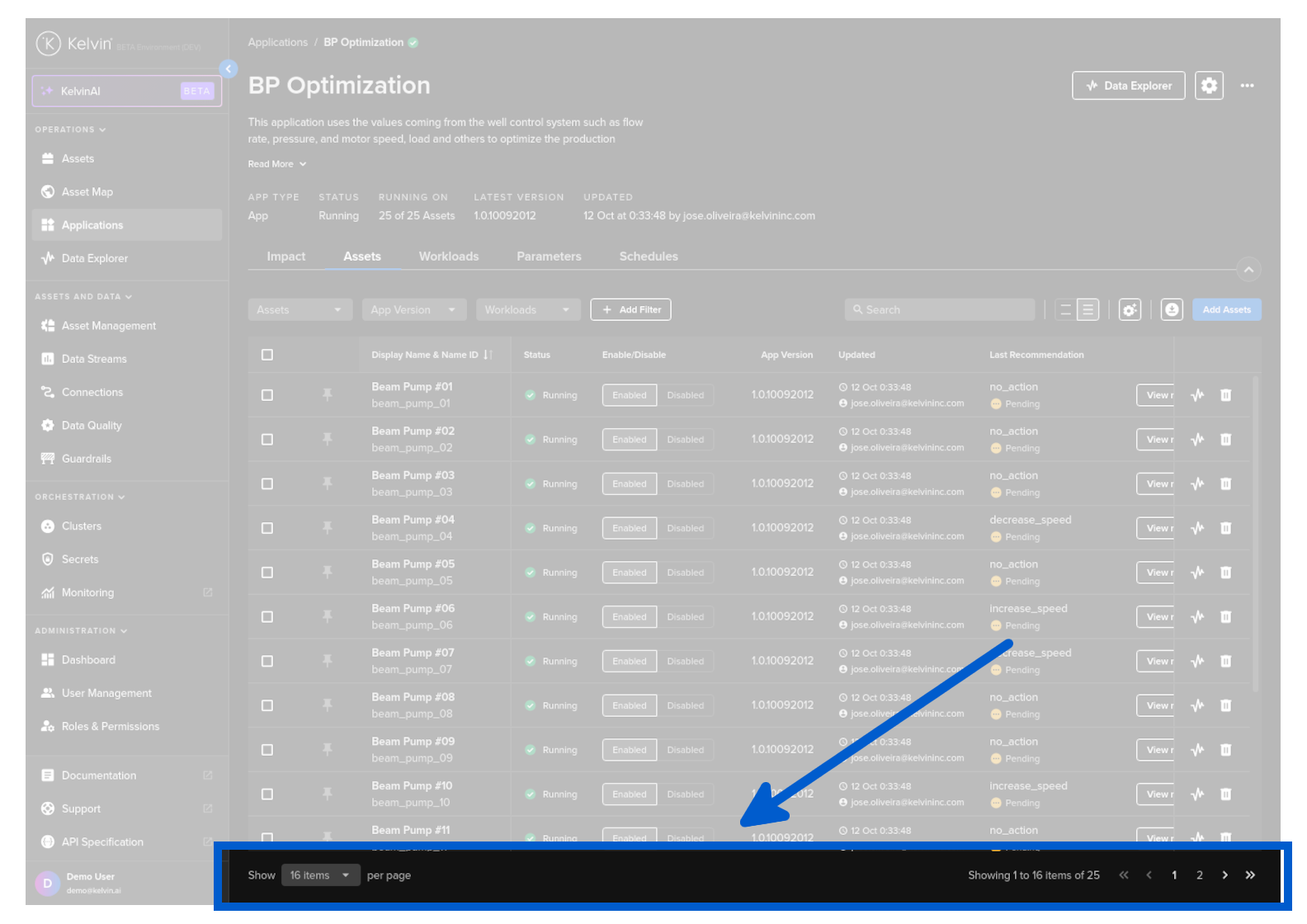
You can also control your page management to be able to maximize the number of Assets you see on the screen or zoom in with larger spacing for small screens.
You can select how many Assets are shown per page or flip between pages through the page management bar;
You can also manage the table and column configurations;
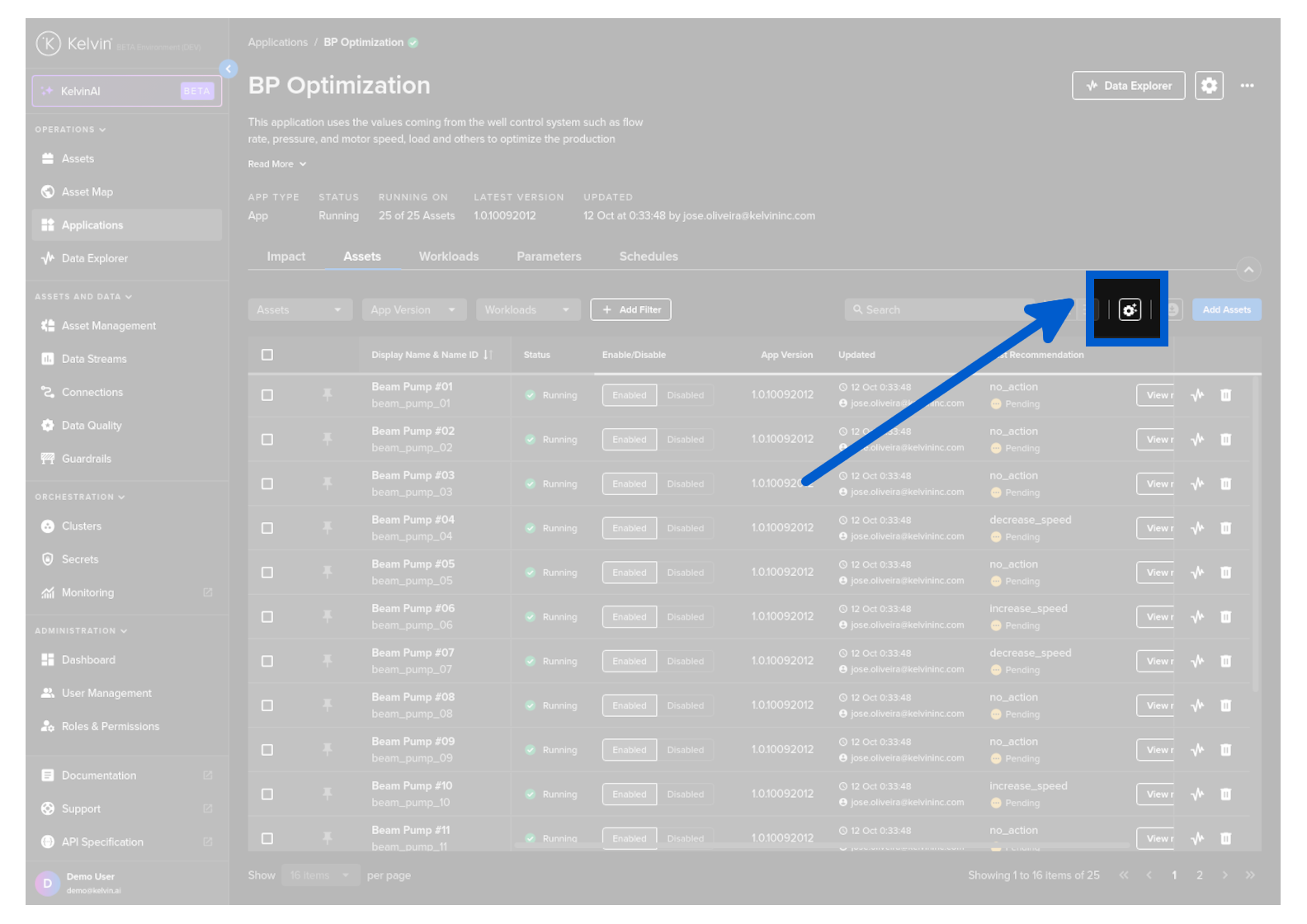
And you will see a full range of options to customize the table and columns to your requirements.
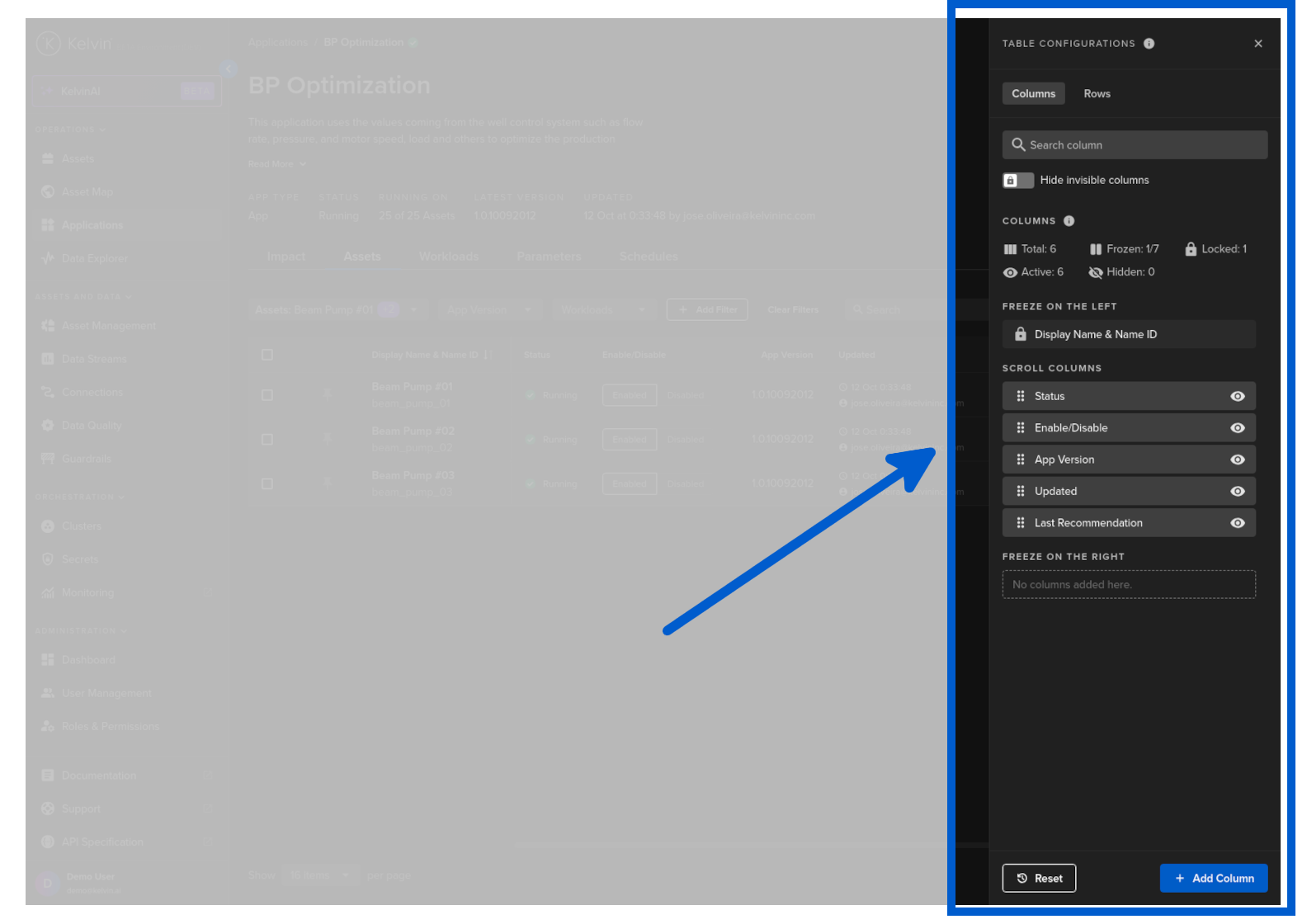
This is a powerful feature so we give a complete chapter below to explain all the options available.
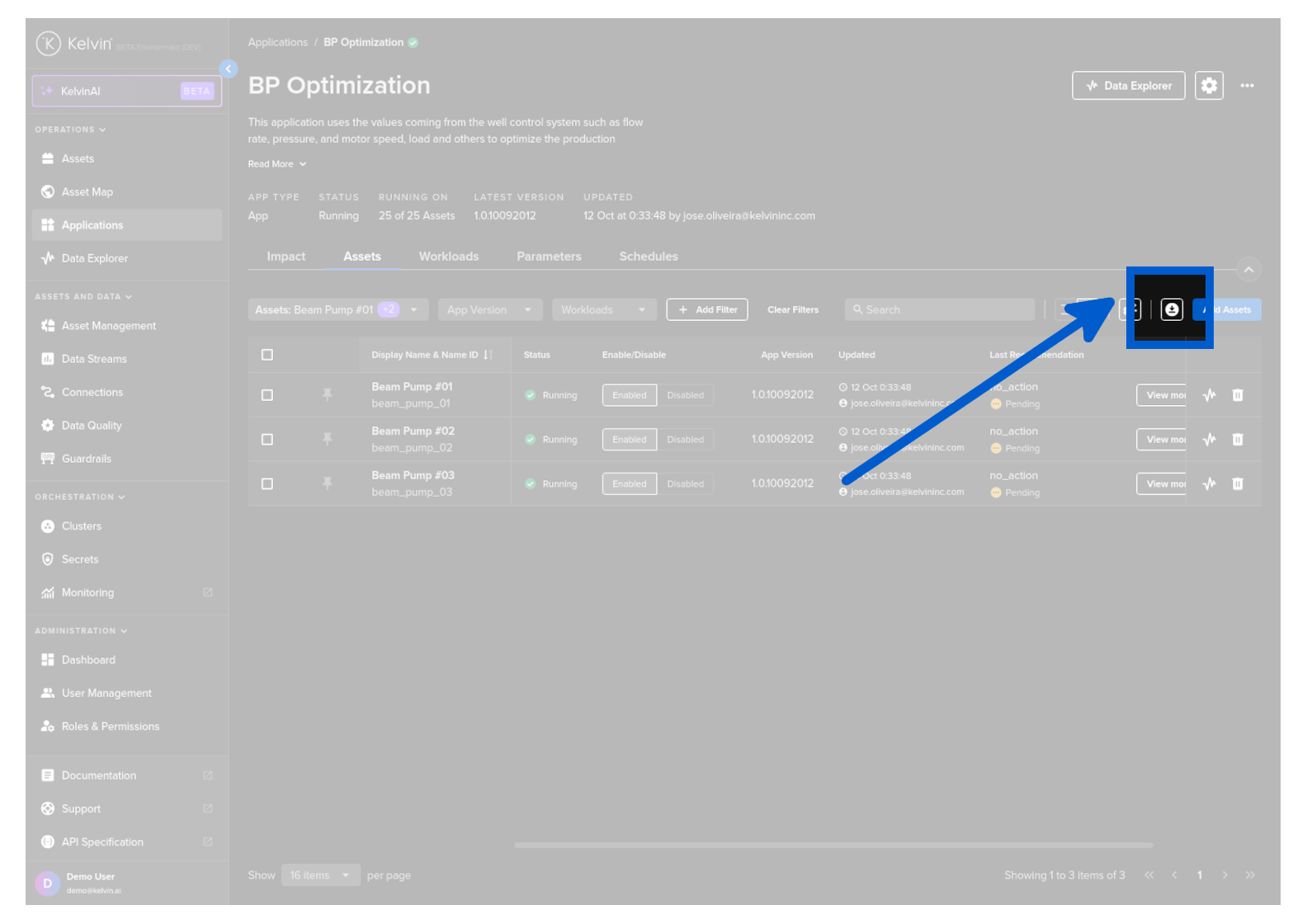
You can download the table contents to a CSV file.
This will download only the information that is displayed in the table with all filters and options applied.
Note
It download all rows from all pages in the filter and options.