Create asset
Reference:
| Field | Description |
|---|---|
| Name (Name ID) | Unique name identifier. It must contain only lowercase alphanumeric characters. The characters ., _ and - are allowed to separate words instead of a space BUT can not be at the beginning or end of the name. |
| Title (Display Name) | The display name to show on the Kelvin UI. It can contain any characters, including spaces. |
| Asset Type | The name of the Asset Type that this Asset belongs to. This must be a valid Asset Type name. |
| Properties | A list of key/value pairs that define custom properties of the asset. Use this to define attributes like: GPS location, Associated Assets, Site, PLC Type, Manufacturer, Serial Number, etc. |
Create Asset
In this example we will create an Asset.
Please make sure the Asset Type beam_pump exists before creating the Asset.
Assets can be managed from the Administration section of the UI.
This video tutorial was done on v6.0. There may be differences in the latest version.
It will give you a good idea of the process to create Assets.
You can watch this short demo video or read the full step-by step written tutorial below.
To start, go to the Assets in the Administration section of the left side bar.
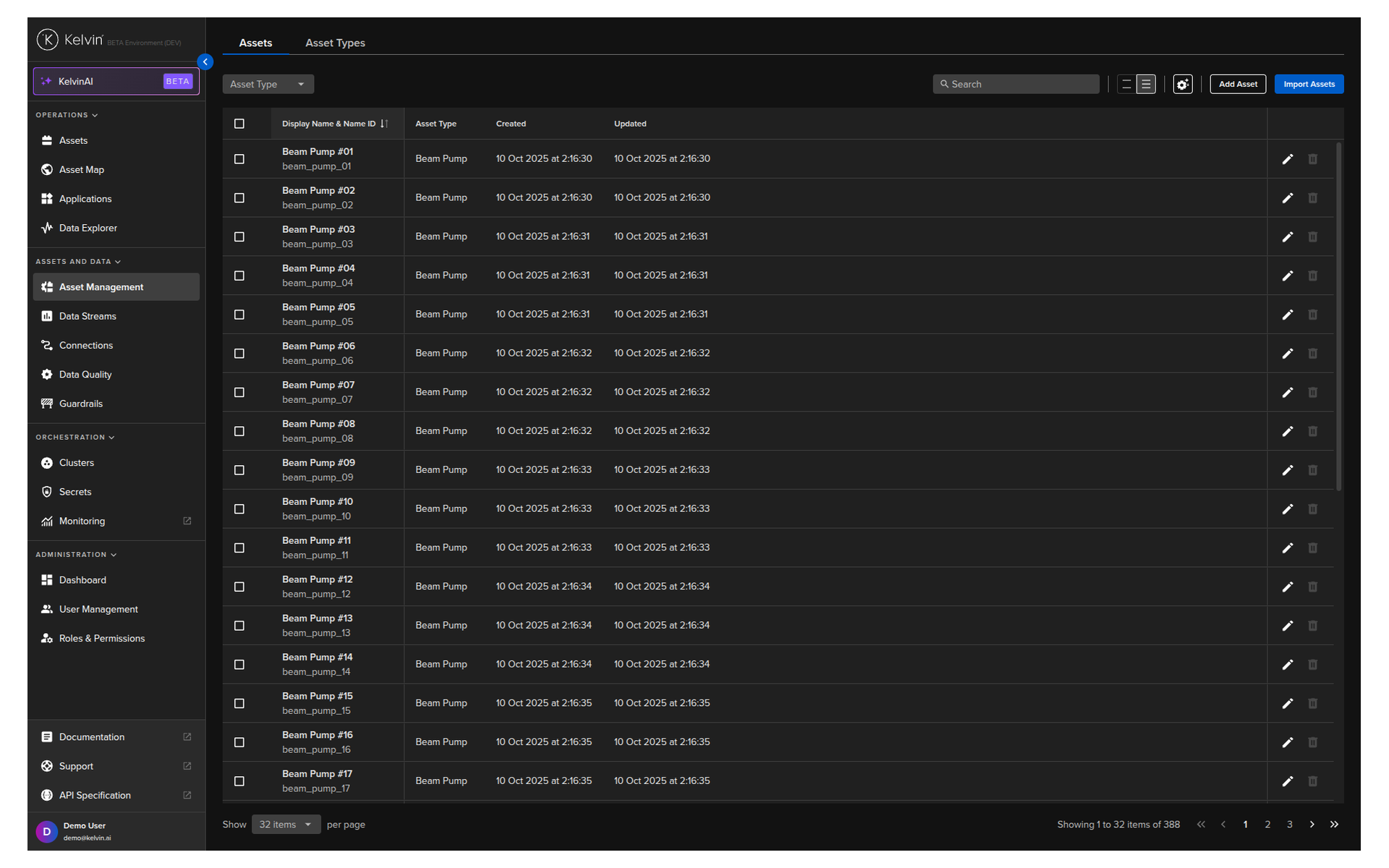
To create a new Asset click on the Add Asset button;
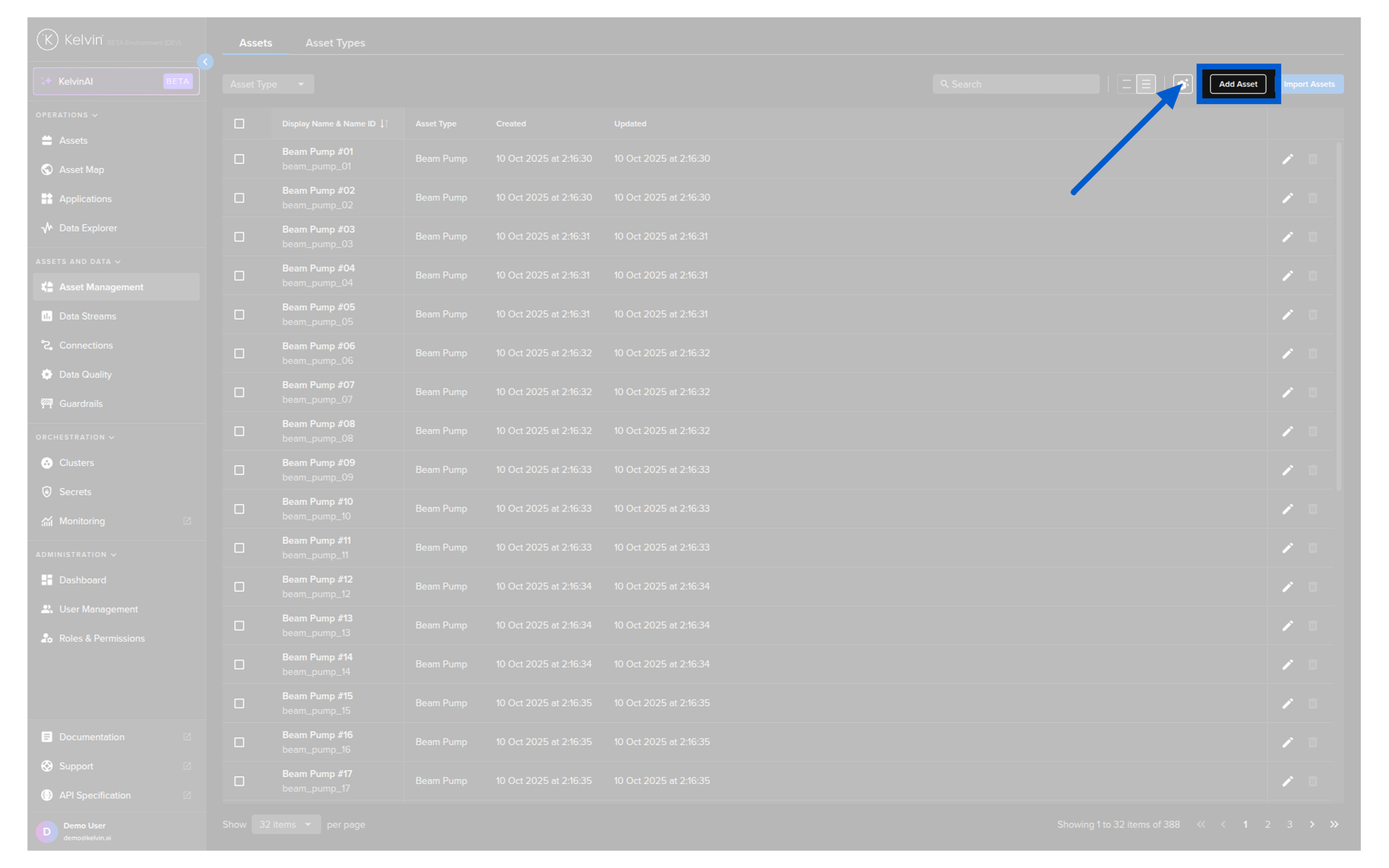
In Step 1, the mandatory settings that you need to fill in are;
Warning
If you are in Operations and you get a warning on this screen "This app version is missing some app settings required so you are able to add assets.".
You will need to contact your Platform Administrator or Developer to setup the App Settings before you can proceed.
- Asset's Display Name
- Name ID (optional in the sense that it will be auto filled)
- The Asset Type (must exist already)
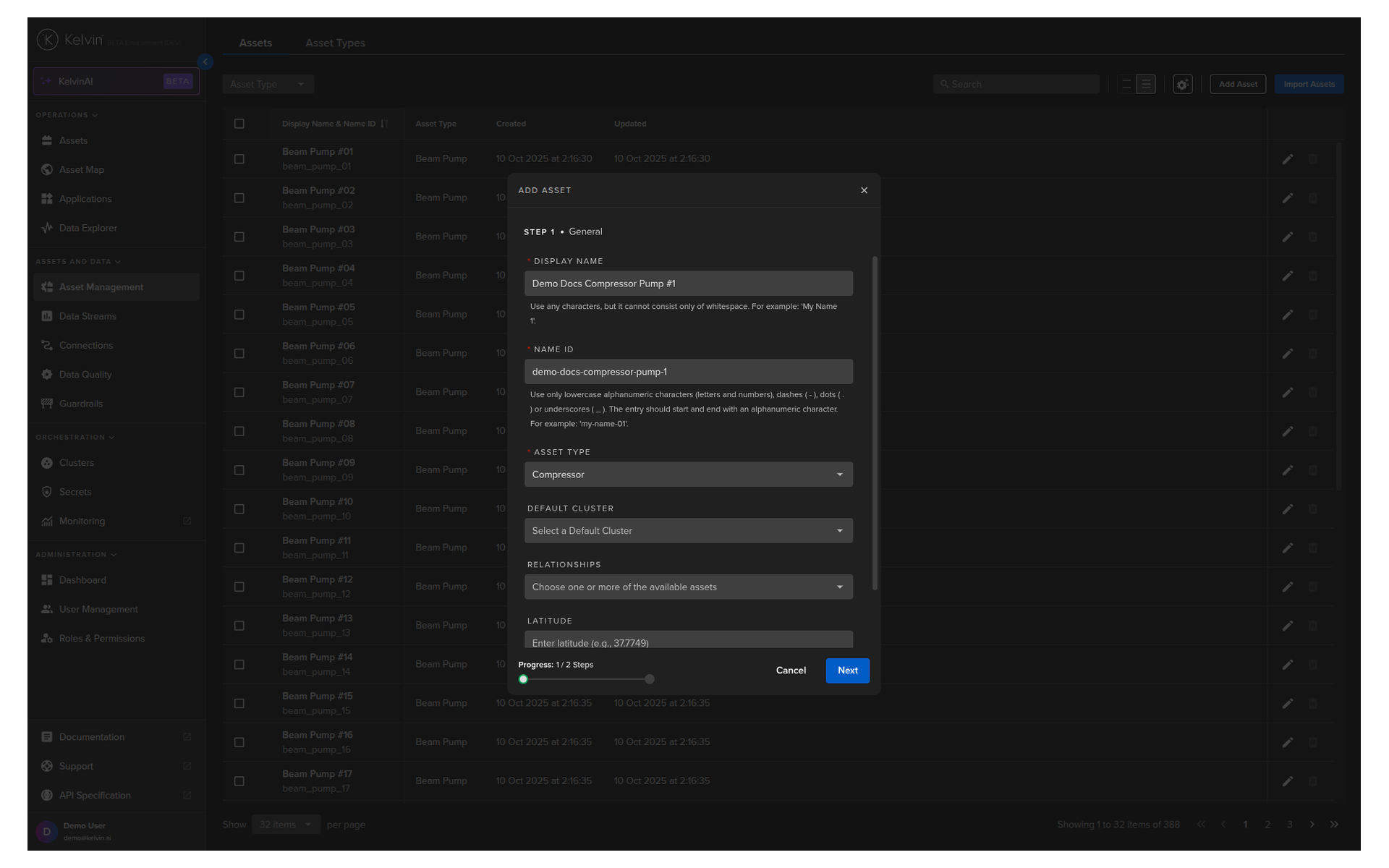
You also have a number of optional settings available.
If you fill in the following settings, these will be used as the default options when adding Assets to Applications.
Note
You can read more about Adding Assets to Applications here.
- Cluster
- Relationships - This is used to show links between assets in Asset Maps
- Latitude, Longitude - This is used to show location of Asset in Asset Maps
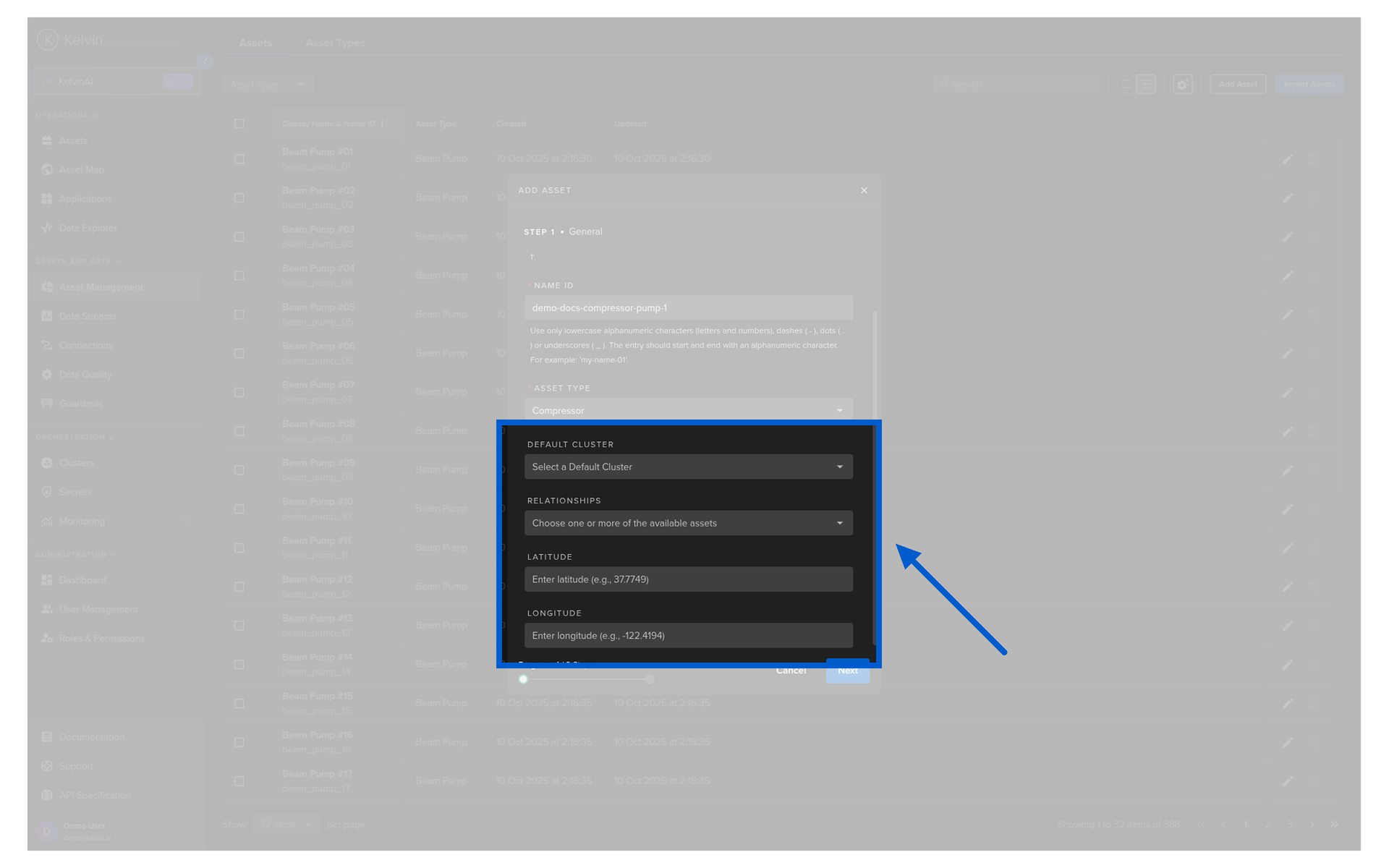
When ready click Next button.
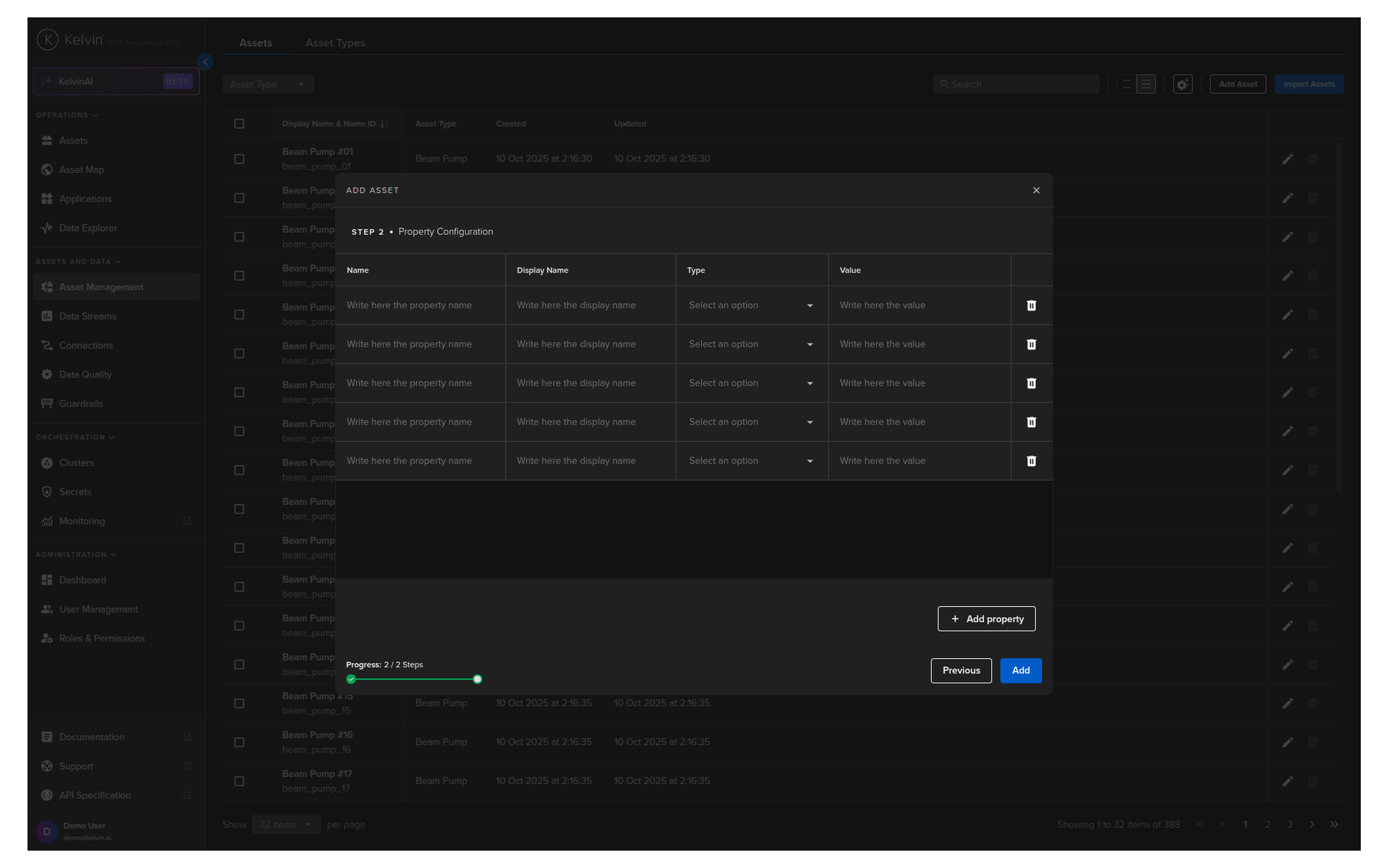
Then in Step 2 add any Asset Properties related to this Asset.
Asset Properties are any extra information you want to hold about an Asset.
This can be retrieved by an Application for use in a program.
Note
For example you could have a Beam Pump 01 Asset, and then create an Asset Property Model to be able to distinguish between the Assets. This can be used to target the Application for only certain types of Models.
Once a Type is selected (Number, String or Boolean) you can no longer change this type when editing. You will need to make a new Property to select a new Type.
 .
.
When done your Asset Properties should look something like this;
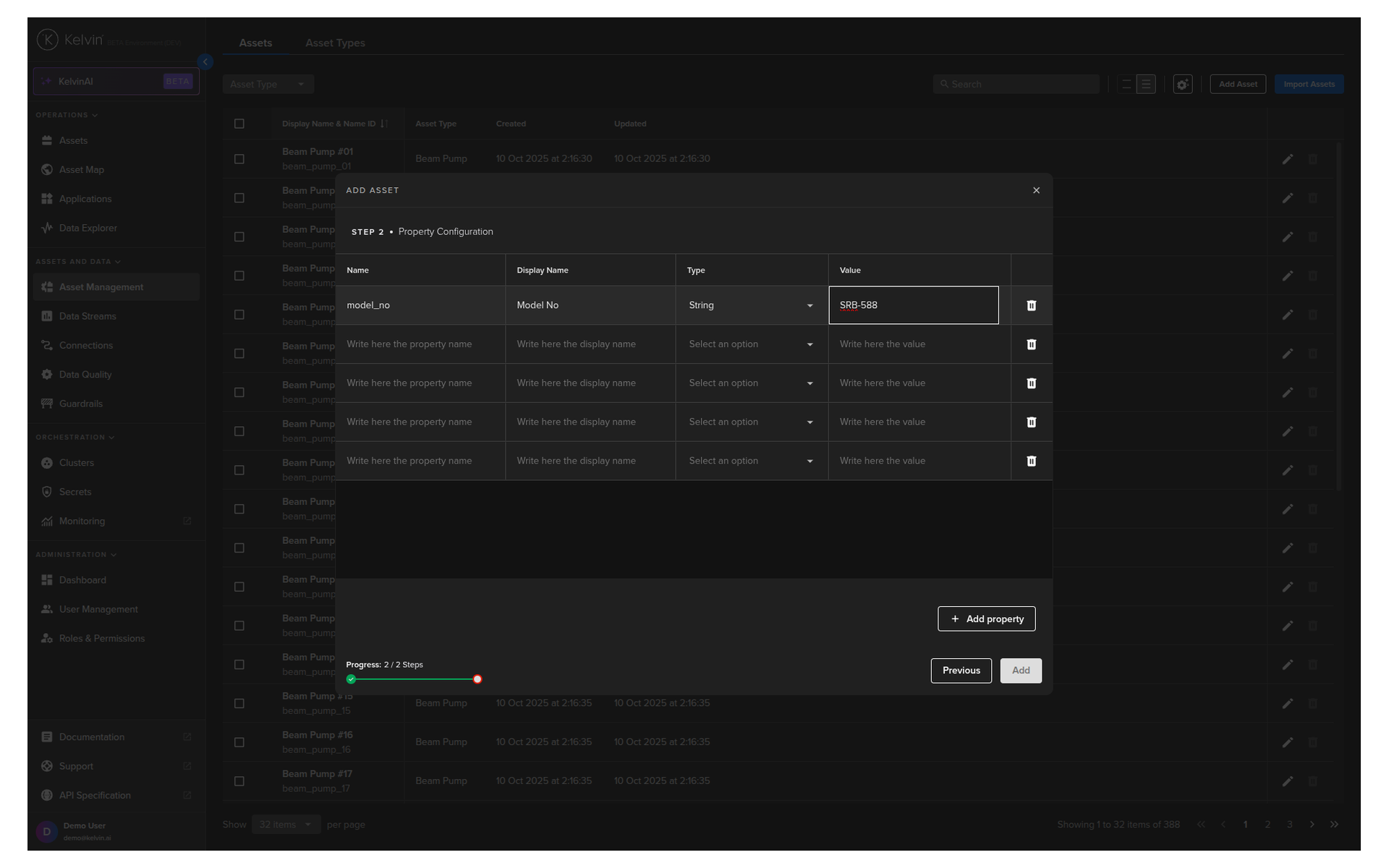
When finished, click Add and your Asset is created.
Adding properties will not work in the built-in Swagger tool provided by Kelvin. If you need to add properties, then you will need to use a different API client or use curl.
The response will look like this;
You will get a response similar to this;