Edge Services
On this page you will learn about the Edge UI, Edge API and Kelvin Provision features.
Note
This page focuses on the the available local features available on the edge system.
For system requirements and installation, check out the relevant documentation in the CLuster Management section.
Overview
The Edge computers and VM's are built on Kubernetes Clusters.
Normally they will run and two-way sync all data with the Kelvin Platform in realtime.
They are able to operate offline, running the workloads, processing local data and collecting data from Assets.
Any data generated that needs to be sync to the Kelvin Platform will be stored and transfered when a connection to the Kelvin Platform is reestablished.
There are three local Edge Services available that you can use to interact directly with the Cluster installed on the edge computer/VM. These are;
- Edge UI - A webserver interface accessible through a local web browser
- Edge API - A set of API endpoints for iteracting with the Edge computer/VM through RestFUL API
- Kelvin Provision - A command line tool on the edge computer/VM
Here is a video tutorial overview of the Edge UI and Edge API in action.
Edge UI
Kelvin also has a local Edge UI web server for you to do certain local tasks on the Cluster such as;
- View a list of all installed Workloads and their current status
- Start and stop any Workload
- Deploy new Workload images (useful when there is no Internet connection to the Kelvin Platform)
- Delete Workloads
- See current Workload's Kelvin SmartApp™ name and version
This is accessible by opening a modern web browser on the local computer or to any computer that has a direct IP connection to the computer with;
Edge API
Kelvin also has a local Edge UI and Edge API Services for you to do certain local tasks on the Cluster such as;
- View a list of all installed Workloads and their current status
- Start and stop any Workload
- Deploy new Workload images (useful when there is no Internet connection to the Kelvin Platform)
- Delete Workloads
- See current Workload's Kelvin SmartApp™ name and version
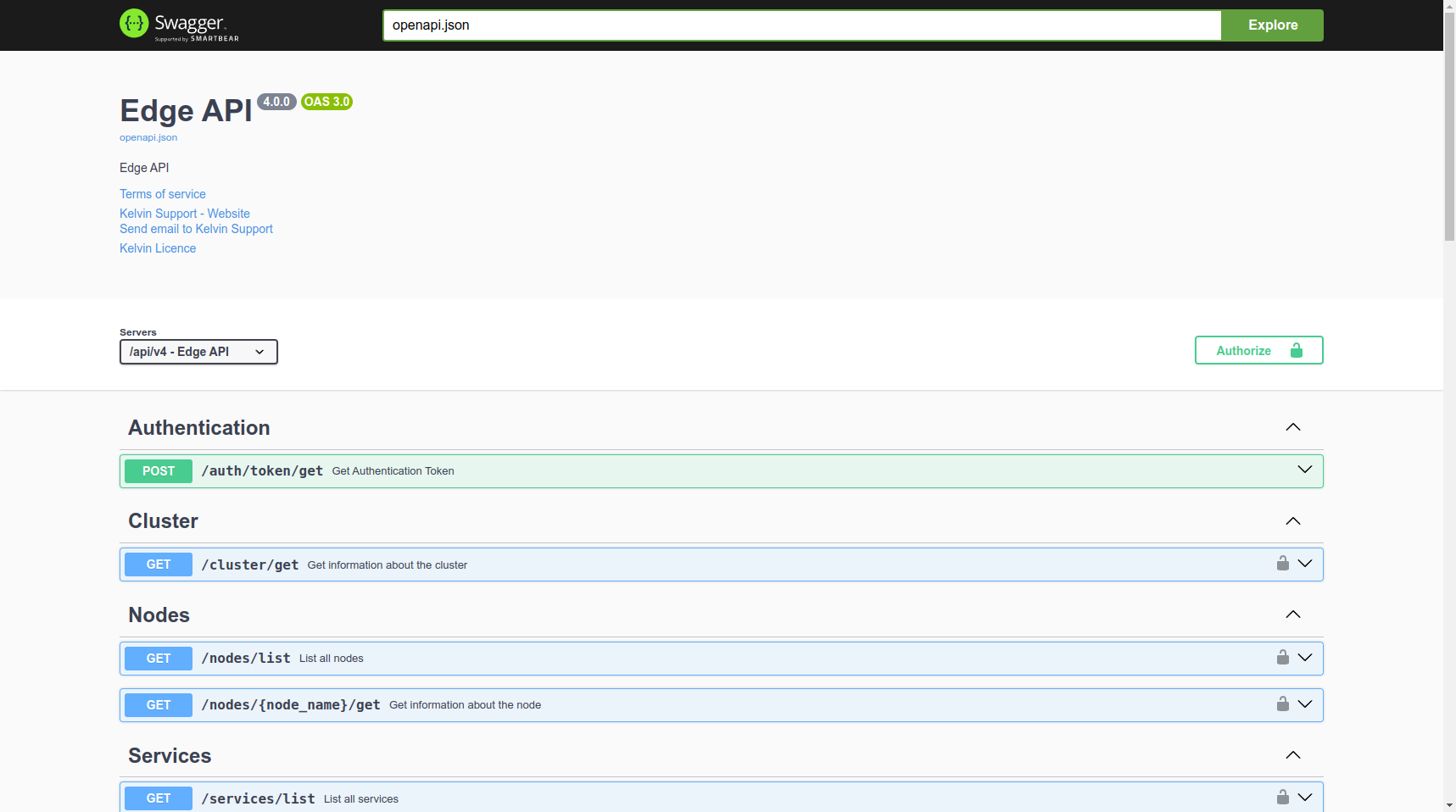
This documentation page shows you how to perform many of the common tasks using the Edge API.
To see a detailed reference of the Edge API endpoints, you can read full documentation here.
You can also see a swagger reference documentation on the local computer with the following address;
Kelvin Provision
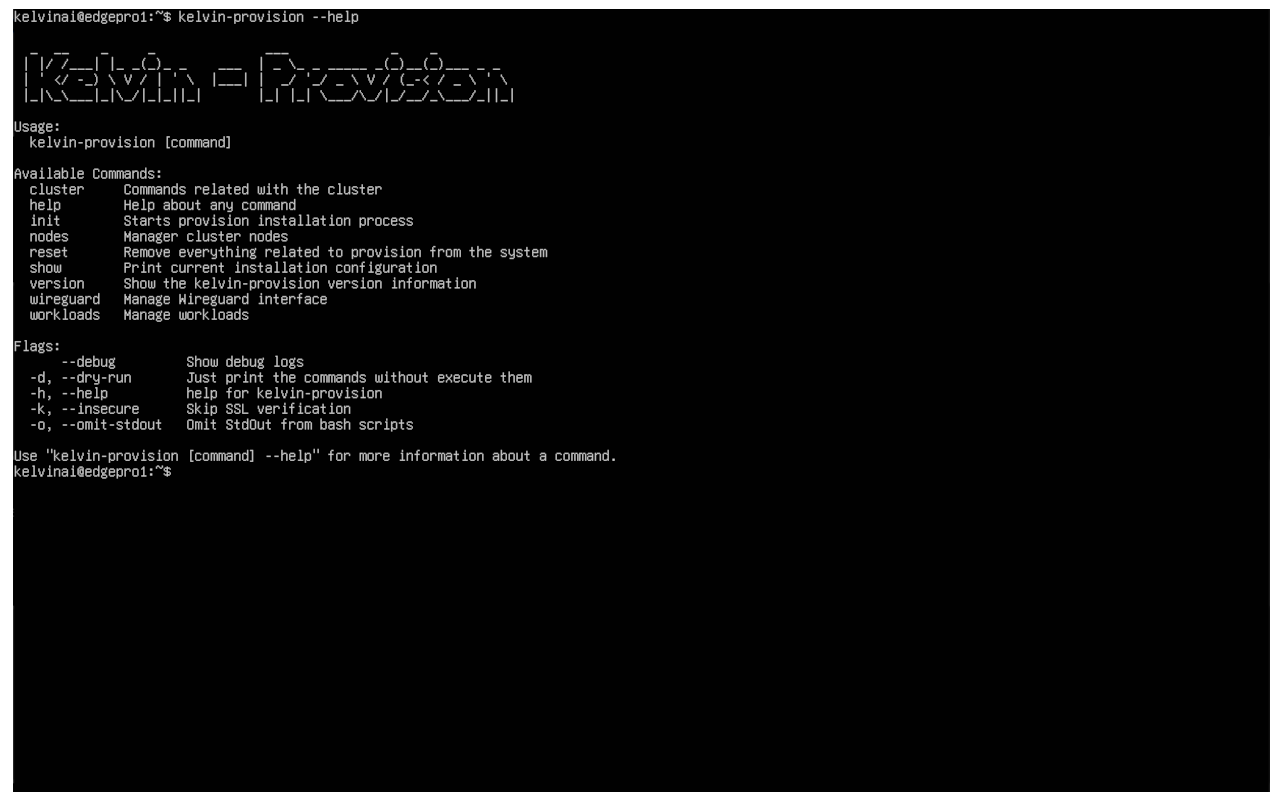
On the Edge computer/VM you can also do many local tasks in the CLI (Command Line Interface).
The Kelvin provision CLI tools has more features than the Edge UI and Edge API options and are designed for power users working directly on the Edge computer/VM.
You can see all the options by typing;
Or you can read more details about each option by typing the option and then --help
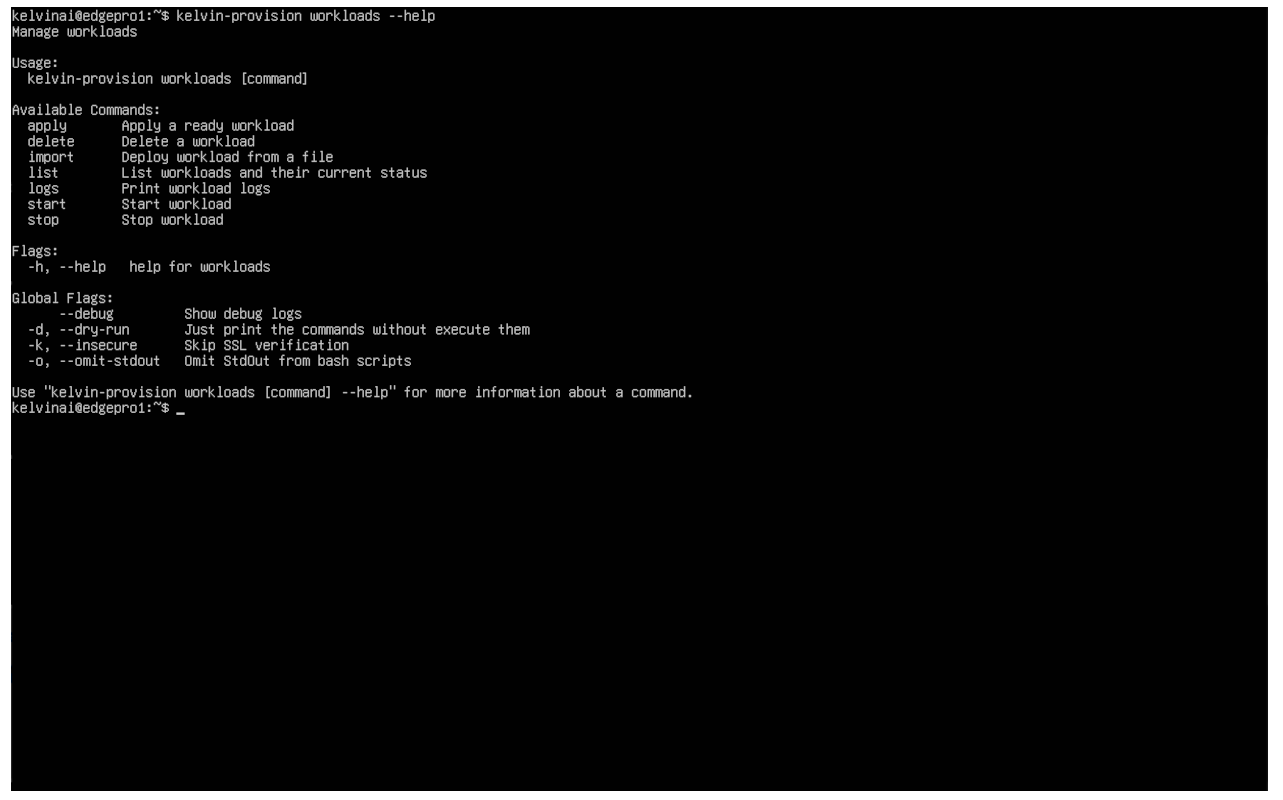
On this page you will only see the kelvin-provision commands that are associated with Workload tasks.
Throughout the docs.kelvin.ai site you will see more references to kelvin-provision where appropriate.
Installation & Updates
The Edge Services will be automatically installed when you first provision the cluster.
All updates are transparent and will be automatically handled by Kelvin. There is nothing for the user to set.
Managing User Credentials
The Edge UI / Edge API credentials are not the same as the Kelvin Platform credentials. They are independently associated with each Cluster.
The Kelvin Provision does not need any credentials as you need to have the OS credentials already to log into the edge computer to use this Edge Service.
It is not possible to change the Edge Cluster credentials from the Kelvin UI.
You can change the local user credentials using the Kelvin API /orchestration/clusters/{cluster_name}/update endpoint with the following;
The password must contain at least one captial and one lowercase letter and one number.
This is API request is on the Kelvin API not the Edge API !
| API cURL Example | |
|---|---|
You will get a response similar to this;
You will get a response similar to this;
For Kelvin Provision CLI you do not need any credentials as you need to have the OS credentials already to log into the edge computer.
Kelvin Provision can not edit the local credentials for the Edge UI and Edge API Services.
Login to Edge Services
Edge Services
Open the Edge UI in a browser.
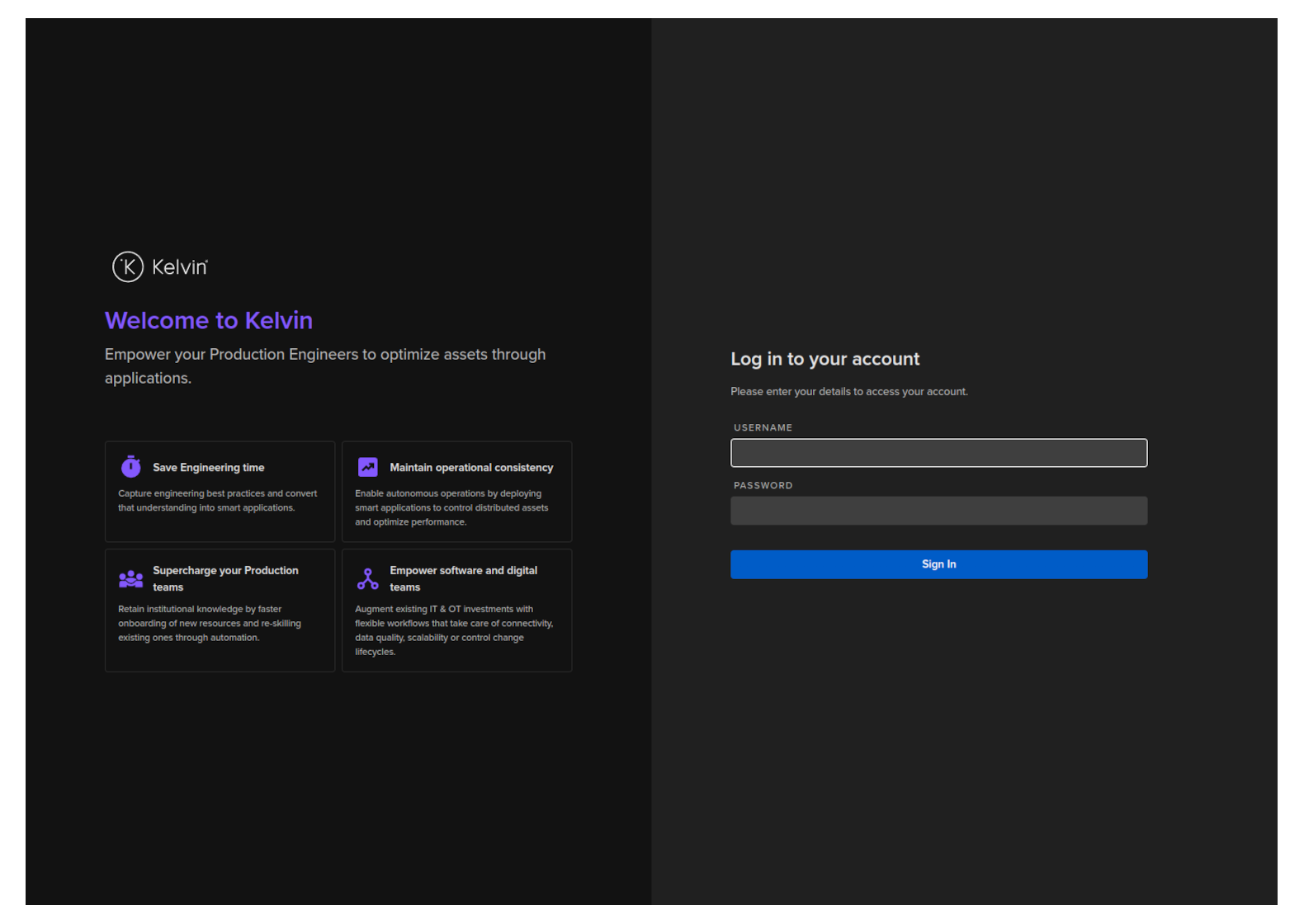
The login screen looks very similar to the login screen of the Kelvin Platform.
Warning
The username and password are NOT the same as your Kelvin Platform credentials. They are edge specific.
The default username and password is admin and admin.
You can read the Edge API authentication documentation in the Edge API reference section here.
For Kelvin Provision CLI you do not need any credentials as you need to have the OS credentials already to log into the edge computer.
Edge UI Dashboard
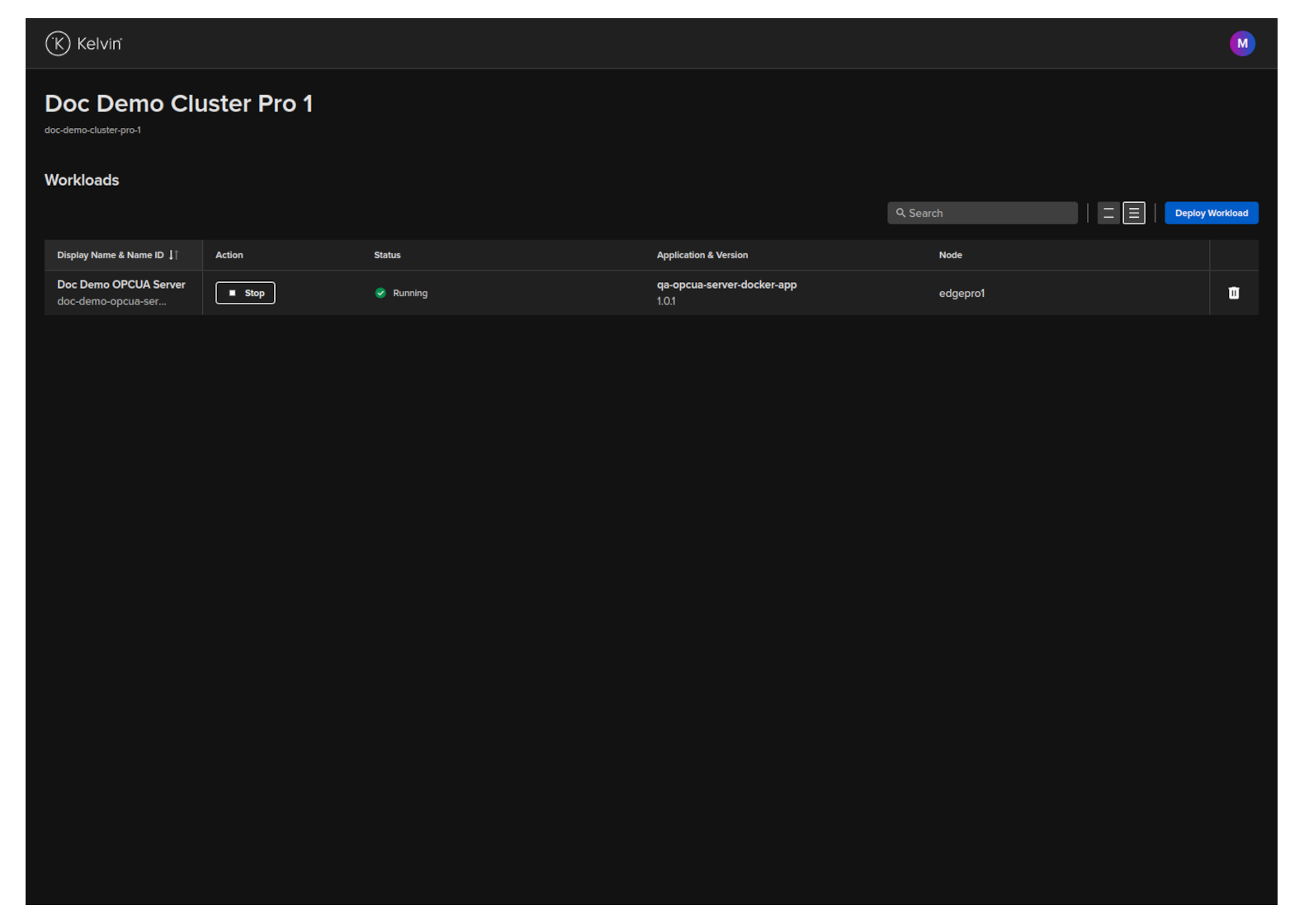
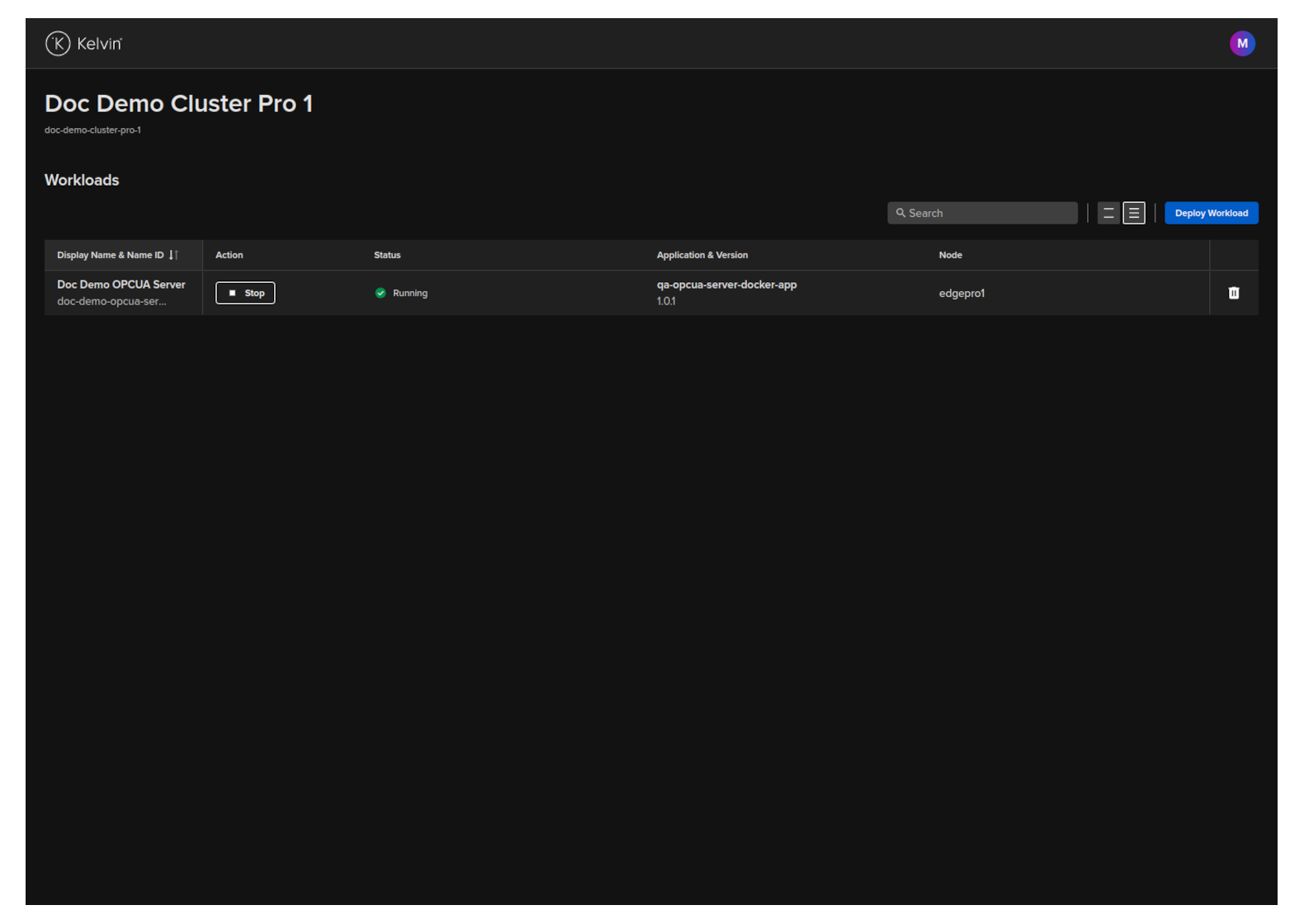
The main dashboard on the Edge UI will show you all the Workloads that are on the Cluster and their current status.
In the dashboard you can;
- Control the Workload
- See the current Status of the Workload
- See the Workload's Kelvin SmartApp™ and version
- The Node that the Workload is running on
- Search and line spacing features are available for quickly locating the wanted Workloads when the list is long
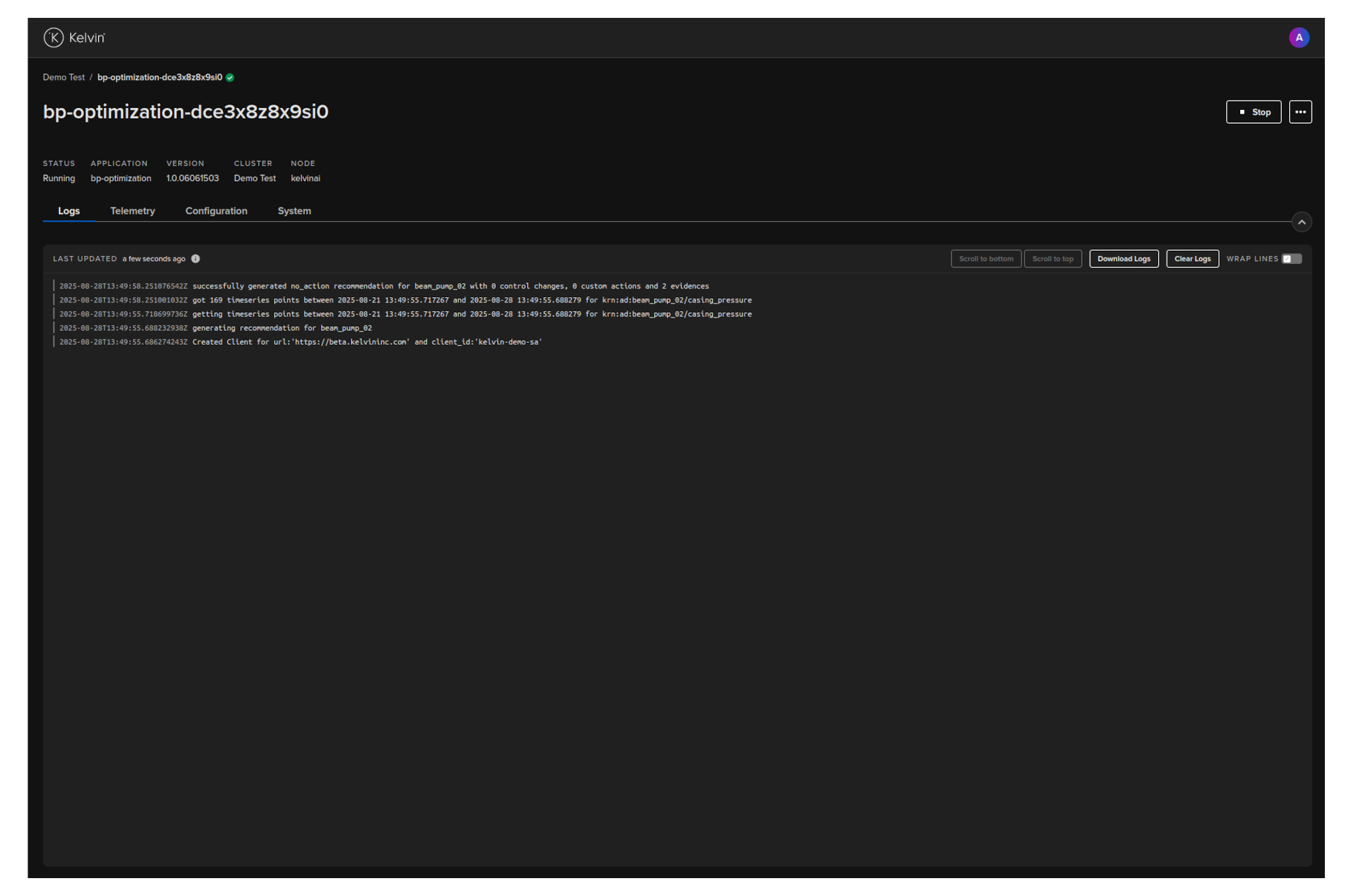
If you click on a workload, then you can see detailed information about the workload.
- Logs for the workload
- Telemetry for the workload
- Configuration for the workload
- System settings for the workload
Deploy New Workload
To deploy a new workload in the Edge UI you will need to first prepare the image in the Kelvin Platform and download the image, then open the Edge UI to deploy.
Create Your Workload
This method of Deployment can be done for Kelvin SmartApps™, Workloads and Connections.
- For Applications deployment you can find full details to deploy them here.
- For a Connection deployment, go to Connections and click on the
Create Connectionbutton. Once successfully created, then go to Orchestration and select the Cluster where you have deployed the Connection where you will see the workload that is your Connection.
Download Your Workload Image
To download the image you can follow this documentation here.
For Kelvin Professional edition the image will be automatically created.
The workload image is stored as a zip file.
Do not unpack the zip file !
Deploy Workload Image
You have a few options to deploy the workload image using the Edge computer.
Edge Services
Open the Edge UI in a browser.
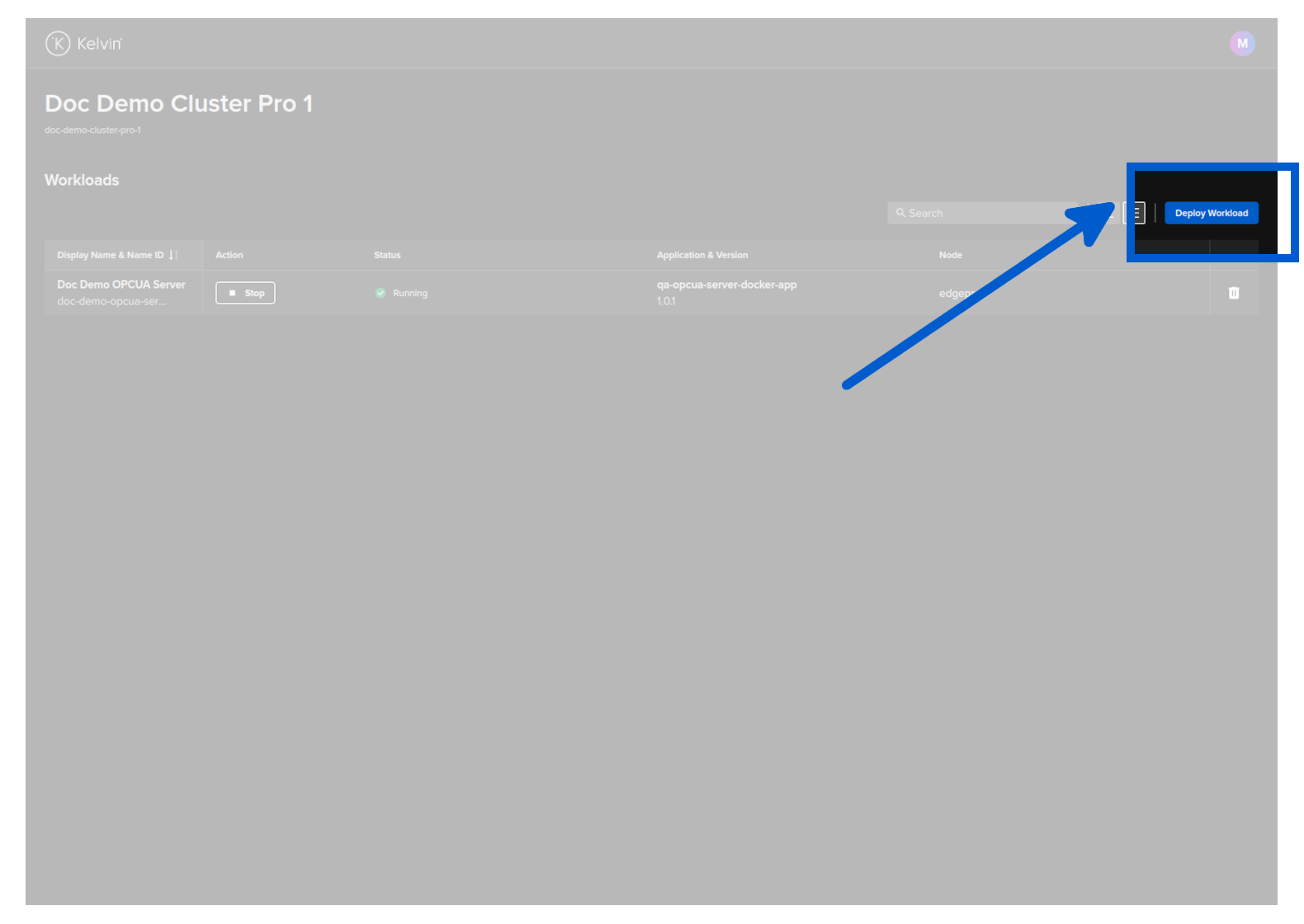
In the dashboard, click on the Deploy Workload button.
Either drag and drop the downloaded image file or click and select it then click on the Deploy button when it turns blue.
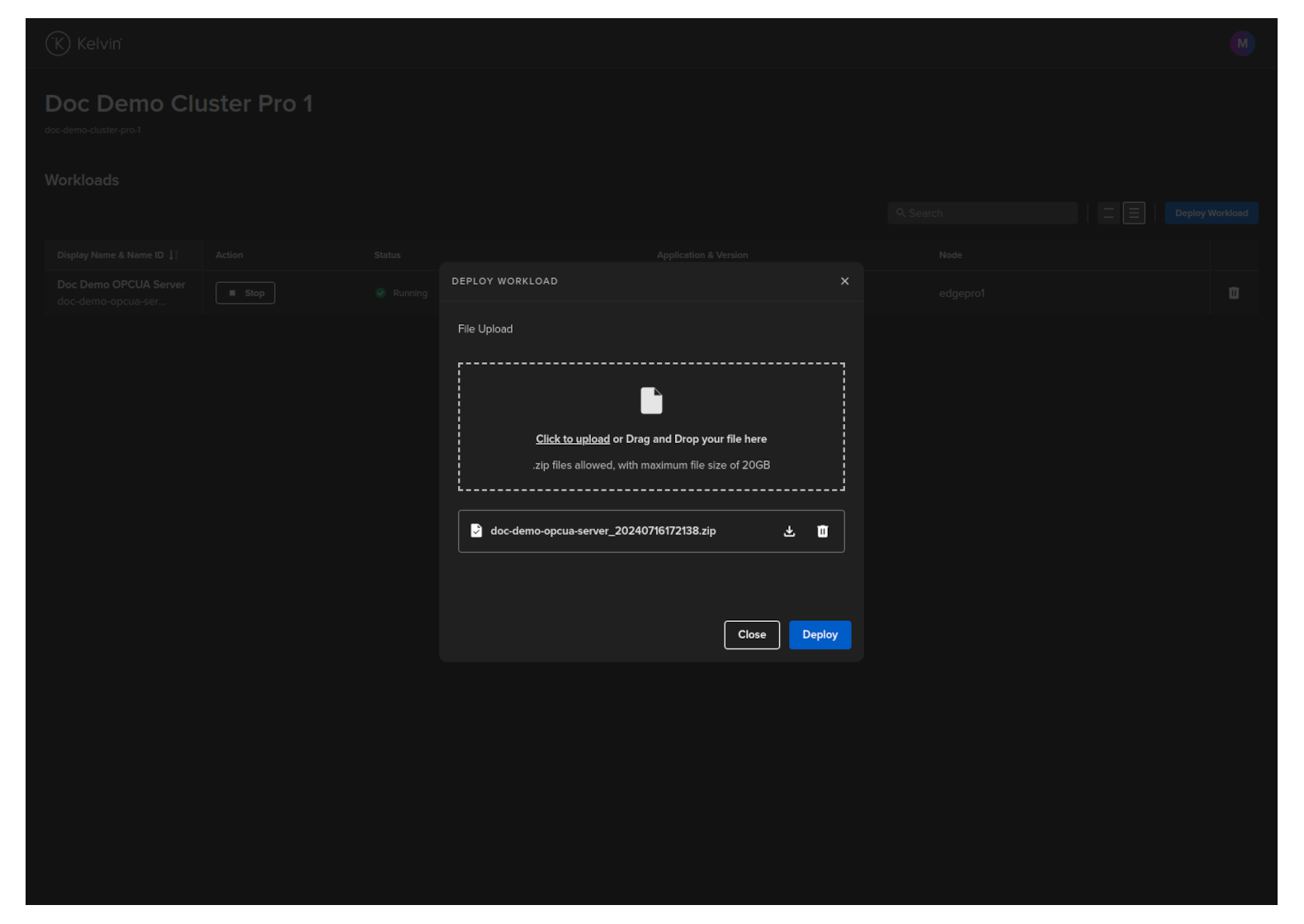
The Workload will be uploaded and deployed to a Node in the Cluster.
Once deployed successfully, the status of the Workload on the Kelvin Platform will be updated from Pending Deploy to Running the next time the edge computer is connected to the Internet.
Congratulations, you have deployed your new Workload.
This endpoint is only available in the Edge API. With the Kelvin API you can only do a full Workload deployment with the /workloads/deploy endpoint.
| API cURL Example | |
|---|---|
You will get a response similar to this;
Ensure the Workload image is accessible from the command line and then type this command;
| Kelvin Provision Command Line Example | |
|---|---|
Afterwards you can check the workload is running with the command.
| Kelvin Provision Command Line Output | |
|---|---|
Start / Stop Workload
You can start / stop a Workload.
This will not undeploy the workload from the edge system, so you can restart it at anytime without having to deploy the Workload again.
You have a few options to deploy the workload image using the Edge computer.
Edge Services
Open the Edge UI in a browser.
In the dashboard, find the Workload you want to control and then click the button in the action column on that row.
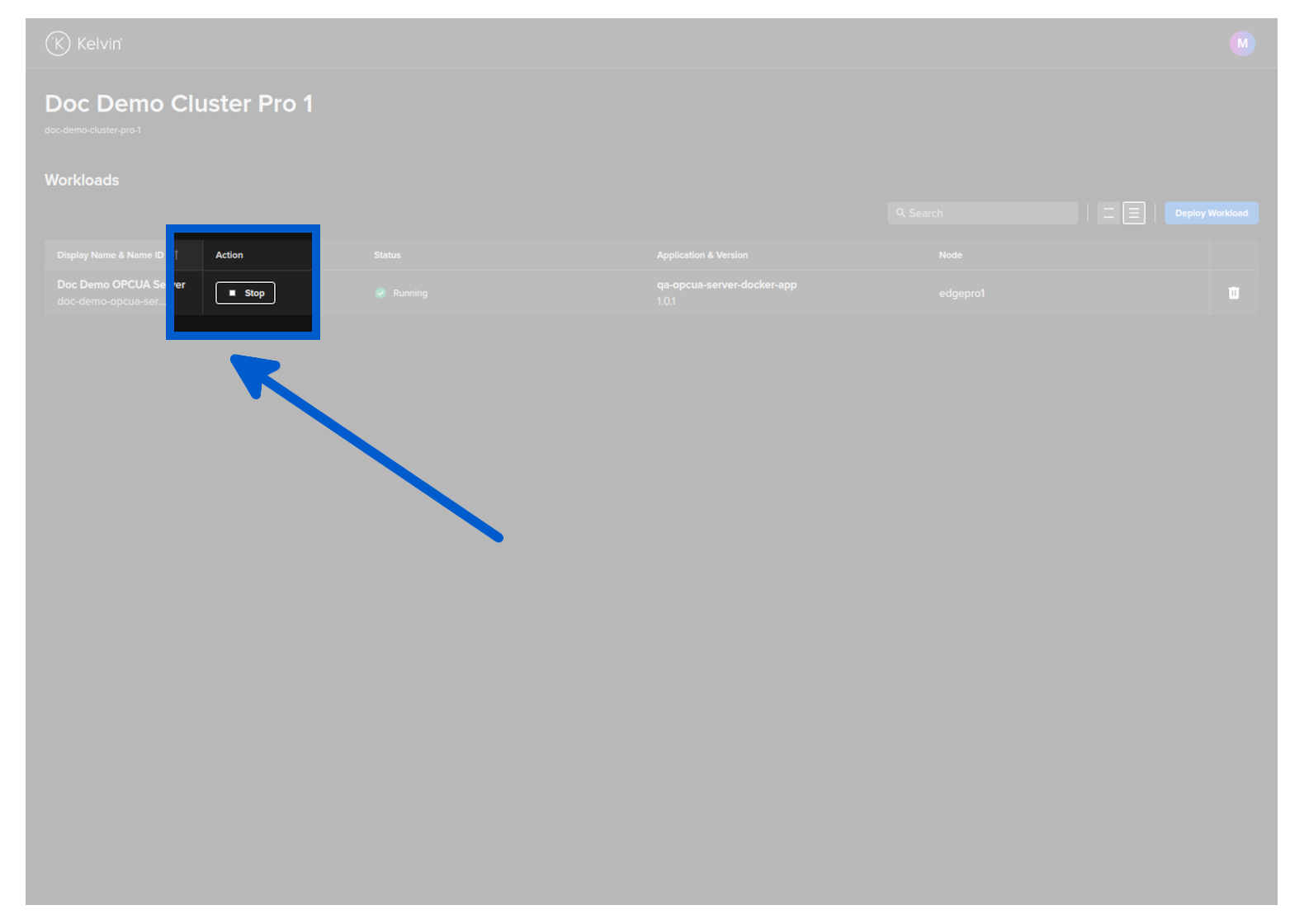
The Workload will start or stop depending on its current state.
Start Workload
You can start a Workload with the Edge API endpoint /workloads/{workload_name}/start.
| API cURL Example | |
|---|---|
You will get a response similar to this;
| API cURL Example Response | |
|---|---|
Stop Workload
You can stop a Workload with the Edge API endpoint /workloads/{workload_name}/stop.
| API cURL Example | |
|---|---|
You will get a response similar to this;
To start a Workload;
| Kelvin Provision Command Line Example | |
|---|---|
You will see a response like this;
| Kelvin Provision Command Line Output | |
|---|---|
Then you can check the status of the workload to ensure it is started;
To stop a Workload;
| Kelvin Provision Command Line Example | |
|---|---|
You will see a response like this;
| Kelvin Provision Command Line Output | |
|---|---|
Then you can check the status of the workload to ensure it has stopped;
Delete Workload
You can delete a Workload.
This will also remove the workload registration from the Kelvin Platform.
You can NOT use the existing Workload image to reinstall the Workload. You will need to create a new image and use the new image for the new deploy.
You have a few options to delete the workload image using the Edge computer.
Edge Services
Open the Edge UI in a browser.
In the dashboard, find the Workload you want to control and then click the delete button on that row.
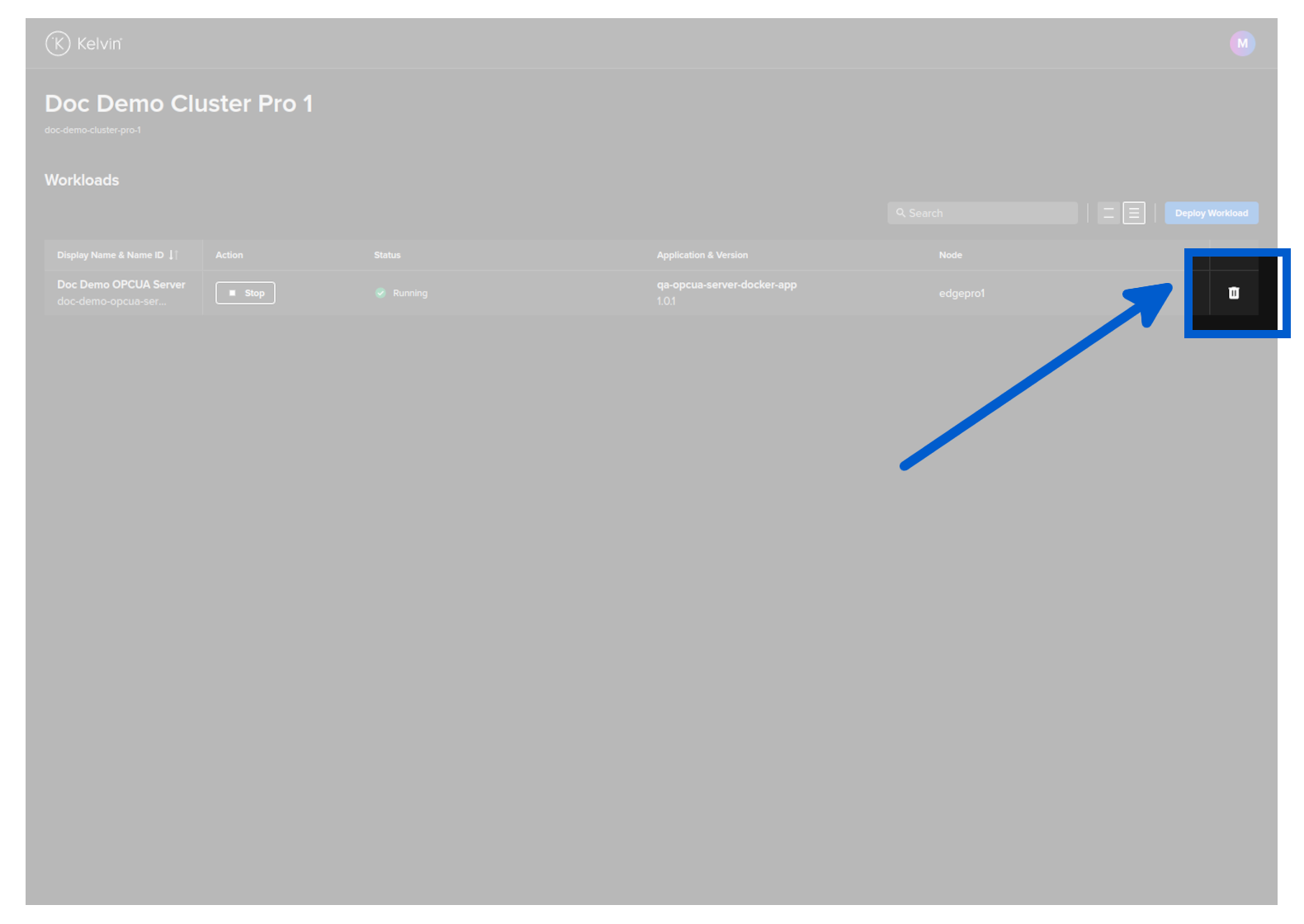
You will then be asked to confirm the delete action.
Then the Workload will be deleted.
The Kelvin Platform will be updated with the delete action the next time the Edge computer is connected to the Internet.
You can delete a Workload with the Edge API endpoint /workloads/{workload_name}/delete.
| API cURL Example | |
|---|---|
You will get a 200 response if successful.
To delete a Workload;
| Kelvin Provision Command Line Example | |
|---|---|
You will see a response like this;