Manage Users
On this page you will learn as an Administrator of a Kelvin Cloud how to create, edit and delete the Users inside Keycloak.
Users
When you add a user, this user can use their credentials to sign on to any program which is linked to the Keycloak Realm. The actions they can perform will be limited in all programs to the Realm Roles assigned to them either individually or through group assignments.
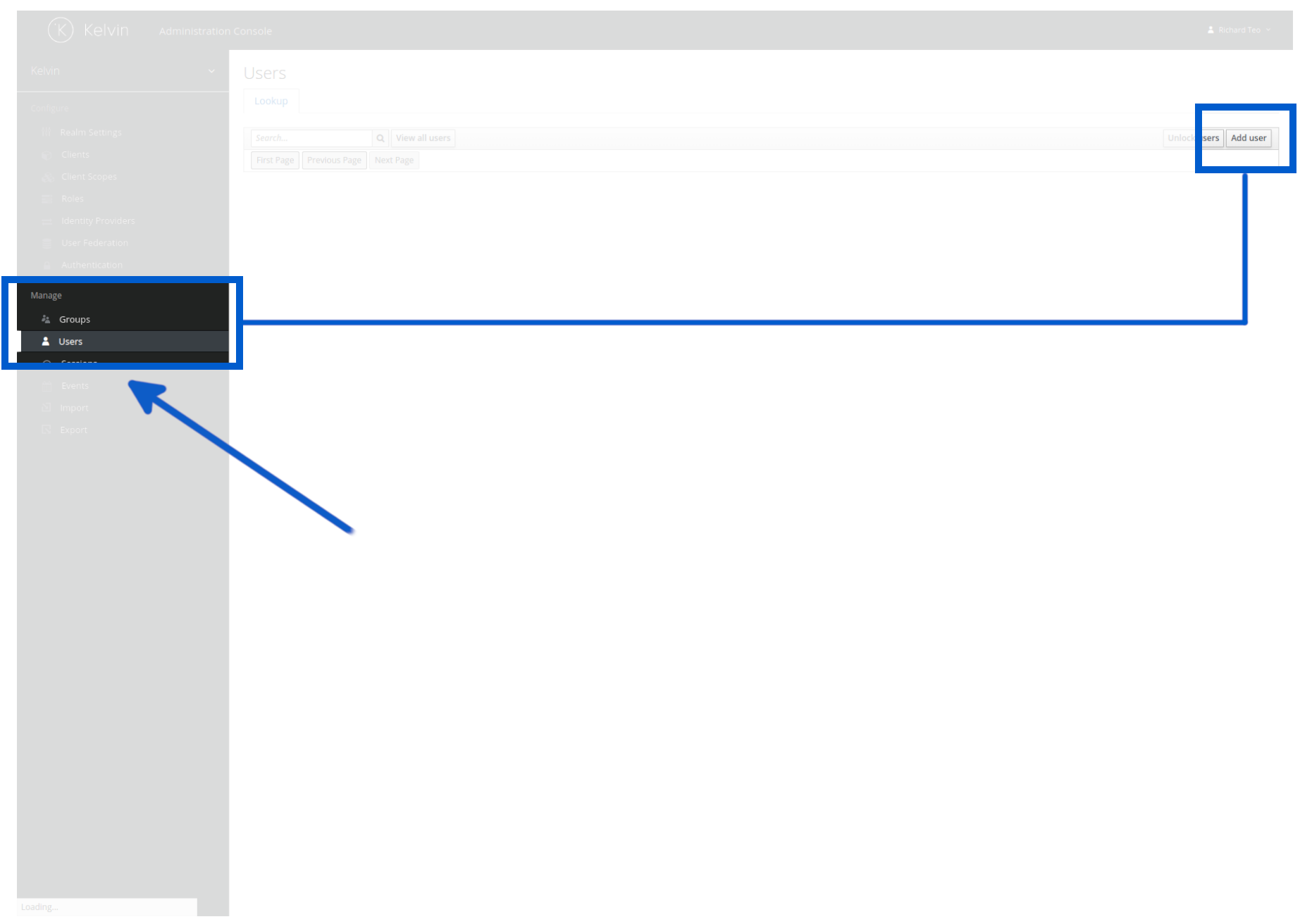
To create a new user, click on the Users option in the left sidebar and then click on the Add User button in the top right hand corner.
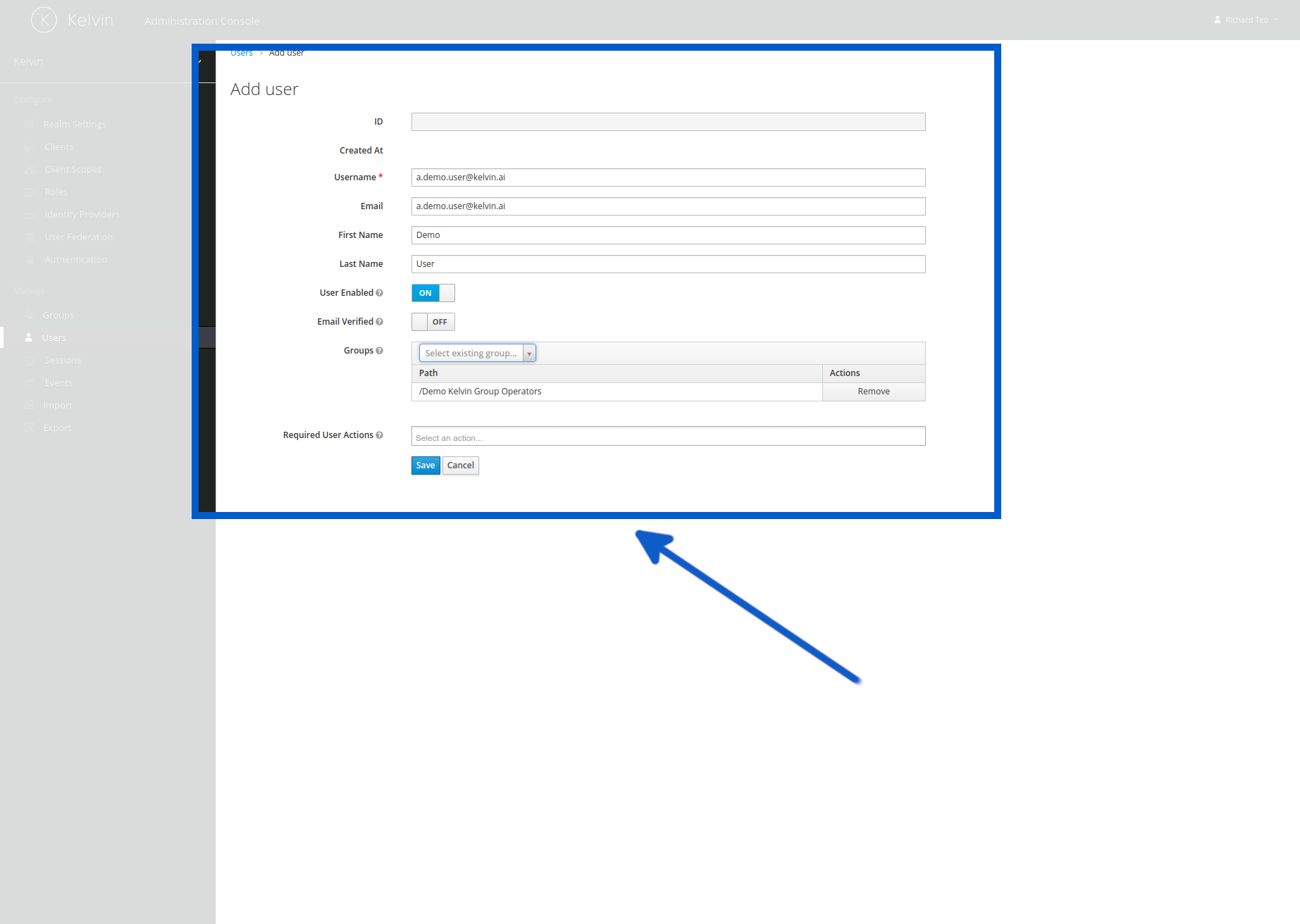
You can then fill in the basic information about the user.
You can also add the groups that the user should be associated with here.
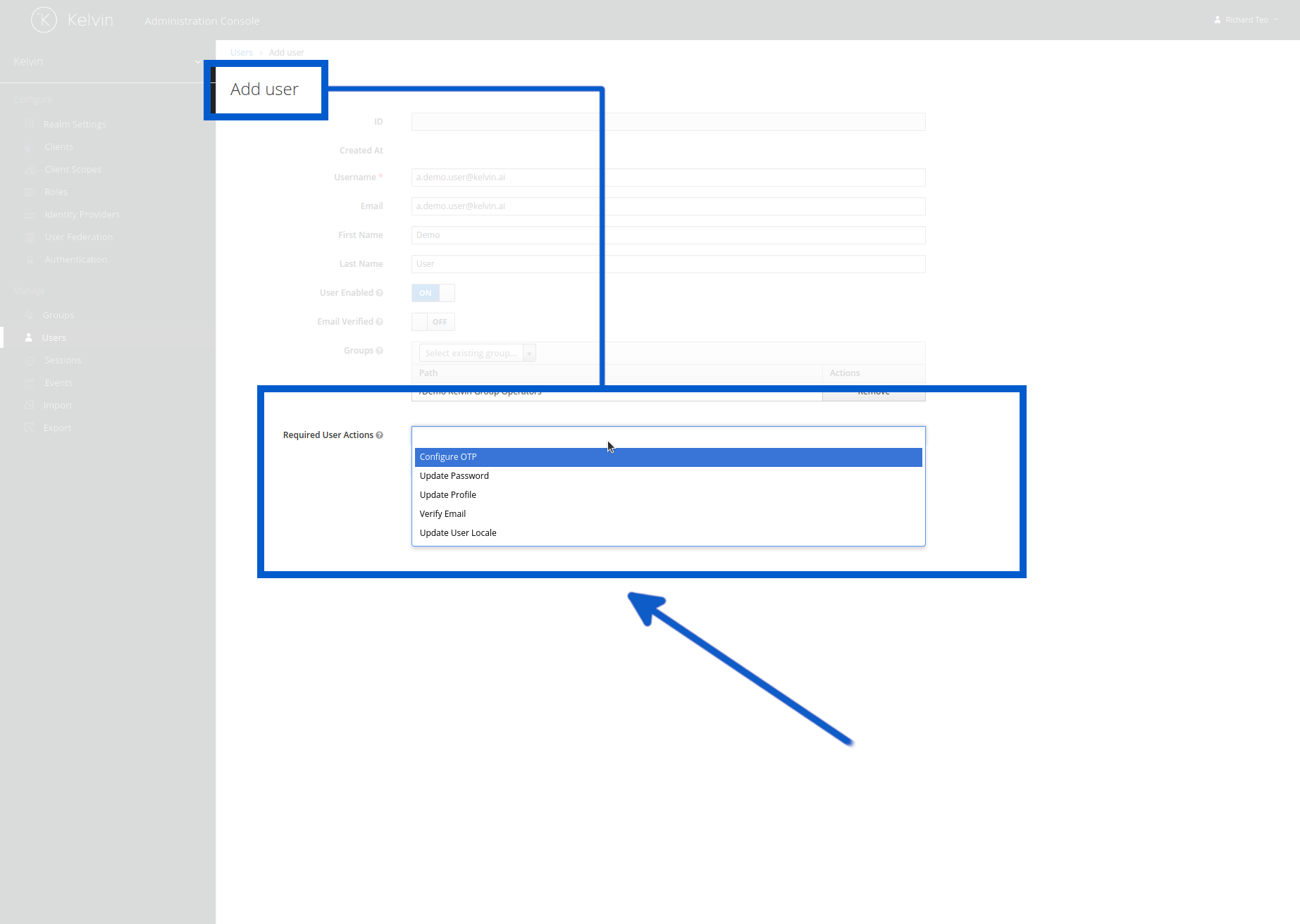
The last option is Required User Actions where you can force a user to take certain actions when they first login such as compulsory 2FA or change password, etc.
When finished you can click the Save button. You will now be able to adjust any specific details about the user such as their individual roles mappings, Groups assignments, etc.
You do not need to save the any changes you make. It will be automatically saved every time you change a setting.
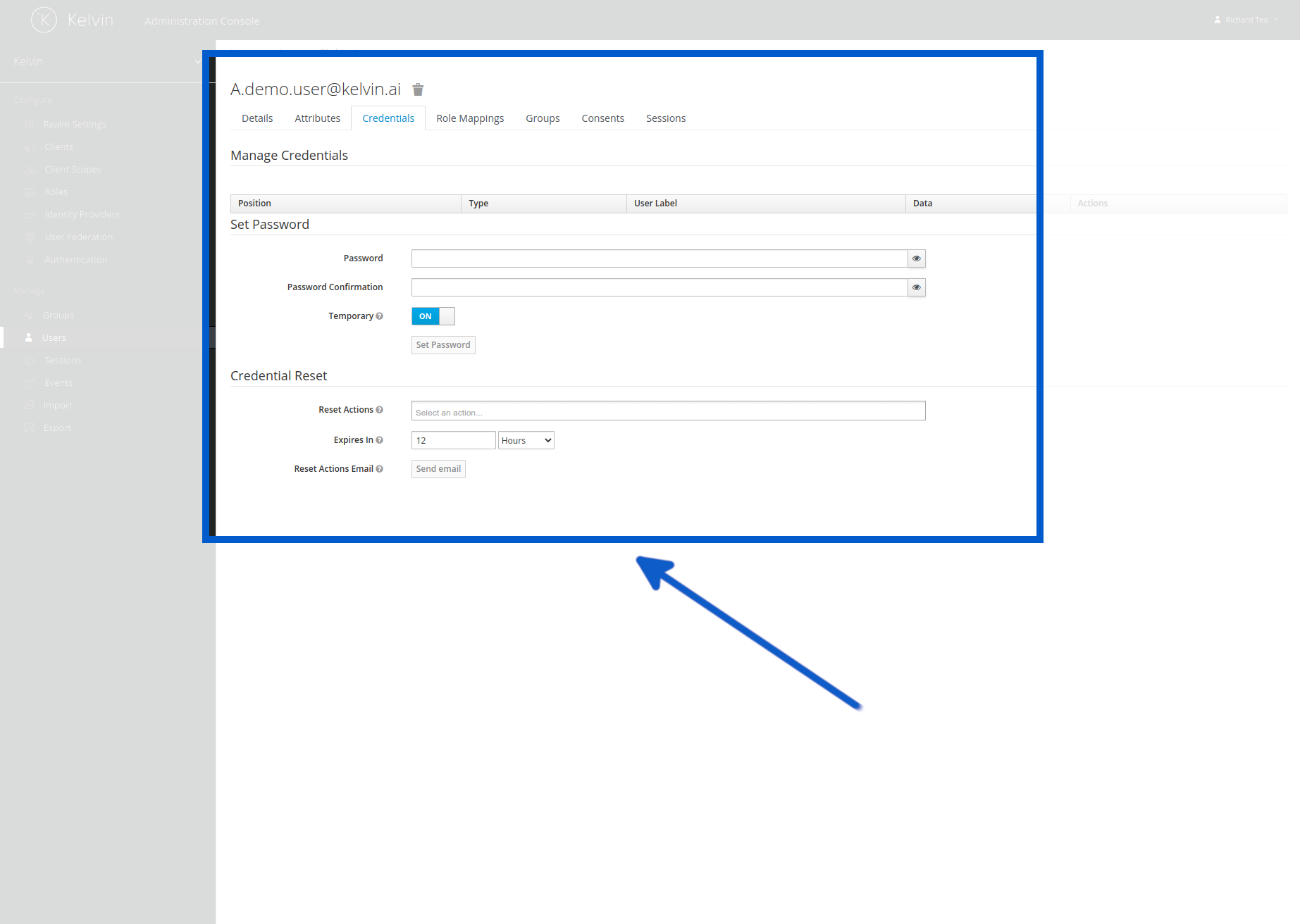
Normally if you assigned the group permissions in the previous page correctly you will only need to set an initial temporary password for the new user.
To manage current users, click on the Users option in the left sidebar and then search for the user.
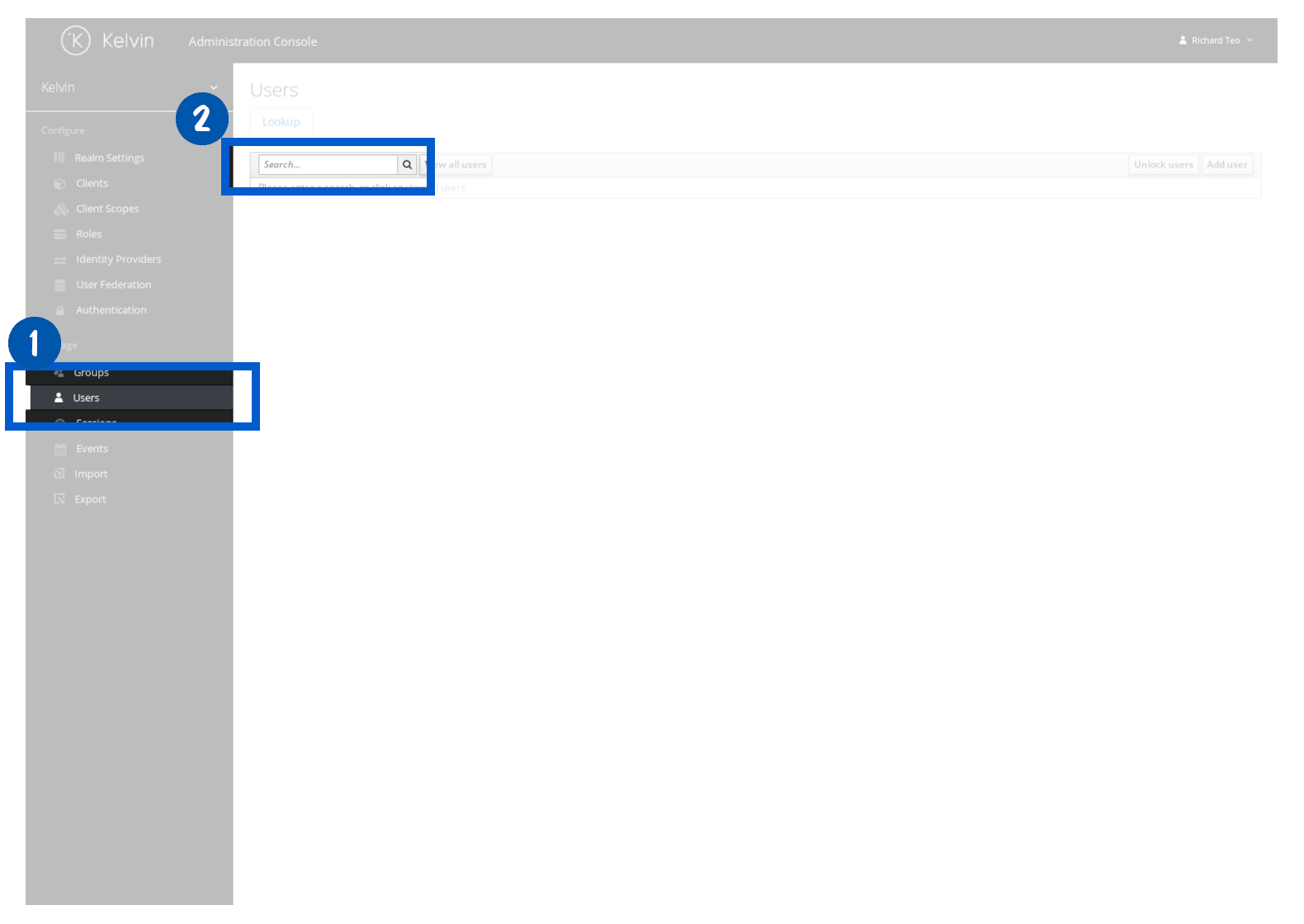
For security reasons the users list will start empty. This does not mean there are no users, it just will not automatically display them.
To display all users, you can click on the View all users button.
When you find the user, then click on the ID alphanumeric number to open the details about the user. You can then edit many settings for the user.
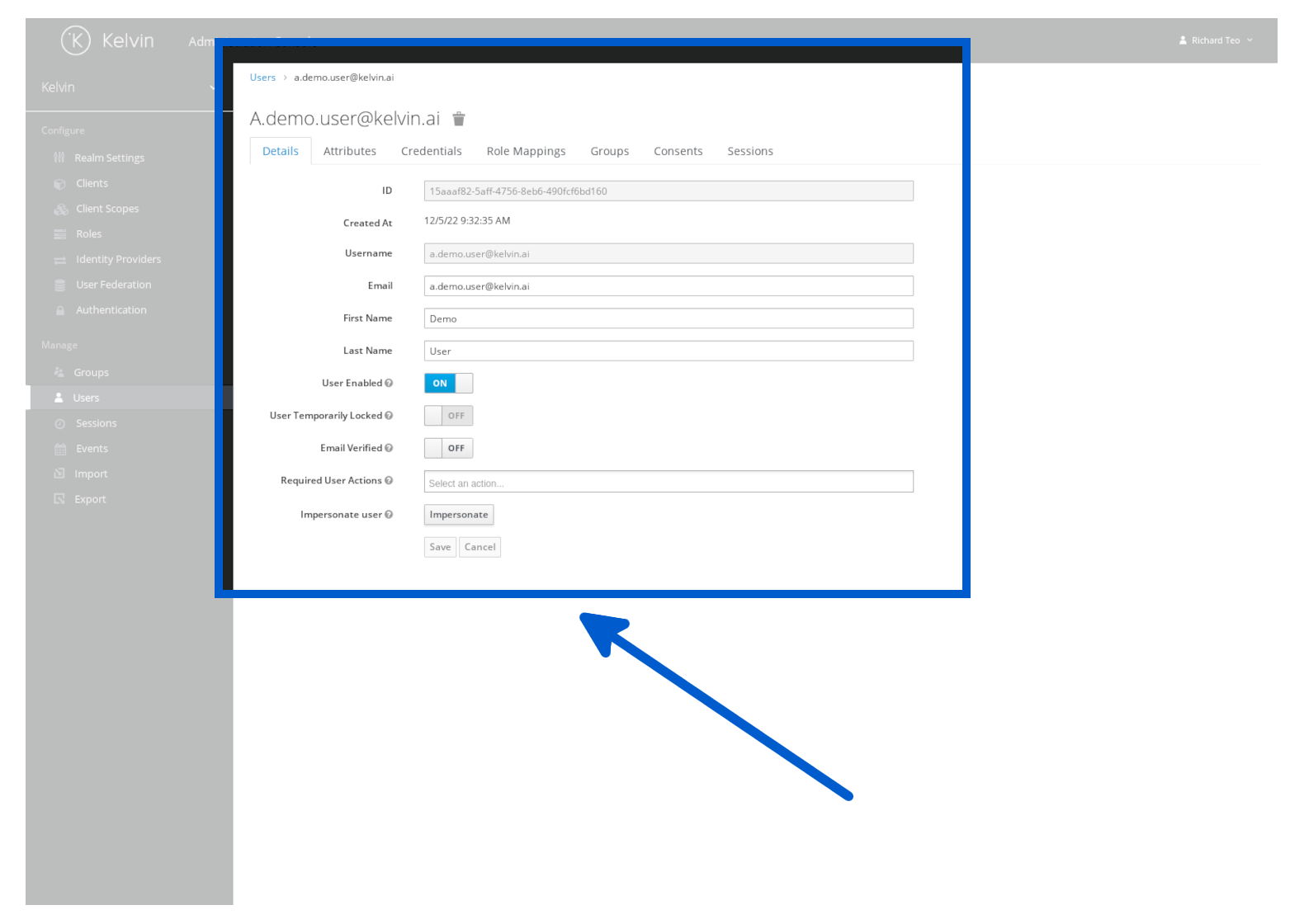
In Credentials you can do the following tasks
- Change a user's password
- Reset a user's password
- Force user to change password on next login