Provision cluster
Overview
A Cluster is a resilient Kubernetes based system, tailored for edge computing, consisting of edge computers or virtual machines with the Kelvin software installed. Designed to operate in Edge environments without internet connectivity, it provides a robust framework to deploy, manage, and monitor Applications, Docker Apps and Connections, ensuring optimal performance and streamlined operations.
There are two ways to set up a Cluster:
- Create K3S Cluster: Kelvin provides a provision script to automatically set up a K3S Kubernetes cluster on a Linux bare metal system or within a Virtual Machine.
- Import Kubernetes Cluster: Kelvin provides the yaml definitions to import an existing Kubernetes cluster that is hosted in a cloud provider (AKS, EKS, GKE, etc.) or set up within a pre-existing Kubernetes cluster.
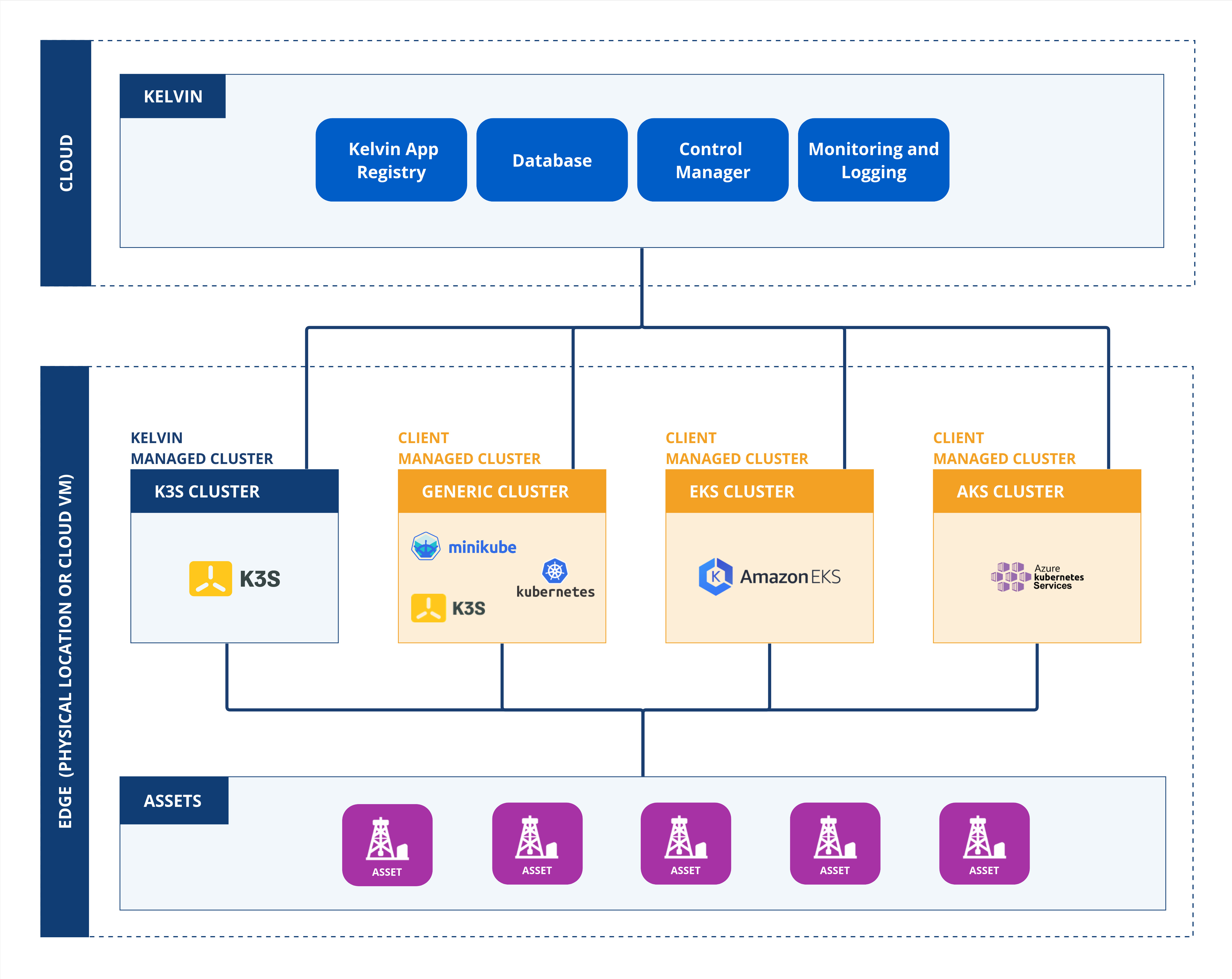
Kelvin uses K3s, a lightweight, production-grade Kubernetes distribution, to simplify cluster installation and maintenance.
Info
This guide shows how to provision a K3s cluster using only the Kelvin UI.
Requirements
Hardware Requirements
Actual CPUs and RAM requirements will depend heavily on the requirements and quantity of Applications and Connections that you want to deploy.
Resource hungry apps or deploying tens or hundreds of Application will require more resources.
In general we give you here the minimum and recommended requirements to get started.
| Component | Minimum | Recommended |
|---|---|---|
| CPU | 2 cores | 4 cores |
| RAM | 4 GB | 8 GB |
| Disk | 25 GB SSD | 50+ GB SSD |
| OS | Ubuntu 20.04+ | Ubuntu 22.04 |
Hostname Uniqueness
Make sure each node has a unique hostname.
Architecture Support
| Architecture | Supported |
|---|---|
| x86_64 | Yes |
| arm64/aarch64 | Confirm with Kelvin support as some pre-built Kelvin Connections are not available for the arm64 |
Networking & Firewall
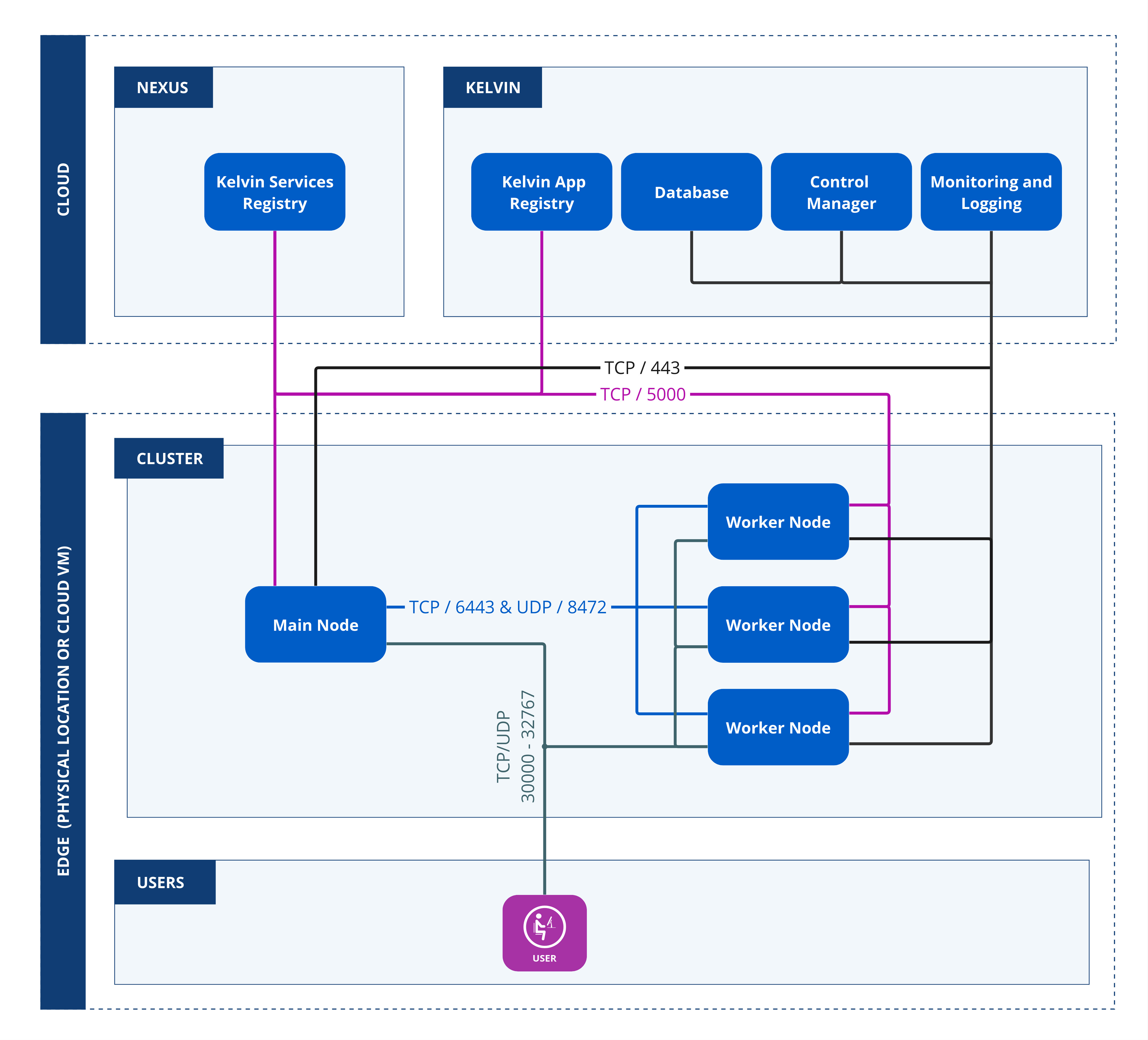
If your cluster uses more than one node, the Main Node must have a static IP address.
Below are the firewall port requirements:
| Description | Port Type | Port No. | Comments |
|---|---|---|---|
| Server / Main Node | TCP | 443, 5000, 6443 | Ensure stateful firewall or allow return traffic. |
| Worker Nodes | TCP | 443, 5000 | Not required for single-node Docker setup. |
| UDP | 8472 | Optional, used for multi-node setups. | |
| Application Services | TCP/UDP | 30000 - 32767 | Required if deploying Applications needing local access. |
| Asset Protocols | TCP/UDP | Vendor-specific | Refer to asset documentation. |
Info
Place allow rules above any general deny rules in the firewall.
Provisioning the Cluster Using Kelvin UI
-
Log into the Kelvin UI.
-
Navigate to Clusters.
-
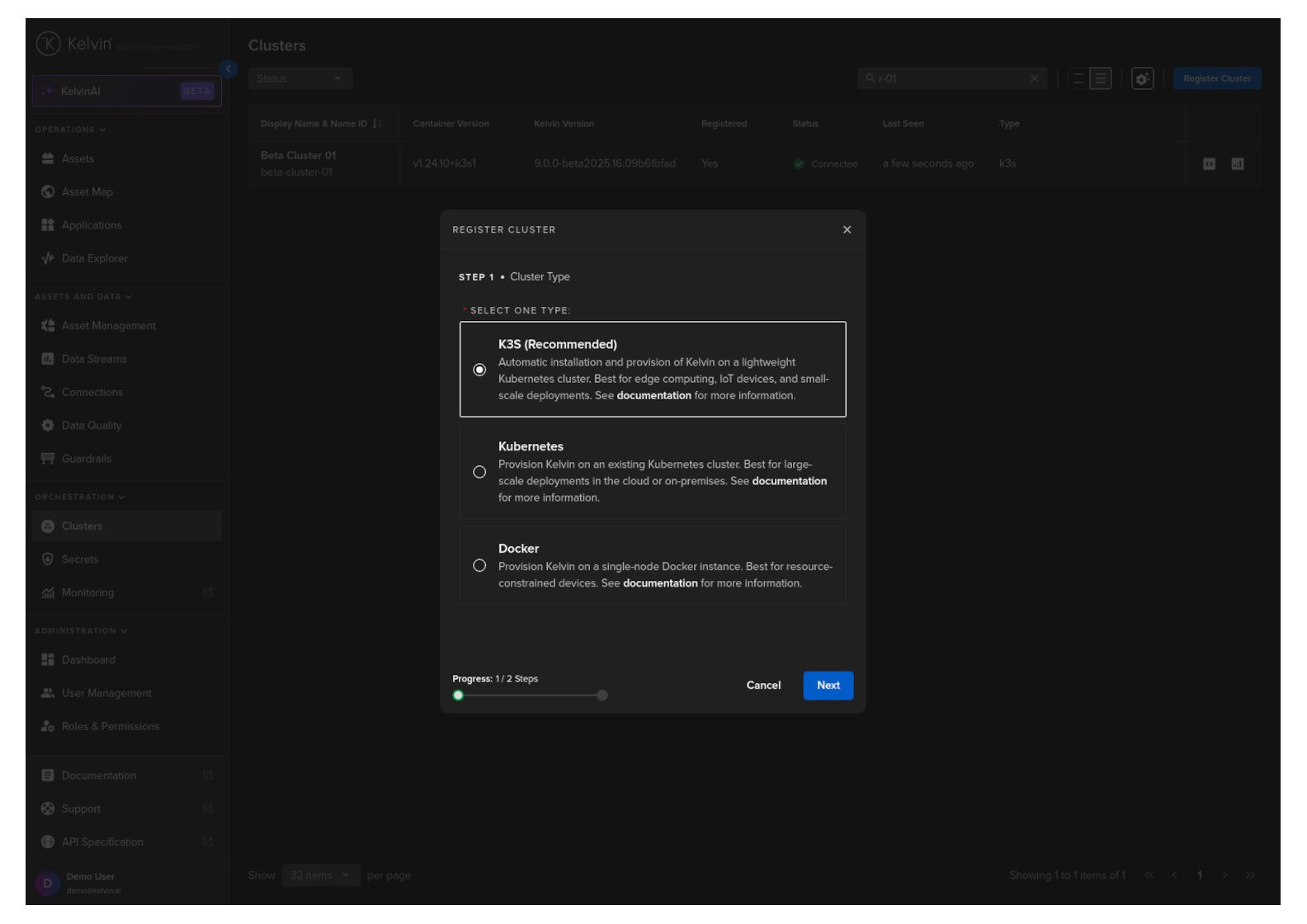
Click Register Cluster.
-
Select the K3S option.
-
In the next step, enter a Display Name.
The Name ID will auto-fill but you can change it if required.
Field Description Display Name Any readable name (e.g. "Factory Node A") Name ID Auto-generated lowercase ID (e.g. factory-node-a)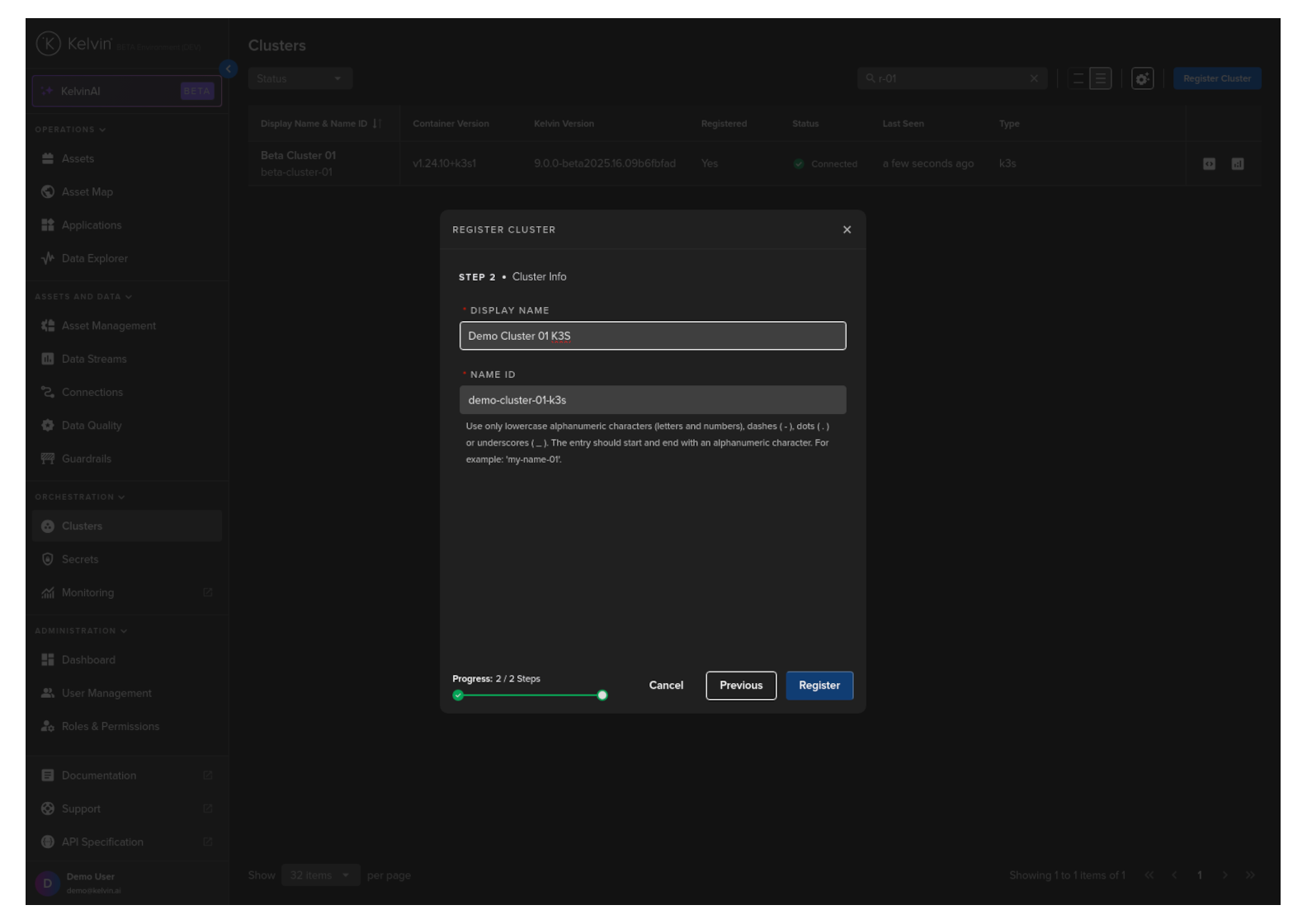
-
Click Register.
Install the Cluster on the Edge System
After registering, a script will be shown. Run this script on the edge machine:
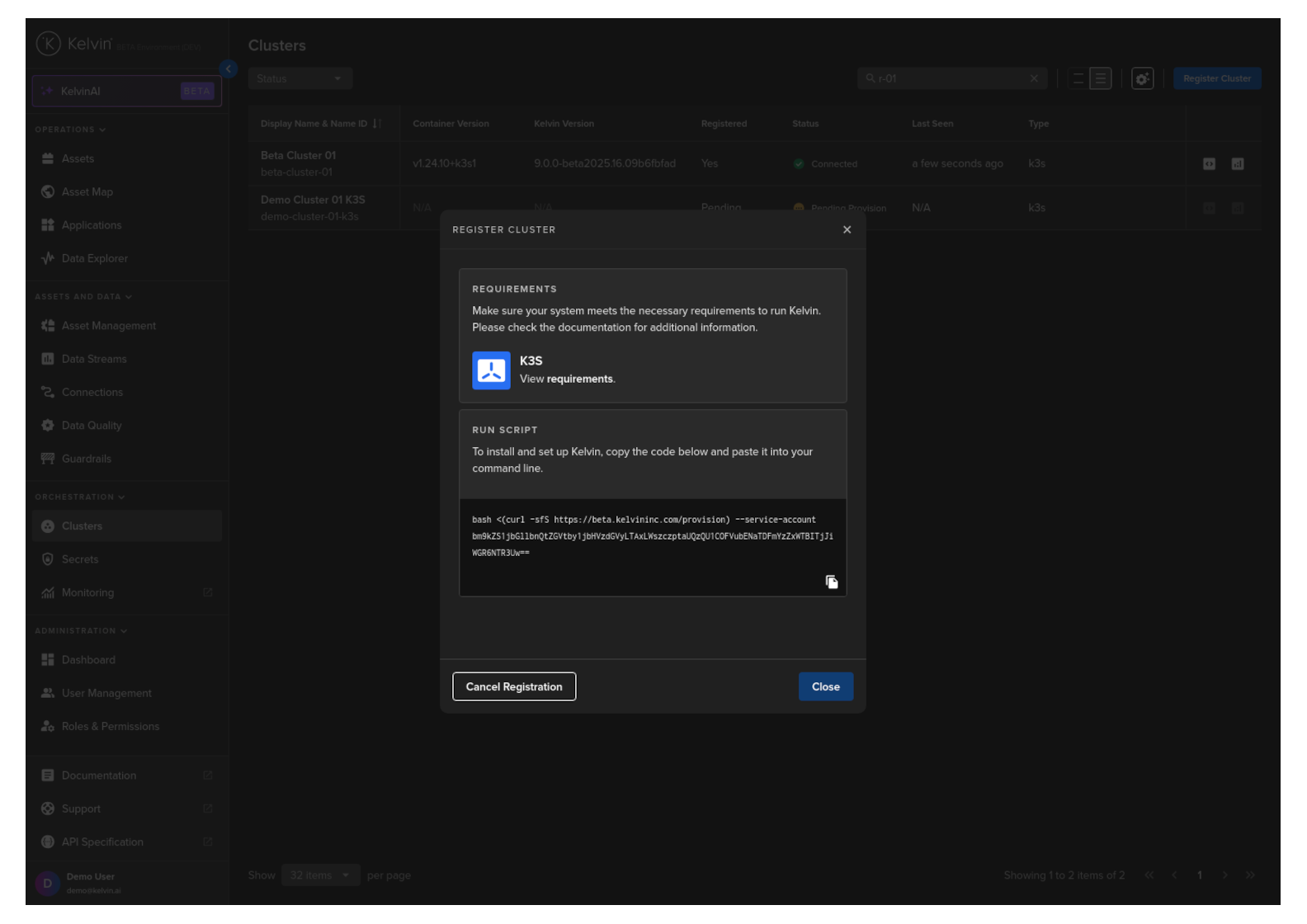
Now we go to your edge device and login to the operating system terminal.
Paste the script above into the terminal of your edge device and enter the sudo password when asked.
Note
During the setup you will need internet access for your edge device.
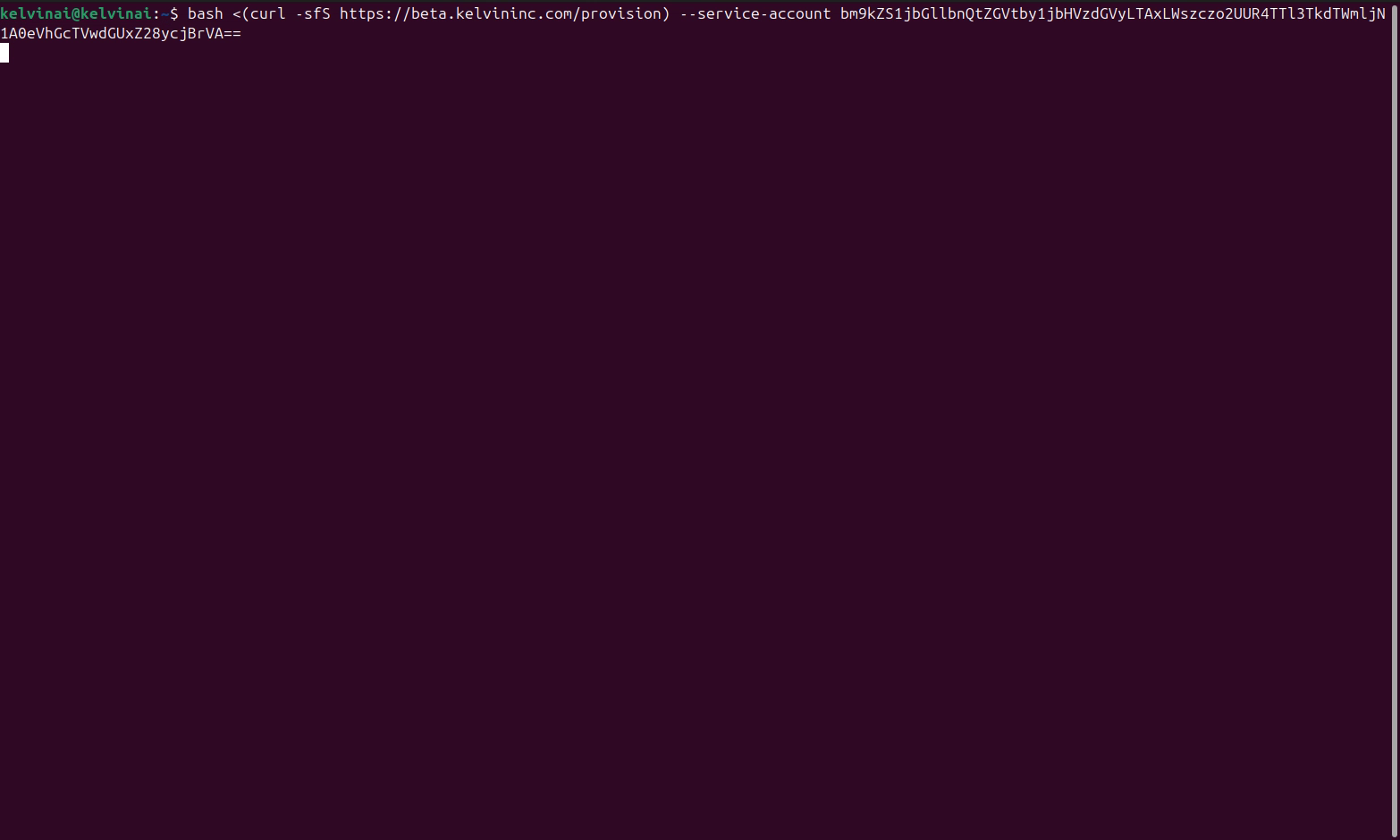
Everything is now automatic and the full script will be downloaded from the Kelvin Platform. You only need to wait for the script to finish.
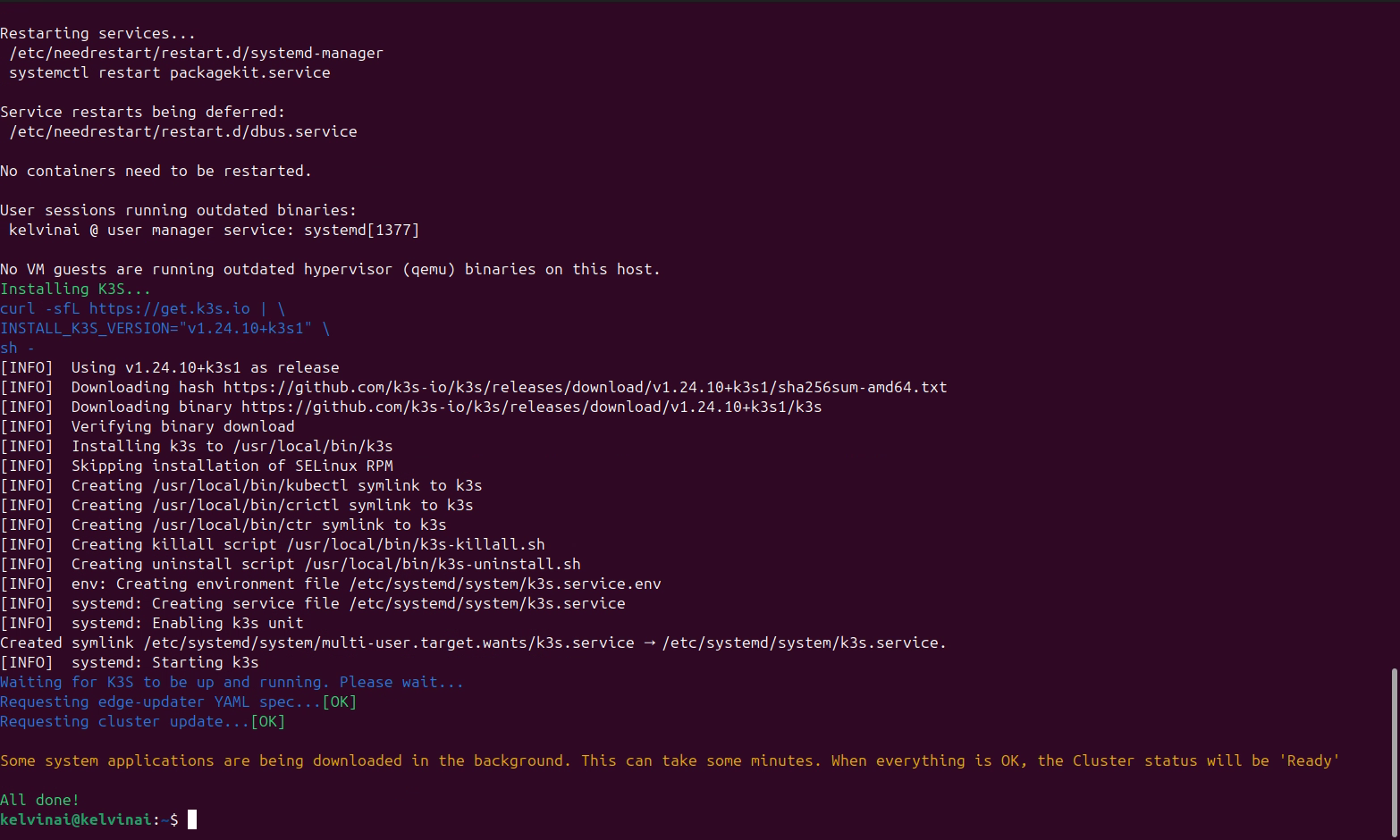
When it is finished, return to the Clusters page on the Kelvin UI.
Your cluster will start with a status of Pending and finally turn to Running when completed.
Warning
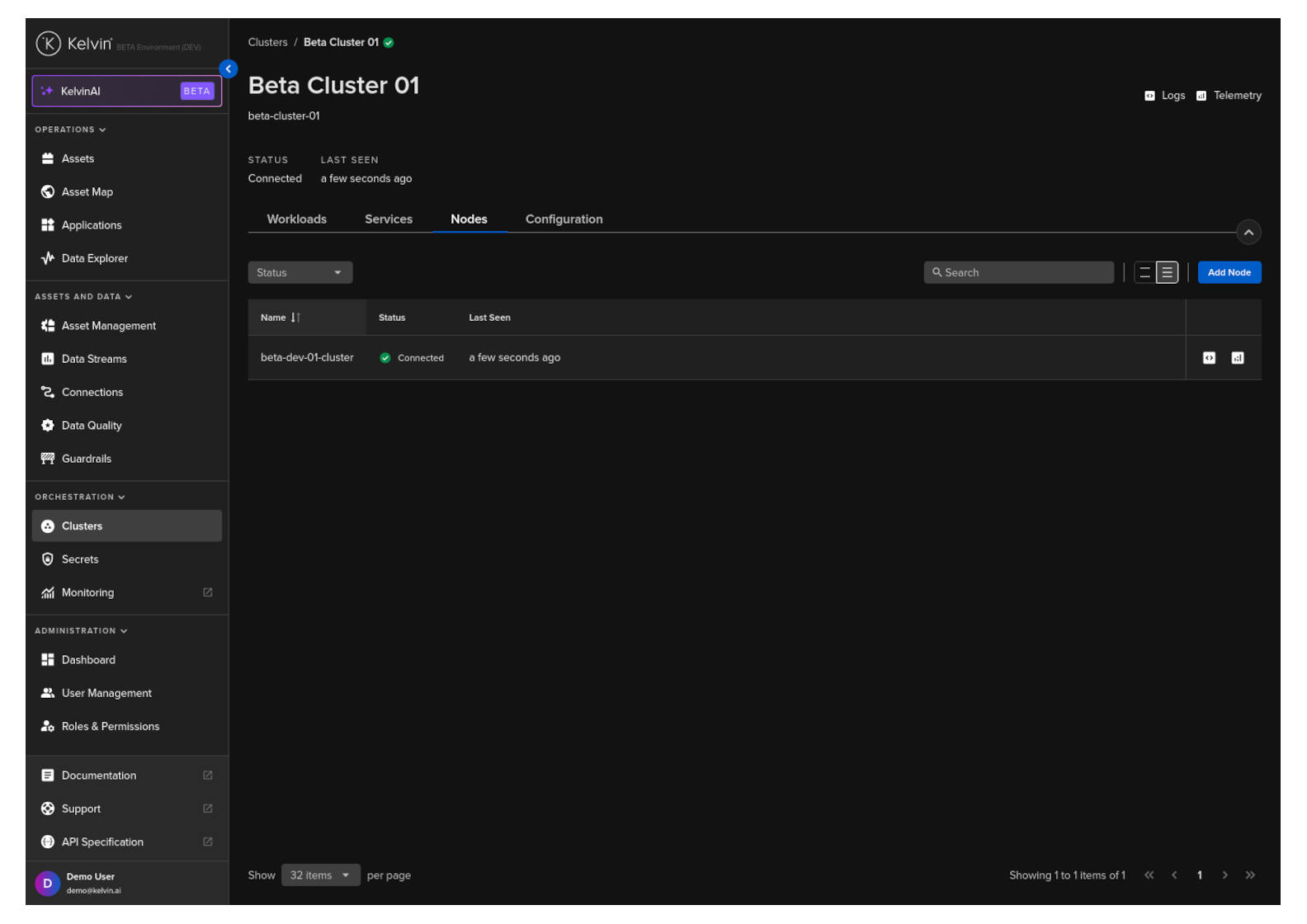
In the next two screenshots, these show you how the Cluster information will look like in the UI, though the names are not related to the Cluster we have created in this Quick Start guide.
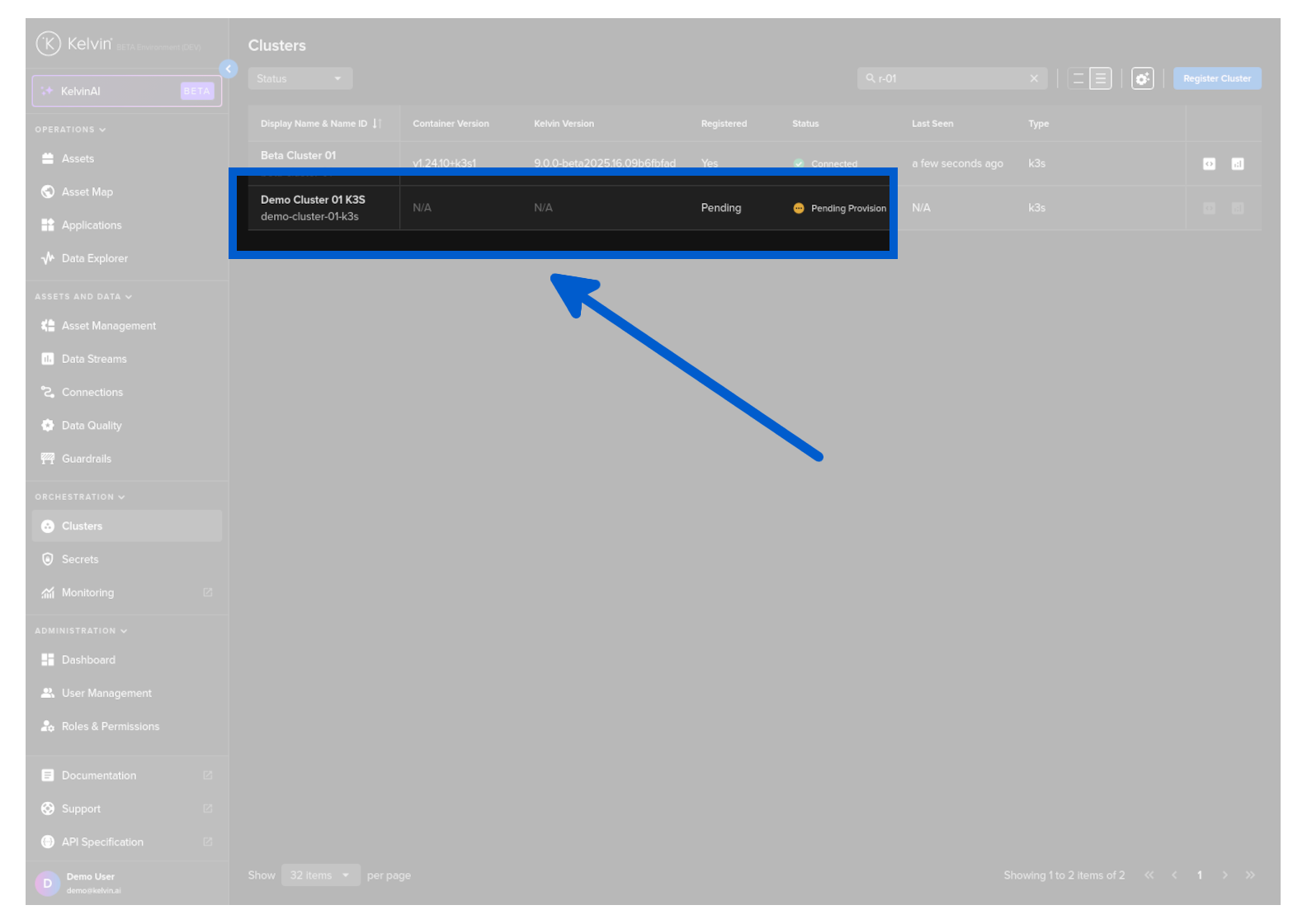
You can inspect the actual nodes of the Cluster by clicking on the Cluster name then click on the Nodes tab:
Node
From this page you can also add additional nodes to your cluster.
The process is the same where you setup your computer or virtual machine and run a command in your terminal.
Done
You have successfully provisioned a Kelvin K3s Cluster.
Next Steps
Now that your cluster is ready, you can:
- Deploy Kelvin Applications
- Deploy Docker Apps
- Connect to data sources