Provision Edge Device
This tutorial is delivered both as a video tutorial and a written tutorial for you to choose which medium suits you.
A tutorial example to show how quickly you can setup a Kubernetes cluster at the edge with zero Kubernetes experience.
This demonstration video was done in v5.9.
There may be slight differences with the latest version.
Check the latest documentation for the specific tasks should any feature not quite work as expected.
Kelvin Platform is built on clusters operating at the edge, forming the backbone of the infrastructure that powers Kelvin's IT OT solutions for industry. Managing clusters with Kelvin is straightforward and highly efficient.
If you're an advanced user, you can choose to have full control to manage your own clusters.
But if you'd prefer to focus elsewhere, Kelvin offers seamless, transparent cluster management for you.
It takes only two simple steps;
- Register cluster in the Kelvin UI.
- Install the cluster software on the Edge Computer.
In this tutorial, we'll walk you through how Kelvin can seamlessly set up and manage your clusters at the edge, so you can focus on your core tasks without worrying about the technical details.
Before starting, ensure you have the following all ready;
- A dedicated computer or virtual machine at the edge with a Linux environment installed (We recommend using the latest LTS version of Ubuntu Server)
- Optionally for convenience we recommend setting up SSH access to the edge device.
Watch this tutorial performed in real time in less than 3 minutes.
Let's dive in and show you how fast and easy the setup can be by first logging into the Kelvin Platform and going step by through the process.
1. Register Cluster in the Cloud
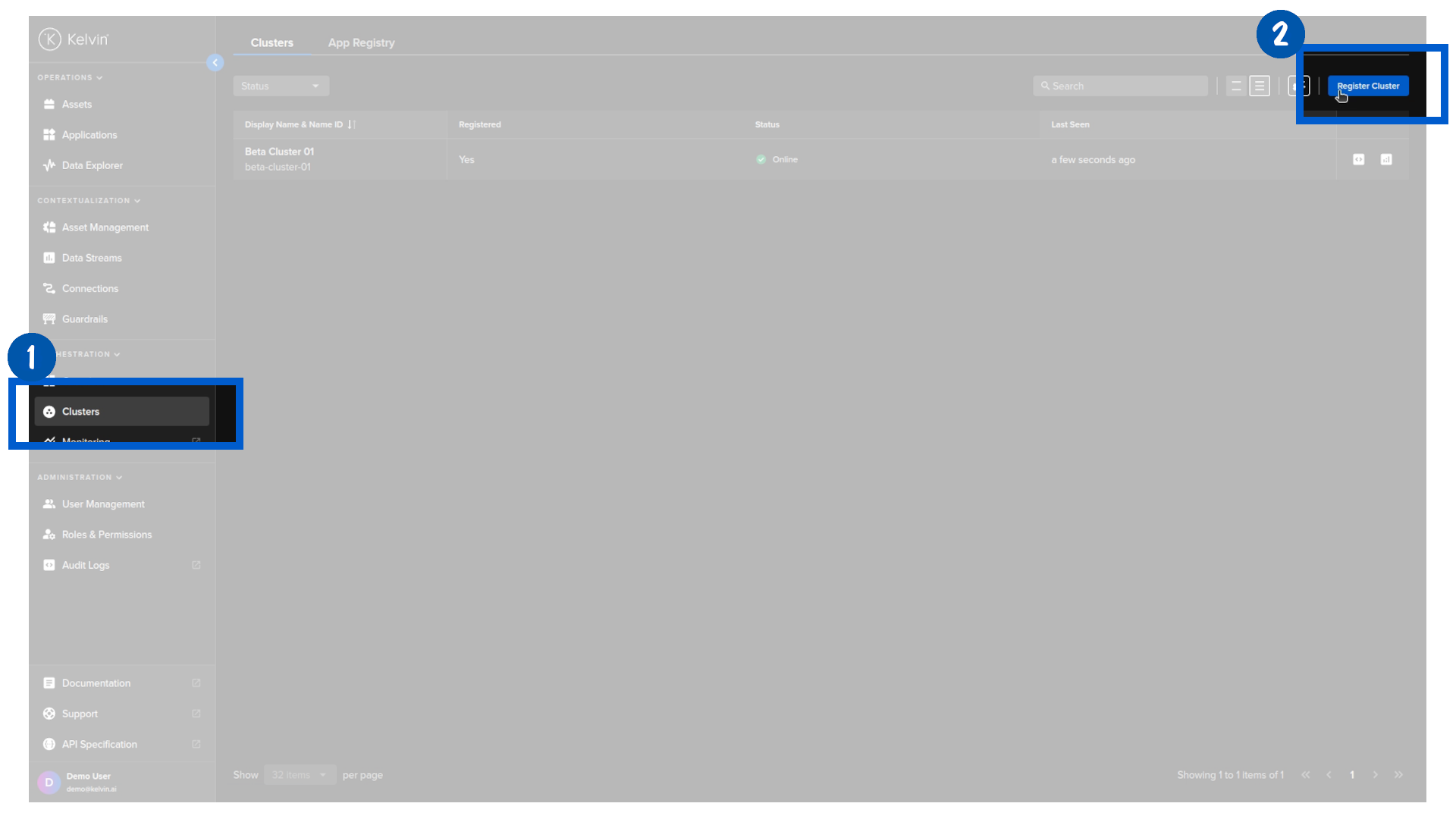
In the Kelvin UI, first head over to the Clusters section under orchestration and click on the register cluster button.
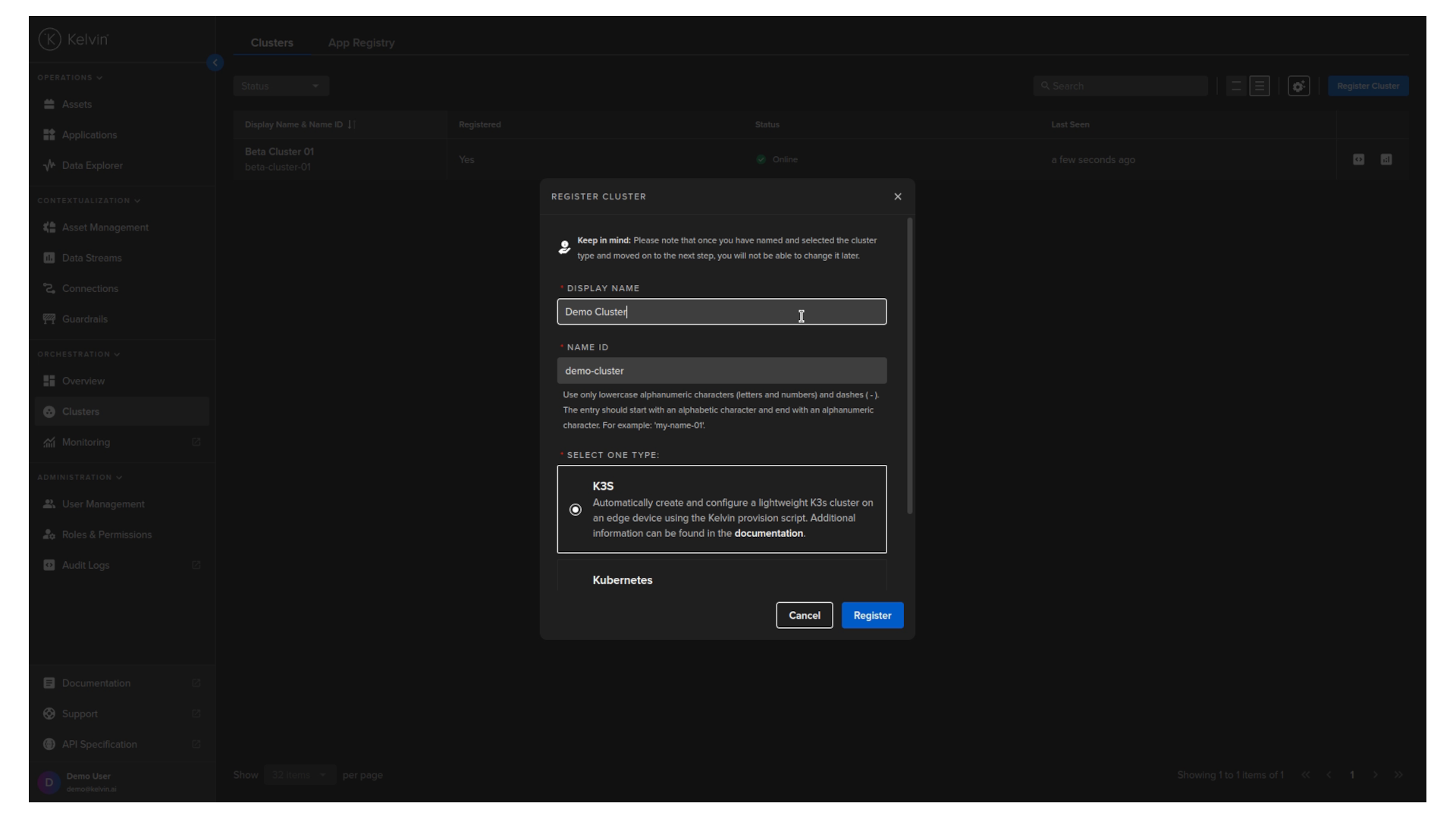
In the popup, assign the new cluster a recognizable display name. The name id will be automatically created from your display name. It can usually be left unchanged.
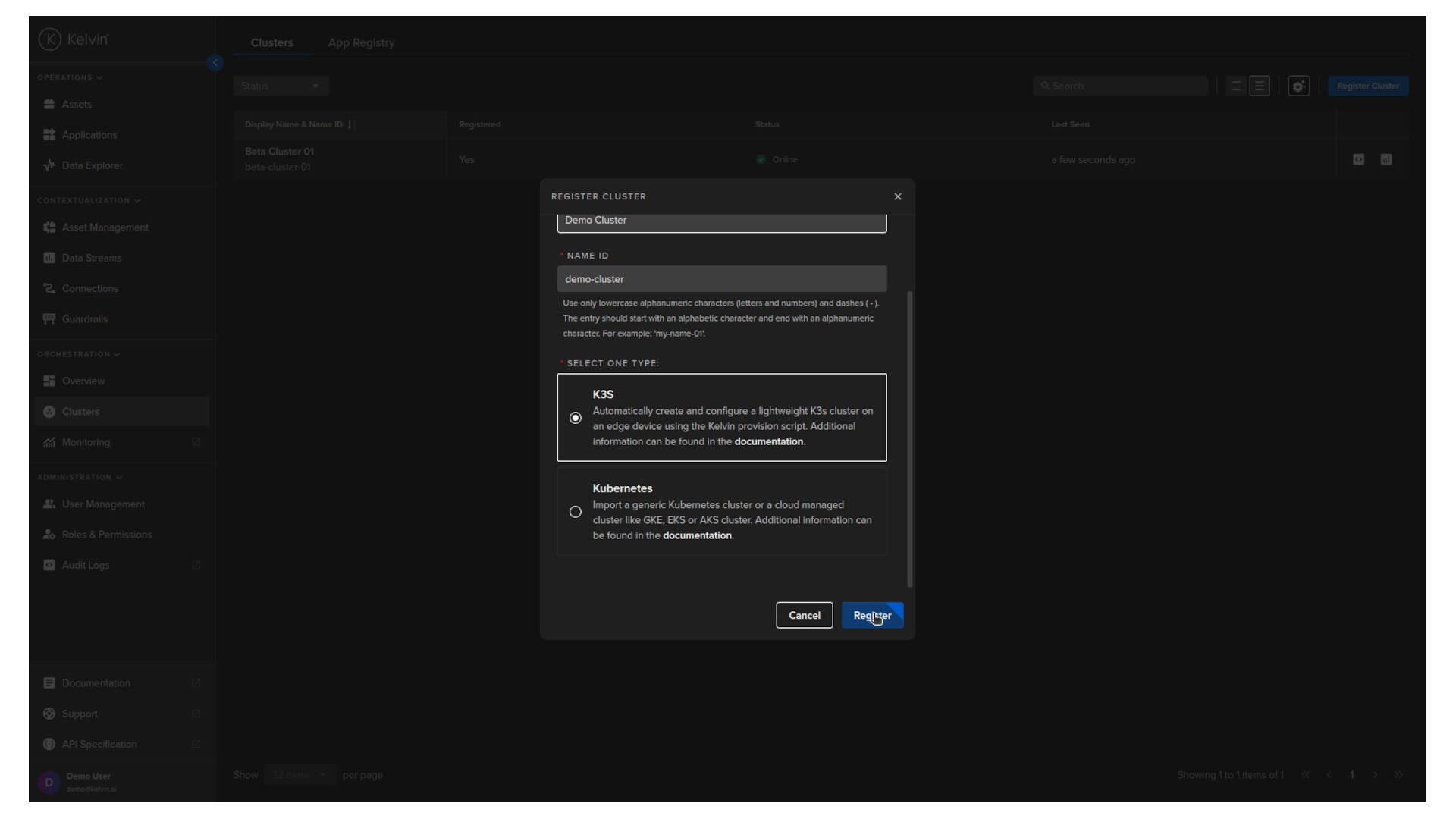
As you scroll down, you'll see two cluster options to choose from.
Advanced users can select the kubernetes option if you want to use your own cluster setup. This can also be used on clusters that already are in operation.
For this tutorial we will select the K3S option. With this option, no cluster knowledge is required as Kelvin will handle the installation and ongoing maintenance transparently.
Click Register.
You will then be provided with a script that needs to be executed on the edge system.
If you are using SSH to manage the edge system remotely, copy this script to your clipboard.
If you're accessing the edge system directly, note down the script.
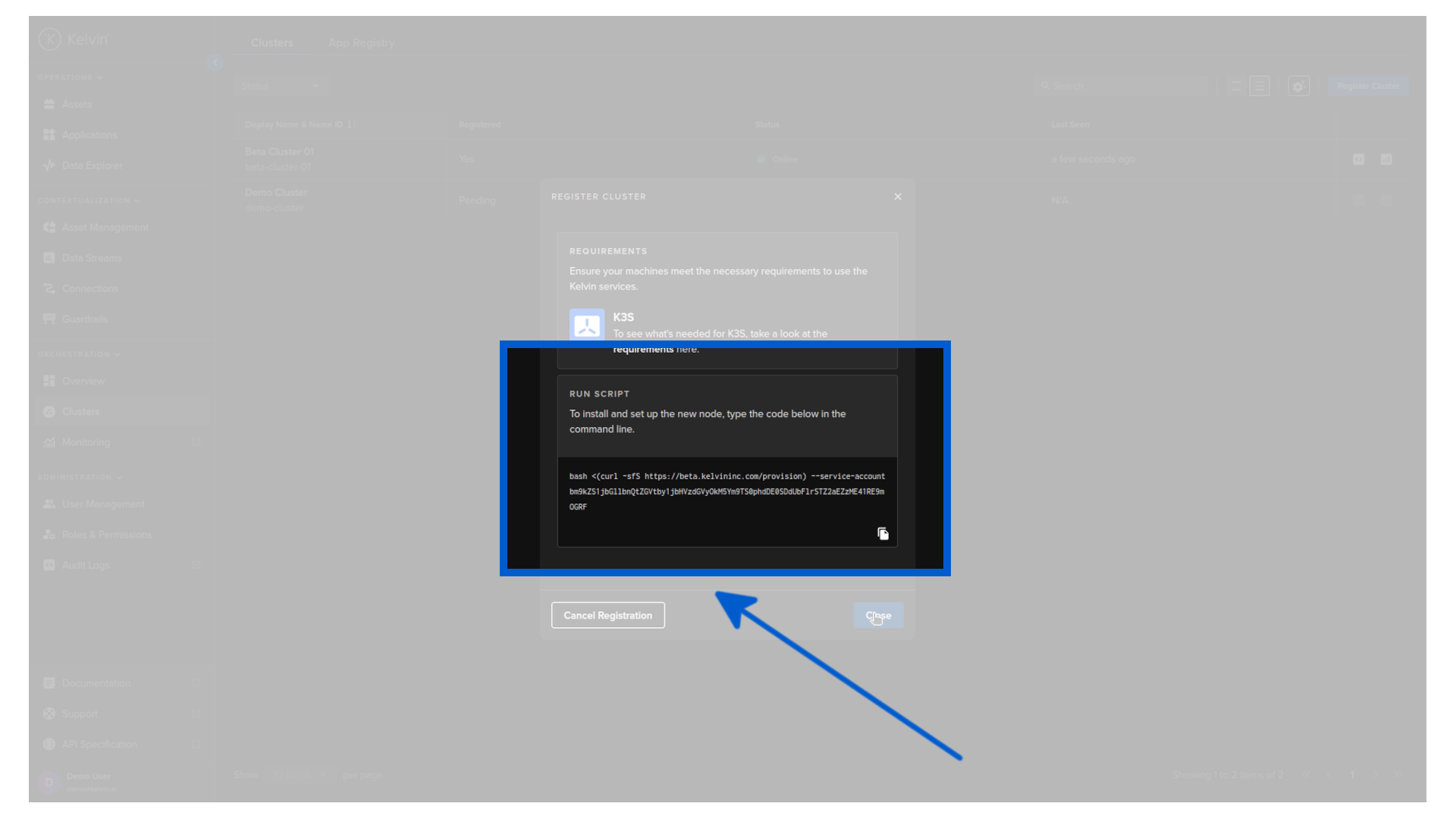
Next click the close button. The cluster is now registered in the Cloud and you can see it is pending registration.
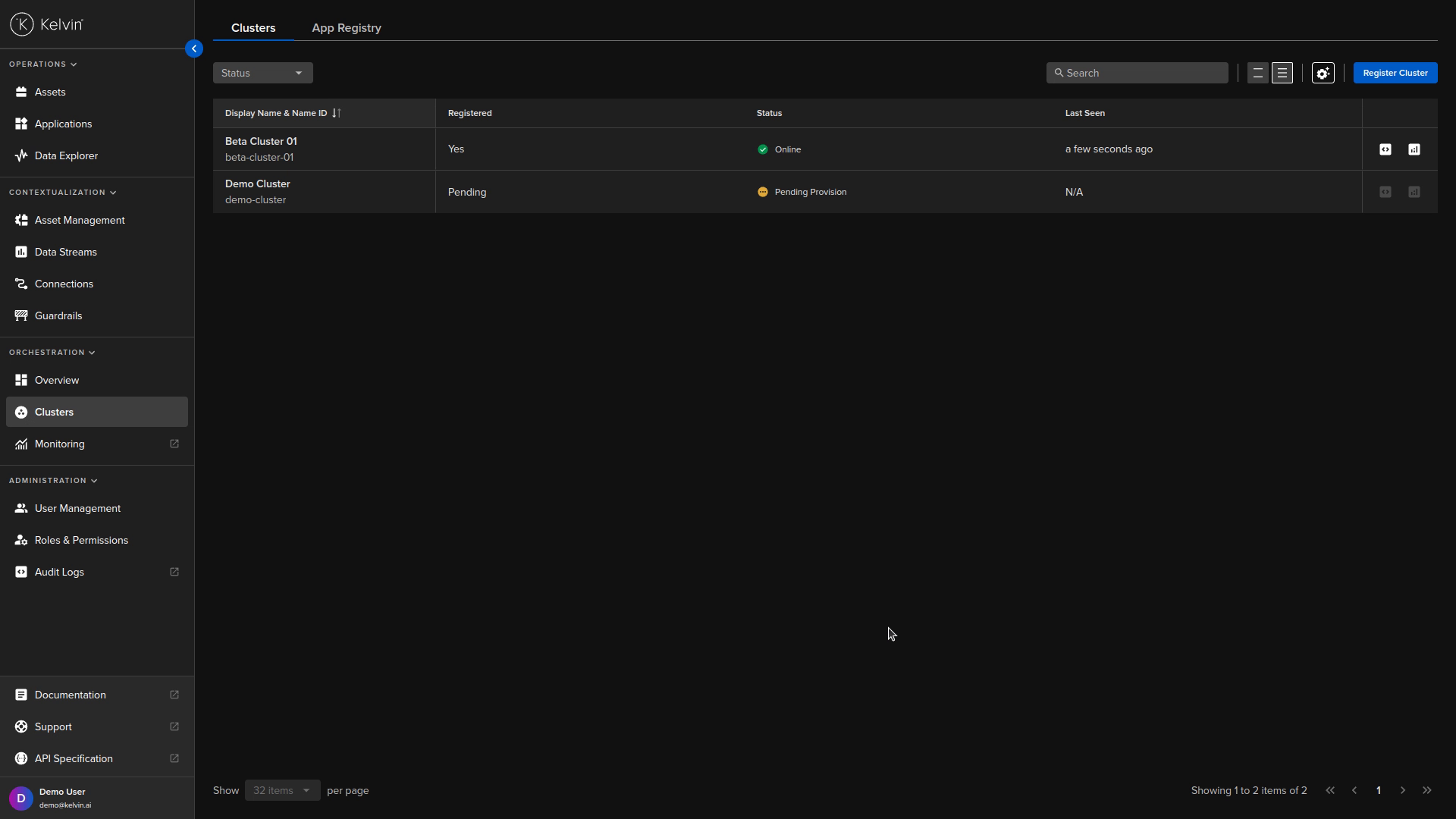
2. Install Cluster on the Edge System
In the terminal of the edge system, you can enter the script provided earlier.
Since we have SSH'd into the edge system we can simply paste the script from the clipboard.
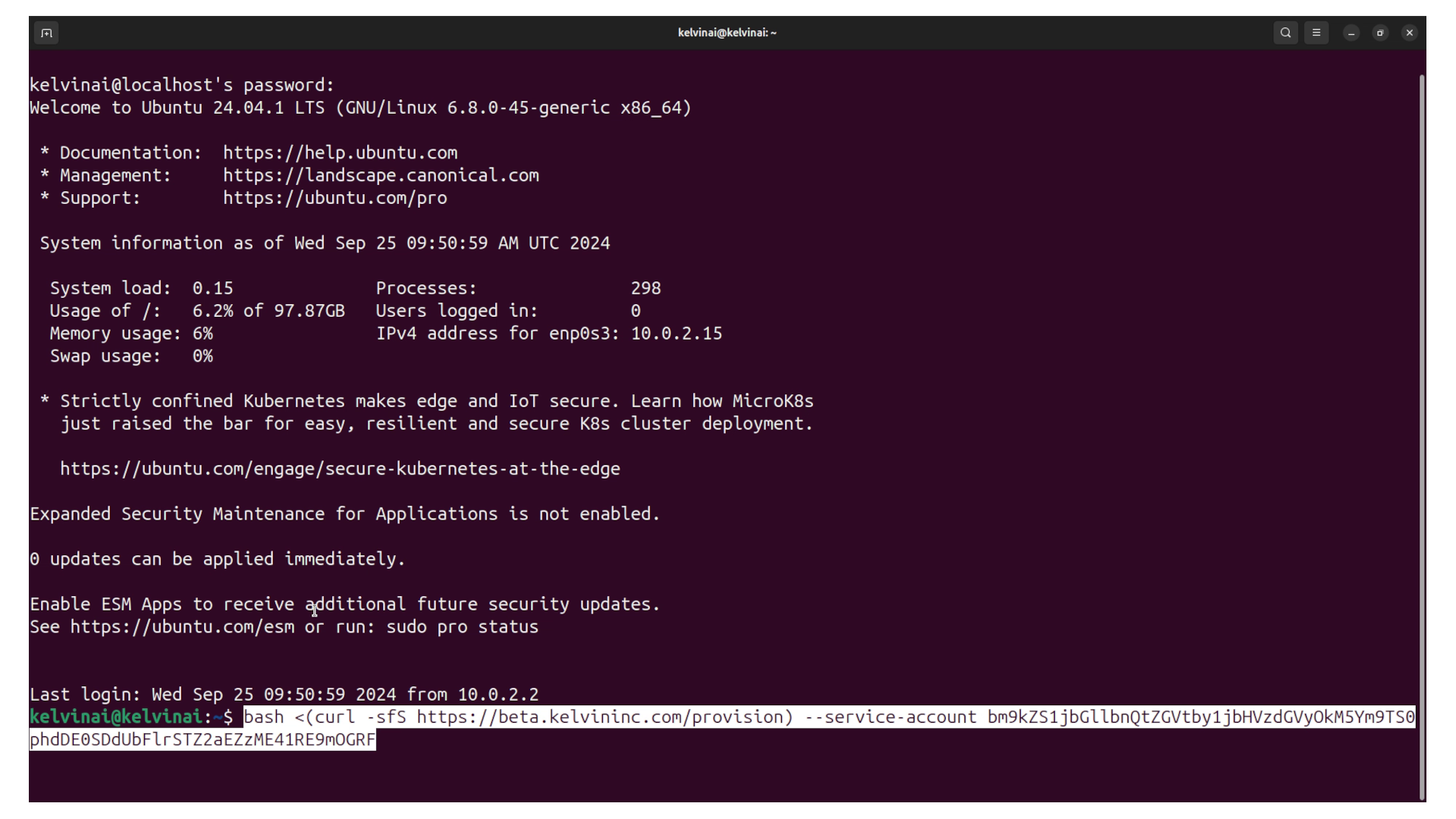
Next, enter the edge computer's password to gain sudo rights. Note that this is not your Kelvin Platform password.
The rest of the process, including installing the cluster and connecting it to the Kelvin platform, is fully automated. Sit back and enjoy a cup of coffee. It should only take about a minute, so we'll skip ahead.
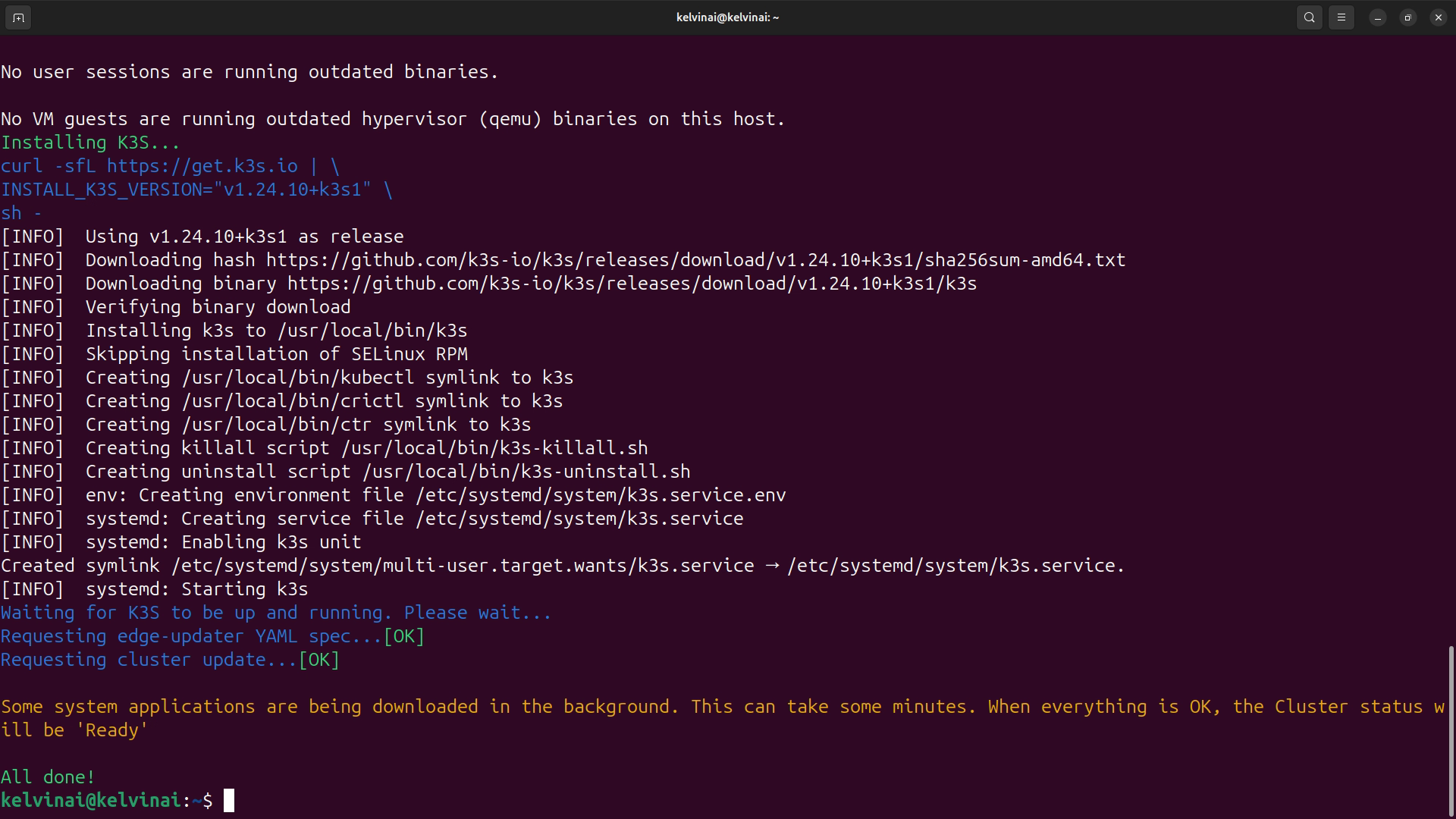
Once completed, you can go back to the Kelvin UI and see the cluster is up and running.
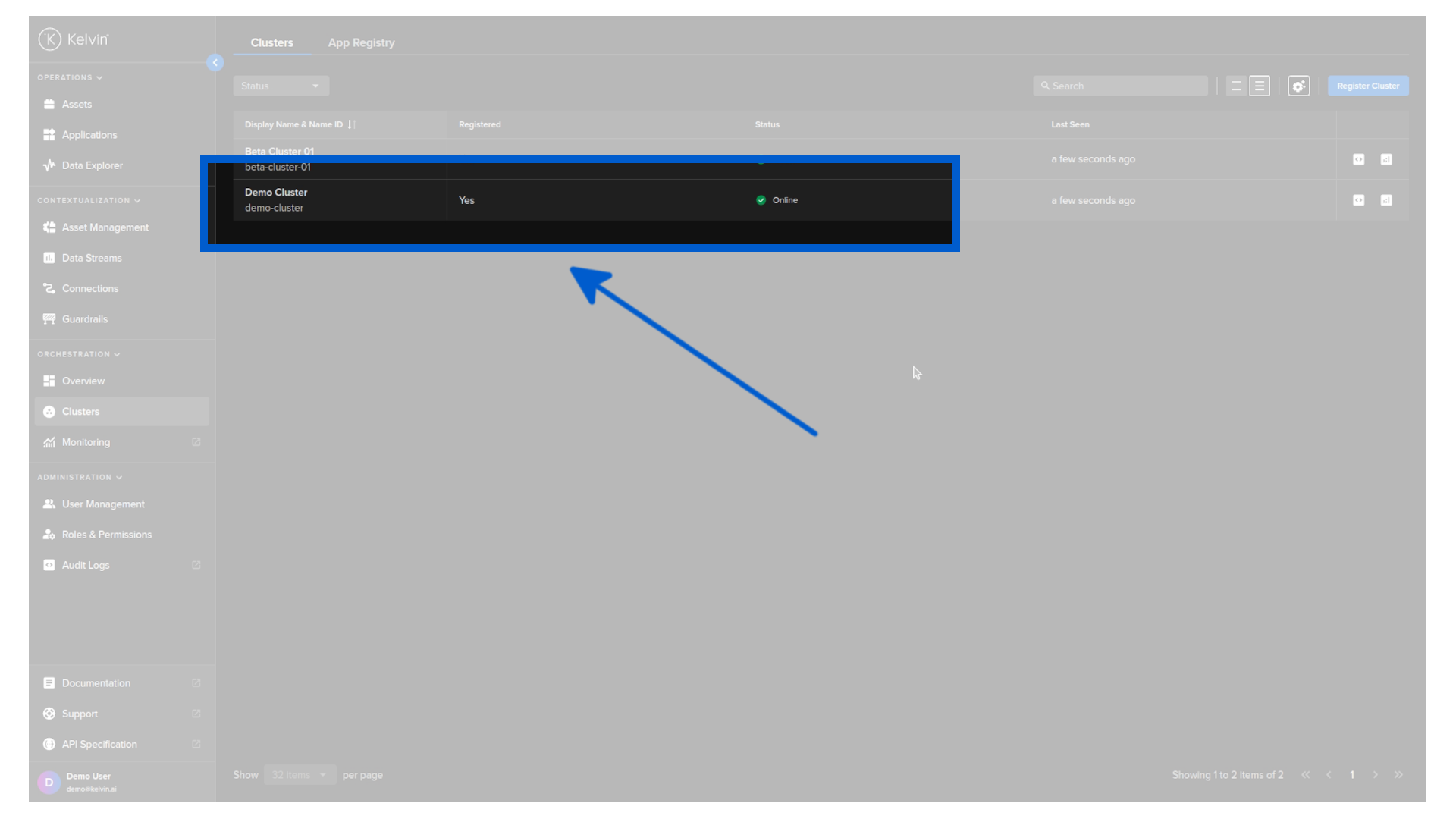
Congratulations, you have setup your first edge cluster. Now, let's stop the clock.
If you have followed this in the video tutorial you will see have created a cluster in this tutorial with two simple steps in under three minutes.