Applications Monitoring
On this page you will learn about the concept and important features of Applications for Operations Engineers .
Dashboard
When you go to Applications dashboard page you will see all the Applications stored in the App Registry.
For any application that have been deployed as Applications, you will see the status, how many Assets that have been deployed and the total number running status and its last update.
Groups
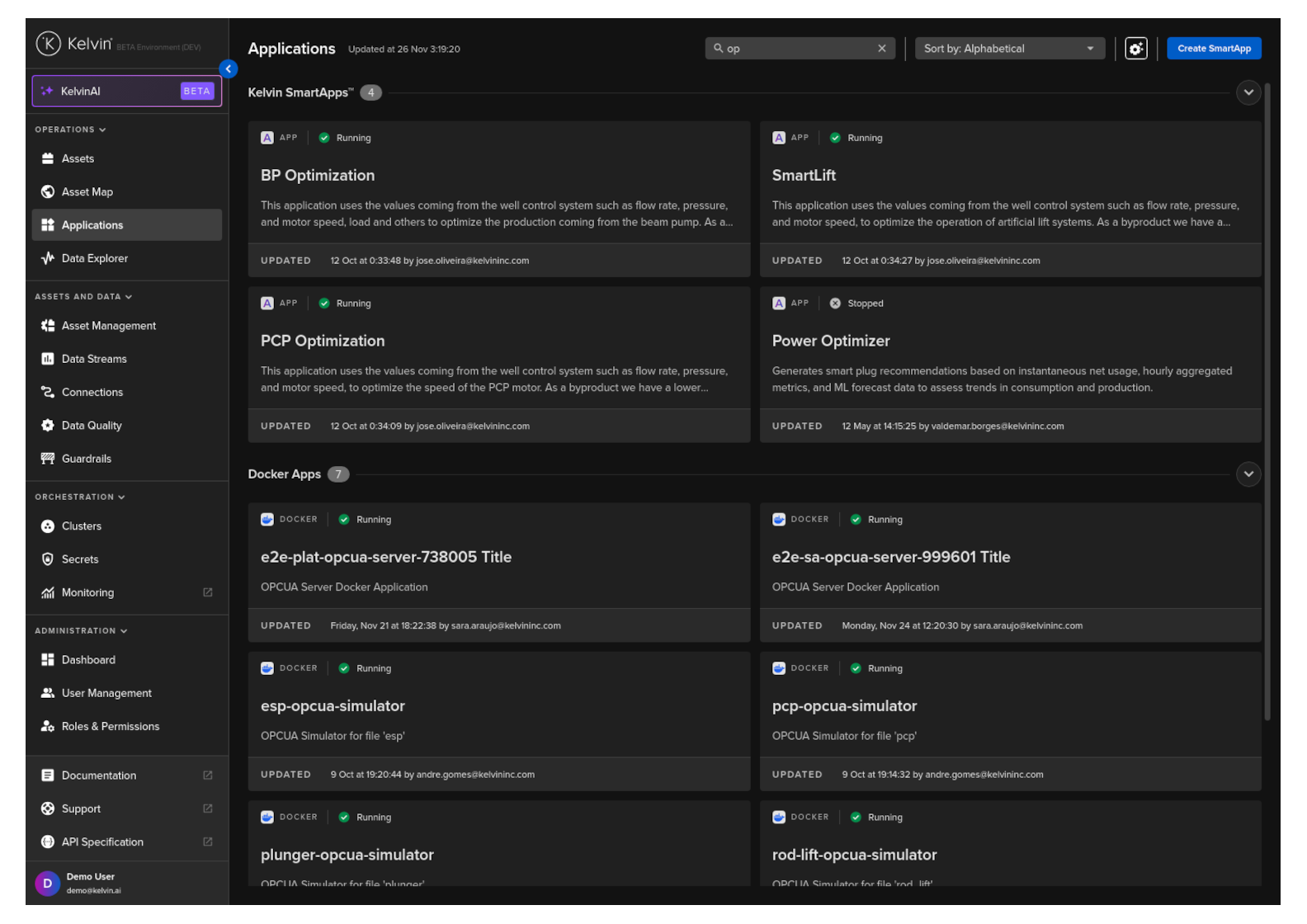
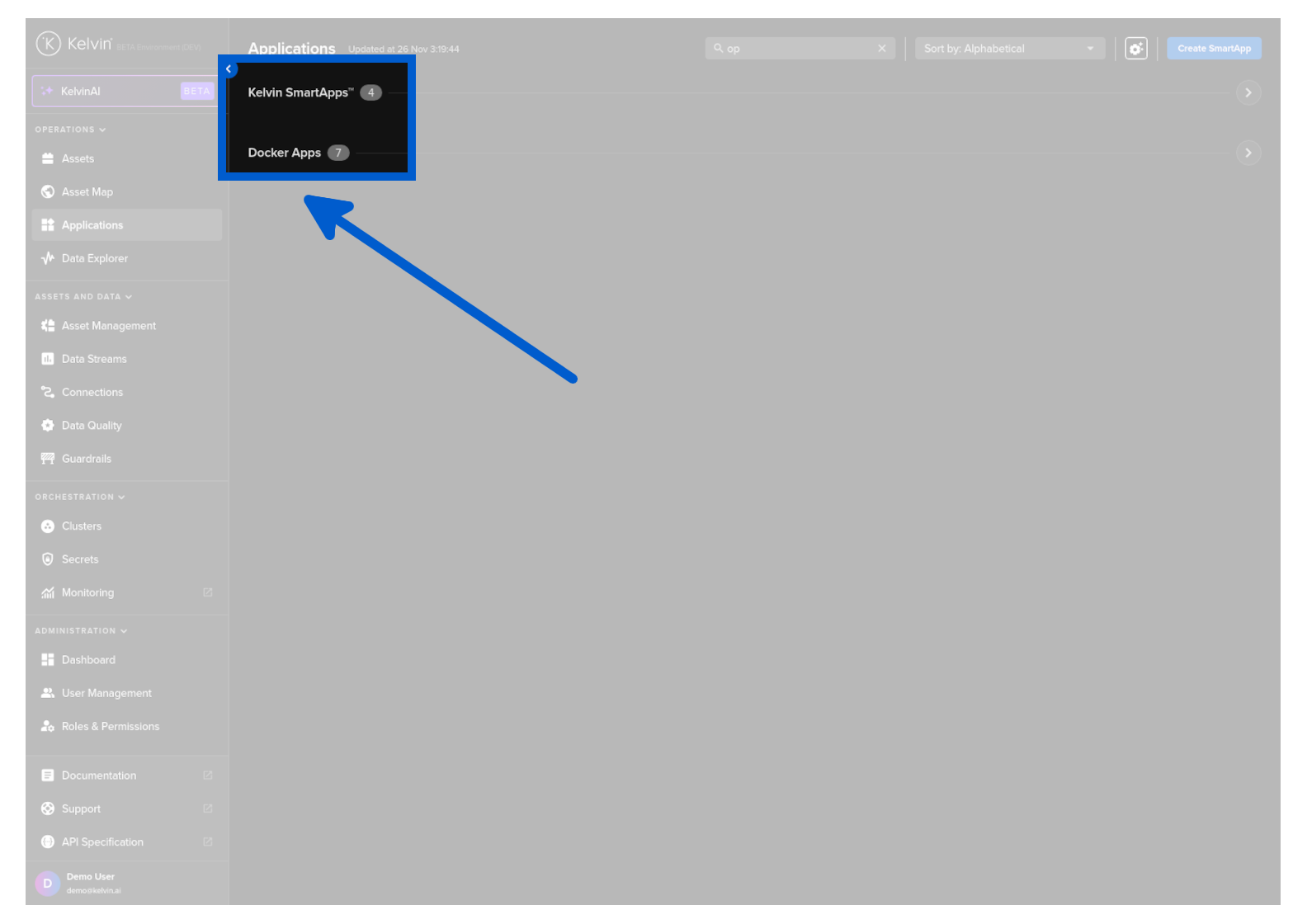
Initially Applications are conveniently grouped into the type of Application. You can also add custom groups and move Applications into your custom groups.
Default Groups
Currently there are two fixed types available;
- Docker Apps : These are applications that the Developers have designed using any development architecture outside of the Kelvin Platform. Without the tight integration to Kelvin, these have limited UI features.
- Kelvin SmartApps™ : These are applications designed with the Kelvin development tools and are referred to as Applications. There are a host of features and options available within the Kelvin UI.
Manage Groups
You can manage the groups and define where you want to show each application.
Note
If you do not assign an Application to a group, it will be shown in the default location defined by its type.
The type is set by the Developer.
To manage your groups, click on the settings icon in the top right corner.
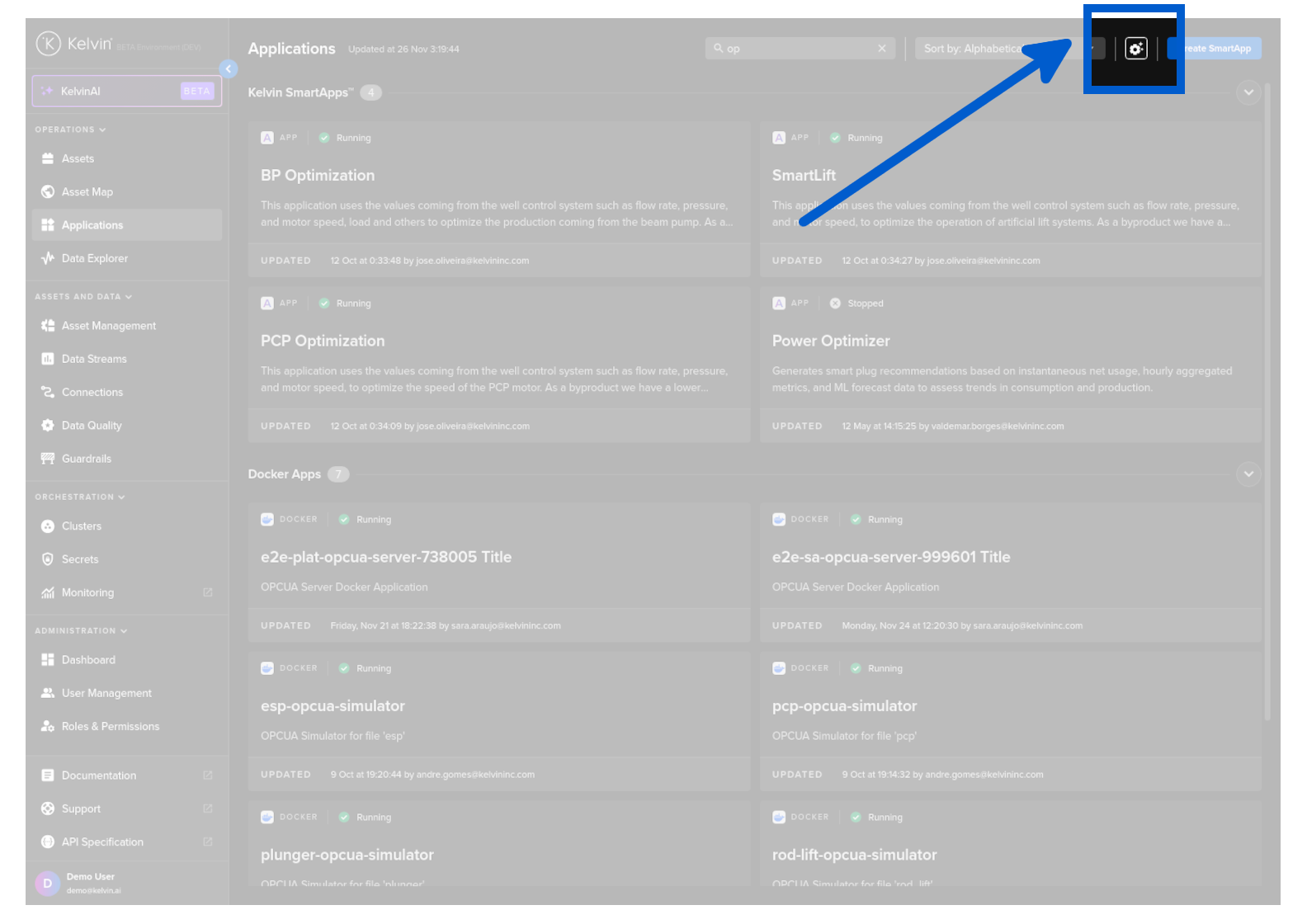
You will then see your group management window.
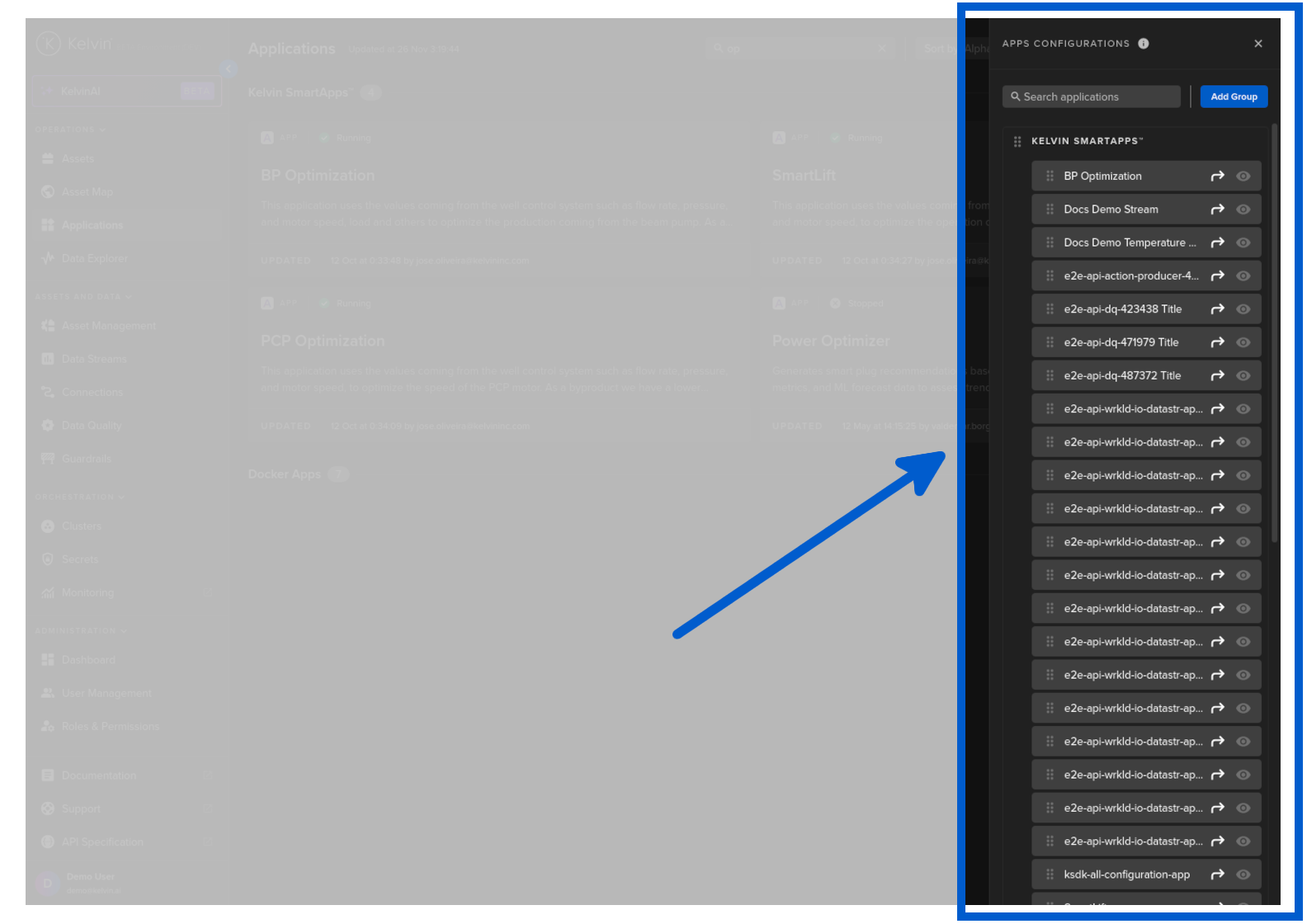
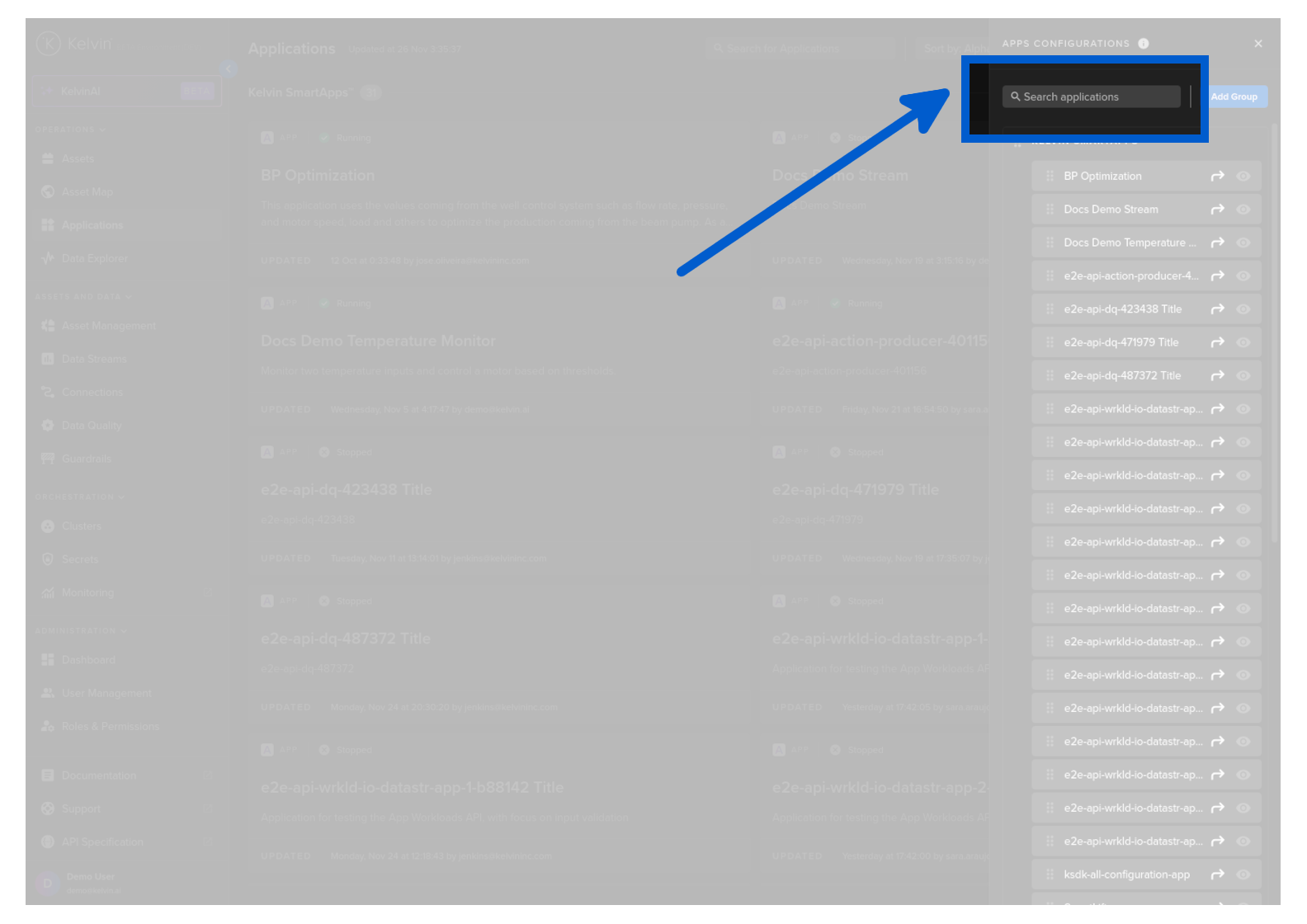
You can filter the Applications that are shown on the list in this group management section.
Note
This does not change how the applications are displayed in the Dashboard itself.
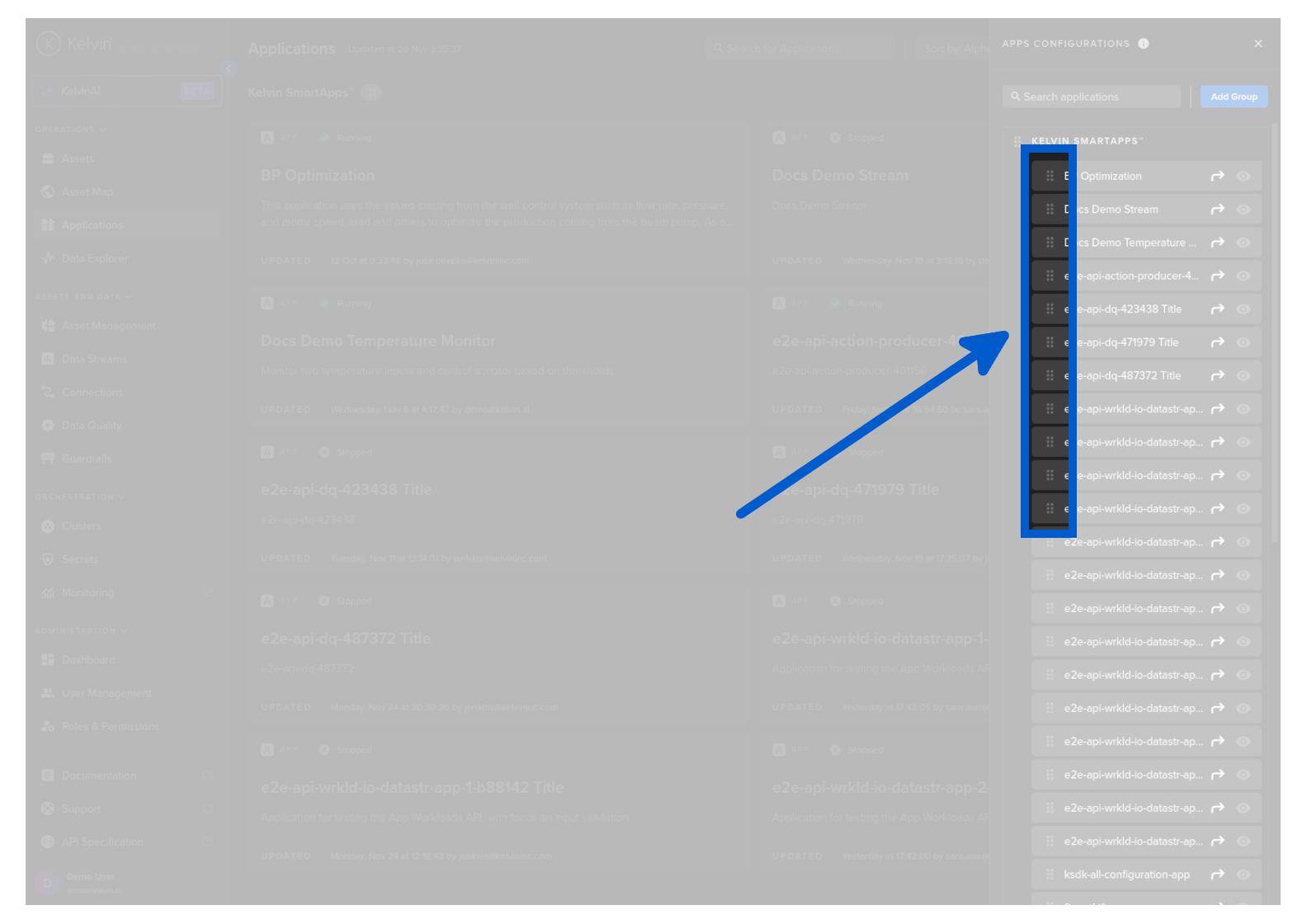
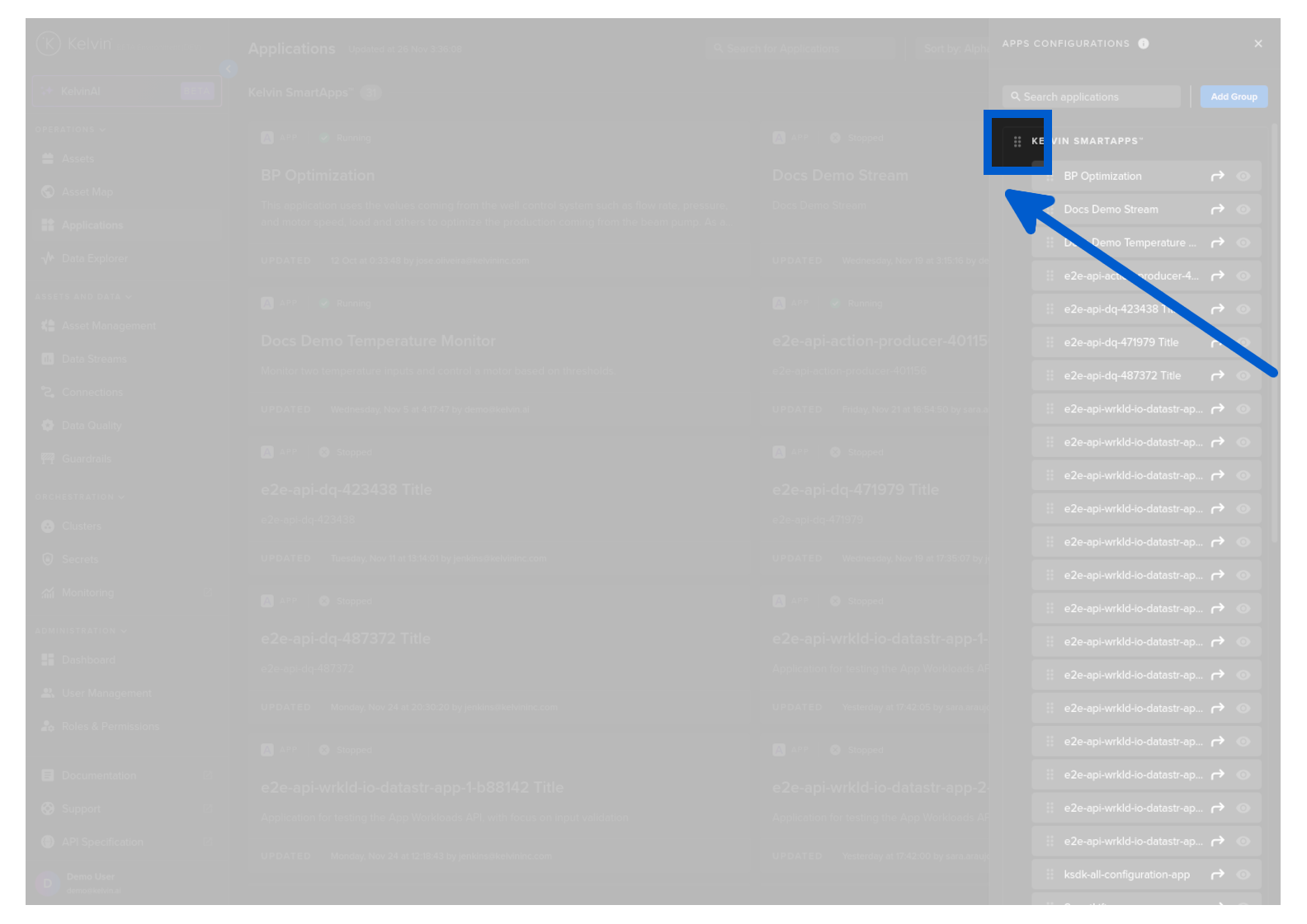
You can drag and drop an Application to reorganize the order of the Applications.
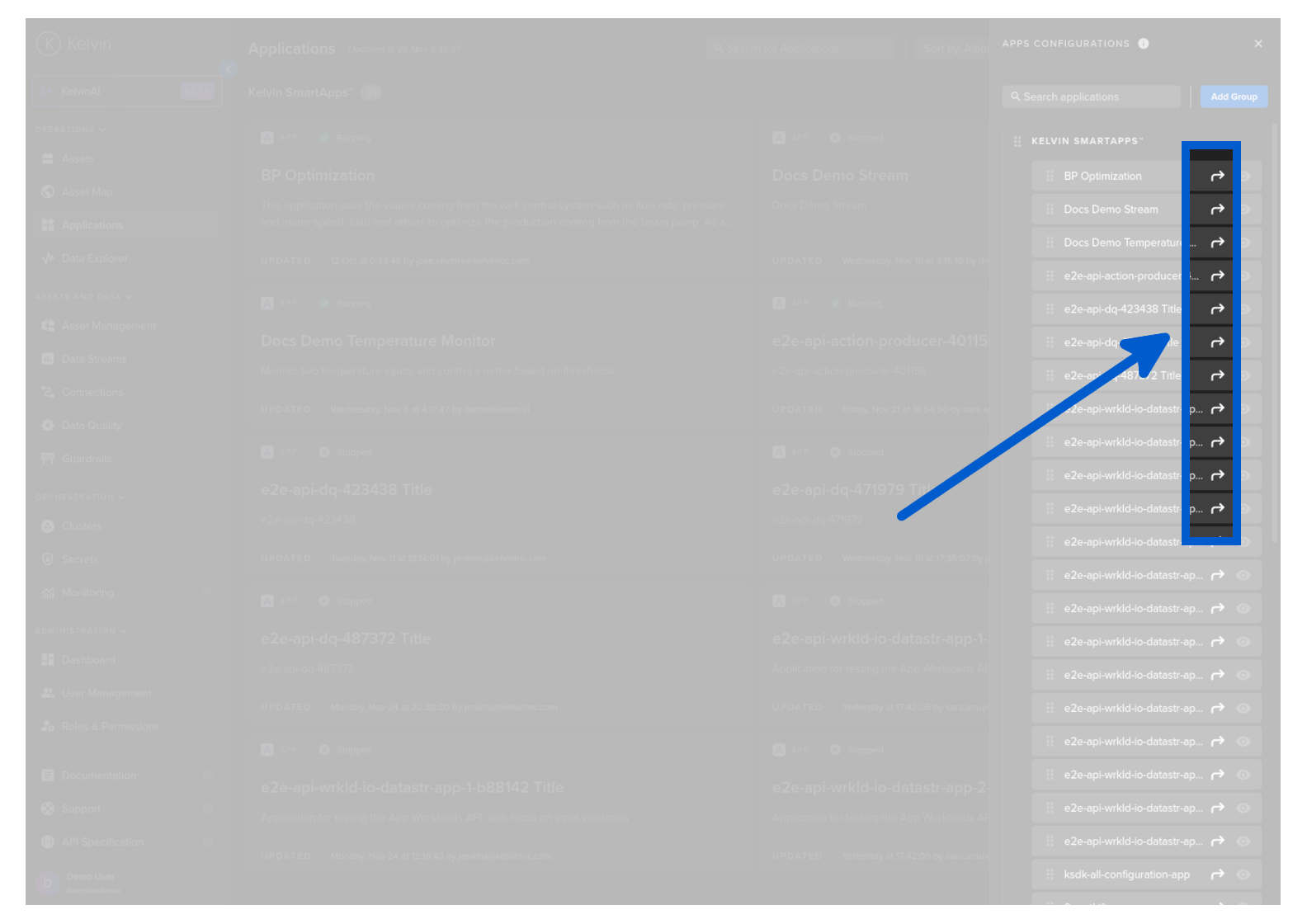
Or use the move icon.
You can drag and drop a group to reorder how the Groups are shown on the Dashboard.
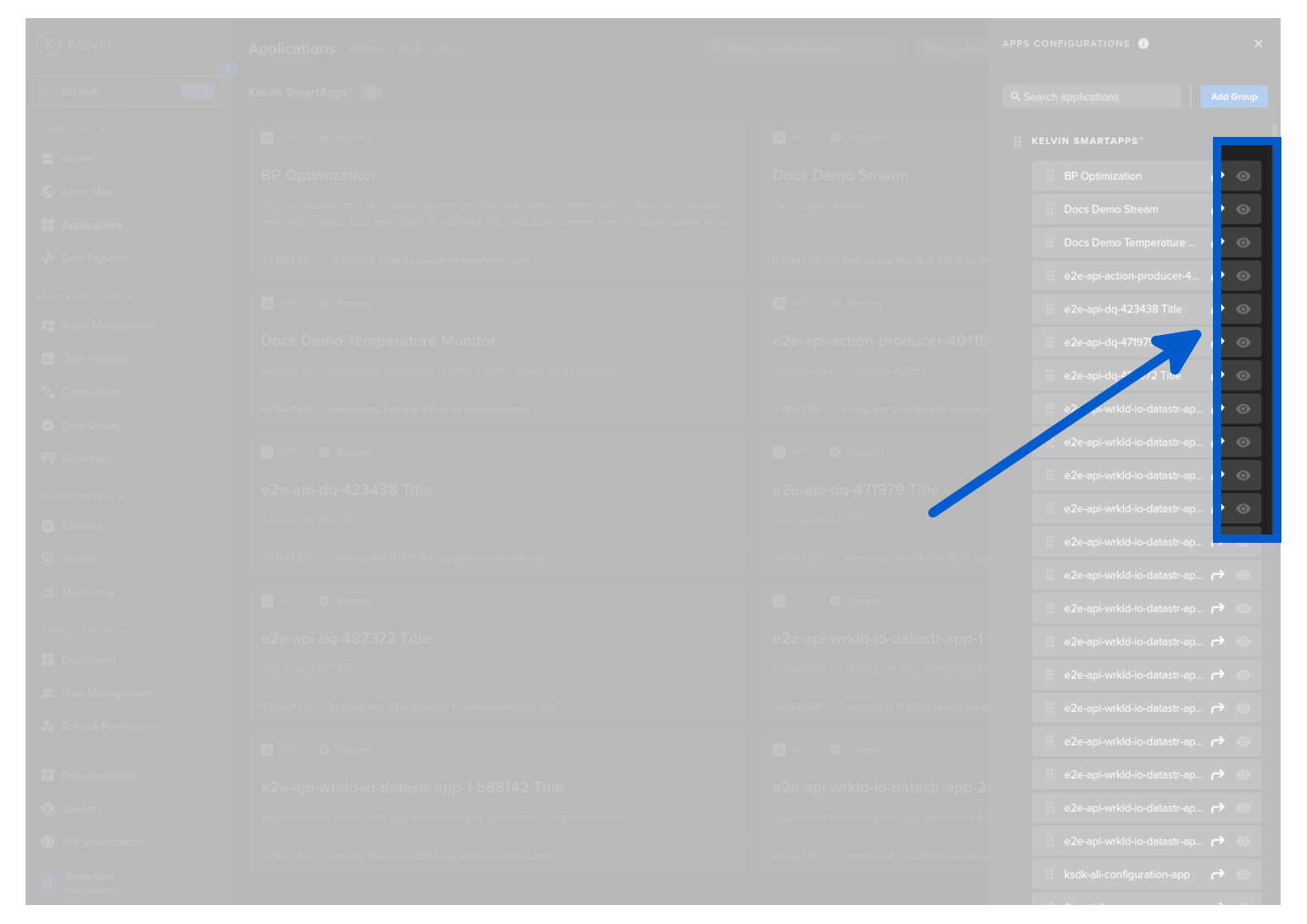
You can hide an application so that it is not shown in the Dashboard.
Add Custom Group
The default groups are mandatory and can not be removed.
Note
If there are no Applications listed in a default group or all Applications are hidden, then the Group will not be shown in the Dashboard.
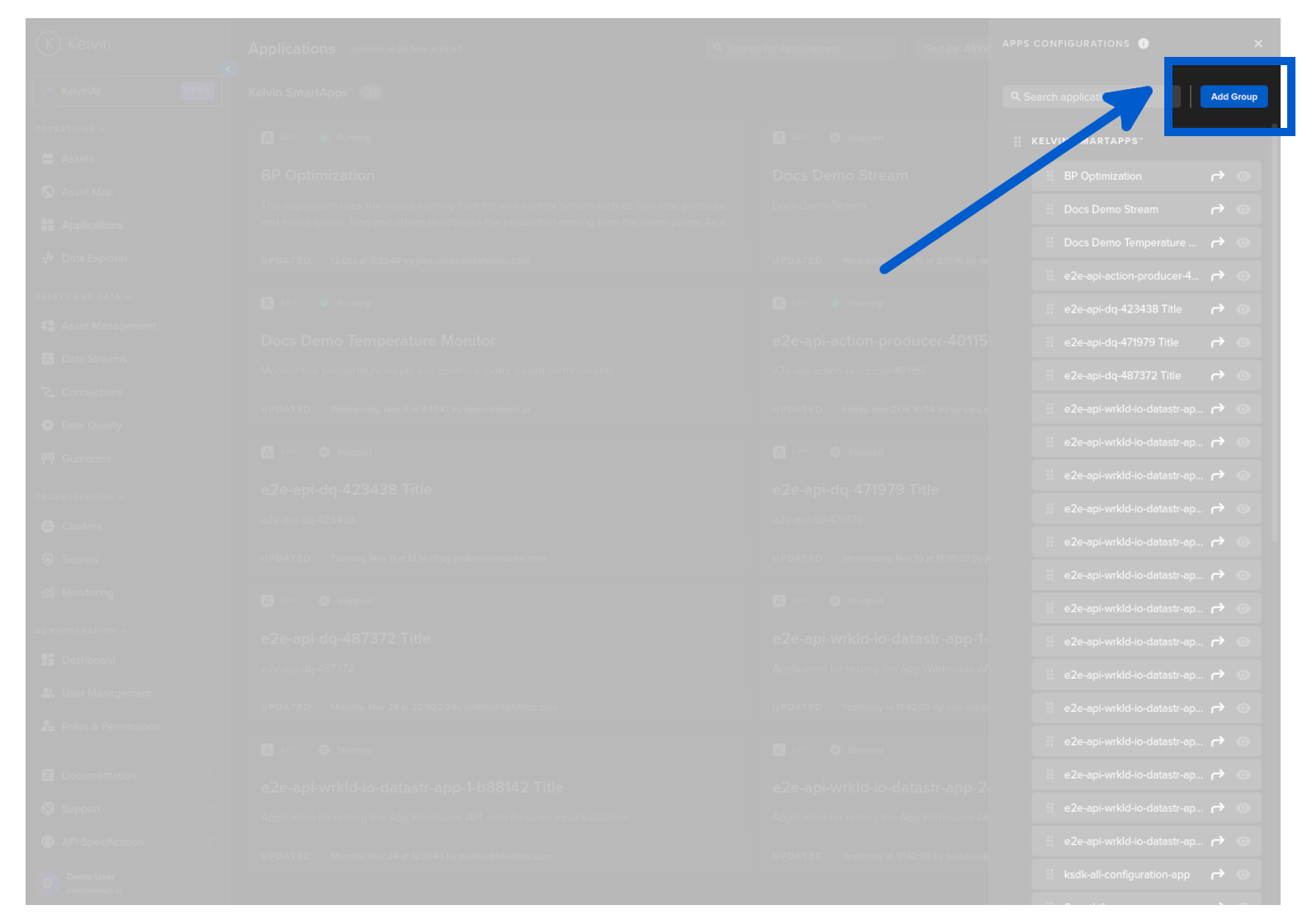
You can also add a new custom groups.
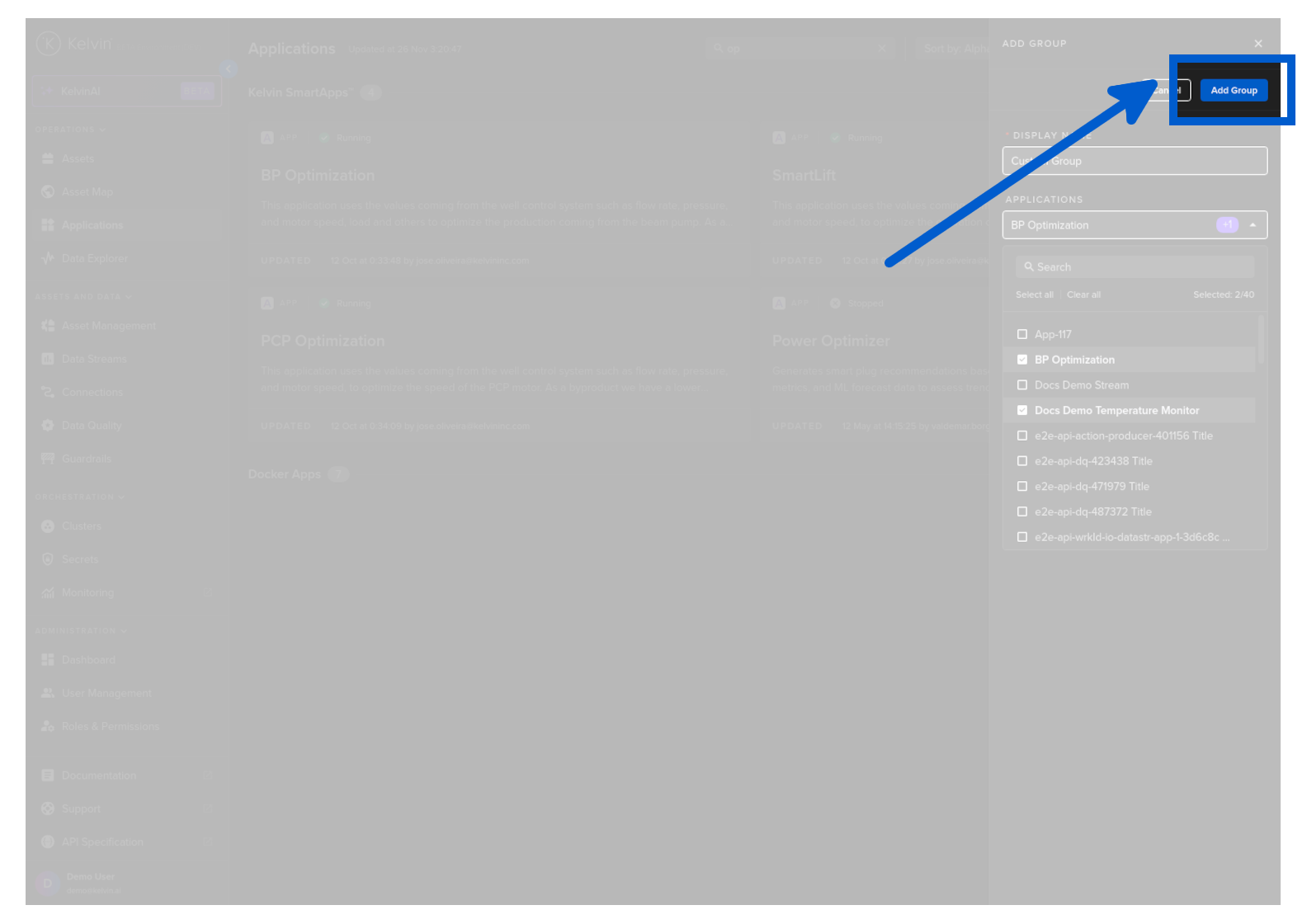
Simply click on the Add Group button.
A sidebar will open up.
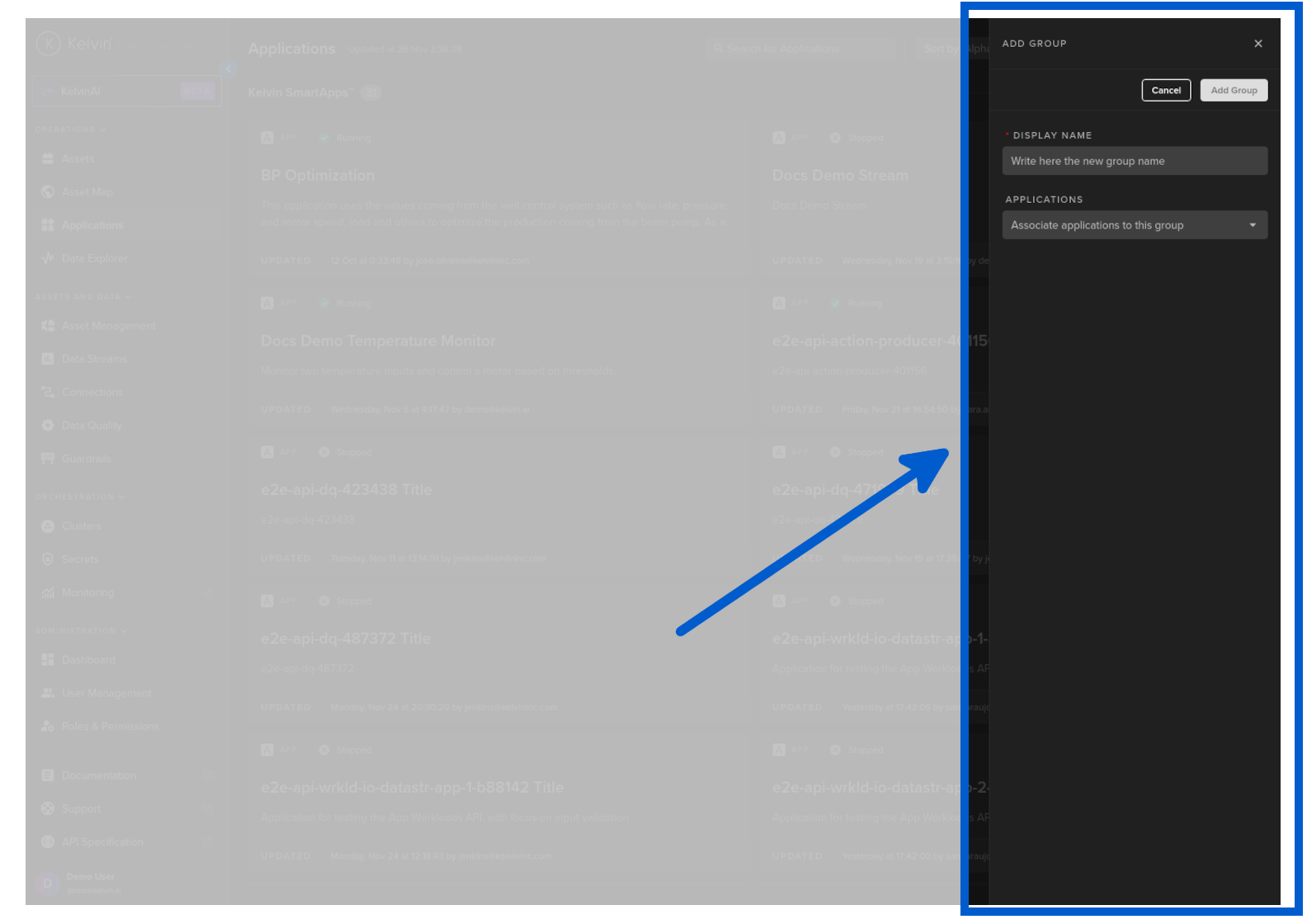
You can also immediately populate it with your wanted Applications.
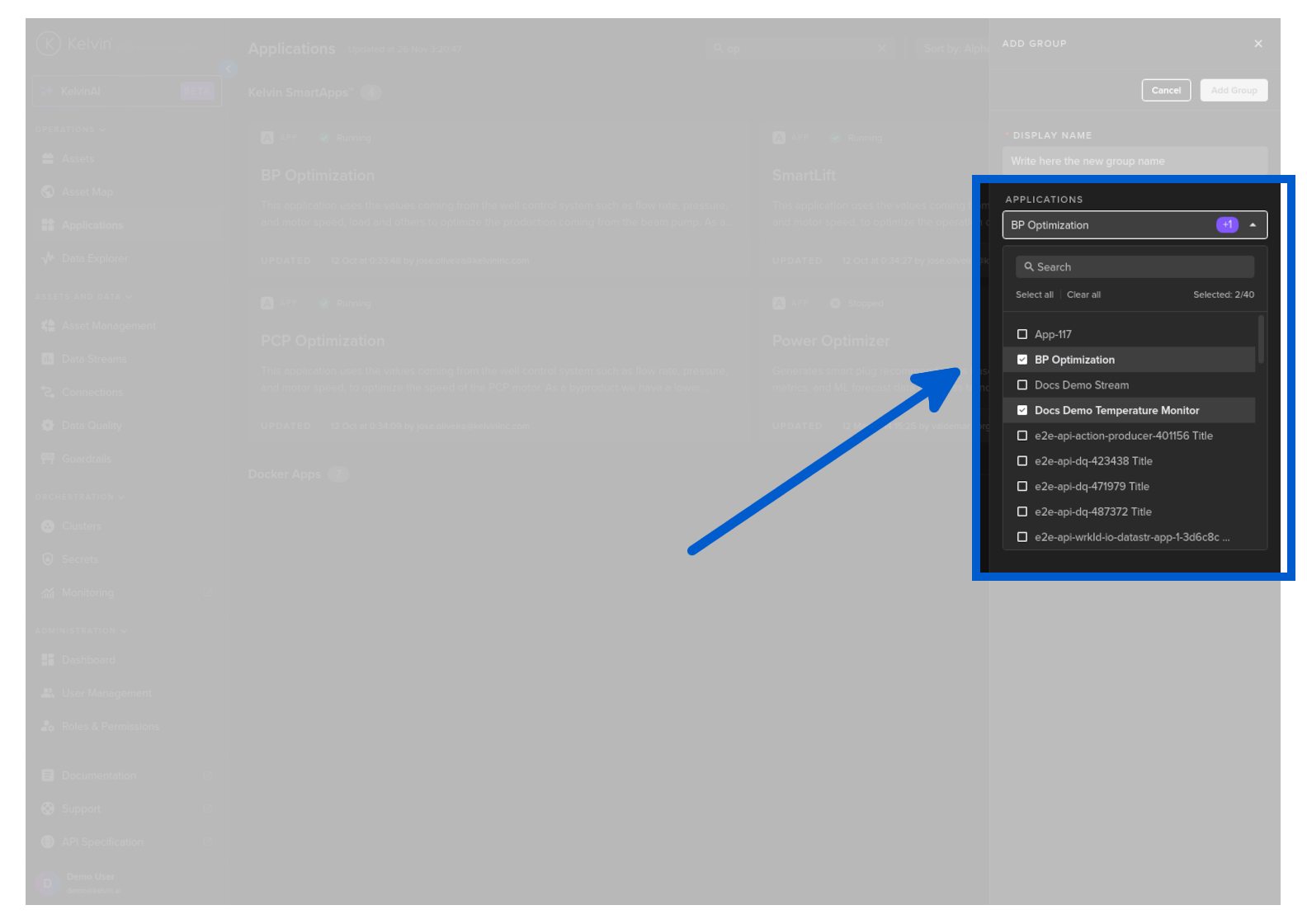
Give it a name and you can immediately populate it before clicking on the Add Group button.
Card
Each Application is represented by a card style information display.
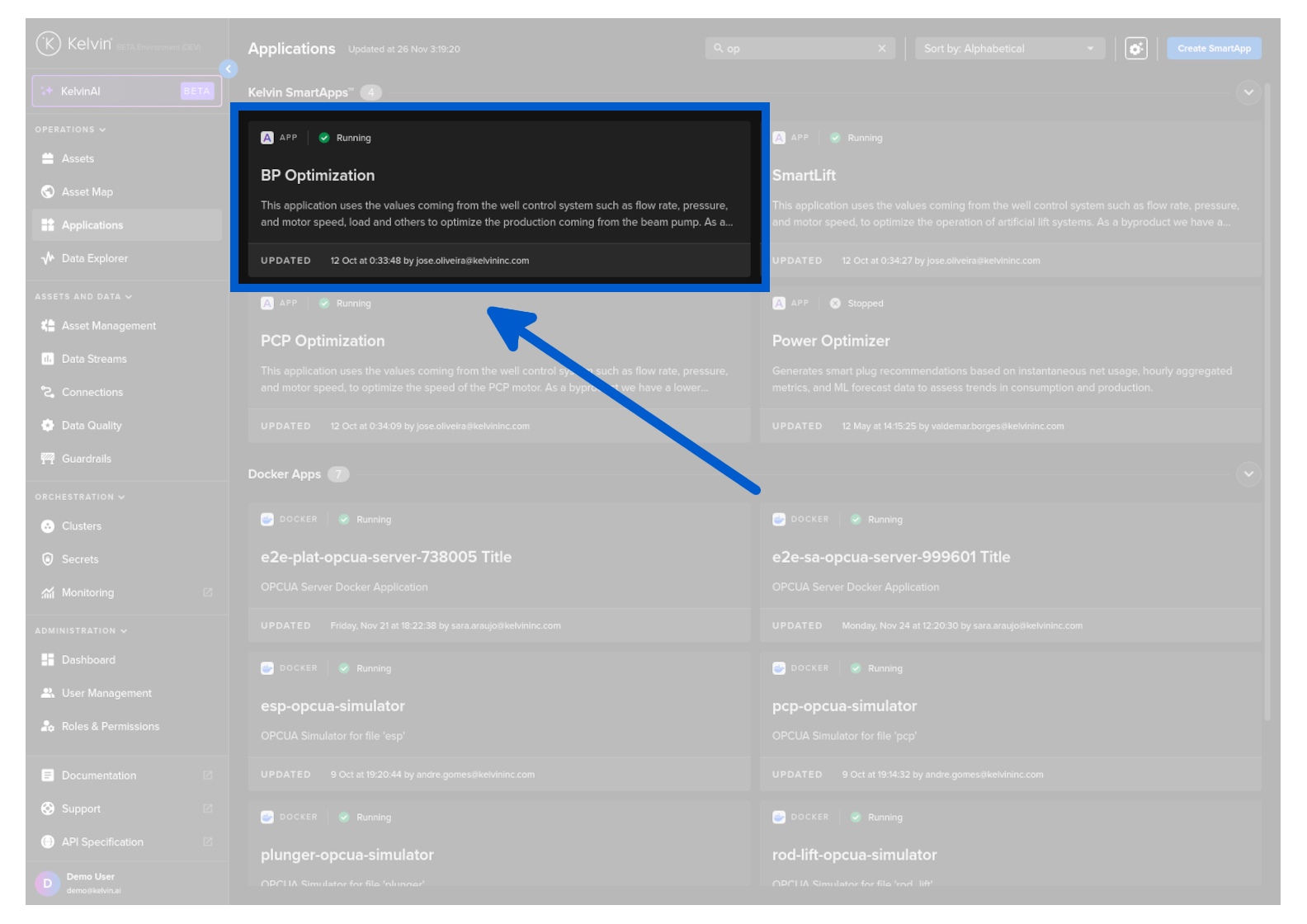
| Card Section | Description |
|---|---|
| Title / Name | This is the title and the name of the Application in the App Registry. You can click on this to go into Applications details page related to this Application. |
| Status | This will tell you the overall status of all Workloads deployed under Applications procedure. If any need attention, this will turn red and alert the user that attention is required. |
| Running On | This will tell you how many Assets have been deployed using Applications method and associated with the Application. |
| Last Update | This will show you the date of the last action taken on Applications, whether that be a new deploy, an update to an existing deploy or an undeploy of an Asset. |
You have a few basic options to customize your view of Applications cards.
You can also sort Applications.
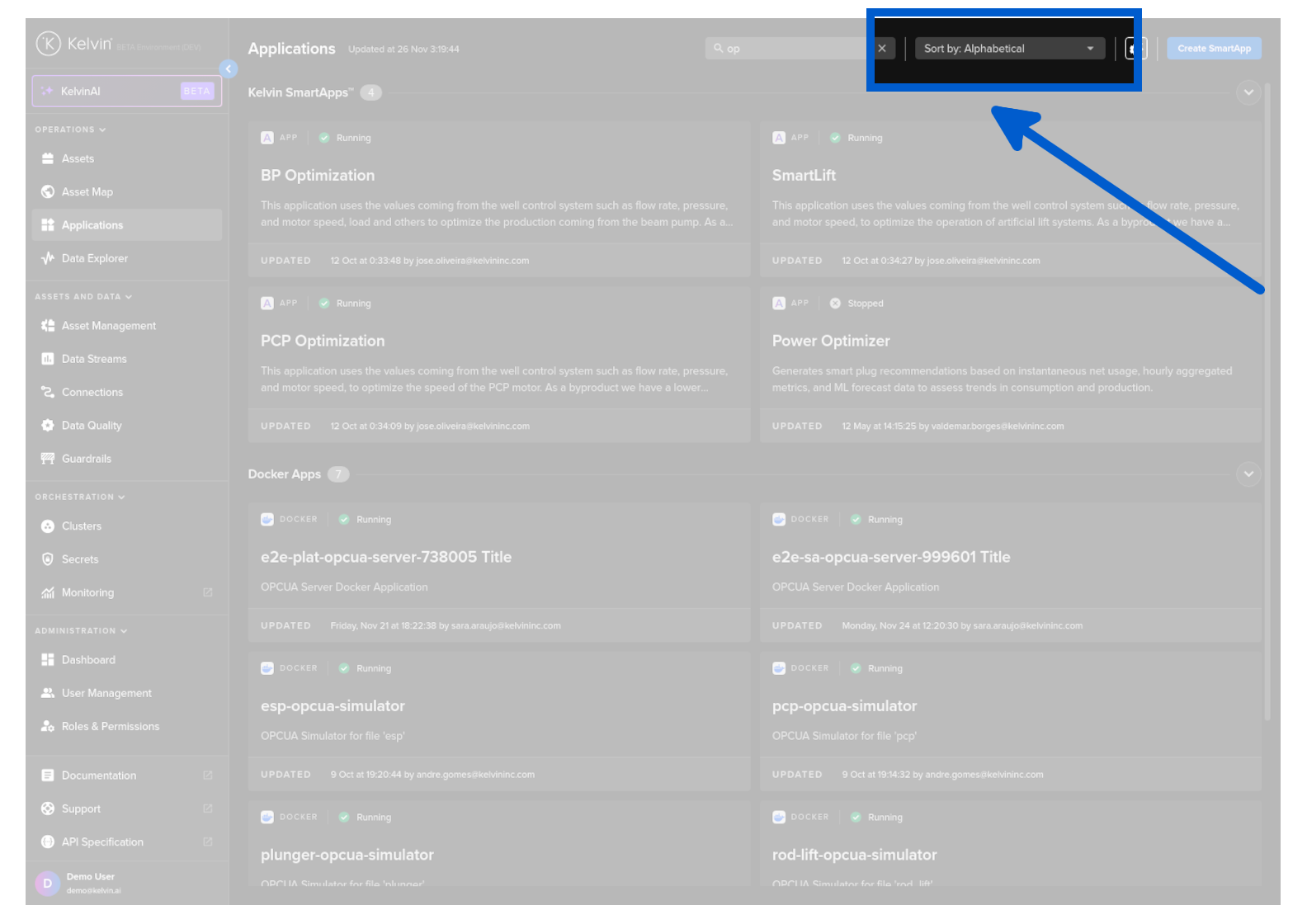
| Sort Option | Description |
|---|---|
| Status - Requiring attention first | This will put all Applications that have any reported issues at the top. |
| Last updated first | This will put Applications that have been created or updated in any way at the top. |
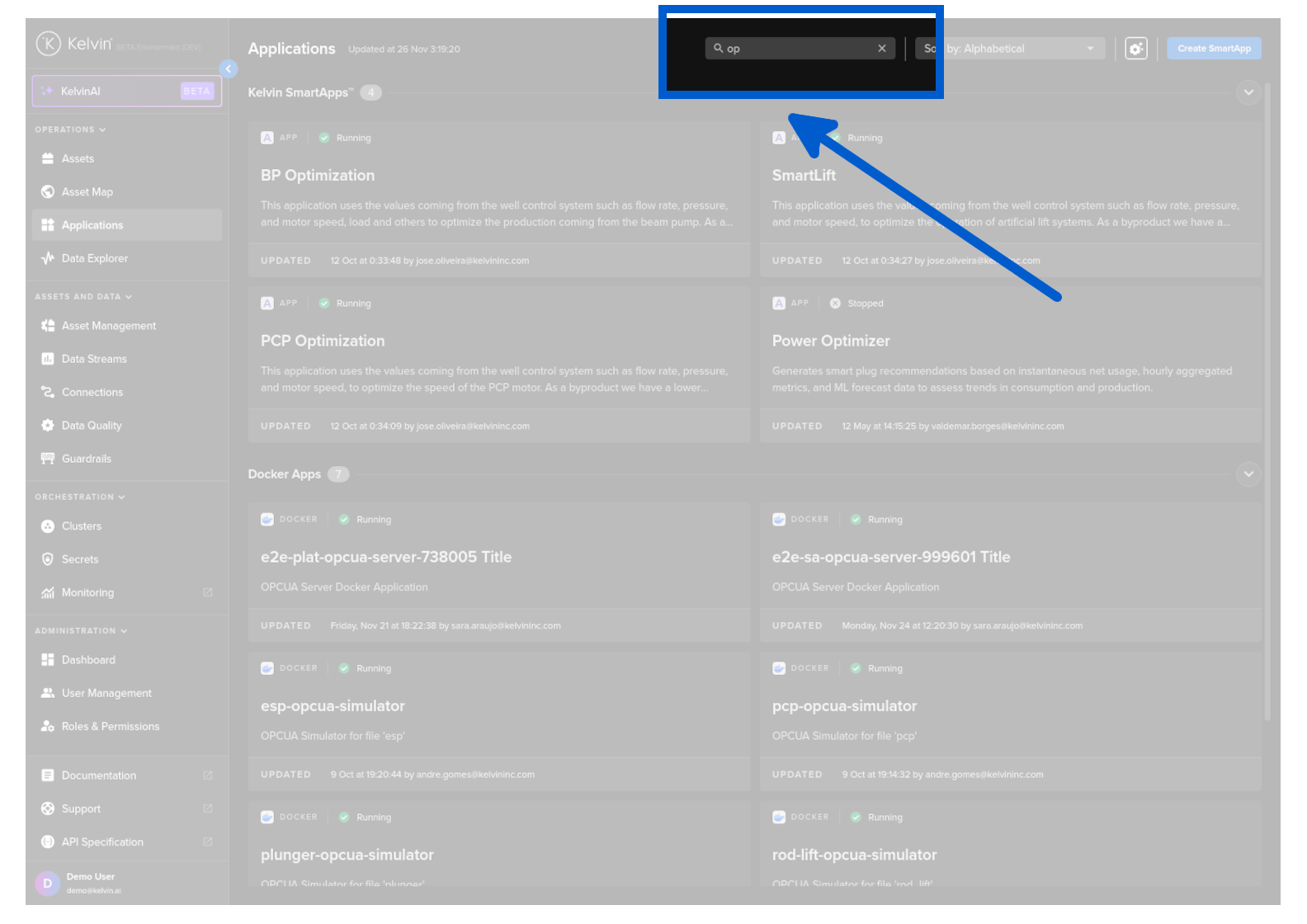
When dealing with large quantities of Applications, you can search for Applications of interest.
This is dynamic and will update the list as you type.
The search feature is not case-sensitive and will search for any matches anywhere in Applications name, i.e. it does not have to be at the beginning of the name.