Provision a K3S - How to
On this page you will learn how to setup an edge system with K3S using the cluster installation tools in the Kelvin UI.
If you want Kelvin to install the Kubernetes cluster directly and handle all the management of the cluster, you can choose the K3S option.
For this option you only need to have Ubuntu Server to start the installation process.
This is an effortless, all-encompassing solution for clients indifferent to the Kubernetes flavor used and want to only focus on simplicity and minimal management requirements.
For all other options, you will need to install and manage the Kubernetes cluster yourself. Kelvin will only install and maintain the Kelvin-specific management pods on the existing Kubernetes cluster.
K3S

K3s is a lightweight, fully compliant Kubernetes distribution that includes a range of features such as local storage provider, service load balancer, Helm and Traefik ingress controllers.
K3s is wrapped in a simple launcher, making it secure by default and easy to operate in lightweight environments.
It requires only a modern kernel and cgroup mounts as external dependencies, and all Kubernetes control plane components are encapsulated in a single binary, enabling K3s to automate complex cluster operations. It also packages required dependencies such as containerd, Flannel, CoreDNS, and host utilities.
Requirements
Before running the Kelvin provision script, we advise you read the edge setup requirements documentation here.
Installation
The installation process is very simple and you can have your new Kelvin Cluster cluster up and running within ten minutes depending on your internet speed.
Install OS
To start you need to install a compatible operating system onto your computer/server.
We recommend using Ubuntu Server version 20.04 or newer. We also strongly advise that you use only long term support versions of Ubuntu server which are released in April every two years. and has security support for 5 years minimum with options to extend it up to ten years with an ESM contract.
At a minimum you only need to install a command line server without a graphic user interface.
You can download Ubuntu Server here.
Install Cluster
This will install Kubernetes and setup the Main Node into a one Node cluster and register the Cluster with the Kelvin Cloud.
After the Cluster has been successfully setup, you can then add additional Nodes to the Cluster.
Let's dive in and show you how fast and easy the setup can be by first logging into the Kelvin Platform and going step by through the process.
1. Register Cluster in the Cloud
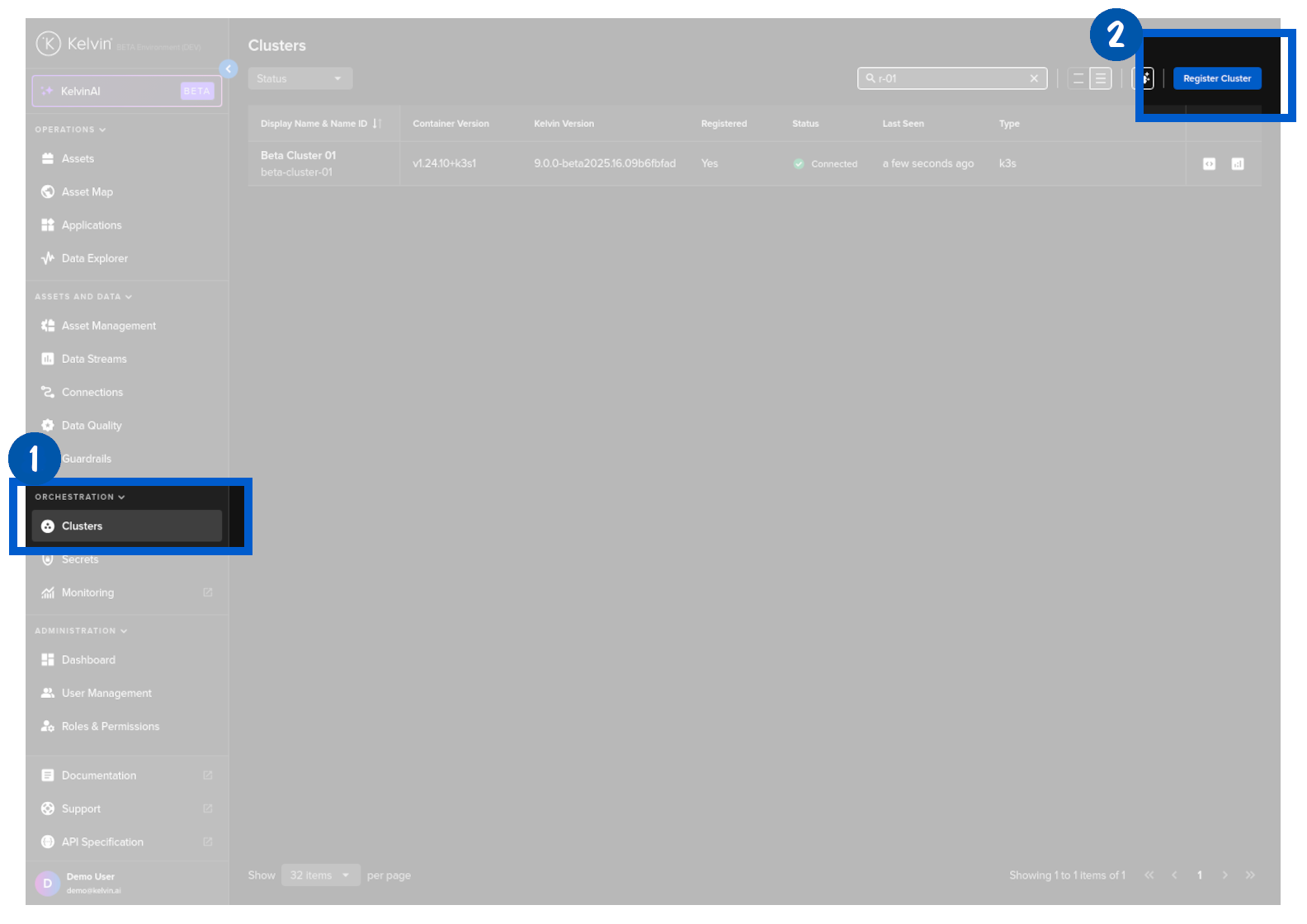
In the Kelvin UI, first head over to the Clusters section under orchestration and click on the register cluster button.
In the popup, you will see three cluster options to choose from.
Note
Advanced users can select the kubernetes option if you want to use your own cluster setup. This can also be used on clusters that already are in operation.
Some versions of Kelvin only allow the basic Docker environment create option.
For this tutorial we will select the K3S option. With this option, no cluster knowledge is required as Kelvin will handle the installation and ongoing maintenance transparently.
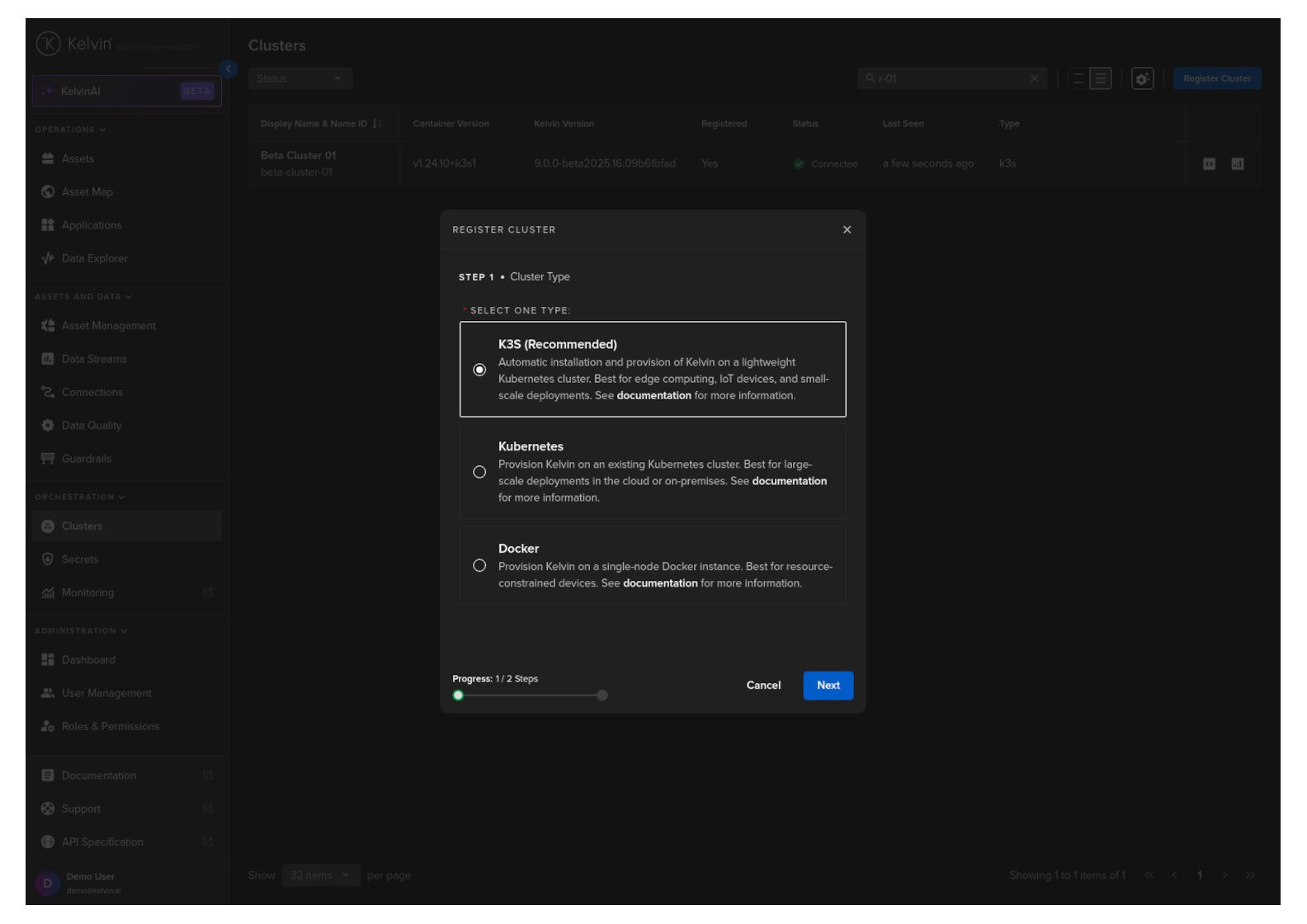
Then click on the Next button.
In step two, assign the new cluster a recognizable display name. The name id will be automatically created from your display name. It can usually be left unchanged.
Note
The Name ID will be created automatically when you create a Display Name. Normally this default name is satisfactory but you do have the option to customize it if you want.
| Display Name | This can be any characters and spaces that gives your cluster a memorable name for reference |
| Name ID | A unique lower-case alphanumeric name which uniquely identifies this cluster. This will be automatically filled in when you type the Display Name. Normally you do not need to change unless the Name ID clashes with another cluster's Name ID. |
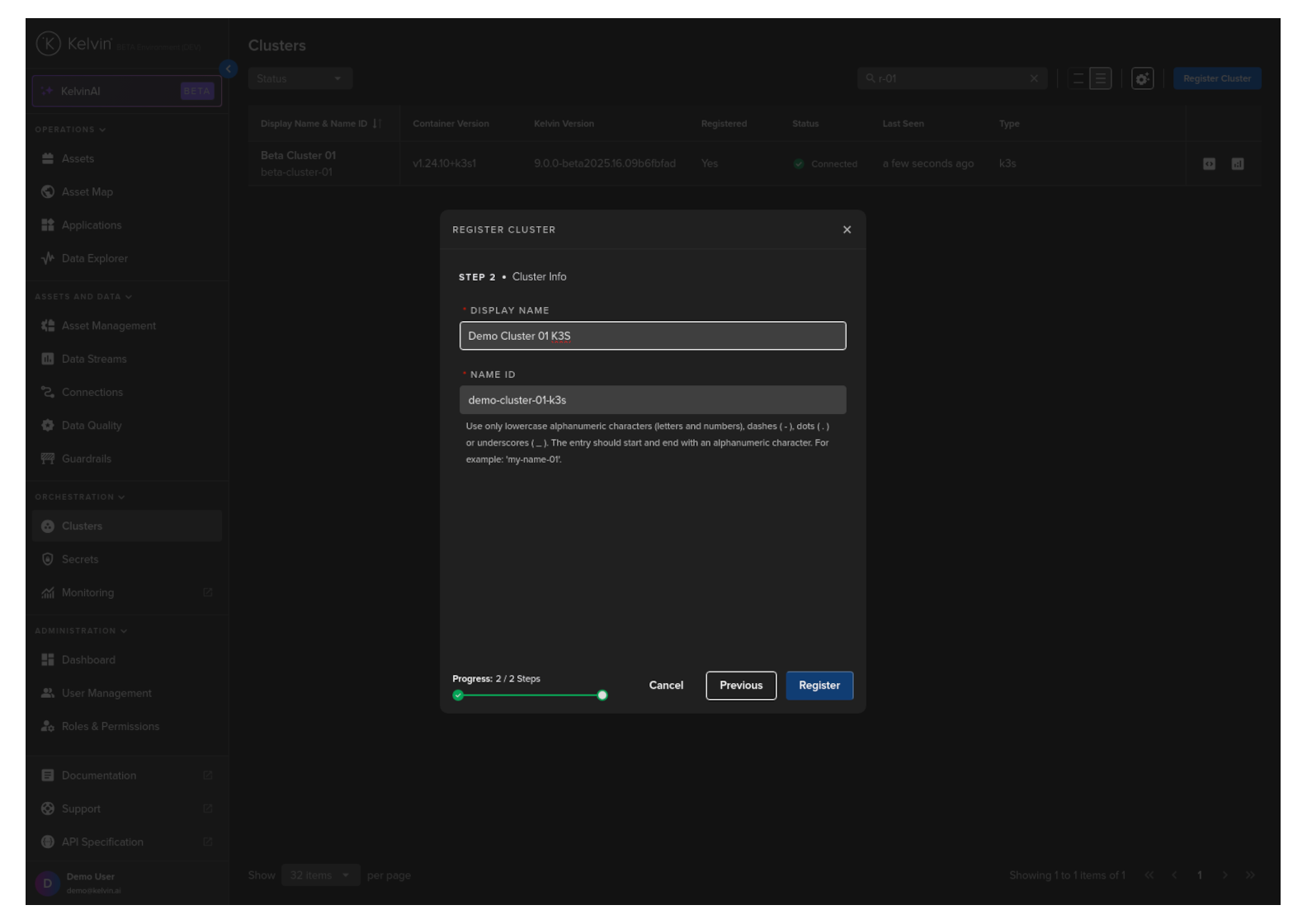
Click Register.
You will then be provided with a script that needs to be executed on the edge system.
If you are using SSH to manage the edge system remotely, copy this script to your clipboard.
If you're accessing the edge system directly, note down the script.
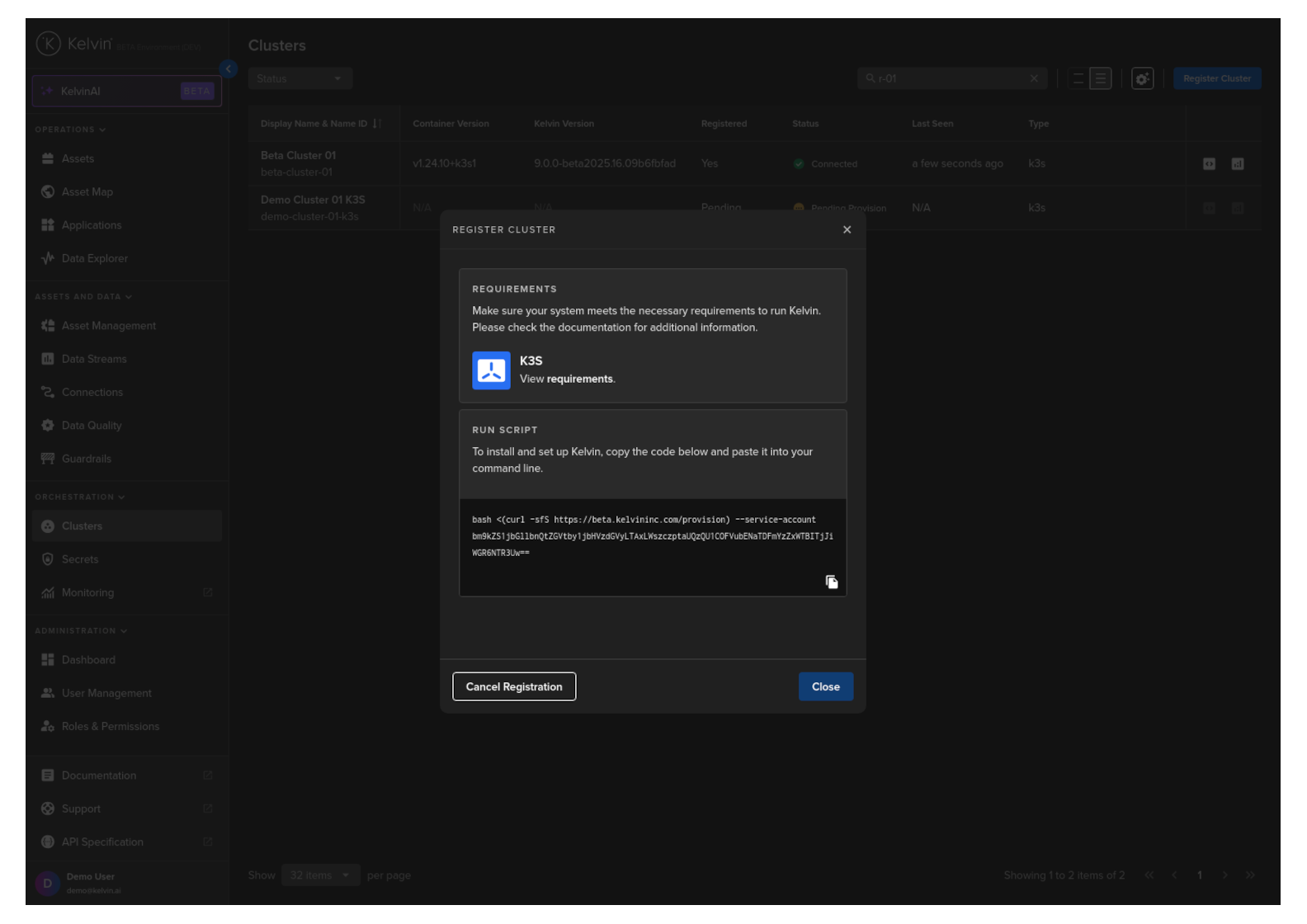
Next click the Close button. The cluster is now registered in the Cloud and you can see it is pending registration.
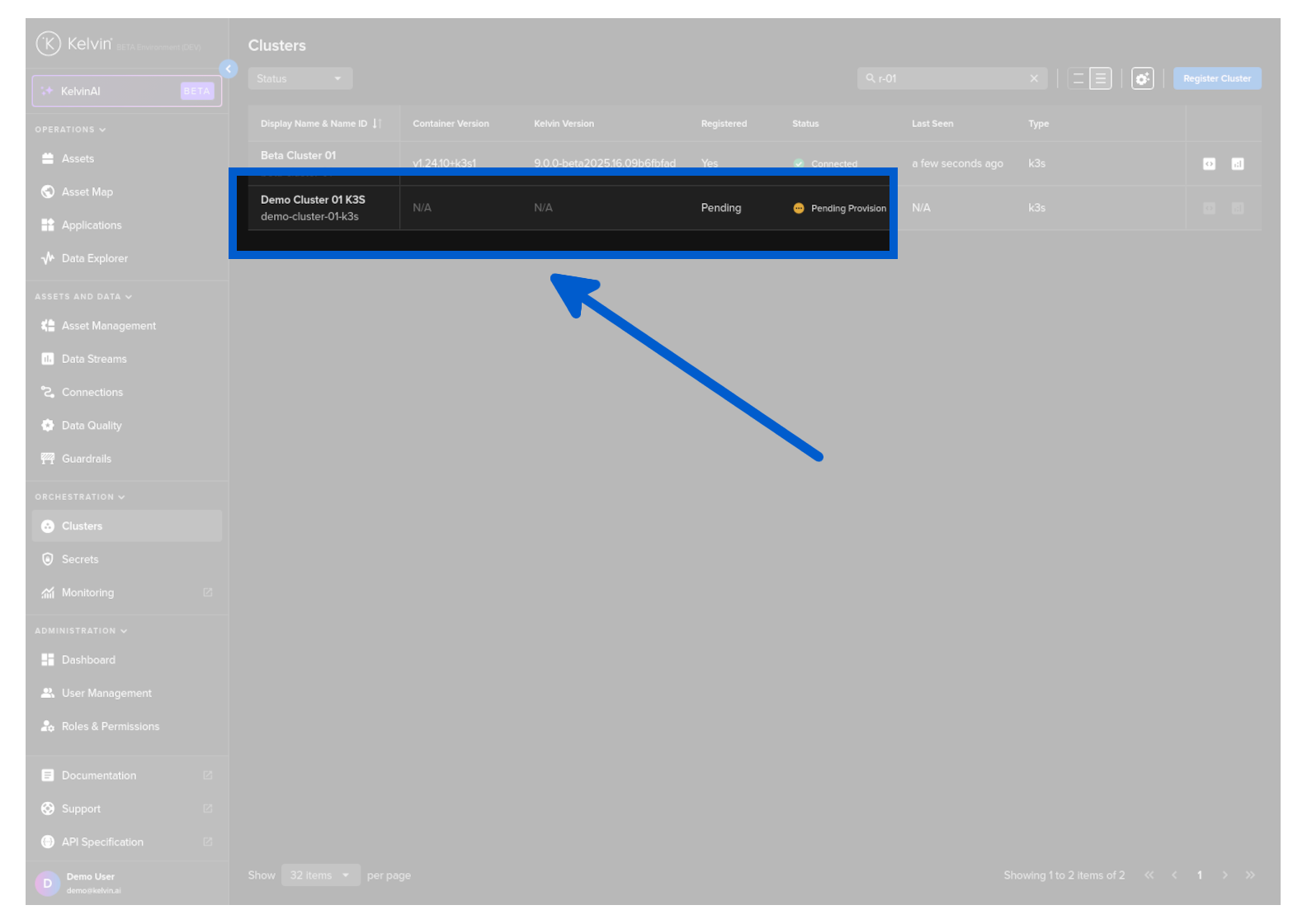
2. Install Cluster on the Edge System
In the terminal of the edge system, you can enter the script provided earlier.
The screenshots here are a representative reference and do not represent the exact example here.
Since we have SSH'd into the edge system we can simply paste the script from the clipboard.
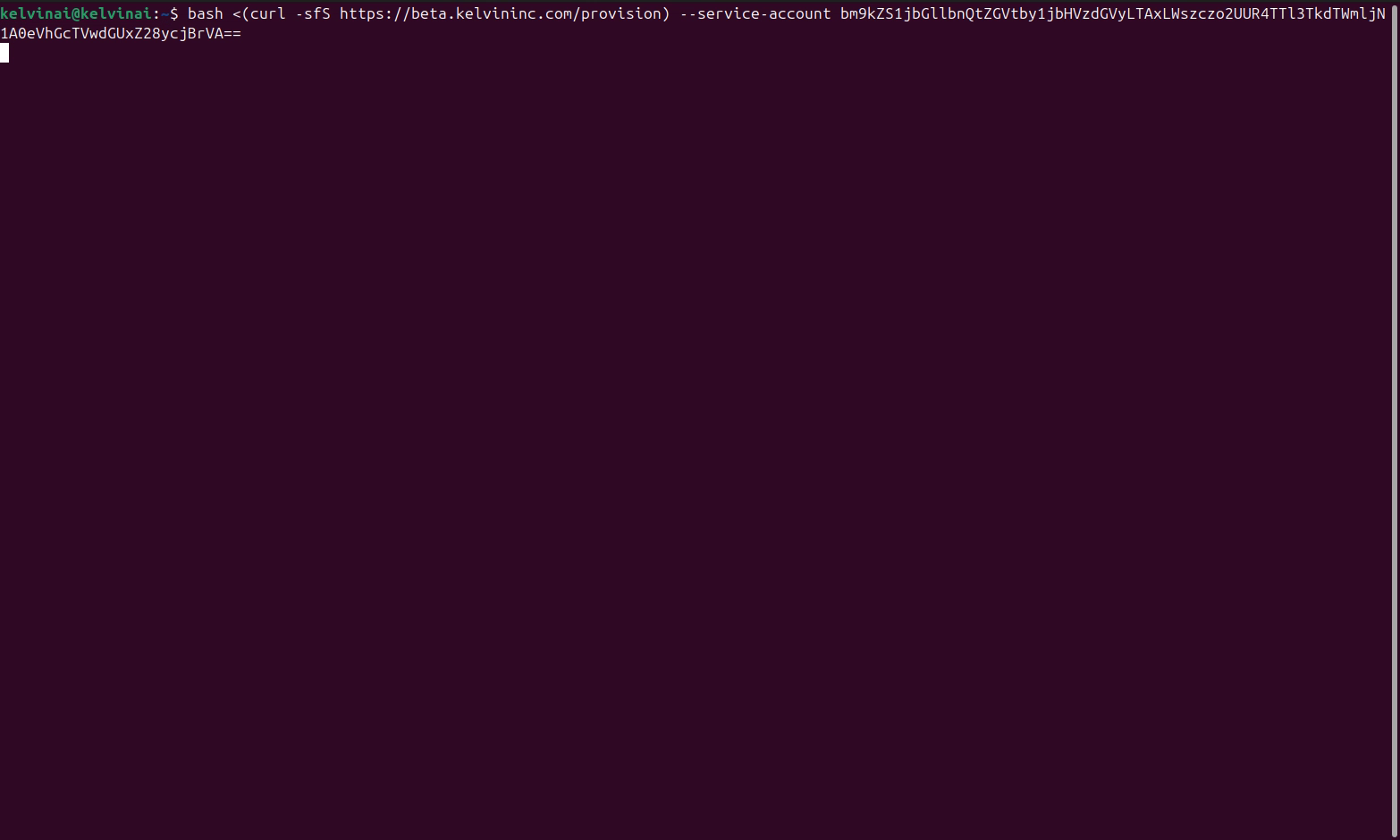
Next, enter the edge computer's password to gain sudo rights. Note that this is not your Kelvin Platform password.
The rest of the process, including installing the cluster and connecting it to the Kelvin platform, is fully automated. Sit back and enjoy a cup of coffee. It should only take about a minute, so we'll skip ahead.
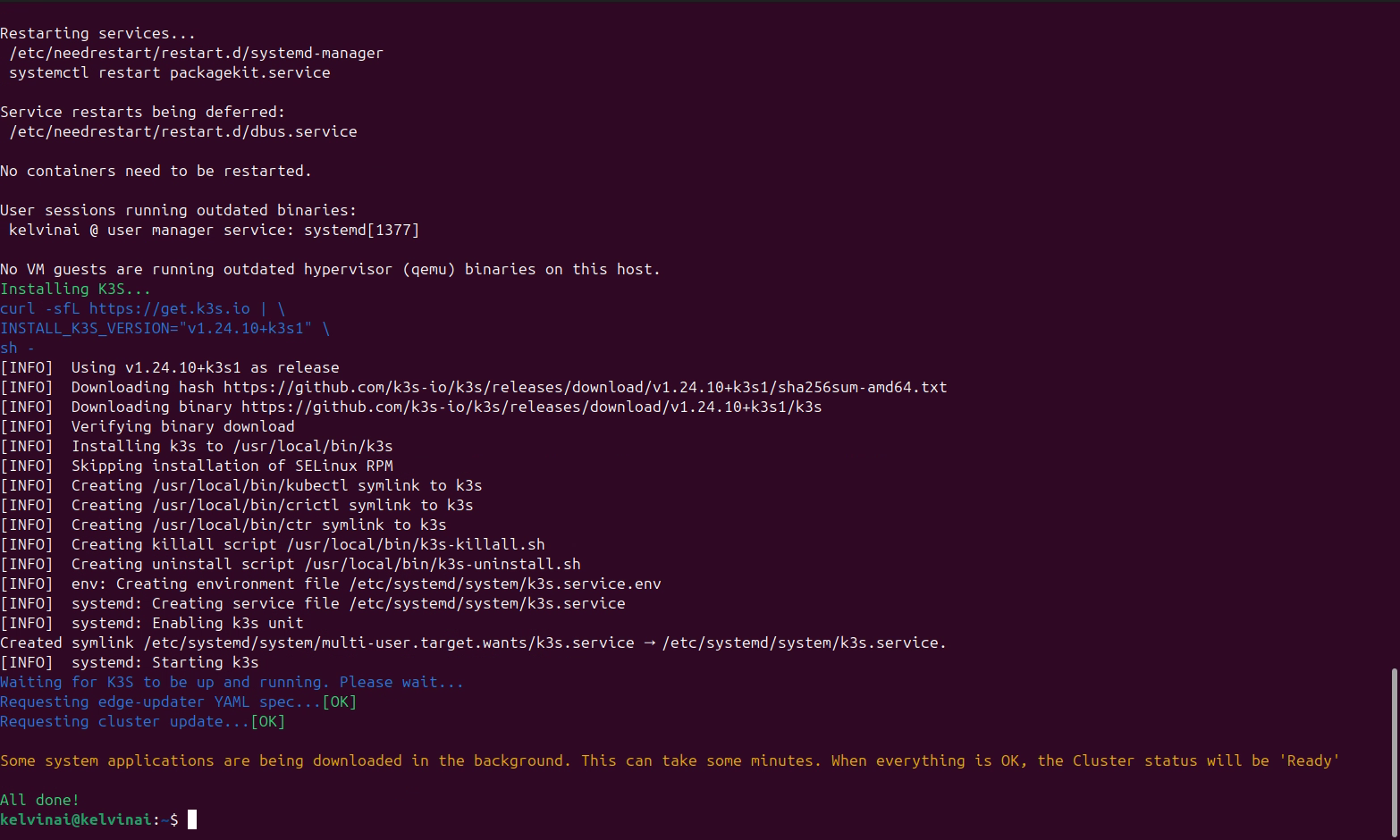
Once completed, you can go back to the Kelvin UI and see the cluster changing status from orange Pending to green Running.
Warning
In the next two screenshots, these show you how the Cluster information will look like in the UI, though the names are not related to the Cluster we have created in this Quick Start guide.
You can also see the status of the Nodes (Connected/Unreachable) by clicking on the cluster and going to the Nodes tab:
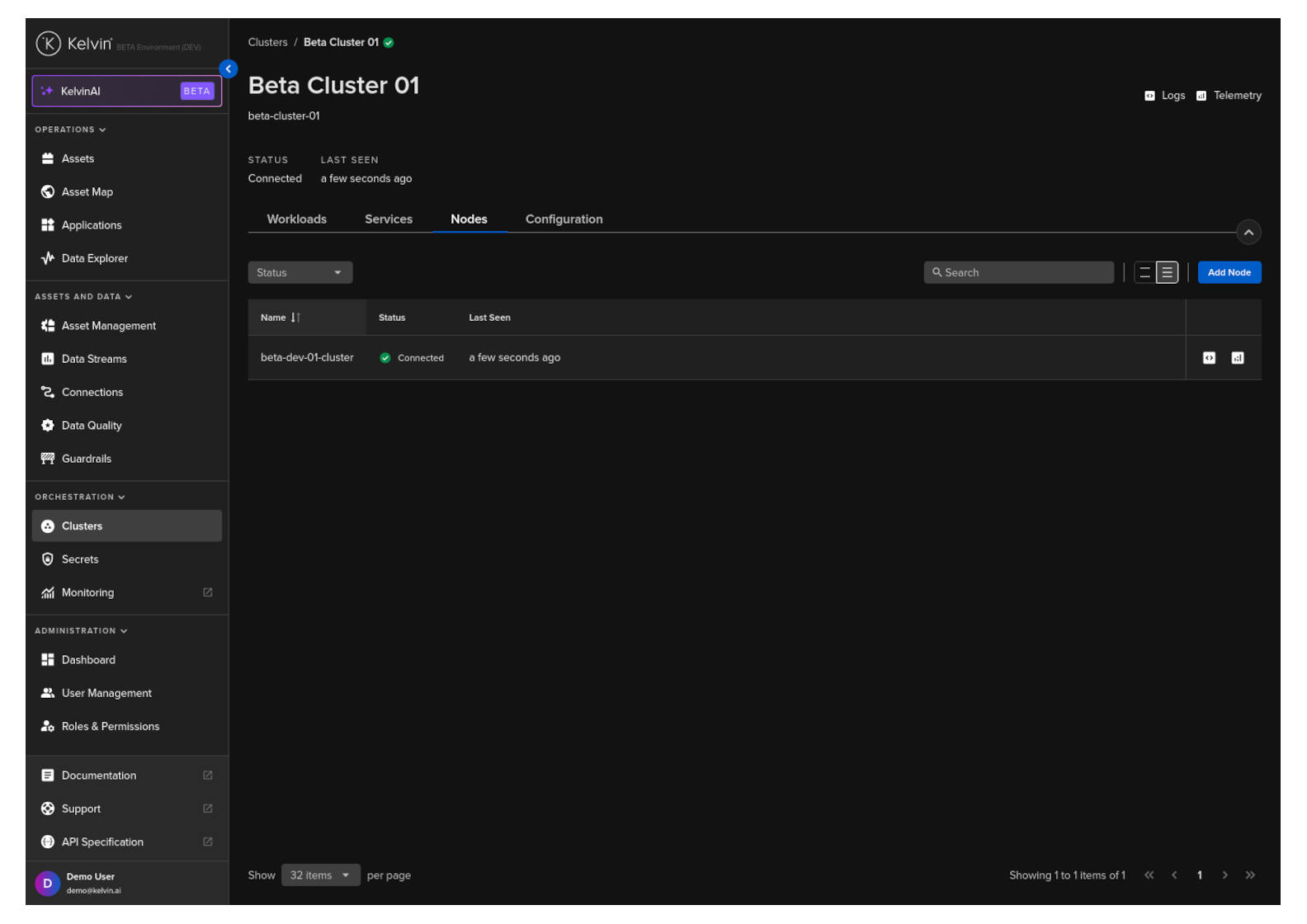
Congratulations, you have setup your first edge cluster. Now, let's stop the clock.
| API cURL Example | |
|---|---|
The response will look something like this;
Use the value from the key provision_script which will look something like this;
| Provision Script to Install on Edge Device | |
|---|---|
Copy and type this into the Ubuntu server terminal. The whole setup procedure is then setup automatically.
Optionally you can ignore the --service-account parameter. When the installation is started you will be asked to give your username and password and the name of the Cluster to install.
| Provision Script to Install on Edge Device | |
|---|---|
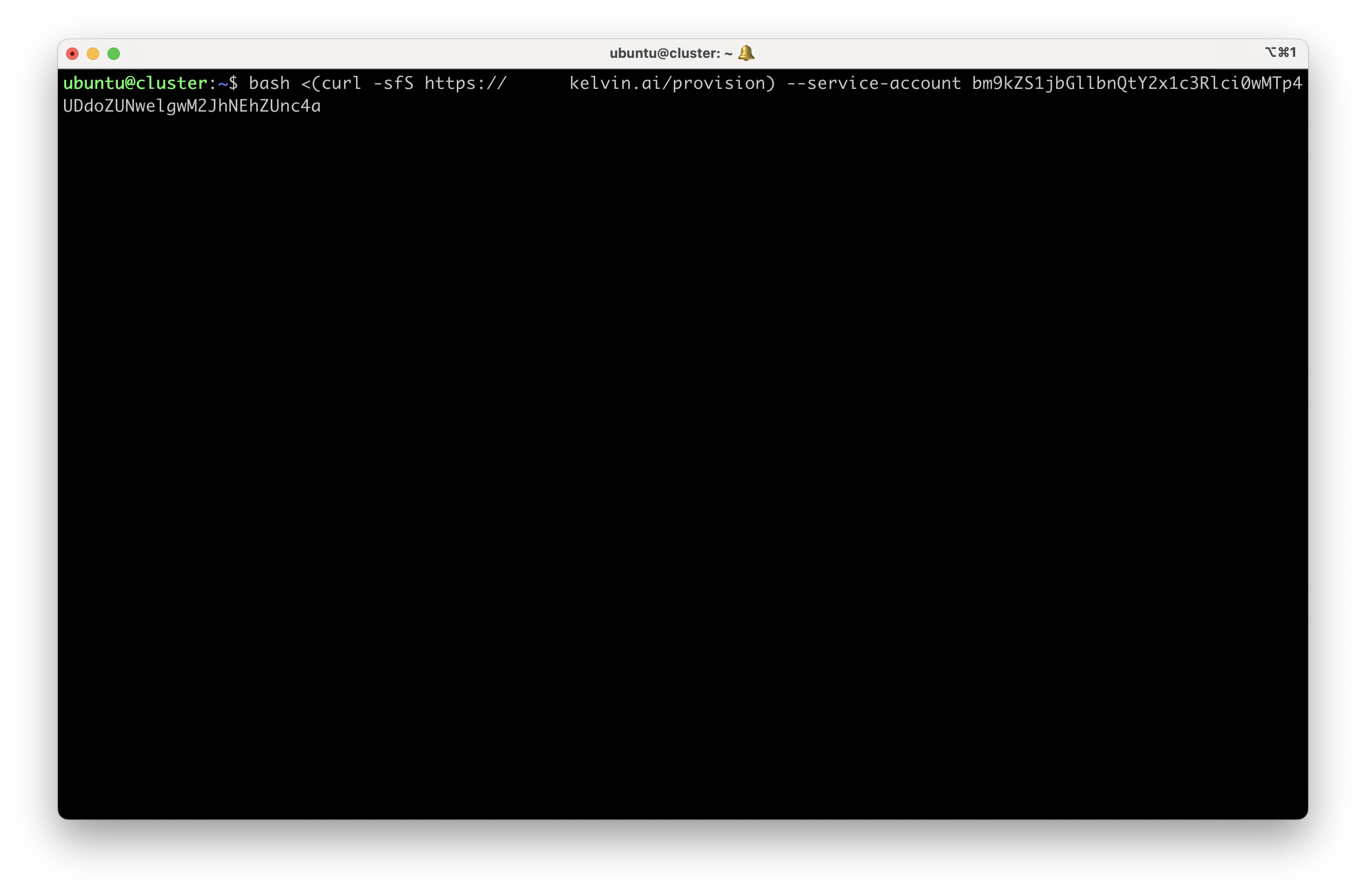
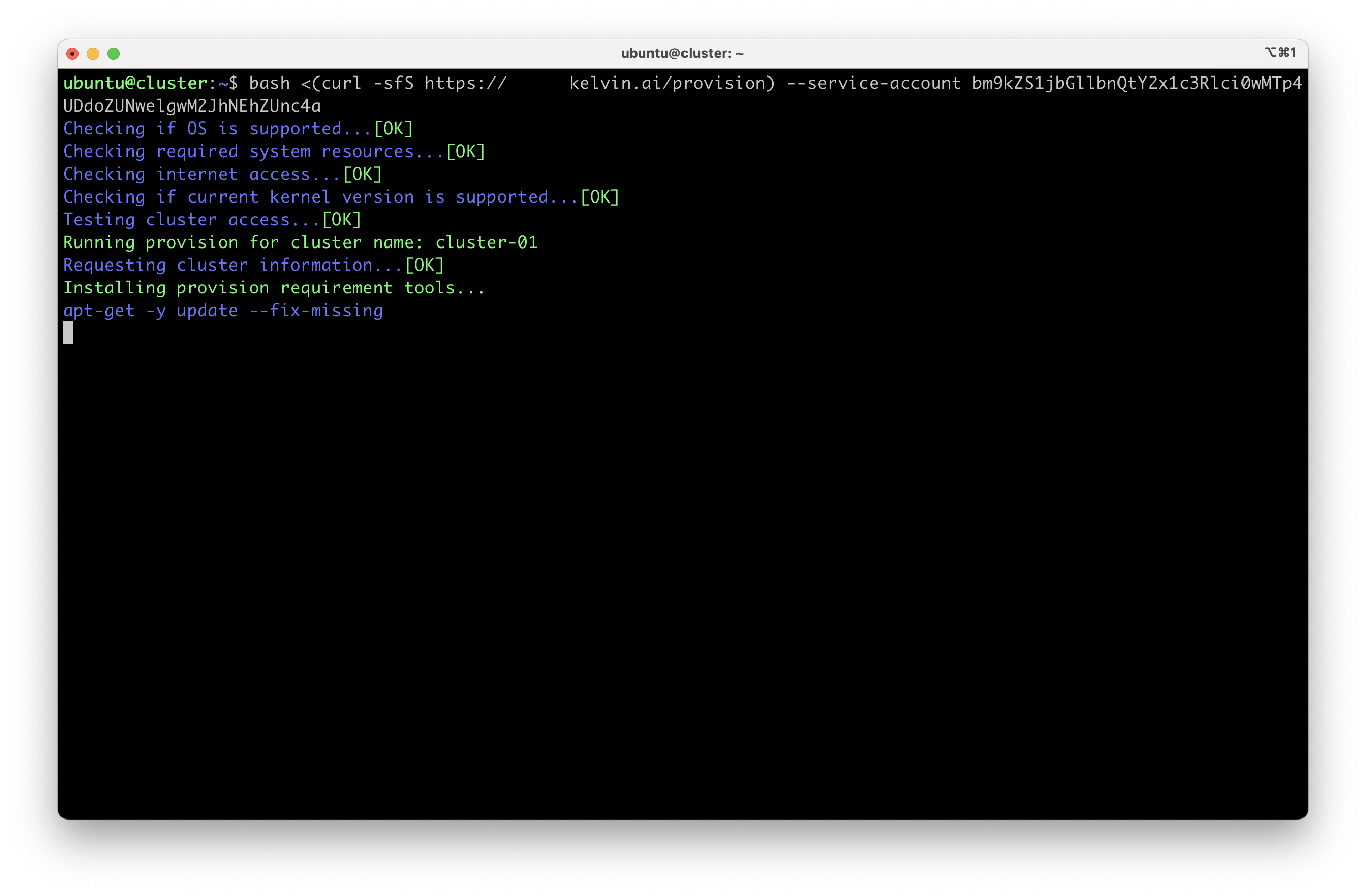
Wait a couple of minutes for the script to finish.
When the script finishes, you will see the following output:
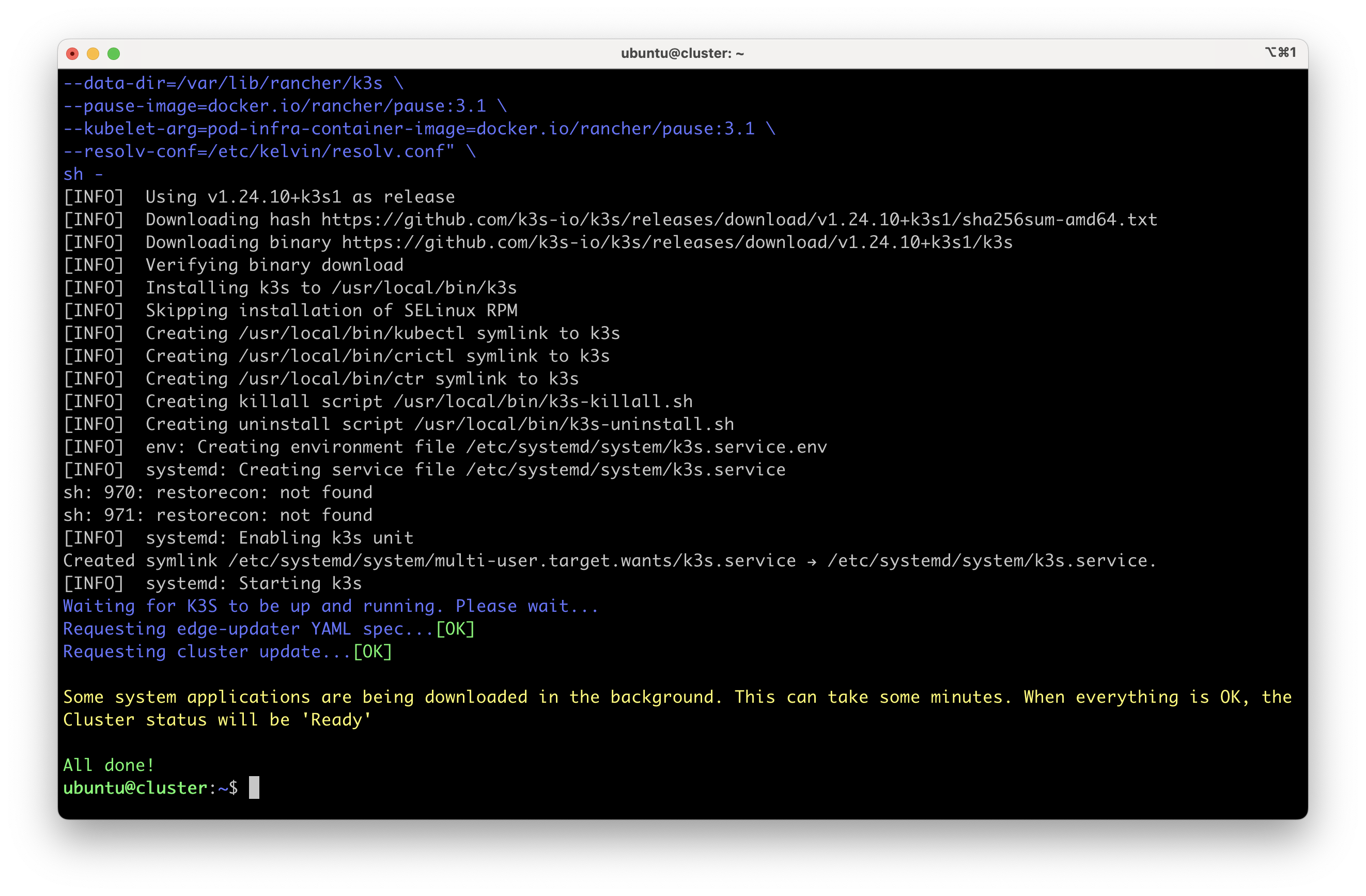
Congratulations, after a few minutes depending on your Internet speed your new cluster is ready for use.
You will see an output like this;
| API Client (Python) Example Response | |
|---|---|
Copy and type the provision script into the Ubuntu server terminal of your edge computer. The whole K3s setup procedure is then installed and configured automatically.
Optionally you can ignore the --service-account parameter. When the installation is started you will be asked to give your username and password and the name of the Cluster to install.
| Provision Script to Install on Edge Device | |
|---|---|
Wait a couple of minutes for the script to finish.
When the script finishes, you will see the following output:
Congratulations, after a few minutes depending on your Internet speed your new cluster is ready for use.