Manage Asset States
On this page you will learn how to configure the Asset State for an Asset Type in the Kelvin UI.
Asset State is a special column in the Assets Overview page that shows the health of an Asset based on the current value of a monitored Data Stream. It displays a colored LED indicator -- red, orange, or green -- whose color is determined by simple mathematical conditions you define here.
Warning
Asset State is not related to data quality or guardrails. It is a visual health indicator driven solely by the conditions you configure for each Asset Type.
Each Asset Type can monitor a single Data Stream and apply conditions to determine which LED color to display. You can also give each color state a custom label to make the meaning clear to Operations Engineers viewing the Assets Overview page.
Manage Asset States
To manage the Asset State for an Asset Type, you must first have the Asset Type created. See Create Asset Type for details.
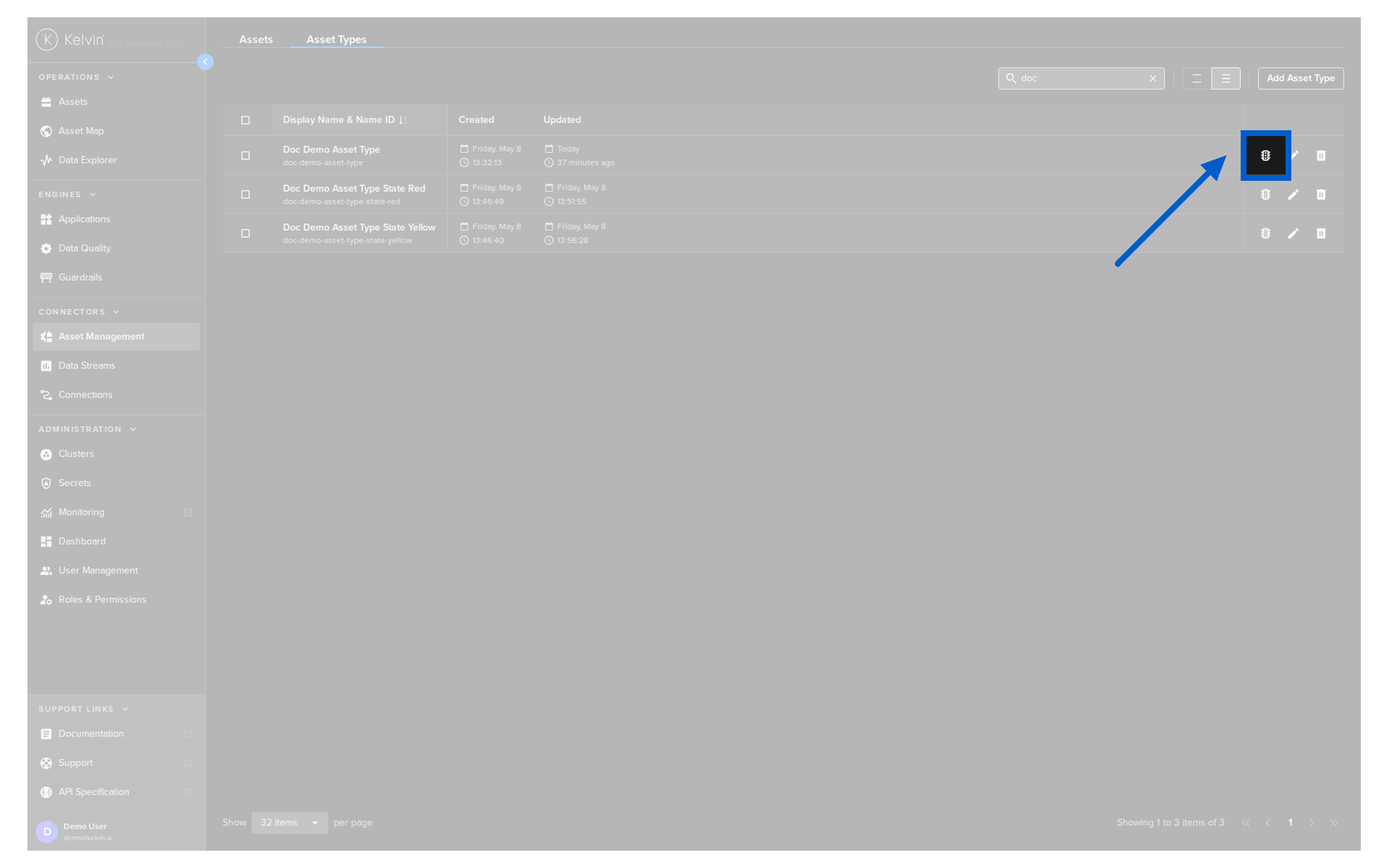
Once the Asset Type exists, click on the Asset State icon for the relevant Asset Type.
You will see all your configuration options here.
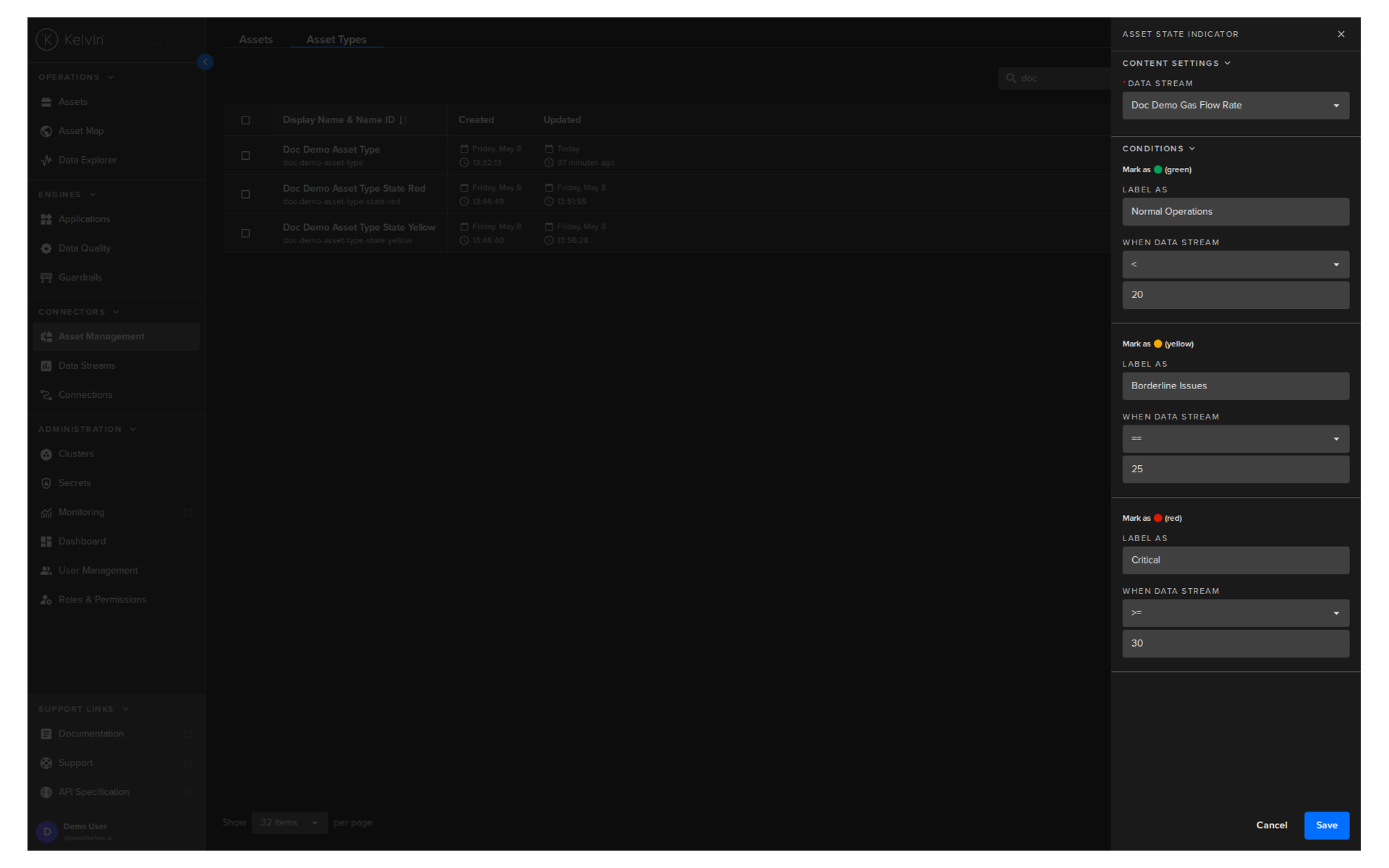
Here you can select the Data Stream to monitor and define the conditions for each of the three LED indicator states:
- 🔴 Red -- the critical condition. Define the mathematical condition (e.g.
>,<,>=,<=,=) and threshold value that triggers the red indicator. - 🟠 Orange -- the warning condition. Define the condition and threshold that triggers the orange indicator.
- 🟢 Green -- the healthy condition. Define the condition and threshold that triggers the green indicator.
For each state you also have the option to provide a custom label. This label is displayed alongside the LED indicator in the Asset State column when the display mode is set to show labels.
Info
If the current Data Stream value does not match any of the defined conditions, the Asset State column will be left blank for that Asset.